exchange server
2602 TopicsOAB download fails after hybrid mailbox move.
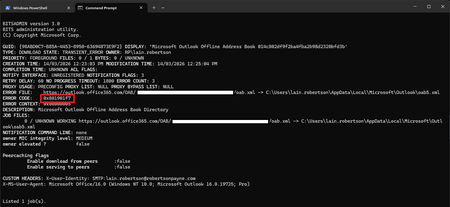
Hi folks, I'm posting this query here as I doubt anyone in the Outlook forums would have the necessary Exchange hybrid knowledge. I run a classic hybrid Exchange environment where Exchange Server 2019 CU15 is the on-premise platform. Authentication is provided by on-premise AD FS, with the accounts being synchronised from on-premise via AAD Connect. I've just moved my on-premise mailbox to Exchange Online via New-MoveRequest and for the most part, everything is fine. One thing that possibly isn't fine - going off the Bits-Client event log is the regular offline address book downloads, where I'm seeing regular failures in the event log and through double-checking with bitsadmin.exe. The initial address book synchronisation worked as the view in Outlook is fully populated, however, I expect that future changes likely won't come through. bitsadmin output Event log output (There's numerous events to choose from - this is the one I'm most curious about.) The BITS service provided job credentials in response to the UNIDENTIFIED authentication challenge from the outlook.office365.com server for the Microsoft Outlook Offline Address Book <guid> transfer job that is associated with the following URL: /OAB/<guid>/oab.xml. The credentials for the <sid> user were rejected. When the mailbox was on-premise, the OAB came from the Exchange Server - no surprise there, where post migration it can be seen from the bitsadmin output it now comes from outlook.office365.com. Perhaps that's also to be expected - I don't know, but it makes sense given the move. What alerted me to there potentially being an issue is the systray icon frequently gets stuck on the "synchronising" icon, and running a manual full OAB sync from within Outlook fails to complete. After an extended "hang" period, the sync window eventually times out with the error shown above (the protracted UI behaviour would appear to be due to the large number of retries). Dropping the BITS job URL into Edge simply returns a HTTP 503, which doesn't necessarily strike me as a problem. After all, I'm unable to provide a BEARER token using this method. I haven't yet tried via PowerShell as it only occurred to me now but perhaps I'll do so after posting this. Searching on this error and scenario has turned up nothing useful. I have also checked and compared event log entries from an Azure AD-native account, where it's a mixed bag of successful OAB BITS downloads and unsuccessful ones that feature the same symptoms as above, which offers up the possibility this might be a transient service-side error (though I'm not leaning heavily towards this). Has anyone else encountered this issue and resolved it? Is it even an issue to begin with, or is this expected behaviour? I'm unsure what to make of the symptoms. Cheers, LainSolved147Views0likes2CommentsHTTP Response Headers Hardening for Exchange 2019 on Windows Server 2022
Category: Security Hardening Issue: Currently, Exchange 2019 running on Windows Server 2022 does not have strict HTTP response headers configured, leaving it potentially vulnerable to security threats such as MIME type sniffing, clickjacking, and cross-site scripting (XSS) attacks. Objective: Harden the security of Exchange 2019 web services by enabling the following HTTP response headers: X-Content-Type-Options: Prevents MIME type sniffing by forcing browsers to respect declared content types. X-Frame-Options: Prevents embedding of Exchange web pages in iframes to mitigate clickjacking attacks. X-XSS-Protection or Content-Security-Policy (CSP): Protects against reflected XSS attacks (X-XSS-Protection is deprecated, CSP is preferred). I have found this article; can anyone tell me if it applies to Exchange 2019 as well? HTTP Security Headers - Icewolf Blog Thank you1.4KViews0likes3Comments
Can we hide default address lists in Outlook Address Book and show only custom ones?
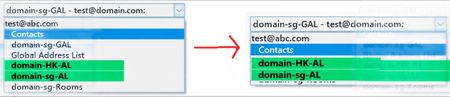
There are existing Custom Address Lists. When users use the MS Outlook App (Office 2019) and open the Address Book, is it possible to hide the other address lists (including domain-sg-GAL, Global Address List, and domain-sg-Rooms), and only display the Custom Address Lists (domain-HK-AL and domain-sg-AL) — the ones shown in green in the photo?36Views0likes0Comments
Issue with certificate renewal for exchange Edge Transport Server
Hello team, I have come across a very particular problem I deployed 2 exchange server 2019 with one edge transport server When we are renewing the Certificates with wildcard certificate on both mailbox server ,and on edge transport server ,it is impossible for me to renew the edge subscription It says the cerificate is in "doublon" (repetitive) on one of the Exchange servers.I have always been using same certificate on exchange server be it edge or mailbox I tested a bogus different certificate on mailbox and on edge,only then th e edge sync works Did anybody come across this issue. Thanks39Views0likes0CommentsExchange database dismounted due to NTFS file extent limit reached – unexpected outage
Hi everyone, We experienced a serious outage on our Exchange 2016 server recently, and I wanted to share what we found during the root cause analysis – in case it helps someone else avoid the same scenario. Summary: After digging deep, we discovered that the issue was caused by the NTFS file system hitting its internal file extent limit on the .edb file. Once this threshold was reached, the database could no longer grow, and the system dismounted the database unexpectedly. No prior warning, just service interruption. Details: The .edb was around 1.2 TB in size. This isn’t a limit on database size itself — it’s about how fragmented the file is on disk. Once NTFS couldn’t track any more extents, the database stopped working. Microsoft doesn’t publish a clear fix for this; only scattered references to similar behavior in past cases. What we did: Created a fresh, clean database. Manually moved user mailboxes into the new DB. The old database couldn't be mounted anymore, so we brought the system live without historical mail – just to maintain continuity. We're now working on extracting data from the unmounted .edb using third-party tools. Looking for thoughts: Has anyone else hit the NTFS extent wall with Exchange? How do you monitor extent growth proactively? Did switching to ReFS solve this for you long-term? Open to any input or similar experiences – appreciate it in advance. Thanks!329Views1like4Comments
Dynamic Distribution Group with no Disabled Accounts
Hi I'm trying to build a few Dynamic Distribution Lists in Exchange Online and want to only include Active Users (i.e., users that are marked "Active" in Azure AD). I've tried using the UserAccountControl attribute (-eq 514 or -ne 514 - both are returning the same results, which is strange), but it still includes user accounts that are disabled. This is how my recipient filter looks like: RecipientType -eq 'UserMailbox' -and UserAccountControl -ne 514 What's the best way to achieve this in Exchange Online? Thanks Taranjeet Singh4.2KViews0likes9Comments
Exchange 2010 to Microsoft 365 Migration – Recommended Approach and Tools
I’m looking for guidance on migrating Exchange 2010 (on-premises) to Microsoft 365 / Office 365. Is a direct migration from Exchange 2010 supported, or is an intermediate hop (such as upgrading Exchange or setting up a hybrid configuration) required? Additionally, could you please recommend any reliable tools that can help with this migration? I also have a few PST files that need to be migrated as part of the process. I’d appreciate insights on best practices, common challenges, and lessons learned from real-world migrations. Thanks in advance for your help.243Views0likes3CommentsTeams delegation permission issue with Onpremise Exchange Server
we have migrated the exchange server from 2019 to SE Environment and configure the OAuth 2.0 which is working perfectly but there is one issue that one of the user is using Shared calendar but while he create the meeting invite along with Teams meeting option then everytime it shows an error "please login into the meeting" If anyone works on this case please guide or help us. Thanks154Views0likes2Comments
DMARC rejection after Exchange upgrade
I'm having problems with inbound emails getting bounced as Undeliverable due to DMARC rejection. For many years I've had my email come through Fasthosts / Livemail to my own domain (qts.org.uk) with catch-all forwarding set to forward everything to my GMail account. Just recently Fasthosts have upgraded their servers to Exchange and I've started getting DMARC rejections from GMail which start Diagnostic information for administrators: Generating server: exchange2019.livemail.co.uk Total retry attempts: 1 (my gmail email address) t1-hex-xprelay.gem.livemail.co.uk Remote Server returned '550 5.7.26 Message rejected by DMARC policy by gmail.com. Please use your own email address as the sender, instead of (sender's email address). [MSG0009]' Which bounce from Fasthosts / Livemail back to my GMail address. My own domain has SPF, DMARC, and DKIM configured I've done a little digging and it appears to only affect senders from originating domains with DMARC set to reject. So either GMail has coincidentally become much more strict (possible) or Fasthosts are somehow failing to forward emails fully transparently. I have spoken to Fasthosts and logged the issue with them and was not impressed so I hope the experts here can offer a solution I can forward to them.225Views0likes1CommentExchange 2019 Certificate Error
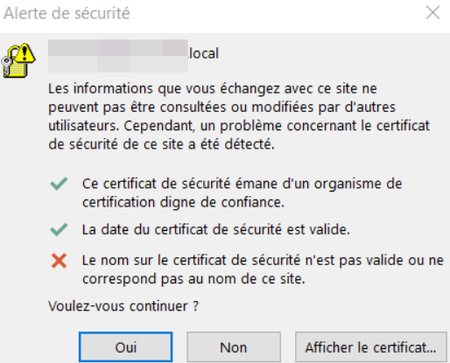
Hello guys, I plan to migrate my users on Exchange 2019, currently, i have 2 Exchange 2013 servers. As soon as i installed the exchange Server 2019, I changed all the virtual directories and i also runned the command to make sure the users doesn't connect on the new server. But now every users who uses Microsoft Outlook from the environment have a pop up that says that the certificate is not valid, and its normal because I can't apply the services SMTP and IIS on my wildcard certificate. Indeed, when i enable the services SMTP and IIS on my new certificate, it doesn't apply. I tried to enable from the ECP, it says "Are you sure you want to replace the existing certificate", when i say yes, it doesn't change anything, the smtp service is still unchecked. I also tried to stop IIS and restart IIS, restart the server but it doesn't changed anything, and I also tried to enable the services directly with the powershell command with the correct thumbprint of the wildcard certificate as it is said on the event viewer : "Enable-ExchangeCertificate -Server "EX01-2019" -Thumbprint A6BC992FDD... -Services SMTP,IMAP,IIS -Force" But it still don't work, when i check the certificate, only the service IIS is active. I had to uninstall completely the exchange server, because users were complaining about the pop up. Have anyone faced this problem before? Thank you very much for your advices guys192Views0likes3Comments