azure
7900 TopicsWhy to include Azure in your multi-cloud strategy
For software companies building on AWS, adding Azure isn’t just a technical decision—it’s a growth strategy. In this Marketplace blog, learn how replicating your solution to Azure can unlock access to Microsoft’s global seller network, enterprise customers, and commercial marketplace incentives that can reduce procurement friction and accelerate deal velocity. The article breaks down the business case, the role of Marketplace and co-sell, and the financial incentives available to partners—plus practical guidance on when and how to get started. Read the full article to understand why expanding to Azure is increasingly a go-to-market decision, not just an infrastructure one. Replicating solutions to Azure: The business case, the incentives, and how to get there fast | Microsoft Community Hub Learn more and join the April 2nd webinar for live Q&A Why Azure belongs in your multicloud strategy - Microsoft Marketplace CommunityReplicating solutions to Azure: The business case, the incentives, and how to get there fast
Johan Aussenac is CEO at WeTransact a Microsoft Certified Software company specializing in Microsoft Marketplace listing, co-sell activation, and cloud GTM strategy for software companies. ________________________________________________________________________________________________________________________________________________________________ When should Azure be part of your cloud strategy and what does Microsoft offer to help you get there? Most software development companies building on AWS did so for the right reasons. AWS is mature, well-documented, and has been the default for cloud-native companies for over a decade. This article is not an argument for abandoning that. It is an argument for asking a more strategic question: at what point does adding Azure to your infrastructure also open a fundamentally different commercial channel and what does it cost to get there? For a growing number of software companies the answer is clear. Azure is not just an alternative cloud. It is an entry point into Microsoft's commercial ecosystem: its seller network, its enterprise relationships, and a marketplace transacting billions of dollars of software annually. Understanding when and how to replicate your solution to Azure and add it to your strategy is increasingly a GTM decision, not just an infrastructure one. The business case: Why Azure belongs in a multi-cloud strategy Microsoft as a distribution channel When a software company lists in Microsoft Marketplace and enrolls in co-sell, Microsoft's own field sellers more than 25,000 globally, are incentivized to include that software company’s product in their customer conversations. This is not passive discoverability. It is an active sales motion, driven by a specific commercial mechanism. The mechanism is the Microsoft Azure Consumption Commitment (MACC). Large enterprises increasingly sign pre-committed cloud spend agreements with Microsoft. Software transacted through Microsoft Marketplace counts toward these commitments, which means enterprise procurement teams actively prefer Marketplace-listed solutions they help burn down an existing budget obligation. For software companies, this translates to reduced procurement friction and shorter sales cycles inside accounts that already have a Microsoft relationship. By comparison, neither AWS nor Google Cloud offers this at an equivalent scale. Microsoft's footprint spanning Office 365, Teams, Dynamics 365, Azure, and now Copilot touches more business units and more decision-makers across an enterprise than any other vendor. Adding Azure to your stack means plugging into that network. Technical differentiators worth knowing Beyond the commercial case, Azure offers capabilities that are genuinely differentiated for certain software company profiles: Azure OpenAI Service. Microsoft holds an exclusive enterprise partnership with OpenAI. For software companies that need GPT-4o or o1 with private endpoints, data residency, and enterprise compliance certifications, this is only available on Azure. Microsoft 365 and Copilot extensibility. Software companies can embed products directly into Teams, Outlook, and Word via Copilot plugins and agents, which is a distribution surface with no direct equivalent on other clouds. Microsoft Entra ID. Most enterprise identity infrastructure runs on Entra ID (formerly Active Directory). Native SSO and RBAC integration is cleaner when you build on Azure. The .NET and Windows ecosystem. For teams and customers already in the Microsoft developer stack, Azure is simply where the tooling is best optimized. Microsoft's funding and incentives for software companies One of the most underutilized advantages of moving to Azure is the range of Microsoft programs designed to offset the cost and complexity of doing so. Both of the following are free to join and available to most software companies. Microsoft for Startups (Founders Hub). Provides up to $150,000 in Azure credits in the first year, plus access to technical advisory, developer tooling, and go-to-market support. Enroll before you begin any replication. These credits cover compute and storage costs during your build and test phases. ISV Success. Microsoft's program for software companies building on Azure. It includes technical architecture guidance, co-sell readiness support, and dedicated Microsoft contacts. ISV Success enrolment is also the prerequisite for co-sell eligibility, the commercial mechanism that unlocks Microsoft's seller network on your behalf. Both programs include access to Microsoft technical advisors at no charge. This is worth emphasizing: before spending on a replication partner or committing engineering time, software companies can get a scoped assessment of their replication from Microsoft itself, tailored to their specific stack and target architecture. How to get there: Partner-led or self-service There are two realistic paths to adding Azure. The right one depends on your engineering bandwidth, your timeline, and how much of the replication you want to own internally. The partner-led path (recommended for most software companies) For founders and CTOs, the real cost of replication is not tooling, it is engineering time diverted from product. Every sprint spent on infrastructure is a sprint not spent on customer value. A partner-led approach solves this directly. Enroll in a Microsoft program. Start with Microsoft for Startups or ISV Success (or both). This secures your credits, establishes your Microsoft relationship, and is the prerequisite for co-sell access. It is free and should be done before anything else. Book a free technical consultation. Use the technical advisory included in your program to scope your replication with Microsoft. Explain your stack, your target architecture, and your timeline. This session produces a documented brief which becomes your handoff document for step three. Engage a specialist partner. Take that brief to an Azure Expert MSP, Microsoft's highest-tier replication partners, certified for complex replications and incentivized by Microsoft to keep costs manageable, often including access to replication credits that offset engagement fees. Alternatively, Microsoft Certified Software companies (such as WeTransact) can handle both the replication and the parallel Marketplace listing and co-sell activation, so you arrive on Azure already set up to sell, not just to run. The self-service path For software companies with available engineering capacity and simpler workloads, a self-directed replication is viable. The tooling has improved significantly. The key tools are: Azure Migrate Microsoft's free hub for discovery, assessment, and replication. Maps AWS services to Azure equivalents, flags compatibility issues, and estimates costs. Start here for any self-service replication. Azure Storage Mover Built specifically for moving data from AWS S3 to Azure Blob Storage. Supports parallel transfers, preserves file metadata, and integrates with Azure Monitor for progress tracking. Azure Database Migration Service (DMS) Migrates SQL Server, MySQL, PostgreSQL, MongoDB and others from AWS RDS or on-premises to Azure managed database services. AWS DataSync Useful for transferring large datasets between AWS and Azure storage during a phased replication. Azure Data Factory For complex ETL workloads: extracting, transforming, and loading data across clouds with scheduling and conflict resolution. Azure Well-Architected Framework Run this assessment against your current architecture before replicating it. It evaluates reliability, security, cost, performance, and operations. The goal is to land in a better architectural state, not simply replicate what existed on AWS. Whichever path you take, one step is non-negotiable: establishing a proper Azure landing zone before any workload moves. This means setting up your subscription structure, networking, identity, governance, and monitoring upfront. Microsoft publishes a software company-specific landing zone guide and a portal-based accelerator (no infrastructure-as-code expertise required) to make this straightforward. Skipping creates security and compliance debt that is significantly harder to fix retroactively. The bottom line Adding Azure to your cloud strategy is not primarily an infrastructure decision. It is a go-to-market decision. The question is whether your company benefits from access to Microsoft's seller network, its enterprise customer base, and Marketplace mechanics that reduce procurement friction for your buyers. For many software companies, the answer is yes and Microsoft's programs make the cost of getting there lower than most assume. The partner ecosystem exists to take the technical burden off your engineering team. The self-service tools are capable enough for simpler replications. The commercial opportunity on the other side, co-sell, MACC alignment, Marketplace distribution is real and growing. To learn more join us on April 2, 2026, at 8:30 AM PDT for Why Azure belongs in your multicloud strategy - Microsoft Marketplace Community and live Q&A. If you miss the session, you will be able to watch it on demand through the same link. Where to start → Microsoft for Startups → ISV Success → Azure Expert MSP directory: partner.microsoft.com → Software company-specific Azure landing zone guide: Independent software vendor (ISV) considerations for Azure landing zones - Cloud Adoption Framework | Microsoft Learn This article was produced in partnership with WeTransact, a Microsoft Certified Software company specializing in Microsoft Marketplace listing, co-sell activation, and cloud GTM strategy for software companies.66Views0likes0Comments
Recovering our Default Azure Directory
Hello, everyone, relative newcomer to Azure here. I'm dealing with an inherited situation and, to add to the fun, I've just discovered my organization only has a Basic support plan, so no access to Azure technical support. I'm hoping some knowledgeable souls on here are in a charitable mood and will point me in the right direction. We're having problems getting to our DNS subscription because it's locked away behind an Azure directory to which we don't seem to have access, and I'm not quite sure this is completely an Azure problem. I was able to get into this directory around a year ago but I so seldomly access it that I'm not sure when this changed. We have two Azure directories. One is our "regular" directory, named for our organization, and it's linked (not sure of the terminology here) to our domain. Let's call it This.Domain.com. There are no subscriptions in this directory. The other is named "Default Directory" and it's linked to an onmicrosoft domain -- let's call it OldAdminThisDomain.onmicrosoft.com. When I try to switch to this directory I'm prompted to log in, then I'm hit with the MFA prompt. This is normally not a problem but it's like the MFA was set up for a different account with the same email address. By contrast, I can log into both the regular Azure directory and the 365 admin page with no problem -- I type in my email address (let's call it email address removed for privacy reasons), MFA comes up, and I have several authentication methods to choose from: Microsoft's MFA app, SMS, email, YubiKey, phone, etc., and all these options work. When trying to log into the Azure Default Directory, however, the MFA acknowledges only either the Microsoft Authenticator app or Use a Verification Code (which also goes through the Microsoft Authenticator app), and neither option yields any prompt on my phone. I seem to recall I effectively had two different "accounts" that somehow used the same email address but had different MFA setups, but again this was around a year and 3 phones ago so I don't have a solid memory of what was happening. I am also aware that, while this should not be permittable, there have been several cases where multiple Microsoft accounts were somehow created using the same email address. So this is where I am. Ideally we could merge the two Azure directories so that we combine the accessibility of the "regular" directory with the subscription(s?) that are in the Default Directory. Barring that I would have to somehow get the (suspected) two Microsoft accounts based on the email address removed for privacy reasons email address corrected. Any help would be greatly appreciated. Thanks to all in advance6Views0likes0Comments
PowerShell 7 PnP.PowerShell Header Issue
I am trying to connect to the PnPOnline module using PS7. I am running PowerShell version 7.6.0 (Core), PnP.PowerShell PSEdition Core, and have my PnP PowerShell App registered in Azure I have my top level site as the $siteURL variable, my ClientID number as the $clientID variable and the ClientSecret value as the $clientSecret variable... When using the command Connect-PnPOnline -Url $siteUrl -ClientId $clientId -ClientSecret $clientSecret the following is returned: WARNING: Connecting with Client Secret uses legacy authentication and provides limited functionality. We can for instance not execute requests towards the Microsoft Graph, which limits cmdlets related to Microsoft Teams, Microsoft Planner, Microsoft Flow and Microsoft 365 Groups. You can hide this warning by using Connect-PnPOnline [your parameters] -WarningAction Ignore Connect-PnPOnline: The given header was not found. I have double checked my variables, and all components and still receiving this error. I know there is a certificate method for the App Registration, but what else need to happen to make my connection successful? Or should I go the certificate route for the App Registration?3Views0likes0CommentsAuthorization and Identity Governance Inside AI Agents
Designing Authorization‑Aware AI Agents Enforcing Microsoft Entra ID RBAC in Copilot Studio As AI agents move from experimentation to enterprise execution, authorization becomes the defining line between innovation and risk. AI agents are rapidly evolving from experimental assistants into enterprise operators—retrieving user data, triggering workflows, and invoking protected APIs. While many early implementations rely on prompt‑level instructions to control access, regulated enterprise environments require authorization to be enforced by identity systems, not language models. This article presents a production‑ready, identity‑first architecture for building authorization‑aware AI agents using Copilot Studio, Power Automate, Microsoft Entra ID, and Microsoft Graph, ensuring every agent action executes strictly within the requesting user’s permissions. Why Prompt‑Level Security Is Not Enough Large Language Models interpret intent—they do not enforce policy. Even the most carefully written prompts cannot: Validate Microsoft Entra ID group or role membership Reliably distinguish delegated user identity from application identity Enforce deterministic access decisions Produce auditable authorization outcomes Relying on prompts for authorization introduces silent security failures, over‑privileged access, and compliance gaps—particularly in Financial Services, Healthcare, and other regulated industries. Authorization is not a reasoning problem. It is an identity enforcement problem. Common Authorization Anti‑Patterns in AI Agents The following patterns frequently appear in early AI agent implementations and should be avoided in enterprise environments: Hard‑coded role or group checks embedded in prompts Trusting group names passed as plain‑text parameters Using application permissions for user‑initiated actions Skipping verification of the user’s Entra ID identity Lacking an auditable authorization decision point These approaches may work in demos, but they do not survive security reviews, compliance audits, or real‑world misuse scenarios. Authorization‑Aware Agent Architecture In an authorization‑aware design, the agent never decides access. Authorization is enforced externally, by identity‑aware workflows that sit outside the language model’s reasoning boundary. High‑Level Flow The Copilot Studio agent receives a user request The agent passes the User Principal Name (UPN) and intended action A Power Automate flow validates permissions using Microsoft Entra ID via Microsoft Graph Only authorized requests are allowed to proceed Unauthorized requests fail fast with a deterministic outcome Authorization‑aware Copilot Studio architecture enforces Entra ID RBAC before executing any business action. The agent orchestrates intent. Identity systems enforce access. Enforcing Entra ID RBAC with Microsoft Graph Power Automate acts as the authorization enforcement layer: Resolve user identity from the supplied UPN Retrieve group or role memberships using Microsoft Graph Normalize and compare memberships against approved RBAC groups Explicitly deny execution when authorization fails This keeps authorization logic: Centralized Deterministic Auditable Independent of the AI model Reference Implementation: Power Automate RBAC Enforcement Flow The following import‑ready Power Automate cloud flow demonstrates a secure RBAC enforcement pattern for Copilot Studio agents. It validates Microsoft Entra ID group membership before allowing any business action. Scenario Trigger: User‑initiated agent action Identity model: Delegated user identity Input: userUPN, requestedAction Outcome: Authorized or denied based on Entra ID RBAC { "$schema": "https://schema.management.azure.com/providers/Microsoft.Logic/schemas/2016-06-01/workflowdefinition.json#", "contentVersion": "1.0.0.0", "triggers": { "Copilot_Request": { "type": "Request", "kind": "Http", "inputs": { "schema": { "type": "object", "properties": { "userUPN": { "type": "string" }, "requestedAction": { "type": "string" } }, "required": [ "userUPN" ] } } } }, "actions": { "Get_User_Groups": { "type": "Http", "inputs": { "method": "GET", "uri": "https://graph.microsoft.com/v1.0/users/@{triggerBody()?['userUPN']}/memberOf?$select=displayName", "authentication": { "type": "ManagedServiceIdentity" } } }, "Normalize_Group_Names": { "type": "Select", "inputs": { "from": "@body('Get_User_Groups')?['value']", "select": { "groupName": "@toLower(item()?['displayName'])" } }, "runAfter": { "Get_User_Groups": [ "Succeeded" ] } }, "Check_Authorization": { "type": "Condition", "expression": "@contains(body('Normalize_Group_Names'), 'ai-authorized-users')", "runAfter": { "Normalize_Group_Names": [ "Succeeded" ] }, "actions": { "Authorized_Action": { "type": "Compose", "inputs": "User authorized via Entra ID RBAC" } }, "else": { "actions": { "Access_Denied": { "type": "Terminate", "inputs": { "status": "Failed", "message": "Access denied. User not authorized via Entra ID RBAC." } } } } } } } This pattern enforces authorization outside the agent, aligns with Zero Trust principles, and creates a clear audit boundary suitable for enterprise and regulated environments. Flow Diagram: Agent Integrated with RBAC Authorization Flow and Sample Prompt Execution: Delegated vs Application Permissions Scenario Recommended Permission Model User‑initiated agent actions Delegated permissions Background or system automation Application permissions Using delegated permissions ensures agent execution remains strictly within the requesting user’s identity boundary. Auditing and Compliance Benefits Deterministic and explainable authorization decisions Centralized enforcement aligned with identity governance Clear audit trails for security and compliance reviews Readiness for SOC, ISO, PCI, and FSI assessments Enterprise Security Takeaways Authorization belongs in Microsoft Entra ID, not prompts AI agents must respect enterprise identity boundaries Copilot Studio + Power Automate + Microsoft Graph enable secure‑by‑design AI agents By treating AI agents as first‑class enterprise actors and enforcing authorization at the identity layer, organizations can scale AI adoption with confidence, trust, and compliance.
Introducing Skills in Azure API Center
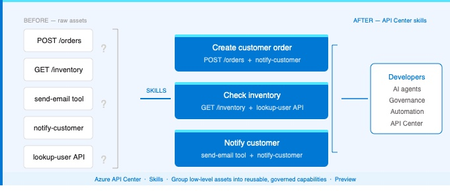
The problem Modern applications depend on more than APIs. A single AI workflow might call an LLM, invoke an MCP tool, integrate a third-party service, and reference a business capability spanning dozens of endpoints. Without a central inventory, these assets become impossible to discover, easy to duplicate, and painful to govern. Azure API Center — part of the Azure API Management platform — already catalogs models, agents, and MCP servers alongside traditional APIs. Skills extend that foundation to cover reusable AI capabilities. What is a Skill? As AI agents become more capable, organizations need a way to define and govern what those agents can actually do. Skills are the answer. A Skill in Azure API Center is a reusable, registered capability that AI agents can discover and consume to extend their functionality. Each skill is backed by source code — typically hosted in a Git repository — and describes what it does, what APIs or MCP servers it can access, and who owns it. Think of skills as the building blocks of AI agent behavior, promoted into a governed inventory alongside your APIs, MCP servers, models, and agents. Example: A "Code Review Skill" performs automated code reviews using static analysis. It is registered in API Center with a Source URL pointing to its GitHub repo, allowed to access your code analysis API, and discoverable by any AI agent in your organization. How Skills work in API Center Skills can be added to your inventory in two ways: registered manually through the Azure portal, or synchronized automatically from a connected Git repository. Both approaches end up in the same governed catalog, discoverable through the API Center portal. Option 1: Register a Skill manually Use the Azure portal to register a skill directly. Navigate to Inventory > Assets in your API center, select + Register an asset > Skill, and fill in the registration form. Figure 2: Register a skill form in the Azure portal. The form captures everything needed to make a skill discoverable and governable: Field Description Title Display name for the skill (e.g. Code Review Skill). Identification Auto-generated URL slug based on the title. Editable. Summary One-line description of what the skill does. Description Full detail on capabilities, use cases, and expected behavior. Lifecycle stage Current state: Design, Preview, Production, or Deprecated. Source URL Git repository URL for the skill source code. Allowed tools The APIs or MCP servers from your inventory this skill is permitted to access. Enforces governance at the capability level. License Licensing terms: MIT, Apache 2.0, Proprietary, etc. Contact information Owner or support contact for the skill. Governance note: The Allowed tools field is key for AI governance. It explicitly defines which APIs and MCP servers a skill can invoke — preventing uncontrolled access and making security review straightforward. Option 2: Sync Skills from a Git repository For teams managing skills in source control, API Center can integrate directly with a Git repository and synchronize skill information automatically. This is the recommended approach for teams practicing GitOps or managing many skills at scale. Figure 3: Integrating a Git repository to sync skills automatically into API Center. When you configure a Git integration, API Center: Creates an Environment representing the repository as a source of skills Scans for files matching the configured pattern (default: **/skill.md) Syncs matching skills into your inventory and keeps them current as the repo changes For private repositories, a Personal Access Token (PAT) stored in Azure Key Vault is used for authentication. API Center's managed identity retrieves the PAT securely — no credentials are stored in the service itself. Tip: Use the Automatically configure managed identity and assign permissions option when setting up the integration if you haven't pre-configured a managed identity. API Center handles the Key Vault permissions automatically. Discovering Skills in your catalog Once registered — manually or via Git — skills appear in the Inventory > Assets page alongside all other asset types. Linked skills (synced from Git) are visually identified with a link icon, so teams can see at a glance which skills are source-controlled. From the API Center portal, developers and other stakeholders can browse the full skill catalog, filter by lifecycle stage or type, and view detailed information about each skill — including its source URL, allowed tools, and contact information. Figure 4: Skills catalog in API Center portal, showing registered skills and the details related to the skill. Developer experience: The API Center portal gives teams a self-service way to discover approved skills without needing to ask around or search GitHub. The catalog becomes the authoritative source of what's available and what's allowed. Why this matters for AI development teams Skills close a critical gap in AI governance. As organizations deploy AI agents, they need to know — and control — what those agents can do. Without a governed skill registry, capability discovery is ad hoc, reuse is low, and security review is difficult. By bringing skills into Azure API Center alongside APIs, MCP servers, models, and agents, teams get: A single inventory for all the assets AI agents depend on Explicit governance over which resources each skill can access via Allowed tools Automated, source-controlled skill registration via Git integration Discoverability for developers and AI systems through the API Center portal Consistent lifecycle management — Design through Production to Deprecated API Center, as part of the Azure API Management platform and the broader AI Gateway vision, is evolving into the system of record for AI-ready development. Skills are the latest step in that direction. Available now Skills are available today in Azure API Center (preview). To register your first skill: Sign in to the Azure portal and navigate to your API Center instance In the sidebar, select Inventory > Assets Select + Register an asset > Skill Fill in the registration form and select Create → Register and discover skills in Azure API Center (docs) → Set up your API Center portal → Explore the Azure API Management platform963Views0likes2Comments
Azure Marketplace - Could not Create marketplace item
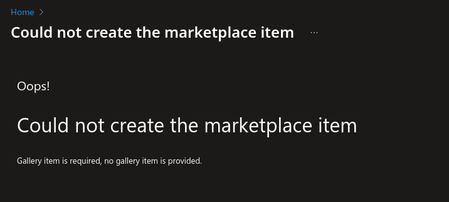
I am trying to create a marketplace offering on Azure. After successfully going through the publishing process, when I click on my offering I just see this: The "Preview" works fine though. I uploaded an app icon which shows in the preview, so not really sure what Gallery item it's asking for.520Views1like5Comments