azure firewall
111 Topics
Zero Trust with Azure Firewall, Azure DDoS Protection and Azure WAF: A practical use case
Introduction Zero Trust has emerged as the defining security ethos of the modern enterprise. It is guided by a simple but powerful principle: “Never trust, always verify.” This principle is more relevant now than ever as cyberattacks continue to trend upward in both frequency and impact, affecting organizations of every size and industry. No entity large or small can assume immunity. As a result, adopting Zero Trust is no longer optional, it is a foundational requirement for designing secure, resilient architectures. A key tenet of Zero Trust is the assumption of breach, thus designing systems with the expectation that threats may already exist both outside and inside the network perimeter. To implement this principle, you need multiple, independent security controls that inspect traffic at different layers and enforce least privilege access continuously. Relying on a single security control, even a highly capable one, leaves gaps that modern attackers are adept at exploiting. It is within this context that combining the use of Azure Firewall, Azure DDoS Protection and Azure Web Application Firewall (WAF) services to secure Web Applications while protecting the network perimeter becomes important. Together, these services deliver comprehensive protection across the network and application layers. Defense-in-depth: Why Azure WAF, Azure DDoS Protection and Azure Firewall are essential for Zero Trust In these sections ahead, we examine the common network and application-layer attack vectors that target modern web applications and illustrate how Azure WAF, Azure DDoS protection, and Azure Firewall, when layered strategically, work in tandem to mitigate these threats. The architecture The test environment was designed to reflect a common Azure deployment pattern: Azure DDoS Protection at the edge, to defend against a comprehensive set of network layer (layer 3/4) attacks Azure Application Gateway with WAF, inspecting inbound HTTP traffic for application-layer threats Azure Firewall Premium behind the gateway, providing network-layer protection, deep packet inspection, and outbound traffic governance. A backend subnet hosting an intentionally vulnerable application (OWASP Juice Shop) to simulate real-world attack scenarios. Traffic flows through the DDoS first, then WAF, and then the firewall, before reaching the backend. Outbound traffic from the backend is routed through the firewall for inspection. This ensures that all inbound and outbound traffic is scrutinized. Two access paths that will be tested: Via the Application Gateway public IP, where traffic passes through DDoS, WAF and Firewall. Via the Firewall public IP using a DNAT rule, where traffic bypasses WAF and is inspected only by the Firewall. The following scenarios illustrate how this complementary protection strengthens overall resilience: Scenario 1: SQL injection (application-layer attack) Let’s say an attacker on the internet attempts to access the application’s login endpoint via the Application Gateway IP address and injects a SQL payload into the input field. For example, the attacker submits a request containing the following payload in the User ID field: ?id=' OR 1=1 -- Azure WAF will receive the request, analyze, and if Azure WAF is deployed in Prevention mode, it will immediately detect the SQL injection attempt using its built-in Managed Ruleset. Upon detection, Azure WAF will return a WAF block page, preventing the request from ever reaching the application. By contrast, when the same application is accessed through a firewall-only path (for example, via a DNAT rule on Azure Firewall that exposes the application on port 443), Azure Firewall allows the traffic as it does not perform deep Application layer inspection and SQL injection payloads when embedded within the HTTP request body, appear legitimate at the network layer. Here is a snapshot of the attacker gaining access to the admin role when they insert this SQL injection attack without Azure WAF and only Azure Firewall in the path. Scenario 2: Volumetric and application-layer DDoS attacks Next, the attacker launches a volumetric network layer DDoS (SYN/UDP floods) to saturate bandwidth, but Azure DDoS Network Protection absorbs and scrubs the attack at the edge, so no traffic reaches Application Gateway, WAF, or Firewall. When the network layer attack fails, they shift to HTTP flood attack at the application layer, overwhelming the web application with a high volume of requests. Some requests include exploit attempts, while others are designed purely to exhaust application resources. Azure WAF here, can identify malicious patterns such as: Automated bots lacking proper headers Abnormal request rates Known exploit payloads embedded within requests Malicious IP addresses Note: Azure DDoS Protection is a comprehensive service that provides protection across network layers (Layer 3 and 4), while HTTP DDoS Protection specifically targets application-layer attacks (Layer 7) and is integrated with Azure WAF. They are complementary services designed to defend against different types of threats within the Azure environment. Additionally, if the botnet’s IPs are known threat actors or malicious traffic, Azure Firewall’s threat intelligence and IDPS will be able to flag this traffic too. Together, these services form a complementary, defense-in-depth strategy for protecting Azure workloads against distributed denial-of-service attacks. Scenario 3: Path Traversal Attempt/Information leak: (Application-Layer Attack) Next, the attacker sends HTTP requests to access sensitive system files such as /etc/passwd by sending crafted HTTP requests to the application via the Application Gateway public IP address. The request successfully passes through Azure Application Gateway WAF, as it does not trigger a managed rule violation in this case. However, when the request reaches Azure Firewall, the Firewall’s IDPS detects the malicious pattern in the HTTP header and blocks the connection before it can reach the backend workload. Because the backend connection is denied by Azure Firewall, Application Gateway is unable to establish a successful response and returns a 504 Gateway Timeout to the client, rather than a 403 Forbidden response that would typically be generated by WAF when it blocks traffic. Below is the log from Azure Firewall showing that its able to detect this traffic as – Attempted Information Leak. As seen below, the traffic passed Application Gateway+WAF but was caught by Azure Firewall: This scenario highlights an important architectural outcome: The combination of WAF and Azure Firewall provides layered enforcement, even if an attack manages to slip past Azure WAF, Azure Firewall adds an additional enforcement layer to ensure the application remains protected. Now, let’s look at some more Network Layer attacks: Scenario 4: Network reconnaissance and breach In this scenario, port 3389 is exposed on Application Gateway using the L4 TCP Proxy option. Now, the attacker attempts to scan the Application Gateway on all the ports/protocols and found that port 3389 was open along with other ports such as ports 80, 8080, 3000. Azure WAF will alert us for Layer 7/Application exploit but cannot verify/validate the attack on port 3389 since it was purely Layer 3/4 and contained no HTTP payload for WAF inspection. The L4 proxy listener on App Gateway simply forwards the raw TCP connections to the Azure Firewall behind it. Azure Firewall, however, performs full network‑layer inspection across all ports and protocols, allowing it to detect and alert on this type of L3/L4 reconnaissance even when App Gateway had the port open via the TCP proxy feature. As seen below the traffic passed Application Gateway+WAF but was caught by Azure Firewall since it is non-HTTP: The attacker then tries a different approach: Now the attacker somehow compromises a workstation inside our network and attempts to move laterally to the web server via RDP on port 3389 and/or attempts to exfiltrate and try to access something outside of the network. Azure Firewall located inside the VNet blocks the RDP attempt (if there is no rule allowing it) and if there is, its IDPS flags/blocks the traffic as suspicious. In this case, Azure WAF will not be involved but Azure Firewall inspects this internal and/or outbound traffic and blocks it. This illustrates how a combination of the two stops the attacker at multiple points: firewall foiled the reconnaissance and lateral movement/exfiltration, WAF foiled the application exploit. We can see below the outbound malicious attempt caught by Azure Firewall IDPS: In summary, Azure WAF is like the “bodyguard at the application’s front door” – inspecting every HTTP request in detail and ejecting those carrying hidden weapons or exhibiting bad behavior. It focuses on the web layer, which Azure Firewall or DDoS alone cannot fully protect. If we only had the WAF and no network firewall or DDoS, we’d be safe from many web attacks but would remain exposed to network-level threats (e.g., someone trying to RDP into a VM, or flooding a non-HTTP service). Conversely, if we had only the firewall, a crafty attacker could still exploit a vulnerability in our web app with a well-crafted HTTP request that looks “allowed” to the firewall – that’s where the WAF comes in to catch it. Azure Firewall on the other hand, acts as the “moat and drawbridge” to your cloud network: it keeps out the obvious bad guys at the gate, tightly limits what’s allowed in or out (no implicit trust for internal IPs), and uses threat intel + signatures to sniff out known threats in any traffic it passes, even outbound traffic. The table below shows the traffic flow that will be filtered by Azure WAF vs Azure Firewall. As you can see, layered security is fundamental to Zero Trust Conclusion In a Zero Trust architecture, security cannot rely on implicit trust or a single layer of defense. The combination of Azure Firewall Premium, Azure DDoS protection and Azure Application Gateway WAF exemplifies defense-in-depth by protecting both network and application layers. Organizations hosting internet-facing applications should adopt this layered strategy to reduce exposure to modern threats, prevent lateral movement, and maintain strict control over outbound traffic. By implementing these services together, you align with Microsoft’s recommended best practices for Zero Trust and significantly strengthen your cloud security posture. References: Implement a Zero Trust network for web applications by using Azure Firewall and Azure Application Gateway What is Azure Web Application Firewall? Azure DDoS Protection Overview | Microsoft Learn What is Azure Firewall? Architecture designs using Azure WAF and Azure Firewall together Zero Trust Assessment Overview | Microsoft Learn2.3KViews2likes2Comments
How to find Azure Firewall SNAT exhaustion on a compute unit?
I have some applications on my AKS cluster which frequently hits a application server. This application server URL is behind Akamai. When ever applications want to establish an SSL connection with the external URL, it has to go through Azure Firewall. I have occasional connection timeouts if a connection is not establish to Akamai servers in 1s. I saw that the SNAT Utilization is in the range of 10 percent to 30%. I know this graph is smoothened out across instances and can't see which Azure Firewall compute unit is getting overloaded if I have frequent access to one URL which goes through Akamai? Is there any way to find out the reason for these occasional connection timeouts with the external IPs(Akamai)? through logs or by any other means? I believe lack of the SNAT metrics by firewall compute unit is responsible for such tough debugging.48Views0likes1CommentHow Azure network security can help you meet NIS2 compliance
With the adoption of the NIS2 Directive EU 2022 2555, cybersecurity obligations for both public and private sector organizations have become more strict and far reaching. NIS2 aims to establish a higher common level of cybersecurity across the European Union by enforcing stronger requirements on risk management, incident reporting, supply chain protection, and governance. If your organization runs on Microsoft Azure, you already have powerful services to support your NIS2 journey. In particular Azure network security products such as Azure Firewall, Azure Web Application Firewall WAF, and Azure DDoS Protection provide foundational controls. The key is to configure and operate them in a way that aligns with the directive’s expectations. Important note This article is a technical guide based on the NIS2 Directive EU 2022 2555 and Microsoft product documentation. It is not legal advice. For formal interpretations, consult your legal or regulatory experts. What is NIS2? NIS2 replaces the original NIS Directive 2016 and entered into force on 16 January 2023. Member states must transpose it into national law by 17 October 2024. Its goals are to: Expand the scope of covered entities essential and important entities Harmonize cybersecurity standards across member states Introduce stricter supervisory and enforcement measures Strengthen supply chain security and reporting obligations Key provisions include: Article 20 management responsibility and governance Article 21 cybersecurity risk management measures Article 23 incident notification obligations These articles require organizations to implement technical, operational, and organizational measures to manage risks, respond to incidents, and ensure leadership accountability. Where Azure network security fits The table below maps common NIS2 focus areas to Azure network security capabilities and how they support compliance outcomes. NIS2 focus area Azure services and capabilities How this supports compliance Incident handling and detection Azure Firewall Premium IDPS and TLS inspection, Threat Intelligence mode, Azure WAF managed rule sets and custom rules, Azure DDoS Protection, Azure Bastion diagnostic logs Detect, block, and log threats across layers three to seven. Provide telemetry for triage and enable response workflows that are auditable. Business continuity and resilience Azure Firewall availability zones and autoscale, Azure Front Door or Application Gateway WAF with zone redundant deployments, Azure Monitor with Log Analytics, Traffic Manager or Front Door for failover Improve service availability and provide data for resilience reviews and disaster recovery scenarios. Access control and segmentation Azure Firewall policy with DNAT, network, and application rules, NSGs and ASGs, Azure Bastion for browser based RDP SSH without public IPs, Private Link Enforce segmentation and isolation of critical assets. Support Zero Trust and least privilege for inbound and egress. Vulnerability and misconfiguration defense Azure WAF Microsoft managed rule set based on OWASP CRS. Azure Firewall Premium IDPS signatures Reduce exposure to common web exploits and misconfigurations for public facing apps and APIs. Encryption and secure communications TLS policy: Application Gateway SSL policy; Front Door TLS policy; App Service/PaaS minimum TLS. Inspection: Azure Firewall Premium TLS inspection Inspect and enforce encrypted communication policies and block traffic that violates TLS requirements. Inspect decrypted traffic for threats. Incident reporting and evidence Azure Network Security diagnostics, Log Analytics, Microsoft Sentinel incidents, workbooks, and playbooks Capture and retain telemetry. Correlate events, create incident timelines, and export reports to meet regulator timelines. NIS2 articles in practice Article 21 cybersecurity risk management measures Azure network controls contribute to several required measures: Prevention and detection. Azure Firewall blocks unauthorized access and inspects traffic with IDPS. Azure DDoS Protection mitigates volumetric and protocol attacks. Azure WAF prevents common web exploits based on OWASP guidance. Logging and monitoring. Azure Firewall, WAF, DDoS, and Bastion resources produce detailed resource logs and metrics in Azure Monitor. Ingest these into Microsoft Sentinel for correlation, analytics rules, and automation. Control of encrypted communications. Azure Firewall Premium provides TLS inspection to reveal malicious payloads inside encrypted sessions. Supply chain and service provider management. Use Azure Policy and Defender for Cloud to continuously assess configuration and require approved network security baselines across subscriptions and landing zones. Article 23 incident notification Build an evidence friendly workflow with Sentinel: Early warning within twenty four hours. Use Sentinel analytics rules on Firewall, WAF, DDoS, and Bastion logs to generate incidents and trigger playbooks that assemble an initial advisory. Incident notification within seventy two hours. Enrich the incident with additional context such as mitigation actions from DDoS, Firewall and WAF. Final report within one month. Produce a summary that includes root cause, impact, and corrective actions. Use Workbooks to export charts and tables that back up your narrative. Article 20 governance and accountability Management accountability. Track policy compliance with Azure Policy initiatives for Firewall, DDoS and WAF. Use exemptions rarely and record justification. Centralized visibility. Defender for Cloud’s network security posture views and recommendations give executives and owners a quick view of exposure and misconfigurations. Change control and drift prevention. Manage Firewall, WAF, and DDoS through Network Security Hub and Infrastructure as Code with Bicep or Terraform. Require pull requests and approvals to enforce four eyes on changes. Network security baseline Use this blueprint as a starting point. Adapt to your landing zone architecture and regulator guidance. Topology and control plane Hub and spoke architecture with a centralized Azure Firewall Premium in the hub. Enable availability zones. Deploy Azure Bastion Premium in the hub or a dedicated management VNet; peer to spokes. Remove public IPs from management NICs and disable public RDP SSH on VMs. Use Network Security Hub for at-scale management. Require Infrastructure as Code for all network security resources. Web application protection Protect public apps with Azure Front Door Premium WAF where edge inspection is required. Use Application Gateway WAF v2 for regional scenarios. Enable the Microsoft managed rule set and the latest version. Add custom rules for geo based allow or deny and bot management. enable rate limiting when appropriate. DDoS strategy Enable DDoS Network Protection on virtual networks that contain internet facing resources. Use IP Protection for single public IP scenarios. Configure DDoS diagnostics and alerts. Stream to Sentinel. Define runbooks for escalation and service team engagement. Firewall policy Enable IDPS in alert and then in alert and deny for high confidence signatures. Enable TLS inspection for outbound and inbound where supported. Enforce FQDN and URL filtering for egress. Require explicit allow lists for critical segments. Deny inbound RDP SSH from the internet. Allow management traffic only from Bastion subnets or approved management jump segments. Logging, retention, and access Turn on diagnostic settings for Firewall, WAF, DDoS, and Application Gateway or Front Door. Send to Log Analytics and an archive storage account for long term retention. Set retention per national law and internal policy. Azure Monitor Log Analytics supports table-level retention and archive for up to 12 years, many teams keep a shorter interactive window and multi-year archive for audits. Restrict access with Azure RBAC and Customer Managed Keys where applicable. Automation and playbooks Build Sentinel playbooks for regulator notifications, ticket creation, and evidence collection. Maintain dry run versions for exercises. Add analytics for Bastion session starts to sensitive VMs, excessive failed connection attempts, and out of hours access. Conclusion Azure network security services provide the technical controls most organizations need in order to align with NIS2. When combined with policy enforcement, centralized logging, and automated detection and response, they create a defensible and auditable posture. Focus on layered protection, secure connectivity, and real time response so that you can reduce exposure to evolving threats, accelerate incident response, and meet NIS2 obligations with confidence. References NIS2 primary source Directive (EU) 2022/2555 (NIS2). https://eur-lex.europa.eu/eli/dir/2022/2555/oj/eng Azure Firewall Premium features (TLS inspection, IDPS, URL filtering). https://learn.microsoft.com/en-us/azure/firewall/premium-features Deploy & configure Azure Firewall Premium. https://learn.microsoft.com/en-us/azure/firewall/premium-deploy IDPS signature categories reference. https://learn.microsoft.com/en-us/azure/firewall/idps-signature-categories Monitoring & diagnostic logs reference. https://learn.microsoft.com/en-us/azure/firewall/monitor-firewall-reference Web Application Firewall WAF on Azure Front Door overview & features. https://learn.microsoft.com/en-us/azure/frontdoor/web-application-firewall WAF on Application Gateway overview. https://learn.microsoft.com/en-us/azure/web-application-firewall/overview Examine WAF logs with Log Analytics. https://learn.microsoft.com/en-us/azure/application-gateway/log-analytics Rate limiting with Front Door WAF. https://learn.microsoft.com/en-us/azure/web-application-firewall/afds/waf-front-door-rate-limit Azure DDoS Protection Service overview & SKUs (Network Protection, IP Protection). https://learn.microsoft.com/en-us/azure/ddos-protection/ddos-protection-overview Quickstart: Enable DDoS IP Protection. https://learn.microsoft.com/en-us/azure/ddos-protection/manage-ddos-ip-protection-portal View DDoS diagnostic logs (Notifications, Mitigation Reports/Flows). https://learn.microsoft.com/en-us/azure/ddos-protection/ddos-view-diagnostic-logs Azure Bastion Azure Bastion overview and SKUs. https://learn.microsoft.com/en-us/azure/bastion/bastion-overview Deploy and configure Azure Bastion. https://learn.microsoft.com/en-us/azure/bastion/tutorial-create-host-portal Disable public RDP and SSH on Azure VMs. https://learn.microsoft.com/en-us/azure/virtual-machines/security-baseline Azure Bastion diagnostic logs and metrics. https://learn.microsoft.com/en-us/azure/bastion/bastion-diagnostic-logs Microsoft Sentinel Sentinel documentation (onboard, analytics, automation). https://learn.microsoft.com/en-us/azure/sentinel/ Azure Firewall solution for Microsoft Sentinel. https://learn.microsoft.com/en-us/azure/firewall/firewall-sentinel-overview Use Microsoft Sentinel with Azure WAF. https://learn.microsoft.com/en-us/azure/web-application-firewall/waf-sentinel Architecture & routing Hub‑spoke network topology (reference). https://learn.microsoft.com/en-us/azure/architecture/networking/architecture/hub-spoke Azure Firewall Manager & secured virtual hub. https://learn.microsoft.com/en-us/azure/firewall-manager/secured-virtual-hub803Views0likes1CommentDNS flow trace logs in Azure Firewall are now generally available
Background Azure Firewall helps secure your network by filtering traffic and enforcing policies for your workloads and applications. DNS Proxy, a key capability in Azure Firewall, enables the firewall to act as a DNS forwarder for DNS traffic. Today, we’re introducing the general availability of DNS flow trace logs — a new logging capability that provides end-to-end visibility into DNS traffic and name resolution across your environment, such as viewing critical metadata including query types, response codes, queried domains, upstream DNS servers, and the source and destination IPs of each request. Why DNS flow trace logs? Existing Azure Firewall DNS Proxy logs provide visibility for DNS queries as they initially pass through Azure Firewall. While helpful, customers have asked for deeper insights to troubleshoot, audit, and analyze DNS behavior more comprehensively. DNS flow trace logs address this by offering richer, end-to-end logging, including DNS query paths, cache usage, forwarding decisions, and resolution outcomes. With these logs, you can: Troubleshoot faster with detailed query and response information throughout the full resolution flow Validate caching behavior by determining whether Azure Firewall’s DNS cache was used Gain deeper insights into query types, response codes, forwarding logic, and errors Example scenarios Custom DNS configurations – Verify traffic forwarding paths and ensure custom DNS servers are functioning and responding as expected Connectivity issues – Debug DNS resolution issues that prevent apps from connecting to critical services. Getting started in Azure Portal Navigate to your Azure Firewall resource in the Azure Portal. Select Diagnostic settings under Monitoring. Choose an existing diagnostic setting or create a new one. Under Log, select DNS flow trace logs. Stream logs to Log Analytics, Storage, or Event Hub as needed. Save the settings. Azure Firewall logging ✨ Next steps DNS flow trace logs give you greater visibility and control over DNS traffic in Azure Firewall, helping you secure, troubleshoot, and optimize your network with confidence. 🚀 Try DNS flow trace logs today, now generally available – and share your feedback with the team Learn more about how to configure and monitor these logs in the Azure Firewall monitoring data reference documentation.1.6KViews0likes0CommentsUsing Packet Capture for troubleshooting Azure Firewall flows
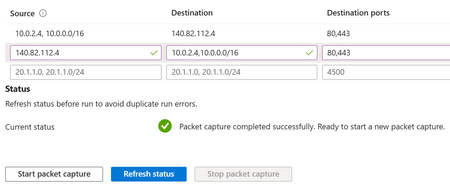
This blog is written in collaboration with @GustavoModena Introduction Azure Firewall is a cloud-native and intelligent network firewall security service that provides best of breed threat protection for your cloud workloads running in Azure. It’s a fully stateful firewall as a service with built-in high availability and unrestricted cloud scalability. Azure Firewall provides both east-west and north-south traffic inspection, and it is offered in three SKUs: Basic, Standard and Premium. Azure Firewall also brings powerful logs and metrics to monitor your traffic and operations within the firewall. These logs and metrics include Traffic Analysis, Performance and Health Metrics, and Audit Trail. However, there are situations where you may need a comprehensive network packet capture to troubleshoot and investigate an incident reported by users. We are happy to announce that Microsoft just released the new Packet capture feature and it is Generally Available for Azure Firewall. The Packet capture feature in Azure Firewall is intended for troubleshooting purposes and will allow customers and engineers to debug connectivity issues by tracing packets passing through their Azure Firewall. Azure Firewall Packet Capture shows two packets per flow, one for incoming direction and one for outgoing direction, so you can accurately correlate requests and responses during troubleshooting. What is a network packet capture? Network packet capture is a process that involves capturing network packets as they traverse a network interface. It's a valuable tool for network troubleshooting, analysis, and security monitoring. A network packet capture involves intercepting Internet Protocol (IP) packets for analysis and then saving the packets captured to output files, typically saved in the “.pcap” file extension. Network engineers often utilize packet capturing for troubleshooting and monitoring network traffic to identify security threats. In the event of a data breach or other incident, packet captures offer essential forensic evidence that supports investigations. From a malicious actor’s viewpoint, packet captures can be used to steal passwords and other sensitive data. Unlike active reconnaissance techniques like port scanning, packet capturing can be conducted covertly, leaving no trace for investigators. How Does a Packet Capture Work? Packet captures can be performed using networking equipment like routers, firewalls or switches, or even an engineer’s laptop or desktop. Regardless of the method, packet capture involves creating copies of some or all packets passing through a particular point in the network. Capturing packets from a specific device on the network is the simplest way to start troubleshooting, but there are a few caveats. By default, network interfaces only monitor traffic destined for them. For a more comprehensive view of network traffic, you’ll need to set the interface to promiscuous mode or monitor mode. Many routers, firewalls and other network devices have embedded packet capture functions that can be used to quickly troubleshoot directly from the device's admin console. This capability is now available in Azure Firewall. Scenario (VNET to VNET) In this blog we have VM-1 (10.10.0.4) unsuccessfully trying to establish HTTP (TCP 80)/HTTPS (TCP 443) connection to VM-2 (10.10.0.132) via Azure Firewall. Using Azure Firewall Packet Capture to investigate the connection issue In this section, we will use Azure Firewall Packet Capture to understand why an HTTP/HTTPS connection between VM-1 and VM-2 is not working properly. For this demonstration, we are not going to review the rules and Azure Firewall logs, as the purpose of the blog is to demonstrate the new Packet Capture feature, and we are assuming that the Azure Firewall is configured correctly. Let’s start by making sure that we have all the required resources to take the packet captures from Azure Firewall: Azure Firewall with Management NIC enabled Storage account with a container in which you can store the packet captures Once you have all the required resources available, follow the next steps to start running a Packet Capture via Azure Firewall: Create a SAS URL to the container in the storage account: In the Azure Portal go to Storage Account > Containers and select the 3 ellipses at the very right side of the name of the container that you want to use to store the packet captures and select “Generate SAS”. When defining the parameters of the SAS select “Write” under Permissions, so Azure Firewall will be able to successfully save the packet captures. Then click on “Generate SAS token and URL”. Now, we must go to the Azure Firewall > Packet Capture (under Help) to start running the packet capture. On the Packet Capture page, provide the following information: Packet capture name - the name of one or more capture files. Output SAS URL - the SAS URL of the storage container you created previously. Next, complete the Basic settings for the packet capture: Maximum number of packets - You should limit the packet capture to a set number of packets. Time limit (seconds) - Since the packet capture is intended for troubleshooting purposes, you should limit the capture time. Protocols - the protocols you want the capture to save (values: Any, TCP, UDP, ICMP). TCP Flags - if TCP or Any is selected, you can select which types of packets to save (values: FIN, SYN, RST, PSH, ACK, URG) If both the Maximum number of packets and Time limit are set, the capture ends when the earliest condition is met. So, either when the maximum number of packets is received or when the time limit is reached. In the Filtering section, you can add the source, destination, and destination ports to include in the capture. You must add at least one filter. The packet capture saves bidirectional traffic that matches each row in the filter section. For the source and destination fields you can list multiple commas separated values in a single filter including IP addresses and IP blocks. Select Run Packet Capture after you're done with your configuration. Once the packet capture is complete, you will navigate to the container used in the storage account and download the pcap files. Note that you will see multiple pcap files, this is because each virtual machine in the backend of the firewall has its own file. Analyzing the Packet Captures When using Azure Firewall Packet Capture, you will always see two packets for every single packet in the flow. This is because the firewall captures both the incoming and outgoing directions of the traffic. Understanding this behavior is critical for accurate troubleshooting, as it ensures you can correlate the original request with its corresponding response. The additional scenarios below will explain how to match these incoming and outgoing flows effectively. To analyze the pcap files you need a network protocol analyzer tool. In this blog we are using Wireshark. Note: The intent of this blog is not to show how to use it nor to do advanced troubleshooting using Wireshark. With the pcap files downloaded to your computer, open the files to start your investigation. Since we have multiple files due to the number of active Azure Firewall instances at the time of the packet capture, it may be easier to merge the files. To merge the pcap files, first open one of them using Wireshark and then go to File > Merge and select the second file. There are different ways to merge them, but here we are using “Merge packets chronologically”. Once the pcap files are merged, you will start your investigation by using filters. In this scenario, we want to investigate why an HTTP request from VM-1 to VM-2 on port TCP 80 is not working, and we are using the following filter: Wireshark filter: tcp.port==80 && tcp.port==50245 && ip.addr==10.10.0.132 (VM-2’s IP address) Ok, so here we can see that VM-1 (10.10.0.4) sends a SYN packet from port 53945 to VM-2 (10.10.0.132) on port 80, then VM-2 sends a reset back to VM-1. This behavior shows us that the traffic is successfully passing through Azure Firewall (allowed), and the issue may possibly be something on VM-2. After involving the application team, they have found an issue related to the IIS configuration and it is now fixed as we can see the TCP request being established on ports 80 and 443 in the screenshot below. Other Scenarios DNAT (Inbound traffic) In this scenario we are connecting from a client via Internet to the Azure Firewall’s public IP, using DNAT rules on port 8443. You can see in the screenshot below the incoming request (TCP 3-way handshake) and all the hops until it gets to the Web Server. L3 (and source IP) differs from the incoming packet since its SNATed at L3 while L4 remains the same. For taking the packet capture in this scenario, we are using the following filters: Source: 71.28.90.56,52.176.62.243,10.10.0.64/26,10.10.0.128/26 Destination: 71.28.90.56,52.176.62.243,10.10.0.64/26,10.10.0.128/26 Destination ports: 8443,443 Check below to understand what each one of the IP/IP ranges and ports are used as filters: Client Public IP: 71.28.90.56 Azure Firewall Public IP: 52.176.62.243 Azure Firewall Instance Private IP: 10.10.0.69 (this IP is included in the IP range 10.10.0.64/26) Web Server Private IP: 10.10.0.132 (this IP is included in the IP range 10.10.0.128/26 Azure Firewall Listening Port: 8443 Web Server Listening (translated) Port: 443 In DNAT scenarios, you will notice two SYN packets for the same flow. SYN 1 represents the incoming packet with its original 5-tuple (source IP, destination IP, source port, destination port, protocol), while SYN 2 corresponds to the same flow but with a different 5-tuple after translation by Azure Firewall. This behavior contrasts with VNET-to-VNET flows, where the 5-tuple remains unchanged. When you are SNATing, connecting to/from the Internet, or processing application rules, to see both incoming and outgoing packets you need to make sure that both Public IP address and subnet address space are included. Internet Access (Outbound traffic) In this scenario, we are connecting from an Azure VM to the public IP via Azure Firewall using Network rules. The screenshot illustrates the TCP three-way handshake followed by the HTTP GET request. Notice two SYN packets: one originating from the client to the destination and another from the Azure Firewall instance IP to the destination. In the first two lines, packets flow from the Azure VM IP to the external public IP, followed by the SNATed packet from the Azure Firewall instance IP to the same external address. For this packet capture, the following filters were applied: Source: 10.10.0.132, 10.10.0.0/26 Destination: 151.101.195.5 Destination ports: 80,443 Check below to understand what each one of the IP/IP ranges and ports are used as filters: Azure VM: 10.10.0.132 Azure Firewall Subnet: 10.10.0.0/26 (10.10.0.5 is the instance IP) External Public IP: 151.101.195.5 External Public IP Port: 80 Application Rule Traffic: In this scenario, we are connecting from an Azure VM to the public IP via Azure Firewall using Application rules. While the original request originates from the VM with source IP 10.0.2.4, the Layer 4 details differ from the incoming packet because, during application rule evaluation, the firewall establishes a new outbound connection acting as a proxy. As shown in the image, the SNAT IP of the Azure Firewall instance (10.0.0.5) initiates the connection to the public IP 140.82.112.4. HTTP or TLS keys can be used to match incoming and outgoing packets. L7 remains the same. For packet capture in this scenario, the following filters are applied: Source: 10.0.2.4, 10.0.0.0/24 Destination: 140.82.112.4 Destination ports: 80,443 Check below to understand what each one of the IP/IP ranges and ports are used as filters: Azure VM: 10.0.2.4 Azure Firewall Subnet: 10.0.0.0/24 (10.10.0.5 is the instance SNAT IP) External Public IP: 140.82.112.4 External Public IP Port: 80,443 VNET to VNET with SNAT: In this scenario, the client VM 10.1.0.4 initiates the connection to the server VM 10.0.2.4 but we have enabled SNAT to happen by default. So, the Firewall’s Private IP 172.16.0.5 (SNAT) will initiate a connection with the destination web server as we can see in the below image. For packet capture in this scenario, the following filters are applied: Source: 10.1.0.4, 172.16.0.0/24 Destination: 10.2.0.4 Destination ports: 80,443 Check below to understand what each one of the IP/IP ranges and ports are used as filters: Azure VM: 10.1.0.4 Azure Firewall Subnet: 172.16.0.0/24 (172.16.0.5 is the instance SNAT IP) Web Server Private IP: 10.2.0.4 Web Server Port: 80 Conclusion The availability of Azure Firewall Packet Capture is crucial for effective network and security troubleshooting. It allows network administrators and security professionals to monitor, analyze, and diagnose network traffic in real-time, providing invaluable insights into potential issues and vulnerabilities. By capturing and examining data packets, they can identify anomalies, detect malicious activities, and ensure the integrity and performance of the network. This proactive approach not only enhances the overall security posture but also minimizes downtime and improves the reliability of network services, making packet capture an indispensable tool in the modern IT landscape.1.7KViews0likes1CommentPrescaling in Azure Firewall is now generally available
Azure Firewall protects your applications and workloads with cloud-native network security that automatically scales based on your traffic needs. Today, we’re excited to announce the general availability of prescaling in Azure Firewall – a new capability that gives you more control and predictability over how your firewall scales. Why pre-scaling? Today, Azure Firewall automatically scales in response to real-time traffic demand. For organizations with predictable traffic patterns – such as seasonal events, business campaigns, holidays, or planned migrations – the ability to plan capacity in advance can provide greater confidence and control. That’s where prescaling comes in. With prescaling, you can: Plan ahead– Set a baseline number of firewall capacity units to ensure capacity is already in place before demand rises. Stay flexible – Define both minimum and maximum capacity unit values, so your firewall always has room to grow while staying within your chosen bounds. See clearly – Monitor capacity trends with a new observed capacity metric and configure alerts to know when scaling events occur. You can think of it as adding extra checkout counters before a holiday rush – when the customers arrive, you’re already prepared to serve them without delays or bottlenecks. Example scenarios E-commerce sales events – Scale up before a holiday shopping promotion to handle the surge in online buyers. Workload migrations – Ensure sufficient capacity is ready during a large data or VM migration window. Seasonal usage – For industries like education, gaming, or media streaming, pre-scale ahead of known peak seasons. Getting started in Azure Portal Navigate to your Azure Firewall resource in the Azure Portal. Select Scaling options in settings. By default, every Azure Firewall starts in autoscaling mode. To enable prescaling, simply switch to pre-scaling mode in the Azure Portal and configure your desired capacity range: Minimum capacity: 2 or higher. Maximum capacity: up to 50, depending on your needs. Monitor the scaling behavior with the observed capacity metric. Billing and availability Pre-scaling uses a new Capacity Unit Hour meter. Charges apply based on the number of firewall instances you configure. Standard: $0.07 per capacity unit hour Premium: $0.11 per capacity unit hour ✨ Next steps Prescaling gives you predictable performance and proactive control over your firewall, helping you confidently handle the traffic patterns that matter most to your business. 🚀 Try prescaling today and share your feedback with the team. Learn more about how to configure and monitor this feature in the Azure Firewall prescaling documentation.1.4KViews0likes0CommentsIntroducing the new Network Security Hub in Azure
Background: Since its launch in 2020, Azure Firewall Manager has supported customers in securing their networks. But the role of network security has since evolved, from a foundational requirement to a strategic priority for organizations. Today, organizations must protect every endpoint, server, and workload, as attackers continually search for the weakest link. Over the years, we’ve heard consistent feedback about the importance of centralized management, easier service discovery, and streamlined monitoring across their network security tools. These capabilities can make the difference between a minor incident and a major breach. That’s why we’re excited to introduce a new, unified Network Security hub experience. This updated hub brings together Azure Firewall, Web Application Firewall, and DDoS Protection—enabling you to manage, configure, and monitor all your network security services in one place. While Azure Firewall Manager offered some of this functionality, the name didn’t reflect the broader scope of protection and control that customers need. With this new experience, Firewall Manager has expanded into the Network Security Hub, making it easier to discover, configure, and monitor the right security services with just a few clicks. The result: less time navigating, more time securing your environment. What you’ll notice: Streamlined navigation: Whether you search for Azure Firewall, Web Application Firewall, DDoS Protection, or Firewall Manager, you’ll now be directed to the new Network Security hub. This unified entry point presents all relevant services in context—helping you stay focused and quickly find what you need, without feeling overwhelmed. Overview of services: The hub’s landing page provides a high-level view of each recommended solution, including key use cases, documentation links, and pricing details—so you can make informed decisions faster. Common scenarios: Explore typical deployment architectures and step-by-step guidance for getting started, right from the overview page. Related services: We’ve consolidated overlapping or closely related services to reduce noise and make your options clearer. The result? Fewer, more meaningful choices that are easier to evaluate and implement. New insights: We've enhanced the security coverage interface to show how many of your key resources are protected by Azure Firewall, DDoS Protection, and Web Application Firewall. Additionally, our integration with Azure Advisor now provides tailored recommendations to help you strengthen your security posture, reduce costs, and optimize Azure Firewall performance. What this means for you: No changes to Firewall Manager pricing or support: This is a user experience update only for Firewall Manager. You can continue to deploy Firewall policies and create Hub Virtual Network or Secured Virtual Hub deployments —now within the streamlined Network Security hub experience. Aligned marketing and documentation: We’ve updated our marketing pages and documentation to reflect this new experience, making it easier to find the right guidance and stay aligned with the latest best practices. Faster decision-making: With a clearer, more intuitive layout, it’s easier to discover the right service and act with confidence. Better product experience: This update brings greater cohesion to the Azure Networking portfolio, helping you get started quickly and unlock more value from day one Before: The original landing page was primarily focused on setting up Firewall Policies and Secured Virtual Hub, offering a limited view of Azure’s broader network security capabilities. After: The updated landing page delivers a more comprehensive and intuitive experience, with clear guidance on how to get started with each product—alongside common deployment scenarios to help you configure and operationalize your network security stack with ease. Before: The previous monitoring and security coverage experience was cluttered and difficult to navigate, making it harder to get a quick sense of your environment’s protection status. After: The updated Security Coverage view is cleaner and more intuitive. We've streamlined the layout and added Azure Advisor integration, so you can now quickly assess protection status across key services and receive actionable recommendations in one place. The expansion of Firewall Manager into the Network Security hub is part of a greater strategic effort to simplify and enhance the Azure Networking portfolio, ensuring better alignment with customer needs and industry best practices. You can learn more about this initiative in this blog. This shift is designed to better align with customer needs and industry best practices—by emphasizing core services, consolidating related offerings, and phasing out legacy experiences. The result is a more cohesive, intuitive, and efficient product experience across Azure Networking. 📣 If you have any thoughts or suggestions about the user interface, feel free to drop them in the feedback form available in the Network Security hub on the Azure Portal. Documentation links: Azure Networking hub page: Azure networking documentation | Microsoft Learn Scenario Hub pages: Azure load balancing and content delivery | Microsoft Learn Azure network foundation documentation | Microsoft Learn Azure hybrid connectivity documentation | Microsoft Learn Azure network security documentation | Microsoft Learn Scenario Overview pages What is load balancing and content delivery? | Microsoft Learn Azure Network Foundation Services Overview | Microsoft Learn What is hybrid connectivity? | Microsoft Learn What is Azure network security? | Microsoft Learn2.7KViews2likes0CommentsEnhancements to the Azure Firewall User Experience
This blog was co-authored by Abhinav Sriram, with contributions from Gopikrishna Kannan. Introduction Everyday, IT administrators face the challenge of securing networks while maintaining application uptime and performance. With a constantly evolving threat landscape and an influx of new vulnerabilities, staying ahead is no easy task. Cloud applications are increasingly leveraging AI to access critical data with reliability, and new applications are rapidly being onboarded. At the same time, organizational security requirements continue to expand in response to government regulations and customer expectations. CIOs are demanding that IT teams do more with less, and the demands can feel daunting. To meet these challenges, IT administrators need modern tools and resources that simplify operations, maintain security, and ensure application performance and compliance. The Azure Firewall team understands these operational needs and the proactive measures administrators require to minimize risk. We're excited to introduce new experiences and capabilities that streamline firewall management, making it easier to monitor, diagnose, and resolve issues quickly. Improved governance and compliance: Through Azure Policies and Azure Advisor recommendations, IT teams can maintain alignment with product and organizational standards, minimizing risk through proactive guidance. Optimized management and diagnostics: Through Azure Firewall Policy Change Tracking and the Diagnose and Solve Blade, administrators can monitor configuration changes and identify solutions to resolve issues quickly. In addition, the new user experiences for setting up a Management NIC and upcoming features like Packet Capture and Maintenance Configuration provide users with the kind of enhanced control and visibility they need for critical services like Firewall. Stay Updated with New Capabilities: The "What's New" experience in Azure Firewall Manager and the Private Preview Program keep administrators informed about updates and provide early access to new features. In this blog, we'll walk through each of these features more in-depth and explore how they assist administrators with tasks at different stages of firewall management beginning with features that bring enhanced governance and compliance to Azure Firewall. Built-In Azure Policies Azure Firewall now includes support for Azure Policy, designed to enhance governance and enforce security best practices. When administrators are initially configuring their firewalls or shortly after deployment, managing configurations across multiple firewalls to meet organizational standards can be complex and prone to oversight or error. These built-in policies simplify this process by automatically applying rules across your firewall resources and ensuring compliance with essential security and operational requirements. For example, administrators can enforce policies requiring Threat Intelligence to be enabled on all firewalls for added protection or mandating that only encrypted traffic is allowed into the environment. These policies offer a streamlined way to maintain consistent security practices, aligning firewall settings with organizational and regulatory standards. For detailed information on configuration and enforcement of these policies, see this blog. Image: Built-in Azure Policies Image: Azure Policy compliance enforcement across Firewall resources Built-In Azure Advisor Recommendations After deploying a firewall, it's essential to monitor any limitations that could impact its performance, particularly in large or complex environments with high traffic volumes. Azure Advisor, a personalized service, offers recommendations to help users optimize Azure resources across five key areas: reliability, security, operational excellence, performance, and cost. With this integration, Azure Advisor can proactively notify you if your Azure Firewall deployment is reaching any limitations, experiencing performance impacts, or has potential misconfigurations. This means you’ll be able to receive timely recommendations to address issues before they affect your network security, ensuring a seamless and secure experience. The current Azure Advisor recommendations include the following: Exceeding rule limitations on Firewall policy: Get notified if your firewall policy is reaching the maximum allowed rules, which may impact performance. Exceeding IP Group limitations on Firewall policy: Alerts for when IP groups used in your firewall policies exceed their defined limits. Exceeding Firewall Policy or Rule Collection Group size: Suggestions to optimize or restructure policies when they grow too large, potentially affecting management or performance. By leveraging these recommendations, you can maintain optimal firewall performance, address potential security risks, and reduce unnecessary costs. Stay tuned for more enhancements as we continue to add more recommendations into Azure Advisor for Azure Firewall. Policy Analytics is another Firewall capability that provides you with insights and recommendations for your environment. Image: Azure Advisor recommendation for “Firewall policy is reaching network rule limitations” Next, let’s dive into the capabilities that help with optimized management and diagnostics. Change Tracking (Preview) Azure Resource Graph (ARG) is an Azure service designed to provide efficient and performant resource exploration at scale. Azure Resource Graph (ARG) provides change analysis data for various management and troubleshooting scenarios. Users can find when changes were detected on an Azure Resource Manager (ARM) property, view property change details and query changes at scale across their subscription, management group, or tenant. ARG change analysis recently added support for RuleCollectionGroups. You can now track changes to Azure Firewall Rule Collection Groups using an Azure Resource Graph query from the Azure Portal ResourceGraphExplorer page using a query like this: Below is a sample change output. This capability can help you track changes made to your Firewall rules helping ensure accountability for a sensitive resource like a Firewall. Diagnose and Solve Blade The Diagnose and Solve problems blade is a feature in Azure that helps customers troubleshoot and solve Azure issues. It helps you explore the most common problems for your Azure Firewalls by providing quick access to service/resource health insights, automated troubleshooters, curated do-it-yourself troubleshooting guides, and additional troubleshooting tools that are all part of the self-help experience designed to help customers solve their problems even before bringing it to Microsoft support teams. To use this feature, you need to navigate to your Firewall in the Azure portal and select Diagnose and solve problems. Image: The Diagnose and Solve blade in Azure Firewall Portal This feature allows you to troubleshoot failures without needing to go through the standard process of filing a support ticket and also provides you with a summarized view of resource health and changes made to the resource in the last 72 hours. Management NIC Changes An Azure Firewall Management NIC separates Firewall management traffic from customer traffic. The firewall routes its management traffic via the dedicated AzureFirewallManagementSubnet (minimum subnet size /26) and its associated public IP address. This feature was previously called Forced Tunneling, as originally, a Management NIC was required only for Forced Tunneling. However, upcoming Firewall features will also require a Management NIC. To support any of these capabilities, you must create an Azure Firewall with the Firewall Management NIC enabled or enable it on an existing Azure Firewall. This is a mandatory requirement to avoid service disruption. To learn more, see Azure Firewall Management NIC | Microsoft Learn. Image: The updated Firewall Management Portal UX in the Create Azure Firewall workflow Lastly, let’s take a look at some of the ways in which you can stay updated with the latest going on with Azure Firewall. Updates to What’s new in Firewall Manager The “What’s new” page in Firewall Manager is kept updated with the most recent product releases across the Network Security portfolio and now easily links to the Copilot for Security integration for Azure Firewall. The Azure Firewall Plugin has four capabilities that help analysts perform detailed investigations of the malicious traffic intercepted by the IDPS feature of their firewalls across their entire fleet using natural language questions in the Copilot for Security standalone experience. To learn more about the user journey and value that Copilot can deliver, see the Azure blog. To see these capabilities in action, take a look at this Tech Community blog, and to get started, see the documentation. Image: Snapshot of the What's New user experience in Azure Firewall Manager Azure Connection Program The Azure Connection Program is an engineering feedback community for Azure customers and partners allowing you to directly engage with the product team of Azure Firewall and get early access to upcoming features like Packet Capture and Maintenance Configurations. This is an avenue where the product team actively engages with customers to get valuable feedback that can help impact the product roadmap. If you’re interested in joining and trying out new features early, please sign up here.2.8KViews2likes4CommentsShare Your Expertise: Help Shape Our Network Practitioner Community
Hello Azure network practitioners, We’re working on refining our understanding of network practitioner personas and building stronger community engagement strategies for networking practitioners. Your insights as an MVP are invaluable to this effort. Could you take a few minutes to complete this short survey? Your feedback will directly influence how we design future programs and resources for the community. 👉 https://forms.office.com/r/dfgXxNwQd9 Thank you for helping us make the Azure networking community even better! Best regards, Dan Product Marketing Manager, Identity & Network Access Growth61Views0likes0Comments