azure database for postgresql flexible server
4 TopicsAzure PostgreSQL Lesson Learned #10: Why PITR Networking Rules Matter
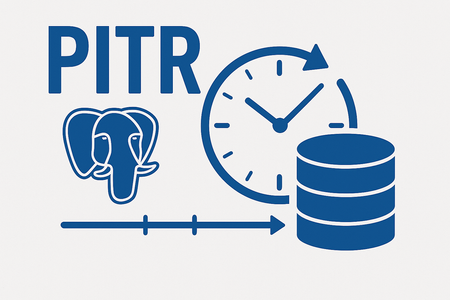
Co‑authored with angesalsaa Symptoms Customer attempted to restore a server configured with public access into a private virtual network. Restore operation failed with an error indicating unsupported configuration. Root Cause Azure enforces strict networking rules during PITR to maintain security and consistency: Public access servers can only be restored to public access. Private access servers can be restored to the same virtual network or a different virtual network, but not to public access. Why This Happens Networking mode is tied to the original server configuration. Mixing public and private access during restore could expose sensitive data or break connectivity assumptions. Contributing Factors Customer assumed PITR could switch networking modes. No prior review of Azure documentation on restore limitations. Specific Conditions We Observed Source server: Private access with VNet integration. Target restore: Attempted to switch to public access. Operational Checks Before initiating PITR: Confirm the source server’s networking mode (Public vs Private). Review restore options in the Azure portal → Restore. Mitigation Goal: Align restore strategy with networking rules. If source is Public: Restore only to Public access. If source is Private: Restore to same or different VNet (within the same region). Post-Resolution Customer successfully restored to a different VNet after adjusting expectations. Prevention & Best Practices Document networking mode for all PostgreSQL servers. Train teams on PITR limitations before disaster recovery drills. Avoid assumptions always check official guidance. Why This Matters Ignoring these rules can delay recovery during critical incidents. Knowing the constraints upfront ensures faster restores and compliance with security policies. Key Takeaways Issue: PITR does not allow switching between Public and Private access. Fix: Restore within the same networking category as the source server. References Backup and Restore in Azure Database for PostgreSQL Flexible Server157Views0likes0CommentsAzure PostgreSQL Lesson Learned #3: Fix FATAL: sorry, too many clients already
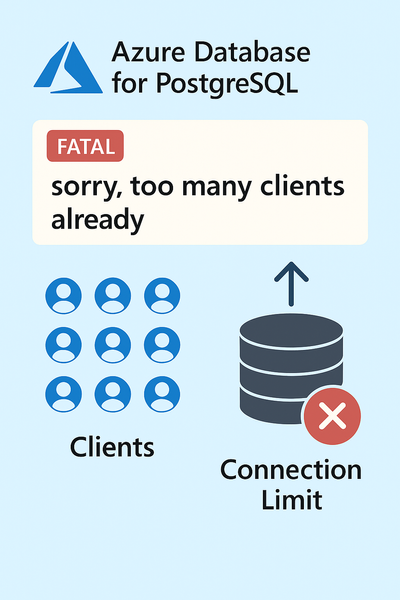
We encountered a support case involving Azure Database for PostgreSQL Flexible Server where the application started failing with connection errors. This blog explains the root cause, resolution steps, and best practices to prevent similar issues.481Views4likes0Comments
Azure PostgreSQL Lesson Learned#1:Fix Cannot Execute in a Read-Only Transaction After HA Failover
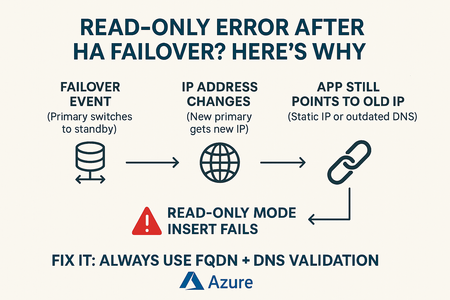
We encountered a support case involving Azure Database for PostgreSQL Flexible Server where the database returned a read-only error after a High Availability (HA) failover. This blog explains the root cause, resolution steps, and best practices to prevent similar issues. The issue occurred when the application attempted write operations immediately after an HA failover. The failover caused the primary role to switch, but the client continued connecting to the old primary (now standby), which is in read-only mode.492Views2likes0CommentsAzure PostgreSQL Lesson Learned #2: Fixing Read Only Mode Storage Threshold Explained
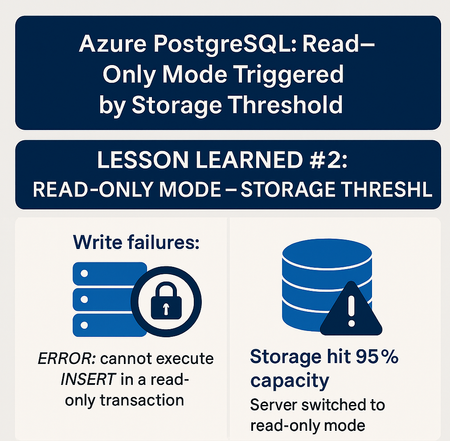
Co-authored with angesalsaa The issue occurred when the server’s storage usage reached approximately 95% of the allocated capacity. Automatic storage scaling was disabled. Symptoms included: Server switching to read-only mode Application errors indicating write failures No prior alerts or warnings received by the customer Example error: ERROR: cannot execute %s in a read-only transaction Root Cause The root cause was the server hitting the configured storage usage threshold (95%), which triggered an automatic transition to read-only mode to prevent data corruption or loss. Storage options - Azure Database for PostgreSQL | Microsoft Learn If your Storage Usage is below 95% but you're still seeing the same error, please refer to this article for more information > Azure PostgreSQL Lesson Learned#1:Fix Cannot Execute in a Read-Only Transaction After HA Failover Contributing factors: Automatic storage scaling was disabled Lack of proactive monitoring on storage usage High data ingestion rate during peak hours Specific conditions: Customer had a custom workload with large batch inserts No alerts configured for storage usage thresholds Mitigation To resolve the issue: Increased the allocated storage manually via Azure Portal No restart is needed after you scale up the storage because it is an online operation but make sure If you grow the disk from any size between 32 GiB and 4 TiB, to any other size in the same range, the operation is performed without causing any server downtime. It's also the case if you grow the disk from any size between 8 TiB and 32 TiB. In all those cases, the operation is performed while the server is online. However, if you increase the size of disk from any value lower or equal to 4096 GiB, to any size higher than 4096 GiB, a server restart is required. In that case, you're required to confirm that you understand the consequences of performing the operation. Scale storage size - Azure Database for PostgreSQL | Microsoft Learn Verified server returned to read-write mode Steps: Navigate to Azure Portal > PostgreSQL Flexible Server > Compute & Storage Increase storage size (e.g., from 100 GB to 150 GB) Post-resolution: Server resumed normal operations Write operations were successful Prevention & Best Practices Enable automatic storage scaling to prevent hitting usage limits > Configure Storage Autogrow - Azure Database for PostgreSQL | Microsoft Learn Set up alerts for storage usage thresholds (e.g., 80%, 90%) Monitor storage metrics regularly using Azure Monitor or custom dashboards Why This Matters Failing to monitor storage and configure scaling can lead to: Application downtime Read-only errors impacting business-critical transactions By following these practices, customers can ensure seamless operations and avoid unexpected read-only transitions. Key Takeaways Symptom: Server switched to read-only mode, causing write failures (ERROR: cannot execute INSERT in a read-only transaction). Root Cause: Storage usage hit 95% threshold, triggering read-only mode to prevent corruption. Contributing Factors: Automatic storage scaling disabled. No alerts for storage thresholds. High ingestion during peak hours with large batch inserts. Mitigation: Increased storage manually via Azure Portal (online operation unless crossing 4 TiB → restart required). Server returned to read-write mode. Prevention & Best Practices: Enable automatic storage scaling. Configure alerts for storage usage (e.g., 80%, 90%). Monitor storage metrics regularly using Azure Monitor or dashboards.573Views0likes0Comments