Azure AI
238 TopicsBlack Forest Labs FLUX.2 Visual Intelligence for Enterprise Creative now on Microsoft Foundry
Black Forest Labs’ (BFL) FLUX.2 is now available on Microsoft Foundry. Building on FLUX1.1 [pro] and FLUX.1 Kontext [pro], we’re excited to introduce FLUX.2 [pro] which continues to push the frontier for visual intelligence. FLUX.2 [pro] delivers state-of-the-art quality with pre-optimized settings, matching the best closed models for prompt adherence and visual fidelity while generating faster at lower cost. Prompt: "Cinematic film still of a woman walking alone through a narrow Madrid street at night, warm street lamps, cool blue shadows, light rain reflecting on cobblestones, moody and atmospheric, shallow depth of field, natural skin texture, subtle film grain and introspective mood" This prompt shines because it taps into FLUX.2 [pro]'s cinematic‑lighting engine, letting the model fuse warm street‑lamp glow and cool shadows into a visually striking, film‑grade composition. What’s game-changing about FLUX.2 [pro]? FLUX.2 is designed for real-world creative workflows where consistency, accuracy, and iteration speed determine whether AI generation can replace traditional production pipelines. The model understands lighting, perspective, materials, and spatial relationships. It maintains characters and products consistent across up to 10 reference images simultaneously. It adheres to brand constraints like exact hex colors and legible text. The result: production-ready assets with fewer touchups and stronger brand fidelity. What’s New: Production‑grade quality up to 4MP: High‑fidelity, coherent scenes with realistic lighting, spatial logic, and fine detail suitable for product photography and commercial use cases. Multi‑reference consistency: Reference up to 10 images simultaneously with the best character, product, and style consistency available today. Generate dozens of brand-compliant assets where identity stays perfectly aligned shot to shot. Brand‑accurate results: Exact hex‑color matching, reliable typography, and structured controls (JSON, pose guidance) mean fewer manual fixes and stronger brand compliance. Strong prompt fidelity for complex directions: Improved adherence to complex, structured instructions including multi-part prompts, compositional constraints, and JSON-based controls. 32K token context supports long, detailed workflows with exact positioning specifications, physics-aware lighting, and precise compositional requirements in a single prompt. Optimized inference: FLUX.2 [pro] delivers state-of-the-art quality with pre-optimized inference settings, generating faster at lower cost than competing closed models. FLUX.2 transforms creative production economics by enabling workflows that weren't possible with earlier systems. Teams ship complete campaigns in days instead of weeks, with fewer manual touchups and stronger brand fidelity at scale. This performance stems from FLUX.2's unified architecture, which combines generation and editing in a single latent flow matching model. How it Works FLUX.2 combines image generation and editing in a single latent flow matching architecture, coupling a Mistral‑3 24B vision‑language model (VLM) with a rectified flow transformer. The VLM brings real‑world knowledge and contextual understanding, while the flow transformer models spatial relationships, material properties, and compositional logic that earlier architectures struggled to render. FLUX.2’s architecture unifies visual generation and editing, fuses language‑grounded understanding with flow‑based spatial modeling, and delivers production‑ready, brand‑safe images with predictable control especially when you need consistent identity, exact colors, and legible typography at high resolution. Technical details can be found in the FLUX.2 VAE blog post. Top enterprise scenarios & patterns to try with FLUX.2 [pro] The addition of FLUX.2 [pro] is the next step in the evolution for delivering faster, richer, and more controllable generation unlocking a new wave of creative potential for enterprises. Bring FLUX.2 [pro] into your workflow and transform your creative pipeline from concept to production by trying out these patterns: Enterprise scenarios Patterns to try E‑commerce hero shots Start with a small set of references (product front, material/texture, logo). Prompt for a studio hero shot on a white seamless background, three‑quarter view, softbox key + subtle rim light. Include exact hex for brand accents and specify logo placement. Output at 4MP. Product variants at scale Reuse the hero references; ask for specific colorway, angle, and background variants (e.g., “Create {COLOR} variant, {ANGLE} view, {BG} background”). Keep brand hex and logo position constant across variants. Campaign consistency (character/product identity) Provide 5–10 reference images for the character/product (faces, outfits, mood boards). Request the same identity across scenes with consistent lighting/style (e.g., cinematic warm daylight) and defined environments (e.g., urban rooftop). Marketing templates & localization Define a template (e.g., 3‑column grid: left image, right text). Set headline/body sizes (e.g., 24pt/14pt), contrast ≥ 4.5:1, and brand font. Swap localized copy per locale while keeping layout and spacing consistent. Best practices to get to production readiness with Microsoft Foundry FLUX.2 [pro] brings state-of-the-art image quality to your fingertips. In Microsoft Foundry, you can turn those capabilities into predictable, governed outcomes by standardizing templates, managing references, enforcing brand rules, and controlling spend. These practices below leverage FLUX.2 [pro]’s visual intelligence and turn them into repeatable recipes, auditable artifacts, and cost‑controlled processes within a governed Foundry pipeline. Best Practice What to do Foundry tip Approved templates Create 3–5 templates (e.g., hero shot, variant gallery, packaging, social card) with sections for Composition (camera, lighting, environment), Brand (hex colors, logo placement), Typography (font, sizes, contrast), and Output (resolution, format). Store templates in Foundry as approved artifacts; version them and restrict edits via RBAC. Versioned reference sets Keep 3–10 references per subject (product: front/side/texture; talent: face/outfit/mood) and link them to templates. Save references in governed Foundry storage; reference IDs travel with the job metadata. Resolution staging Use a three‑stage plan: Concept (1–2MP) → Review (2–3MP) → Final (4MP). Leverage FLUX.1 [pro] and FLUX1.1 Kontext [pro] before the Final stage for fast iteration and cost control Enforce stage‑based quotas and cap max resolution per job; require approval to move to 4MP. Automated QA & approvals Run post‑generation checks for color match, text legibility, and safe‑area compliance; gate final renders behind a review step. Use Foundry workflows to require sign‑off at the Review stage before Final stage. Telemetry & feedback Track latency, success rate, usage, and cost per render; collect reviewer notes and refine templates. Dashboards in Foundry: monitor job health, cost, and template performance. Foundry Models continues to grow with cutting-edge additions to meet every enterprise need—including models from Black Forest Labs, OpenAI, and more. From models like GPT‑image‑1, FLUX.2 [pro], and Sora 2, Microsoft Foundry has become the place where creators push the boundaries of what’s possible. Watch how Foundry transforms creative workflows with this demo: Customer Stories As seen at Ignite 2025, real‑world customers like Sinyi Realty have already demonstrated the efficiency of Black Forest Lab’s models on Microsoft Foundry by choosing FLUX.1 Kontext [pro] for its superior performance and selective editing. For their new 'Clear All' feature, they preferred a model that preserves the original room structure and simply removes clutter, rather than generating a new space from scratch, saving time and money. Read the story to learn more. “We wanted to stay in the same workspace rather than having to maintain different platforms,” explains TeWei Hsieh, who works in data engineering and data architecture. “By keeping FLUX Kontext model in Foundry, our data scientists and data engineers can work in the same environment.” As customers like Sinyi Realty have already shown, BFL FLUX models raise the bar for speed, precision, and operational efficiency. With FLUX.2 now on Microsoft Foundry, organizations can bring that same competitive edge directly into their own production pipelines. FLUX.2 [pro] Pricing Foundry Models are fully hosted and managed on Azure. FLUX.2 [pro] is available through pay-as-you-go and on Global Standard deployment type with the following pricing: Generated image: The first generated megapixel (MP) is charged $0.03. Each subsequent megapixel is charged $0.015. Reference image(s): We charge $0.015 for each megapixel. Important Notes: For pricing, resolution is always rounded up to the next megapixel, separately for each reference image and for the generated image. 1 megapixel is counted as 1024x1024 pixels For multiple reference images, each reference image is counted as 1 megapixel Images exceeding 4 megapixels are resized to 4 megapixels Reference the Foundry Models pricing page for pricing. Build Trustworthy AI Solutions Black Forest Labs models in Foundry Models are delivered under the Microsoft Product Terms, giving you enterprise-grade security and compliance out of the box. Each FLUX endpoint offers Content Safety controls and guardrails. Runtime protections include built-in content-safety filters, role-based access control, virtual-network isolation, and automatic Azure Monitor logging. Governance signals stream directly into Azure Policy, Purview, and Microsoft Sentinel, giving security and compliance teams real-time visibility. Together, Microsoft's capabilities let you create with more confidence, knowing that privacy, security, and safety are woven into every Black Forest Labs deployment from day one. Getting Started with FLUX.2 in Microsoft Foundry If you don’t have an Azure subscription, you can sign up for an Azure account here. Search for the model name in the model catalog in Foundry under “Build.” FLUX.2-pro Open the model card in the model catalog. Click on deploy to obtain the inference API and key. View your deployment under Build > Models. You should land on the deployment page that shows you the API and key in less than a minute. You can try out your prompts in the playground. You can use the API and key with various clients. Learn More ▶️ RSVP for the next Model Monday LIVE on YouTube or On-Demand 👩💻 Explore FLUX.2 Documentation on Microsoft Learn 👋 Continue the conversation on Discord755Views0likes1CommentBeyond the Model: Empower your AI with Data Grounding and Model Training
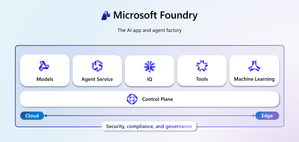
Discover how Microsoft Foundry goes beyond foundational models to deliver enterprise-grade AI solutions. Learn how data grounding, model tuning, and agentic orchestration unlock faster time-to-value, improved accuracy, and scalable workflows across industries.318Views4likes3Comments
Building a Multi-Agent System with Azure AI Agent Service: Campus Event Management
Personal Background My name is Peace Silly. I studied French and Spanish at the University of Oxford, where I developed a strong interest in how language is structured and interpreted. That curiosity about syntax and meaning eventually led me to computer science, which I came to see as another language built on logic and structure. In the academic year 2024–2025, I completed the MSc Computer Science at University College London, where I developed this project as part of my Master’s thesis. Project Introduction Can large-scale event management be handled through a simple chat interface? This was the question that guided my Master’s thesis project at UCL. As part of the Industry Exchange Network (IXN) and in collaboration with Microsoft, I set out to explore how conversational interfaces and autonomous AI agents could simplify one of the most underestimated coordination challenges in campus life: managing events across multiple departments, societies, and facilities. At large universities, event management is rarely straightforward. Rooms are shared between academic timetables, student societies, and one-off events. A single lecture theatre might host a departmental seminar in the morning, a society meeting in the afternoon, and a careers talk in the evening, each relying on different systems, staff, and communication chains. Double bookings, last-minute cancellations, and maintenance issues are common, and coordinating changes often means long email threads, manual spreadsheets, and frustrated users. These inefficiencies do more than waste time; they directly affect how a campus functions day to day. When venues are unavailable or notifications fail to reach the right people, even small scheduling errors can ripple across entire departments. A smarter, more adaptive approach was needed, one that could manage complex workflows autonomously while remaining intuitive and human for end users. The result was the Event Management Multi-Agent System, a cloud-based platform where staff and students can query events, book rooms, and reschedule activities simply by chatting. Behind the scenes, a network of Azure-powered AI agents collaborates to handle scheduling, communication, and maintenance in real time, working together to keep the campus running smoothly. The user scenario shown in the figure below exemplifies the vision that guided the development of this multi-agent system. Starting with Microsoft Learning Resources I began my journey with Microsoft’s tutorial Build Your First Agent with Azure AI Foundry which introduced the fundamentals of the Azure AI Agent Service and provided an ideal foundation for experimentation. Within a few weeks, using the Azure Foundry environment, I extended those foundations into a fully functional multi-agent system. Azure Foundry’s visual interface was an invaluable learning space. It allowed me to deploy, test, and adjust model parameters such as temperature, system prompts, and function calling while observing how each change influenced the agents’ reasoning and collaboration. Through these experiments, I developed a strong conceptual understanding of orchestration and coordination before moving to the command line for more complex development later. When development issues inevitably arose, I relied on the Discord support community and the GitHub forum for troubleshooting. These communities were instrumental in addressing configuration issues and providing practical examples, ensuring that each agent performed reliably within the shared-thread framework. This early engagement with Microsoft’s learning materials not only accelerated my technical progress but also shaped how I approached experimentation, debugging, and iteration. It transformed a steep learning curve into a structured, hands-on process that mirrored professional software development practice. A Decentralised Team of AI Agents The system’s intelligence is distributed across three specialised agents, powered by OpenAI’s GPT-4.1 models through Azure OpenAI Service. They each perform a distinct role within the event management workflow: Scheduling Agent – interprets natural language requests, checks room availability, and allocates suitable venues. Communications Agent – notifies stakeholders when events are booked, modified, or cancelled. Maintenance Agent – monitors room readiness, posts fault reports when venues become unavailable, and triggers rescheduling when needed. Each agent operates independently but communicates through a shared thread, a transparent message log that serves as the coordination backbone. This thread acts as a persistent state space where agents post updates, react to changes, and maintain a record of every decision. For example, when a maintenance fault is detected, the Maintenance Agent logs the issue, the Scheduling Agent identifies an alternative venue, and the Communications Agent automatically notifies attendees. These interactions happen autonomously, with each agent responding to the evolving context recorded in the shared thread. Interfaces and Backend The system was designed with both developer-focused and user-facing interfaces, supporting rapid iteration and intuitive interaction. The Terminal Interface Initially, the agents were deployed and tested through a terminal interface, which provided a controlled environment for debugging and verifying logic step by step. This setup allowed quick testing of individual agents and observation of their interactions within the shared thread. The Chat Interface As the project evolved, I introduced a lightweight chat interface to make the system accessible to staff and students. This interface allows users to book rooms, query events, and reschedule activities using plain language. Recognising that some users might still want to see what happens behind the scenes, I added an optional toggle that reveals the intermediate steps of agent reasoning. This transparency feature proved valuable for debugging and for more technical users who wanted to understand how the agents collaborated. When a user interacts with the chat interface, they are effectively communicating with the Scheduling Agent, which acts as the primary entry point. The Scheduling Agent interprets natural-language commands such as “Book the Engineering Auditorium for Friday at 2 PM” or “Reschedule the robotics demo to another room.” It then coordinates with the Maintenance and Communications Agents to complete the process. Behind the scenes, the chat interface connects to a FastAPI backend responsible for core logic and data access. A Flask + HTMX layer handles lightweight rendering and interactivity, while the Azure AI Agent Service manages orchestration and shared-thread coordination. This combination enables seamless agent communication and reliable task execution without exposing any of the underlying complexity to the end user. Automated Notifications and Fault Detection Once an event is scheduled, the Scheduling Agent posts the confirmation to the shared thread. The Communications Agent, which subscribes to thread updates, automatically sends notifications to all relevant stakeholders by email. This ensures that every participant stays informed without any manual follow-up. The Maintenance Agent runs routine availability checks. If a fault is detected, it logs the issue to the shared thread, prompting the Scheduling Agent to find an alternative room. The Communications Agent then notifies attendees of the change, ensuring minimal disruption to ongoing events. Testing and Evaluation The system underwent several layers of testing to validate both functional and non-functional requirements. Unit and Integration Tests Backend reliability was evaluated through unit and integration tests to ensure that room allocation, conflict detection, and database operations behaved as intended. Automated test scripts verified end-to-end workflows for event creation, modification, and cancellation across all agents. Integration results confirmed that the shared-thread orchestration functioned correctly, with all test cases passing consistently. However, coverage analysis revealed that approximately 60% of the codebase was tested, leaving some areas such as Azure service integration and error-handling paths outside automated validation. These trade-offs were deliberate, balancing test depth with project scope and the constraints of mocking live dependencies. Azure AI Evaluation While functional testing confirmed correctness, it did not capture the agents’ reasoning or language quality. To assess this, I used Azure AI Evaluation, which measures conversational performance across metrics such as relevance, coherence, fluency, and groundedness. The results showed high scores in relevance (4.33) and groundedness (4.67), confirming the agents’ ability to generate accurate and context-aware responses. However, slightly lower fluency scores and weaker performance in multi-turn tasks revealed a retrieval–execution gap typical in task-oriented dialogue systems. Limitations and Insights The evaluation also surfaced several key limitations: Synthetic data: All tests were conducted with simulated datasets rather than live campus systems, limiting generalisability. Scalability: A non-functional requirement in the form of horizontal scalability was not tested. The architecture supports scaling conceptually but requires validation under heavier load. Despite these constraints, the testing process confirmed that the system was both technically reliable and linguistically robust, capable of autonomous coordination under normal conditions. The results provided a realistic picture of what worked well and what future iterations should focus on improving. Impact and Future Work This project demonstrates how conversational AI and multi-agent orchestration can streamline real operational processes. By combining Azure AI Agent Services with modular design principles, the system automates scheduling, communication, and maintenance while keeping the user experience simple and intuitive. The architecture also establishes a foundation for future extensions: Predictive maintenance to anticipate venue faults before they occur. Microsoft Teams integration for seamless in-chat scheduling. Scalability testing and real-user trials to validate performance at institutional scale. Beyond its technical results, the project underscores the potential of multi-agent systems in real-world coordination tasks. It illustrates how modularity, transparency, and intelligent orchestration can make everyday workflows more efficient and human-centred. Acknowledgements What began with a simple Microsoft tutorial evolved into a working prototype that reimagines how campuses could manage their daily operations through conversation and collaboration. This was both a challenging and rewarding journey, and I am deeply grateful to Professor Graham Roberts (UCL) and Professor Lee Stott (Microsoft) for their guidance, feedback, and support throughout the project.343Views4likes1CommentIntroducing OpenAI’s GPT-image-1.5 in Microsoft Foundry
Developers building with visual AI can often run into the same frustrations: images that drift from the prompt, inconsistent object placement, text that renders unpredictably, and editing workflows that break when iterating on a single asset. That’s why we are excited to announce OpenAI's GPT Image 1.5 is now generally available in Microsoft Foundry. This model can bring sharper image fidelity, stronger prompt alignment, and faster image generation that supports iterative workflows. Starting today, customers can request access to the model and start building in the Foundry platform. Meet GPT Image 1.5 AI driven image generation began with early models like OpenAI's DALL-E, which introduced the ability to transform text prompts into visuals. Since then, image generation models have been evolving to enhance multimodal AI across industries. GPT Image 1.5 represents continuous improvement in enterprise-grade image generation. Building on the success of GPT Image 1 and GPT Image 1 mini, these enhanced models introduce advanced capabilities that cater to both creative and operational needs. The new image models offer: Text-to-image: Stronger instruction following and highly precise editing. Image-to-image: Transform existing images to iteratively refine specific regions Improved visual fidelity: More detailed scenes and realistic rendering. Accelerated creation times: Up to 4x faster generation speed. Enterprise integration: Deploy and scale securely in Microsoft Foundry. GPT Image 1.5 delivers stronger image preservation and editing capabilities, maintaining critical details like facial likeness, lighting, composition, and color tone across iterative changes. You’ll see more consistent preservation of branded logos and key visuals, making it especially powerful for marketing, brand design, and ecommerce workflows—from graphics and logo creation to generating full product catalogs (variants, environments, and angles) from a single source image. Benchmarks Based on an internal Microsoft dataset, GPT Image 1.5 performs higher than other image generation models in prompt alignment and infographics tasks. It focuses on making clear, strong edits – performing best on single-turn modification, delivering the higher visual quality in both single and multi-turn settings. The following results were found across image generation and editing: Text to image Prompt alignment Diagram / Flowchart GPT Image 1.5 91.2% 96.9% GPT Image 1 87.3% 90.0% Qwen Image 83.9% 33.9% Nano Banana Pro 87.9% 95.3% Image editing Evaluation Aspect Modification Preservation Visual Quality Face Preservation Metrics BinaryEval SC (semantic) DINO (Visual) BinaryEval AuraFace Single-turn GPT image 1 99.2% 51.0% 0.14 79.5% 0.30 Qwen image 81.9% 63.9% 0.44 76.0% 0.85 GPT Image 1.5 100% 56.77% 0.14 89.96% 0.39 Multi-turn GPT Image 1 93.5% 54.7% 0.10 82.8% 0.24 Qwen image 77.3% 68.2% 0.43 77.6% 0.63 GPT image 1.5 92.49% 60.55% 0.15 89.46% 0.28 Using GPT Image 1.5 across industries Whether you’re creating immersive visuals for campaigns, accelerating UI and product design, or producing assets for interactive learning GPT Image 1.5 gives modern enterprises the flexibility and scalability they need. Image models can allow teams to drive deeper engagement through compelling visuals, speed up design cycles for apps, websites, and marketing initiatives, and support inclusivity by generating accessible, high‑quality content for diverse audiences. Watch how Foundry enables developers to iterate with multimodal AI across Black Forest Labs, OpenAI, and more: Microsoft Foundry empowers organizations to deploy these capabilities at scale, integrating image generation seamlessly into enterprise workflows. Explore the use of AI image generation here across industries like: Retail: Generate product imagery for catalogs, e-commerce listings, and personalized shopping experiences. Marketing: Create campaign visuals and social media graphics. Education: Develop interactive learning materials or visual aids. Entertainment: Edit storyboards, character designs, and dynamic scenes for films and games. UI/UX: Accelerate design workflows for apps and websites. Microsoft Foundry provides security and compliance with built-in content safety filters, role-based access, network isolation, and Azure Monitor logging. Integrated governance via Azure Policy, Purview, and Sentinel gives teams real-time visibility and control, so privacy and safety are embedded in every deployment. Learn more about responsible AI at Microsoft. Pricing Model Pricing (per 1M tokens) - Global GPT-image-1.5 Input Tokens: $8 Cached Input Tokens: $2 Output Tokens: $32 Cost efficiency improves as well: image inputs and outputs are now cheaper compared to GPT Image 1, enabling organizations to generate and iterate on more creative assets within the same budget. For detailed pricing, refer here. Getting started Learn more about image generation, explore code samples, and read about responsible AI protections here. Try GPT Image 1.5 in Microsoft Foundry and start building multimodal experiences today. Whether you’re designing educational materials, crafting visual narratives, or accelerating UI workflows, these models deliver the flexibility and performance your organization needs.3.5KViews1like1CommentIntegrate Custom Azure AI Agents with Copilot Studio and M365 Copilot
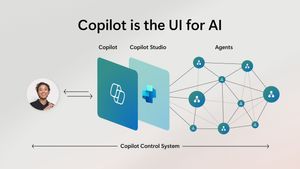
Integrating Custom Agents with Copilot Studio and M365 Copilot In today's fast-paced digital world, integrating custom agents with Copilot Studio and M365 Copilot can significantly enhance your company's digital presence and extend your CoPilot platform to your enterprise applications and data. This blog will guide you through the integration steps of bringing your custom Azure AI Agent Service within an Azure Function App, into a Copilot Studio solution and publishing it to M365 and Teams Applications. When Might This Be Necessary: Integrating custom agents with Copilot Studio and M365 Copilot is necessary when you want to extend customization to automate tasks, streamline processes, and provide better user experience for your end-users. This integration is particularly useful for organizations looking to streamline their AI Platform, extend out-of-the-box functionality, and leverage existing enterprise data and applications to optimize their operations. Custom agents built on Azure allow you to achieve greater customization and flexibility than using Copilot Studio agents alone. What You Will Need: To get started, you will need the following: Azure AI Foundry Azure OpenAI Service Copilot Studio Developer License Microsoft Teams Enterprise License M365 Copilot License Steps to Integrate Custom Agents: Create a Project in Azure AI Foundry: Navigate to Azure AI Foundry and create a project. Select 'Agents' from the 'Build and Customize' menu pane on the left side of the screen and click the blue button to create a new agent. Customize Your Agent: Your agent will automatically be assigned an Agent ID. Give your agent a name and assign the model your agent will use. Customize your agent with instructions: Add your knowledge source: You can connect to Azure AI Search, load files directly to your agent, link to Microsoft Fabric, or connect to third-party sources like Tripadvisor. In our example, we are only testing the CoPilot integration steps of the AI Agent, so we did not build out additional options of providing grounding knowledge or function calling here. Test Your Agent: Once you have created your agent, test it in the playground. If you are happy with it, you are ready to call the agent in an Azure Function. Create and Publish an Azure Function: Use the sample function code from the GitHub repository to call the Azure AI Project and Agent. Publish your Azure Function to make it available for integration. azure-ai-foundry-agent/function_app.py at main · azure-data-ai-hub/azure-ai-foundry-agent Connect your AI Agent to your Function: update the "AIProjectConnString" value to include your Project connection string from the project overview page of in the AI Foundry. Role Based Access Controls: We have to add a role for the function app on OpenAI service. Role-based access control for Azure OpenAI - Azure AI services | Microsoft Learn Enable Managed Identity on the Function App Grant "Cognitive Services OpenAI Contributor" role to the System-assigned managed identity to the Function App in the Azure OpenAI resource Grant "Azure AI Developer" role to the System-assigned managed identity for your Function App in the Azure AI Project resource from the AI Foundry Build a Flow in Power Platform: Before you begin, make sure you are working in the same environment you will use to create your Copilot Studio agent. To get started, navigate to the Power Platform (https://make.powerapps.com) to build out a flow that connects your Copilot Studio solution to your Azure Function App. When creating a new flow, select 'Build an instant cloud flow' and trigger the flow using 'Run a flow from Copilot'. Add an HTTP action to call the Function using the URL and pass the message prompt from the end user with your URL. The output of your function is plain text, so you can pass the response from your Azure AI Agent directly to your Copilot Studio solution. Create Your Copilot Studio Agent: Navigate to Microsoft Copilot Studio and select 'Agents', then 'New Agent'. Make sure you are in the same environment you used to create your cloud flow. Now select ‘Create’ button at the top of the screen From the top menu, navigate to ‘Topics’ and ‘System’. We will open up the ‘Conversation boosting’ topic. When you first open the Conversation boosting topic, you will see a template of connected nodes. Delete all but the initial ‘Trigger’ node. Now we will rebuild the conversation boosting agent to call the Flow you built in the previous step. Select 'Add an Action' and then select the option for existing Power Automate flow. Pass the response from your Custom Agent to the end user and end the current topic. My existing Cloud Flow: Add action to connect to existing Cloud Flow: When this menu pops up, you should see the option to Run the flow you created. Here, mine does not have a very unique name, but you see my flow 'Run a flow from Copilot' as a Basic action menu item. If you do not see your cloud flow here add the flow to the default solution in the environment. Go to Solutions > select the All pill > Default Solution > then add the Cloud Flow you created to the solution. Then go back to Copilot Studio, refresh and the flow will be listed there. Now complete building out the conversation boosting topic: Make Agent Available in M365 Copilot: Navigate to the 'Channels' menu and select 'Teams + Microsoft 365'. Be sure to select the box to 'Make agent available in M365 Copilot'. Save and re-publish your Copilot Agent. It may take up to 24 hours for the Copilot Agent to appear in M365 Teams agents list. Once it has loaded, select the 'Get Agents' option from the side menu of Copilot and pin your Copilot Studio Agent to your featured agent list Now, you can chat with your custom Azure AI Agent, directly from M365 Copilot! Conclusion: By following these steps, you can successfully integrate custom Azure AI Agents with Copilot Studio and M365 Copilot, enhancing you’re the utility of your existing platform and improving operational efficiency. This integration allows you to automate tasks, streamline processes, and provide better user experience for your end-users. Give it a try! Curious of how to bring custom models from your AI Foundry to your Copilot Studio solutions? Check out this blog19KViews3likes11Comments
AI Hub --> Project Structure In Microsoft Foundry
The AI Hub → Project structure works great for a single team. But when you've got a large org with multiple departments, each running their own hub with several projects. I found it doesn't quite fit the deployment model we needed. Here's the scenario: I create a hub per department, and they can share resources and apply governance across their projects. But I also need org-level policies that apply across all department hubs. And visibility into programs that span multiple departments. With the current two-level structure, I don't have a structural layer for that. Current options both have tradeoffs: Single org-wide hub with departments as projects = lose department-level resource isolation and independent governance Separate hubs per department = manually replicate org-level policies, no rollup reporting across departments For my scenario, it would help if: there was an intermediate level , either nested hubs or an explicit "portfolio/program" grouping, so governance can work at both org and department levels, with rollup visibility. Curious: are others running into this? How are you structuring org-level governance across multiple department hubs? Looking forward for suggestions on this, how others are doing this.30Views0likes0CommentsContext-Aware RAG System with Azure AI Search to Cut Token Costs and Boost Accuracy
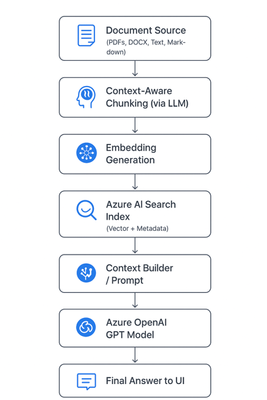
🚀 Introduction As AI copilots and assistants become integral to enterprises, one question dominates architecture discussions: “How can we make large language models (LLMs) provide accurate, source-grounded answers — without blowing up token costs?” Retrieval-Augmented Generation (RAG) is the industry’s go-to strategy for this challenge. But traditional RAG pipelines often use static document chunking, which breaks semantic context and drives inefficiencies. To address this, we built a context-aware, cost-optimized RAG pipeline using Azure AI Search and Azure OpenAI, leveraging AI-driven semantic chunking and intelligent retrieval. The result: accurate answers with up to 85% lower token consumption. Majorly in this blog we are considering: Tokenization Chunking The Problem with Naive Chunking Most RAG systems split documents by token or character count (e.g., every 1,000 tokens). This is easy to implement but introduces real-world problems: 🧩 Loss of context — sentences or concepts get split mid-idea. ⚙️ Retrieval noise — irrelevant fragments appear in top results. 💸 Higher cost — you often send 5× more text than necessary. These issues degrade both accuracy and cost efficiency. 🧠 Context-Aware Chunking: Smarter Document Segmentation Instead of breaking text arbitrarily, our system uses an LLM-powered preprocessor to identify semantic boundaries — meaning each chunk represents a complete and coherent concept. Example Naive chunking: “Azure OpenAI Service offers… [cut] …integrates with Azure AI Search for intelligent retrieval.” Context-aware chunking: “Azure OpenAI Service provides access to models like GPT-4o, enabling developers to integrate advanced natural language understanding and generation into their applications. It can be paired with Azure AI Search for efficient, context-aware information retrieval.” ✅ The chunk is self-contained and semantically meaningful. This allows the retriever to match queries with conceptually complete information rather than partial sentences — leading to precision and fewer chunks needed per query. Architecture Diagram Chunking Service: Purpose: Transforms messy enterprise data (wikis, PDFs, transcripts, repos, images) into structured, model-friendly chunks for Retrieval-Augmented Generation (RAG). ChallengeChunking FixLLM context limitsBreaks docs into smaller piecesEmbedding sizeKeeps within token boundsRetrieval accuracyGranular, relevant sections onlyNoiseRemoves irrelevant blocksTraceabilityChunk IDs for auditabilityCost/latencyRe-embed only changed chunks The Chunking Flow (End-to-End) The Chunking Service sits in the ingestion pipeline and follows this sequence: Ingestion: Raw text arrives from sources (wiki, repo, transcript, PDF, image description). Token-aware splitting: Large text is cut into manageable pre-chunks with a 100-token overlap, ensuring no semantic drift across boundaries. Semantic segmentation: Each pre-chunk is passed to an Azure OpenAI Chat model with a structured prompt. Output = JSON array of semantic chunks (sectiontitle, speaker, content). Optional overlap injection: Character-level overlap can be applied across chunks for discourse-heavy text like meeting transcripts. Embedding generation: Each chunk is passed to Azure OpenAI Embeddings API (text-embedding-3-small), producing a 1536-dimension vector. Indexing: Chunks (text + vectors) are uploaded to Azure AI Search. Retrieval: During question answering or document generation, the system pulls top-k chunks, concatenates them, and enriches the prompt for the LLM. Resilience & Traceability The service is built to handle real-world pipeline issues. It retries once on rate limits, validates JSON outputs, and fails fast on malformed data instead of silently dropping chunks. Each chunk is assigned a unique ID (chunk_<sequence>_<sourceTag>), making retrieval auditable and enabling selective re-embedding when only parts of a document change. ☁️ Why Azure AI Search Matters Here Azure AI Search (formerly Cognitive Search) is the heart of the retrieval pipeline. Key Roles: Vector Search Engine: Stores embeddings of chunks and performs semantic similarity search. Hybrid Search (Keyword + Vector): Combines lexical and semantic matching for high precision and recall. Scalability: Supports millions of chunks with blazing-fast search latency. Metadata Filtering: Enables fine-grained retrieval (e.g., by document type, author, section). Native Integration with Azure OpenAI: Allows a seamless, end-to-end RAG pipeline without third-party dependencies. In short, Azure AI Search provides the speed, scalability, and semantic intelligence to make your RAG pipeline enterprise-grade. 💡 Importance of Azure OpenAI Azure OpenAI complements Azure AI Search by providing: High-quality embeddings (text-embedding-3-large) for accurate vector search. Powerful generative reasoning (GPT-4o or GPT-4.1) to craft contextually relevant answers. Security and compliance within your organization’s Azure boundary — critical for regulated environments. Together, these two services form the retrieval (Azure AI Search) and generation (Azure OpenAI) halves of your RAG system. 💰 Token Efficiency By limiting the model’s input to only the most relevant, semantically meaningful chunks, you drastically reduce prompt size and cost. Approach Tokens per Query Typical Cost Accuracy Full-document prompt ~15,000–20,000 Very high Medium Fixed-size RAG chunks ~5,000–8,000 Moderate Medium-high Context-aware RAG (this approach) ~2,000–3,000 Low High 💰 Token Cost Reduction Analysis Let’s quantify it: Step Naive Approach (no RAG) Your Approach (Context-Aware RAG) Prompt context size Entire document (e.g., 15,000 tokens) Top 3 chunks (e.g., 2,000 tokens) Tokens per query ~16,000 (incl. user + system) ~2,500 Cost reduction — ~84% reduction in token usage Accuracy Often low (hallucinations) Higher (targeted retrieval) That’s roughly an 80–85% reduction in token usage while improving both accuracy and response speed. 🧱 Tech Stack Overview Component Service Purpose Chunking Engine Azure OpenAI (GPT models) Generate context-aware chunks Embedding Model Azure OpenAI Embedding API Create high-dimensional vectors Retriever Azure AI Search Perform hybrid and vector search Generator Azure OpenAI GPT-4o Produce final answer Orchestration Layer Python / FastAPI / .NET c# Handle RAG pipeline 🔍 The Bottom Line By adopting context-aware chunking and Azure AI Search-powered RAG, you achieve: ✅ Higher accuracy (contextually complete retrievals) 💸 Lower cost (token-efficient prompts) ⚡ Faster latency (smaller context per call) 🧩 Scalable and secure architecture (fully Azure-native) This is the same design philosophy powering Microsoft Copilot and other enterprise AI assistants today. 🧪 Real-Life Example: Context-Aware RAG in Action To bring this architecture to life, let’s walk through a simple example of how documents can be chunked, embedded, stored in Azure AI Search, and then queried to generate accurate, cost-efficient answers. Imagine you want to build an internal knowledge assistant that answers developer questions from your company’s Azure documentation. ⚙️ Step 1: Intelligent Document Chunking We’ll use a small LLM call to segment text into context-aware chunks — rather than fixed token counts //Context Aware Chunking //text can be your retrieved text from any page/ document private async Task<List<SemanticChunk>> AzureOpenAIChunk(string text) { try { string prompt = $@" Divide the following text into logical, meaningful chunks. Each chunk should represent a coherent section, topic, or idea. Return the result as a JSON array, where each object contains: - sectiontitle - speaker (if applicable, otherwise leave empty) - content Do not add any extra commentary or explanation. Only output the JSON array. Do not give content an array, try to keep all in string. TEXT: {text}" var client = GetAzureOpenAIClient(); var chatCompletionsOptions = new ChatCompletionOptions { Temperature = 0, FrequencyPenalty = 0, PresencePenalty = 0 }; var Messages = new List<OpenAI.Chat.ChatMessage> { new SystemChatMessage("You are a text processing assistant."), new UserChatMessage(prompt) }; var chatClient = client.GetChatClient( deploymentName: _appSettings.Agent.Model); var response = await chatClient.CompleteChatAsync(Messages, chatCompletionsOptions); string responseText = response.Value.Content[0].Text.ToString(); string cleaned = Regex.Replace(responseText, @"```[\s\S]*?```", match => { var match1 = match.Value.Replace("```json", "").Trim(); return match1.Replace("```", "").Trim(); }); // Try to parse the response as JSON array of chunks return CreateChunkArray(cleaned); } catch (JsonException ex) { _logger.LogError("Failed to parse GPT response: " + ex.Message); throw; } catch (Exception ex) { _logger.LogError("Error in AzureOpenAIChunk: " + ex.Message); throw; } } 🧠 Step 2: Adding Overlaps for better result We are adding overlapping between chunks for better and accurate answers. Overlapping window can be modified based on the documents. public List<SemanticChunk> AddOverlap(List<SemanticChunk> chunks, string IDText, int overlapChars = 0) { var overlappedChunks = new List<SemanticChunk>(); for (int i = 0; i < chunks.Count; i++) { var current = chunks[i]; string previousOverlap = i > 0 ? chunks[i - 1].Content[^Math.Min(overlapChars, chunks[i - 1].Content.Length)..] : ""; string combinedText = previousOverlap + "\n" + current.Content; var Id = $"chunk_{i + '_' + IDText}"; overlappedChunks.Add(new SemanticChunk { Id = Regex.Replace(Id, @"[^A-Za-z0-9_\-=]", "_"), Content = combinedText, SectionTitle = current.SectionTitle }); } return overlappedChunks; } 🧠 Step 3: Generate and Store Embeddings in Azure AI Search We convert each chunk into an embedding vector and push it to an Azure AI Search index. public async Task<List<SemanticChunk>> AddEmbeddings(List<SemanticChunk> chunks) { var client = GetAzureOpenAIClient(); var embeddingClient = client.GetEmbeddingClient("text-embedding-3-small"); foreach (var chunk in chunks) { // Generate embedding using the EmbeddingClient var embeddingResult = await embeddingClient.GenerateEmbeddingAsync(chunk.Content).ConfigureAwait(false); chunk.Embedding = embeddingResult.Value.ToFloats(); } return chunks; } public async Task UploadDocsAsync(List<SemanticChunk> chunks) { try { var indexClient = GetSearchindexClient(); var searchClient = indexClient.GetSearchClient(_indexName); var result = await searchClient.UploadDocumentsAsync(chunks); } catch (Exception ex) { _logger.LogError("Failed to upload documents: " + ex); throw; } } 🤖 Step 4: Generate the Final Answer with Azure OpenAI Now we combine the top chunks with the user query to create a cost-efficient, context-rich prompt. P.S. : Here in this example we have used semantic kernel agent , in real time any agent can be used and any prompt can be updated. var context = await _aiSearchService.GetSemanticSearchresultsAsync(UserQuery); // Gets chunks from Azure AI Search //here UserQuery is query asked by user/any question prompt which need to be answered. string questionWithContext = $@"Answer the question briefly in short relevant words based on the context provided. Context : {context}. \n\n Question : {UserQuery}?"; var _agentModel = new AgentModel() { Model = _appSettings.Agent.Model, AgentName = "Answering_Agent", Temperature = _appSettings.Agent.Temperature, TopP = _appSettings.Agent.TopP, AgentInstructions = $@"You are a cloud Migration Architect. " + "Analyze all the details from top to bottom in context based on the details provided for the Migration of APP app using Azure Services. Do not assume anything." + "There can be conflicting details for a question , please verify all details of the context. If there are any conflict please start your answer with word - **Conflict**." + "There might not be answers for all the questions, please verify all details of the context. If there are no answer for question just mention - **No Information**" }; _agentModel = await _agentService.CreateAgentAsync(_agentModel); _agentModel.QuestionWithContext = questionWithContext; var modelWithResponse = await _agentService.GetAnswerAsync(_agentModel); 🧠 Final Thoughts Context-aware RAG isn’t just a performance optimization — it’s an architectural evolution. It shifts the focus from feeding LLMs more data to feeding them the right data. By letting Azure AI Search handle intelligent retrieval and Azure OpenAI handle reasoning, you create an efficient, explainable, and scalable AI assistant. The outcome: Smarter answers, lower costs, and a pipeline that scales with your enterprise. Wiki Link: Tokenization and Chunking IP Link: AI Migration Accelerator1.3KViews4likes1CommentChart your AI app and agent strategy with Microsoft Marketplace
Organizations exploring AI apps and agents face a critical choice: build, buy, or blend. There’s no one-size-fits-all—each approach offers unique benefits and trade-offs. Tune in for insights into the pros and cons of each approach and explore how the Microsoft Marketplace simplifies adoption by providing a single source for trusted AI apps, agents, and models. Learn how Marketplace accelerates time-to-value, reduces procurement times and serves as the trusted source to access a catalog of thousands of AI models, enabling you to innovate faster without sacrificing governance or cost control. Where do I post my questions? Scroll to the bottom of this page and select Comment. This session will be recorded and available on demand immediately after airing. It will feature AI-generated captions during the live broadcast. Human-generated captions and a recap of the Q&A will be available by the end of the week.319Views1like2CommentsPantone’s Palette Generator enhances creative exploration with agentic AI on Azure
Color can be powerful. When creative professionals shape the mood and direction of their work, color plays a vital role because it provides context and cues for the end product or creation. For more than 60 years, creatives from all areas of design—including fashion, product, and digital—have turned to Pantone color guides to translate inspiration into precise, reproducible color choices. These guides offer a shared language for colors, as well as inspiration and communication across industries. Once rooted in physical tools, Pantone has evolved to meet the needs of modern creators through its trend forecasting, consulting services, and digital platform. Today, Pantone Connect and its multi-agent solution called the Pantone Palette Generator seamlessly bring color inspiration and accuracy into everyday design workflows (as well as the New York City mayoral race). Simply by typing in a prompt, designers can generate palettes in seconds. Available in Pantone Connect, the tool uses Azure services like Microsoft Foundry, Azure AI Search, and Azure Cosmos DB to serve up the company’s vast collection of trend and color research from the color experts at the Pantone Color Institute. reached in seconds instead of days. Now, with Microsoft Foundry, creatives can use agents to get instant color palettes and suggestions based on human insights and trend direction.” Turning Pantone’s color legacy into an AI offering The Palette Generator accelerates the process of researching colors and helps designers find inspiration or validate some of their ideas through trend-backed research. “Pantone wants to be where our customers are,” says Rohani Jotshi, Director of Software Engineering and Data at Pantone. “As workflows become increasingly digital, we wanted to give our customers a way to find inspiration while keeping the same level of accuracy and trust they expect from Pantone.” The Palette Generator taps into thousands of articles from Pantone’s Color Insider library, as well as trend guides and physical color books in a way that preserves the company’s color standards science while streamlining the creative process. Built entirely on Microsoft Foundry, the solution uses Azure AI Search for agentic retrieval-augmented generation (RAG) and Azure OpenAI in Foundry Models to reason over the data. It quickly serves up palette options in response to questions like “Show me soft pastels for an eco-friendly line of baby clothes” or “I want to see vibrant metallics for next spring.” Over the course of two months, the Pantone team built the initial proof of concept for the Palette Generator, using GitHub Copilot to streamline the process and save over 200 hours of work across multiple sprints. This allowed Pantone’s engineers to focus on improving prompt engineering, adding new agent capabilities, and refining orchestration logic rather than writing repetitive code. Building a multi-agent architecture that accelerates creativity The Pantone team worked with Microsoft to develop the multi-agent architecture, which is made up of three connected agents. Using Microsoft Agent Framework—an open source development kit for building AI orchestration systems—it was a straightforward process to bring the agents together into one workflow. “The Microsoft team recommended Microsoft Agent Framework and when we tried it, we saw how it was extremely fast and easy to create architectural patterns,” says Kristijan Risteski, Solutions Architect at Pantone. “With Microsoft Agent Framework, we can spin up a model in five lines of code to connect our agents.” When a user types in a question, they interact with an orchestrator agent that routes prompts and coordinates the more specialized agents. Behind the scenes an additional agent retrieves contextually relevant insights from Pantone’s proprietary Color Insider dataset. Using Azure AI Search with vectorized data indexing, this agent interprets the semantics of a user’s query rather than relying solely on keywords. A third agent then applies rules from color science to assemble a balanced palette. This agent ensures the output is a color combination that meets harmony, contrast, and accessibility standards. The result is a set of Pantone-curated colors that match the emotional and aesthetic tone of the request. “All of this happens in seconds,” says Risteski. To manage conversation flow and achieve long-term data persistence, Pantone uses Azure Cosmos DB, which stores user sessions, prompts, and results. The database not only enables designers to revisit past palette explorations but also provides Pantone with valuable usage intelligence to refine the system over time. “We use Azure Cosmos DB to track inputs and outputs,” says Risteski. “That data helps us fine-tune prompts, measure engagement, and plan how we’ll train future models.” Improving accuracy and performance with Azure AI Search With Azure AI Search, the Palette Generator can understand the nuance of color language. Instead of relying solely on keyword searches that might miss the complexity of words like “vibrant” or “muted,” Pantone’s team decided to use a vectorized index for more accurate palette results. Using the built-in vectorization capability of Azure AI Search, the team converted their color knowledge base—including text-based color psychology and trend articles—into numerical embeddings. “Overall, vector search gave us better results because it could understand the intent of the prompt, not just the words,“ says Risteski. “If someone types, ‘Show me colors that feel serene and oceanic,’ the system understands intent. It finds the right references across our color psychology and trend archives and delivers them instantly.” The team also found ways to reduce latency as they evolved their proof of concept. Initially, they encountered slow inference times and performance lags when retrieving search results. By switching from GPT-4.1 to GPT-5, latency improved. And using Azure AI Search to manage ranking and filtering results helped reduce the number of calls to the large language model (LLM). “With Azure, we just get the articles, put them in a bucket, and say ‘index it now,’ says Risteski. “It takes one or two minutes—and that’s it. The results are so much better than traditional search.” Moving from inspiration to palettes faster The Palette Generator has transformed how designers and color enthusiasts interact with Pantone’s expertise. What once took weeks of research and review can now be done in seconds. “Typically, if someone wanted to develop a palette for a product launch, it might take many months of research,” says Jotshi. “Now, they can type one sentence to describe their inspiration then immediately find Pantone-backed insight and options. Human curation will still be hugely important, but a strong set of starting options can significantly accelerate the palette development process.” Expanding the palette: The next phase for Pantone’s design agent Rapidly launching the Palette Generator in beta has redefined what the Pantone engineering team thought was possible. “We’re a small development team, but with Azure we built an enterprise-grade AI system in a matter of weeks,” says Risteski. “That’s a huge win for us.” Next up, the team plans to migrate the entire orchestration layer to Azure Functions, moving to a fully scalable, serverless deployment. This will allow Pantone to run its agents more efficiently, handle variable workloads automatically, and integrate seamlessly with other Azure products such as Microsoft Foundry and Azure Cosmos DB. At the same time, Pantone plans to expand its multi-agent system to include new specialized agents, including one focused on palette harmony and another focused on trend prediction.473Views1like0Comments