access database
5 TopicsAccess announces retirement of Database Compare tool in June 2026
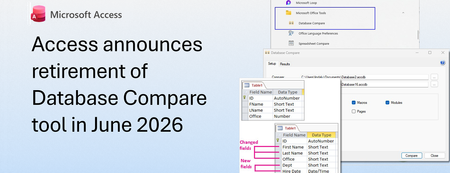
MS Access currently ships a standalone Database Compare tool (DATABASECOMPARE.EXE) that enables comparison of two Access databases. As of June 2026, this tool will no longer be distributed and installed with Office. Access is retiring the Database Compare tool because it depends on components that are no longer available and fails to launch reliably on many Office installs. Because we can no longer provide updated components, it will no longer install with new Office setups. This applies to: Access 2019 volume licensed and Enterprise plans Access 2021, Access 2024, and Microsoft 365 subscriptions Access 2021 and Access 2024 as part of the Office 2021 and Office 2024 perpetual licenses (standalone versions) DatabaseCompare.exe is installed typically under the DCF folder of your Office installation (for example, C:\Program Files\Microsoft Office\Office16\DCF\DATABASECOMPARE.EXE), and it often comes alongside Microsoft Spreadsheet Compare as part of Office Professional Plus or Microsoft 365. In addition, supporting DLLs and configuration files are located within the same DCF subfolder. These files handle database connections, reporting, and comparison functions. These files will be removed. If you're running an older version of Office and have a working version of this tool, you can continue to use it until June 20, 2026. After that, it will be removed and will not be available for download. Therefore, we advise you to find a replacement for Database Compare. You can find similar standalone tools that compare two Access databases from other vendors: AccessDiff: This tool easily compares all objects in Access, including forms, code modules, queries, macros, and more. It is designed to help users retrieve lost software and compare all objects in Access databases. AccdbMerge: This tool is an easy-to-use diff and merge tool for Microsoft Access database files. It compares table definitions, data, forms, modules, and more. A free version is available for the main database objects. DataWeigher: This tool compares and synchronizes data between two MS Access databases. It provides a visual result with each type of record (added, deleted, changed) represented by a different color. The comparison results can be saved as a report or SQL script for data synchronization. Total Access Detective: This tool allows you to find differences between any two objects in one Microsoft Access database, including fields, controls, properties, macro lines, module code, and data. It also supports comparing two blocks of text from text files on disk or the text you copy and paste. We recognize this change may require planning, and we encourage customers to review these alternatives and plan a transition away from Database Compare ahead of its retirement in June 2026.1.1KViews0likes3Comments
Help Needed: Trouble Filtering and Re-Entering Data
Hi everyone, I'm looking for some help. I've started working on something quite simple, but I can't get it to function correctly. Yep, total noob moment. The concept is straightforward, and I've attached what I’ve started so far. The idea is to paste multi-line text into a text field. For example: [12:29] 1g Name Bundle sib 03 03F : 1g Name Bundle sib 03 03F Gender: Female Coat: Black Walker Eye: Garnet Mane: Long Tail: Long Coat Gloom Hair Gloom Skull Branding Wing Style: Pegasus Wing Color: Nightfall bae515d4-1caa-cda5-c259-b2d436f3ba19 Here’s what I’m trying to achieve: The first line ([12:29] ...) should be filtered out. The name should be extracted: 1g Name Bundle sib 03 03F The UUID (last line) must be unique—no duplicate entries allowed. If the entry has already been added (based on the UUID), it shouldn't be accepted again. However, if the input is deleted, it should be possible to re-enter it, but currently, it still says the data has already been entered, even after deletion. Could someone please check and help me figure out what’s going wrong? Thanks in advance!263Views0likes9CommentsMS Access & Sharepoint limitations
Hey everyone, I've got a topic I'd like to discuss that relates to my MS Access database. The situation is that I need to make it accessible remotely for multiple people scattered across Europe. Now, I know there are two options I can explore: Splitting the current database into two files, the Front End (FE) and Back End (BE). I'd store the BE file in the cloud and keep the FE file on my local machine. Rewriting the whole thing in SQL and storing it in MS SQL or something similar. My main focus right now is on the first option. But here's where I need your help: If I want to store the BE file in SharePoint, do you know if it can be done with SharePoint Online or if I need SharePoint Server? And how do I go about setting it up so that the local files stay connected to the backend at all times? My ideal scenario is to have multiple people with their own FE files, and any changes they make should update the BE in real time. I've spent ages searching for answers and even talked to support, but I just end up confusing myself more each time. I'm really looking for straightforward information rather than opinions. If any of you have any insights or can lend a hand, I'd greatly appreciate it. Thanks!6KViews0likes1Comment
Does shared Access database through teams support realtime changes?
Background: our institute uses Teams, Office, Onedirve for work. I'm trying to share an Access database through teams. But unlike shared excel or word files that will pop-up and support real-time changes in teams, I have to download and make changes for the .accdb file. Tried to open in browser or SharePoint (ultimately bringing me to Onedrive), but eventually I still need to download the file and any change I made would stay local. Saw a similar post from 2020, wondering if any new solution came out since then. Thanks, Z5.6KViews0likes2Comments