@windows powershell
35 Topics
Export 365 Users last logon time using powershell
I have created a PowerShell command that is supposed to export every users last logon time that is greater than 1 day. But it continues to create a blank document. Below is the command. Get-Mailbox -RecipientType 'UserMailbox' |%{ Get-MailboxStatistics $_.UserPrincipalName | Sort-Object LastLogonTime | Where {$_.LastLogonTime -lt ([System.DateTime]::Now).AddDays(-1) } | Export-Csv "C:\Logs\O365MAILBOXSTATS_REPORT1.CSV" -NoTypeInformation -Append}13KViews0likes2Comments
Set-ACL "Attempted to Perform an Unauthorized Operation"
Hi Folks, I'm currently working on automating security changes on Azure File Shares. As part of this process, I'd like to use Get-ACL and Set-ACL as the easiest ways to copy over a base set of permissions - icacls doesn't have as good functionality for this as it only allows restoring permissions to a file of the same name. However, whenever I use Set-ACL, I immediately get: Set-Acl : Attempted to perform an unauthorized operation. At line:1 char:55 + ... ath | Set-Acl -Path $concatPath + ~~~~~~~~~~~~~~~~~~~~~~~~~ + CategoryInfo : PermissionDenied: () [Set-Acl], UnauthorizedAccessException + FullyQualifiedErrorId : System.UnauthorizedAccessException,Microsoft.PowerShell.Commands.SetAclCommand As a note I have removed path names. The account I'm using is a domain admin and has NTFS permission to the file. It can edit these permissions using the GUI with no issues. It also has an Elevated Contributor role in Azure AD, so it should be able to edit these ACLs. I've also tried the NTFSSecurity module, which has the same issues. Similarly, I have tried to mount the fileshare to a drive with New-PSDrive, in case that helped, but no luck there either. I'm pretty out of ideas here, and icacls will require a lot more logic work to strip back the inherited permissions to what I want them to be. If anyone has any other ideas, I'd love to hear them. Thanks in advance!10KViews0likes6Comments
Should I delete Windows Terminal or Administrator: Powershell?
I have had a major problem with hackers and cyber stalking for nearly a year. I just had the hard drive replaced for the second time in five months on my Dell Inspiron 7706 because of this. Today I discovered that my hacker has created a spoofed PowerShell Administrator ID, which allows her (them) to remotely access my laptop and insert viruses. Can I safely delete the "Administrator: PowerShell" or Windows Terminal without damaging my new hard drive? Thank you. @Windows PowerShell9.1KViews0likes2Comments
Get-AzureADUserManager : Cannot bind argument to parameter 'ObjectId' because it is null.
Hi All, I am trying to fetch the Manager's Manager using the "Get-AzureADUserManager" function by passing ObjectId of manager. However while passing the manager's object to get his/her manager , getting an error below : Please help at the earliest. Code : foreach($user in $users) { $row = $Datatable.NewRow() $manager=Get-AzureADUserManager -ObjectId $user.ObjectId $seniorM=Get-AzureADUserManager -ObjectId $manager.ObjectId $row.Name=$user.GivenName $row.Surname=$user.Surname $row.manager=$manager.DisplayName $row.seniorM=$seniorM.DisplayName $Datatable.Rows.Add($row) } Error Message : Get-AzureADUserManager : Cannot bind argument to parameter 'ObjectId' because it is null. At line:29 char:43 + $seniorM=Get-AzureADUserManager -ObjectId $manager.ObjectId + ~~~~~~~~~~~~~ + CategoryInfo : InvalidData: (:) [Get-AzureADUserManager], ParameterBindingValidationException + FullyQualifiedErrorId : ParameterArgumentValidationErrorNullNotAllowed,Microsoft.Open.AzureAD16.PowerShell.GetUserManagerSolved8.9KViews0likes2Comments
Get users from CSV, foreach user, get country, name, etc., then Export
Hi! I have a problem with PS query. I have a CSV file with +1000 userprincipalname. Id like to export that UPN and for each user get info like userprincipalname, title, country, department, enabled, then export to excel. My example queries: $csv = gc "C:\New folder\Users.csv" $Users=@() $csv | Foreach{ $elements=$_ -split(";") $Users+= ,@($elements[0]) } ForEach ($User in $Users) { Get-ADUser -filter "userPrincipalName -eq '$User'" -Properties * | Select-Object userprincipalname, title, country, department, enabled } OR $Users = Get-contect -path "C:\New folder\Users.csv" ForEach ($User in $Users) { Get-ADUser -filter "userPrincipalName -eq '$User'" -Properties * | Select-Object userprincipalname, title, country, department, enabled } OR $Users = Get-contect -path "C:\New folder\Users.csv" ForEach ($User in $Users) { Get-ADUser -filter $User -Properties * | Select-Object userprincipalname, title, country, department, enabled } My excel has UPN only, like: mailto:email address removed for privacy reasons mailto:email address removed for privacy reasons etc. No headers. Someone will help? 😞8KViews0likes2Comments
Help with Watcher
Hey guys, some of you can help me to check what is wrong with this script? thank you in advance! # Cartella da monitorare (stessa cartella) $cartellaDaMonitorare = "C:\TEST" # Crea un registro per i file già rinominati $registroFileRinominati = "C:\TEST\registro.txt" # Funzione per rinominare i file MSG con data e ora function Rinomina-FileMSG { param ( [string]$file ) if ($file -match "\.msg$" -and -not $registroFileRinominati.ContainsKey($file)) { $now = Get-Date -Format "yyyyMMddHHmm" $nomeFile = [System.IO.Path]::GetFileNameWithoutExtension($file) $estensione = [System.IO.Path]::GetExtension($file) $nuovoNome = "${now}_${nomeFile}${estensione}" Rename-Item -Path $file -NewName $nuovoNome Write-Host "Rinominato $file in $nuovoNome" $registroFileRinominati[$file] = $true } } # Crea un oggetto FileSystemWatcher per monitorare la cartella $watcher = New-Object System.IO.FileSystemWatcher $watcher.Path = $cartellaDaMonitorare $watcher.Filter = "*.msg" $watcher.IncludeSubdirectories = $true $watcher.EnableRaisingEvents = $true # Azione da intraprendere quando viene rilevato un nuovo file $action = { $changeType = $Event.SourceEventArgs.ChangeType $file = $Event.SourceEventArgs.FullPath if ($changeType -eq "Created" -or $changeType -eq "Renamed") { Rinomina-FileMSG -file $file } } # Associa l'azione all'evento Created e Renamed Register-ObjectEvent -InputObject $watcher -EventName Created -Action $action Register-ObjectEvent -InputObject $watcher -EventName Renamed -Action $action # Attendi che lo script venga interrotto Write-Host "Waiting for new MSG files..." while ($true) { Start-Sleep -Seconds 30 }Solved5.9KViews0likes28Comments
Powershell script to add new Network Location for multiple storage volumes?
Hello, Under the "Network Locations" section within "This PC", it is possible to add an infinite(?) amount of network locations using the Add Network Location Wizard. I'm having trouble finding a Powershell script that accomplishes the same thing as this wizard. At my workplace, all 26 drive letters are full and we would like to switch over to network locations to have easy access to more storage volumes. We will need the location to show within the "Network Locations" section within "This PC" and to appear in the left hand column under "This PC", similar to how mounted drives display this way. Thanks!4.9KViews0likes3CommentsDownload Specific Files From Link
https://www.fbi.gov/wanted/topten/alejandro-castillo/download.pdf Hi here is the link i need to download the file , between the /topten and /download.pdf is the person name. And the website will update everyday so if i want download all the file how can i write. Cuz if i just use the link https://www.fbi.gov/wanted/topten is will jump out the message:Content-Disposition header not found for URL: https://www.fbi.gov/wanted/toptenSolved3.6KViews0likes20CommentsError using Remove-AdminPowerApp in the Microsoft.PowerApps.Administration.PowerShell module
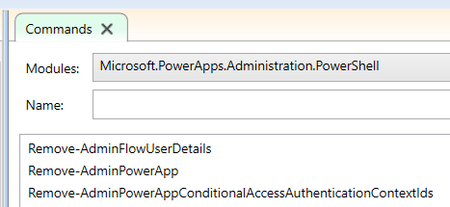
I am trying to use `Remove-AdminPowerApp`. I am a PowerPlatform admin, and I am running PowerShell in Administrator mode. The error says: "InvokeApi : The term 'Test-PowerAppsAccount' is not recognized as the name of a cmdlet, function, script file, or operable program." When I try to `Install-Module -name Microsoft.PowerApps.Administration.PowerShell`, the error says, "The following commands are already available on this system:'Add-PowerAppsAccount, Get-JwtToken, Get-TenantDetailsFromGraph, Get-UsersOrGroupsFromGraph, InvokeApi, Remove-PowerAppsAccount, ReplaceMacro, Select-CurrentEnvironment, Test-PowerAppsAccount'." The ISE shows:Solved3.2KViews0likes8CommentsPowerShell Script Failing with Auth Header and 500 Internal Server Error for REST API
Hi everyone, I'm encountering multiple issues with the PowerShell script that interacts with a REST API to execute batch jobs in FDMEE. The script is supposed to send an HTTP request with a Basic Authorization header, but I'm facing the following problems: "Invalid or Missing Authorization Header" Error: When I visit the API URL directly in the browser, I get: { "links": [], "status": 9, "details": "EPMFDM-ERROR: Invalid or Missing Authorization Header in request" } 2."Internal Server Error (500)": When running the script, it often goes to the catch block and displays a 500 Internal Server Error. Here's the error message I receive in PowerShell: PS>TerminatingError(Invoke-RestMethod): "Request failed." Error encountered in PowerShell Script. Here is the script I'm using: #HTTP Basic Authorization. Contains encrypted username and password encoded to base64 string. $headers = @{Authorization = 'Basic encryptedpassword';} # Set parameter values $jobName = $args[0] $uri = http://server.comm.iocs.address.com:0000/aif/rest/V1/jobs # Monitor status of current batch run Write-Output "Checking Job Status..." Start-Sleep -Seconds 5 $restResponse = Invoke-RestMethod -Uri $uri -Method Get -Headers $headers -ContentType "application/json" $lastJobID = $restResponse.items[0].jobID $payload = @{ jobType = "BATCH" jobName = $jobName } | ConvertTo-Json # Establish REST connection and execute batch job using REST API $restResponse = Invoke-RestMethod -Uri $uri -Method Post -Body $payload -Headers $headers -ContentType "application/json" $uri = $restResponse.links[0].href # Display initial status of batch Write-Output "See below status of batch run..." $restResponse = Invoke-RestMethod -Uri $uri -Method Get -Headers $headers -ContentType "application/json" $currentJobID = $restResponse.jobID Write-Output "Last Job ID: $lastJobID" Write-Output "Current Job ID: $currentJobID" } catch { Write-Output "Error encountered in PowerShell Script.." Write-Output $_.Exception.Message if ($_.InvocationInfo) { Write-Output "Error in script: $($_.InvocationInfo.ScriptName)" Write-Output "Error on line: $($_.InvocationInfo.ScriptLineNumber)" Write-Output "Error in command: $($_.InvocationInfo.Line)" } if ($_.Exception.Response) { Write-Output "HTTP Status Code: $($_.Exception.Response.StatusCode.Value__)" Write-Output "Status Description: $($_.Exception.Response.StatusDescription)" Write-Output "Response Content: $($_.Exception.Response.Content)" } exit 1 } Despite my efforts, the request still fails with the "Invalid or Missing Authorization Header" error and occasionally hits a 500 Internal Server Error. Here are the steps I've taken to debug the issues: Checked Base64 Encoding: Confirmed that the credentials are correctly encoded in Base64. Verified Header Format: Ensured that the Authorization header is correctly formed and included in the request. Tested with Postman: Manually tested the API request with Postman using the same Authorization header, and I'm getting the same header authorization error. Added Detailed Error Logging: Included more detailed error logging in the catch block to capture HTTP status codes and response content. I'm looking for advice on what might be causing these issues in the PowerShell script and how I can resolve them. Any insights or suggestions would be greatly appreciated!2.4KViews0likes4Comments