Forum Discussion

Limit Windows Defender CPU Usage
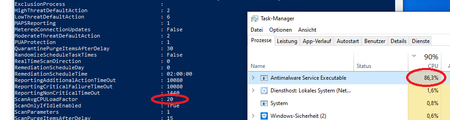

MAlv68 I had a ticket open with Microsoft support for months about this but didn't get anywhere. The one useful comment was that a manually run scan will ignore any CPU limits like ScanAvgCPULoadFactor.

I found a way to bypass this and finally fix the issue of high CPU utilisation on Defender for both manual and scheduled scans. I'll go through it step by step below for those who need it:
1. Open command prompt (search CMD in the search bar) and run as admin.
2. Type:
gpedit
and hit enter to open the local group policy editor. (If you have Windows Home Edition which does not have local group policy editor, follow this guide first to install it:
https://www.howtogeek.com/cannot-find-gpedit-msc-on-windows-11/
3. Go to: Computer Configuration/Administrative Templates/Windows Components/Microsoft Defender Antivirus/Scan.
4. On the right, double-click on the "Specify the maximum percentage of CPU utilization during a scan" policy.
5. Enable this policy and under Options, enter the desired CPU percentage limit.
6. Below, double-click on the "Configure local setting override for maximum percentage of CPU utilization" policy, and enable it (Not 100% sure how necessary this step is but it works for me).
7. Below that, double-click on the "Configure low CPU priority for scheduled scans" policy, and enable it.
8. Below that, double-click on the "CPU throttling type" policy and disable it (very important if you also want your manual scans throttled).
And that's that, let me know if it works for you guys, for me it worked mid scan and saw CPU usage drop from 70% to under my specified 30% value after initiating a manual full scan.