Forum Discussion

jjstewart1288
Nov 24, 2023Copper Contributor
My computer is all **bleep**ed up!! So many issues.
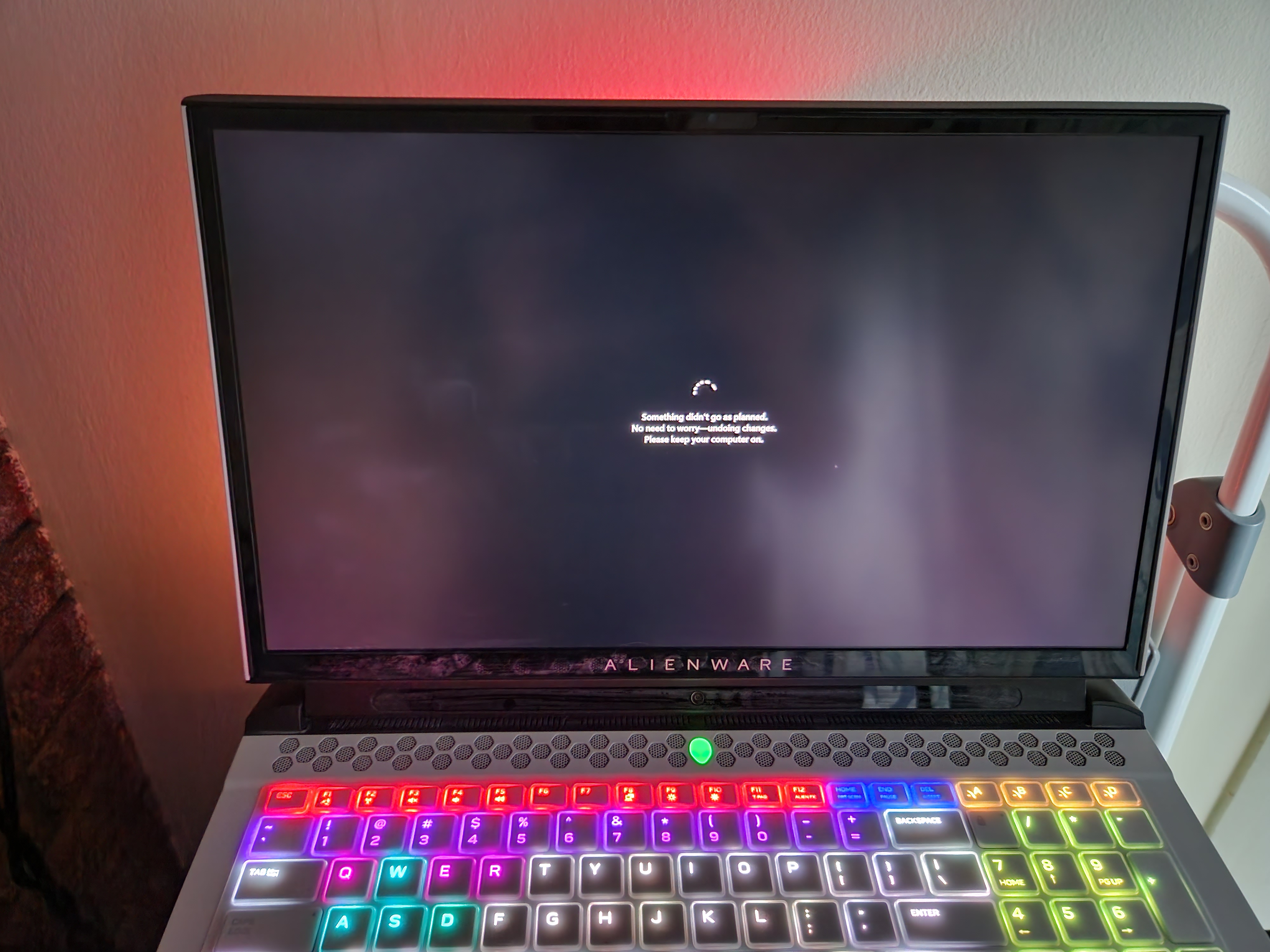
For the past few weeks I have been unable to install two updates. They are: Cumulative Update for Windows 11 Insider Preview (10.0.22635.2771) (KB5032283) 2023-11 Cumulative Update for .NET Fram...


jjstewart1288
Nov 28, 2023Copper Contributor
Good news. I'm back to gui. I was able to use the installation media to get me to command prompt and found a forum that told me how to turn it off. I am now back to my original problem as seen in the screen shots submitted.

Reza_Ameri
Nov 28, 2023Silver Contributor
Thank you for the update.
Open the Command prompt as administrator and type the following command:
sfc /scannow
Press enter and let it runs.
Open the Command prompt as administrator and type the following command:
sfc /scannow
Press enter and let it runs.
- Reza_AmeriDec 10, 2023Silver ContributorGreat, you could always run stable build of Windows and run the Windows Insider in a virtual PC , so it won't affect your day to day work.
- jjstewart1288Dec 05, 2023Copper ContributorI do know that those problems are expected and tried to choose a channel with few bugs because I like giving feedback on new features. However, I kind of felt panicked and a bit busy and could not think of how to get into feedback hub. I now know how to amd have a way to do so on the website instead of the hub and ask for help here.
- Reza_AmeriDec 05, 2023Silver ContributorYou're welcome and glad it was helpful.
Are you know the Windows Insider is under the testing and development and bug and other problems are expected. It is always recommended to report these issues through the Feedback Hub app. - jjstewart1288Dec 05, 2023Copper Contributor
I kind of did that. I went to the Windows Insider Program ISO downloads and went to the latest Preview Channel version and then it allowed me to do updates from there after I installed that Preview channel version. It fixed the start menu critical error issue. Thanks for helping me through it.
- Reza_AmeriDec 04, 2023Silver ContributorTry leave the program and use stable build and see if the problem persists?
You may also switch to Canary and see if that makes any difference.
In the worse case, you will need to reinstall Windows or perform a repair install. - jjstewart1288Dec 03, 2023Copper ContributorYes I am. I thought I moved to Release Preview, but I am in the Beta Channel rather than Dev or Canary.
- Reza_AmeriDec 03, 2023Silver ContributorYou are running the Windows Insider, is that correct?
If that is the case, try leave the Windows Insider and stop receiving new builds:
https://www.microsoft.com/en-us/windowsinsider/leave-program - jjstewart1288Dec 01, 2023Copper ContributorAfter I ran it like you said, I reset the computer. Still have the critical error for start menu and can't install any updates.
- jjstewart1288Dec 01, 2023Copper ContributorHere are the results:
Microsoft Windows [Version 10.0.22635.2486]
(c) Microsoft Corporation. All rights reserved.
C:\Windows\System32>DISM.exe /Online /Cleanup-Wim /CheckHealth
Deployment Image Servicing and Management tool
Version: 10.0.22621.1
Image Version: 10.0.22635.2486
Error: 87
The /checkhealth option is not recognized in this context.
For more information, refer to the help.
The DISM log file can be found at C:\WINDOWS\Logs\DISM\dism.log
C:\Windows\System32>DISM.exe /Online /Cleanup-Wim
Deployment Image Servicing and Management tool
Version: 10.0.22621.1
Image Version: 10.0.22635.2486
Scanning drive C for stale files
Scanning drive D for stale files
Scanning drive E for stale files
The operation completed successfully.
C:\Windows\System32>C:
C:\Windows\System32>D:
D:\>C:
C:\Windows\System32>DISM /Online /Cleanup-Image /CheackHealth
Deployment Image Servicing and Management tool
Version: 10.0.22621.1
Image Version: 10.0.22635.2486
Error: 87
The cheackhealth option is not recognized in this context.
For more information, refer to the help.
The DISM log file can be found at C:\WINDOWS\Logs\DISM\dism.log
C:\Windows\System32>DISM.exe /Online /Cleanup-image /CheckHealth
Deployment Image Servicing and Management tool
Version: 10.0.22621.1
Image Version: 10.0.22635.2486
No component store corruption detected.
The operation completed successfully.
C:\Windows\System32>DISM.exe /Online /Cleanup-image /ScanHealth
Deployment Image Servicing and Management tool
Version: 10.0.22621.1
Image Version: 10.0.22635.2486
[==========================100.0%==========================] No component store corruption detected.
The operation completed successfully.
C:\Windows\System32>DISM.exe /Online /Cleanup-image /RestoreHealth
Deployment Image Servicing and Management tool
Version: 10.0.22621.1
Image Version: 10.0.22635.2486
[===========================84.9%================= ]
[===========================88.7%=================== ]
[==========================100.0%==========================] The restore operation completed successfully.
The operation completed successfully.
C:\Windows\System32> - jjstewart1288Dec 01, 2023Copper ContributorNever mind. I was doing something wrong even after but not sure what. Got the process going. Will post results.
- jjstewart1288Dec 01, 2023Copper ContributorIt doesn't like the check, scan, and restore options.
- jjstewart1288Dec 01, 2023Copper ContributorOh ok. I had it in administrator.
- Reza_AmeriDec 01, 2023Silver ContributorYou have to make sure run the command prompt as administrator and then type the complete command and not just dism.
- jjstewart1288Nov 30, 2023Copper ContributorRestart did not work.
Tried entering those commands in and it said none of them were valid. Here is what I got when I typed in DISM.exe because it said to do so for help.
C:\Windows\System32>DISM.exe
Deployment Image Servicing and Management tool
Version: 10.0.22621.1
DISM.exe [dism_options] {Imaging_command} [<Imaging_arguments>]
DISM.exe {/Image:<path_to_offline_image> | /Online} [dism_options]
{servicing_command} [<servicing_arguments>]
DESCRIPTION:
DISM enumerates, installs, uninstalls, configures, and updates features
and packages in Windows images. The commands that are available depend
on the image being serviced and whether the image is offline or running.
FFU COMMANDS:
/Capture-Ffu - Captures a physical disk image into a new FFU file.
/Apply-Ffu - Applies an .ffu image.
/Split-Ffu - Splits an existing .ffu file into multiple read-only
split FFU files.
/Optimize-Ffu - Optimizes a FFU file so that it can be applied to storage
of a different size.
WIM COMMANDS:
/Apply-CustomDataImage - Dehydrates files contained in the custom data image.
/Capture-CustomImage - Captures customizations into a delta WIM file on a
WIMBoot system. Captured directories include all
subfolders and data.
/Get-WIMBootEntry - Displays WIMBoot configuration entries for the
specified disk volume.
/Update-WIMBootEntry - Updates WIMBoot configuration entry for the
specified disk volume.
/List-Image - Displays a list of the files and folders in a
specified image.
/Delete-Image - Deletes the specified volume image from a WIM file
that has multiple volume images.
/Export-Image - Exports a copy of the specified image to another
file.
/Append-Image - Adds another image to a WIM file.
/Capture-Image - Captures an image of a drive into a new WIM file.
Captured directories include all subfolders and
data.
/Get-MountedWimInfo - Displays information about mounted WIM images.
/Get-WimInfo - Displays information about images in a WIM file.
/Commit-Wim - Saves changes to a mounted WIM image.
/Unmount-Wim - Unmounts a mounted WIM image.
/Mount-Wim - Mounts an image from a WIM file.
/Remount-Wim - Recovers an orphaned WIM mount directory.
/Cleanup-Wim - Deletes resources associated with mounted WIM
images that are corrupted.
GENERIC IMAGING COMMANDS:
/Split-Image - Splits an existing .wim file into multiple
read-only split WIM (SWM) files.
/Apply-Image - Applies an image.
/Get-MountedImageInfo - Displays information about mounted WIM and VHD
images.
/Get-ImageInfo - Displays information about images in a WIM, a VHD
or a FFU file.
/Commit-Image - Saves changes to a mounted WIM or VHD image.
/Unmount-Image - Unmounts a mounted WIM or VHD image.
/Mount-Image - Mounts an image from a WIM or VHD file.
/Remount-Image - Recovers an orphaned image mount directory.
/Cleanup-Mountpoints - Deletes resources associated with corrupted
mounted images.
IMAGE SPECIFICATIONS:
/Online - Targets the running operating system.
/Image - Specifies the path to the root directory of an
offline Windows image.
DISM OPTIONS:
/English - Displays command line output in English.
/Format - Specifies the report output format.
/WinDir - Specifies the path to the Windows directory.
/SysDriveDir - Specifies the path to the system-loader file named
BootMgr.
/LogPath - Specifies the logfile path.
/LogLevel - Specifies the output level shown in the log (1-4).
/NoRestart - Suppresses automatic reboots and reboot prompts.
/Quiet - Suppresses all output except for error messages.
/ScratchDir - Specifies the path to a scratch directory.
For more information about these DISM options and their arguments, specify an
option immediately before /?.
Examples:
DISM.exe /Mount-Wim /?
DISM.exe /ScratchDir /?
DISM.exe /Image:C:\test\offline /?
DISM.exe /Online /?
Thank you for helping me and staying with me on this. - Reza_AmeriNov 30, 2023Silver ContributorFrom your report the sfc command find and fix some issues, try restart your PC and see if the problem persists?
If yes, try run the following commands:
DISM /Online /Cleanup-Image /CheckHealth
DISM /Online /Cleanup-Image /ScanHealth
DISM /Online /Cleanup-Image /RestoreHealth - jjstewart1288Nov 28, 2023Copper Contributor
Before I made this post. See attached sheet for what the results were of start menu troubleshooter.
- jjstewart1288Nov 28, 2023Copper Contributor

