Forum Discussion

Logging on to Remote Desktop using Windows Hello for Business & Biometrics
 Oct 03, 2018
Although late, we have published information around WHfB with RDP :

I've got a working key trust deployment and have created an AD CS template for user certificates as described in https://docs.microsoft.com/en-us/windows/security/identity-protection/hello-for-business/hello-deployment-rdp-certs.
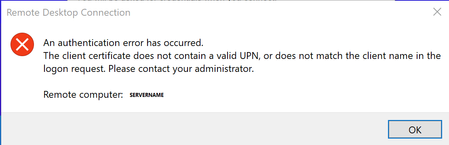
After obtaining the user certificate, I attempt to connect to another Windows device via RDP. Hello takes facial recognition/fingerprint, but gives the message , "An authentication error has occurred. The client certificate does not contain a valid upn, or does not match the client name in the logon request."
However, if I select "more choices" and select the UPN-based security device credential it works. If I remove the cert, it breaks, which leads me to assume that certificate is working. Judging on the other options listed under more choices it looks like fingerprint and face are trying to pass domain\samaccountname instead of UPN. Has anyone figured out a workaround for this?

Have you figure it out what the issue was?
I'm having the same issue
 DaStiviAug 08, 2024Copper Contributor
following page: https://learn.microsoft.com/en-us/windows/security/identity-protection/hello-for-business/deploy/hybrid-cloud-kerberos-trust
on the bottom states:
Unsupported scenarios
The following scenarios aren't supported using Windows Hello for Business cloud Kerberos trust:
- RDP/VDI scenarios using supplied credentials (RDP/VDI can be used with Remote Credential Guard or if a certificate is enrolled into the Windows Hello for Business container)
- ....
i don't fully understand what this line should tell us...
obviously key-trust oder cloud-kerberos trust shouldn't be supported for whfb-RDP...
but you can use remote credential-guard with whfb?
- ChristianT85Jul 23, 2024Copper Contributorsorry I cant help you with that, haven't done it this way yet.
- Nils_WSCJul 23, 2024Copper Contributor
Hello ChristianT85 , Thanks for your reply.
Actually I followed the guide for "Remote Desktop sign-in with Windows Hello for Business" https://learn.microsoft.com/en-us/windows/security/identity-protection/hello-for-business/rdp-sign-in?tabs=adcs
And have a cert to be uses as smartcard as required (AD DS Policy deployment) . So from my understanding I have prepared WHfB for cert based RDS login. But still receive this UID error.
That's what confuses me.
I wonder if there is a something regarding the cert template missing in the official documentation.
For the subject alternate name in cert template upn is selected.
May I also need to select something additionally to be included in Subject Name Format beside Fully distinguished name? - ChristianT85Jul 19, 2024Copper ContributorHi Nils_WSC,
the key UseHelloCertificatesAsSmartCardCertificates should have forced the remote desktop
application to fall back to usemame/password. The error you get comes from trying to login to RDS
via WHfB-credentials. RDS doesn't understand that and throws the error.
In short you cannot login to RDS with Windows Hello for Business (key- or cloud kerberos- trust)! You
need to username/password or a different WHfB (cert based) for RDS login.
But to answer your question: In our environment we have your keys and RequireSecurityDevice=1 (to
require TPM for WHfB).
I hope that helps.
Cheers
Christian - Nils_WSCJul 19, 2024Copper Contributor
Hello ChristianT85 ,
I also added the registry key on my device. Unfortunately I still receive the error message (UID...)during connectiong to rdp.
I currently have Cloud Trust setup and the following settings in Registry set:
HKEY_LOCAL_MACHINE\SOFTWARE\Policies\Microsoft\PassportForWorkUseHelloCertificatesAsSmartCardCertificates=1
Enabled=1
UseCloudTrustForOnPremAuth=1
DisablePostLogonProvisioning=1
Could you share all of youre regkey settings here please. - ChristianT85Jul 18, 2024Copper Contributor
Thank you FriskySpider29347654!
The regkey lead me to the GPO-setting "https://admx.help/?Category=Windows_10_2016&Policy=Microsoft.Policies.MicrosoftPassportForWork::MSPassport_UseHelloCertificatesAsSmartCardCertificates"(admx.help) and from there to the settings catalog in Intune (same name) from where we currently distribute our settings for WHfB cloud kerberos trust to our clients.This forces the remote desktop client to use (and silently fail) WHfB as smart card and then fall back to username and password, just like we wanted!
Cheers
Christian
 FriskySpider29347654Jan 10, 2022Copper Contributor
Martin Lim yehea dawg I solved it.
Push this script to your devices from intune, it forces the machines to treat the certificates as smart cards and then uses them for RDP. Working like a charm for me 🙂#Setting registry key to force WHfB certs to be treated as smart cards. $RegistryLocation = "HKLM:\SOFTWARE\Policies\Microsoft\PassportForWork" $keyname = "UseHelloCertificatesAsSmartCardCertificates" #Test if path exists and create if missing if (!(Test-Path -Path $RegistryLocation)){ Write-Output "Registry location missing. Creating" New-Item $RegistryLocation | Out-Null } #Force create key with value 1 New-ItemProperty -Path $RegistryLocation -Name $keyname -PropertyType DWord -Value 1 -Force | Out-Null Write-Output "Registry key set"