Forum Discussion

Logging on to Remote Desktop using Windows Hello for Business & Biometrics
 Oct 03, 2018
Although late, we have published information around WHfB with RDP :

It works, but had issue where RDP client would first pick the wrong cert and you would need to manually chose the correct cert so there is a cert ordering issue. Also, there is still the issue where only one RDP session can use the smart card cert at a time, is that for everyone or just me? We utilize multiple RemoteApp servers for line of business apps, so being able to log into multiple sessions simultaneously is needed.
Fix the certificate ordering issue and allow simultaneous access to the cert from multiple RDP sessions and then we might have a workable solution, but in the meantime we’re continuing to use Remote Credential Guard for domain computers which works very nicely except that RDP over UDP doesn’t work with it.
I've got a working key trust deployment and have created an AD CS template for user certificates as described in https://docs.microsoft.com/en-us/windows/security/identity-protection/hello-for-business/hello-deployment-rdp-certs.
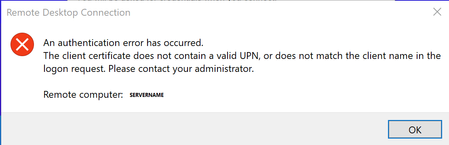
After obtaining the user certificate, I attempt to connect to another Windows device via RDP. Hello takes facial recognition/fingerprint, but gives the message , "An authentication error has occurred. The client certificate does not contain a valid upn, or does not match the client name in the logon request."
However, if I select "more choices" and select the UPN-based security device credential it works. If I remove the cert, it breaks, which leads me to assume that certificate is working. Judging on the other options listed under more choices it looks like fingerprint and face are trying to pass domain\samaccountname instead of UPN. Has anyone figured out a workaround for this?
 Martin LimJan 10, 2022Copper ContributorHi,
Have you figure it out what the issue was?
I'm having the same issue FriskySpider29347654Jan 10, 2022Copper Contributor
Martin Lim yehea dawg I solved it.
Push this script to your devices from intune, it forces the machines to treat the certificates as smart cards and then uses them for RDP. Working like a charm for me 🙂#Setting registry key to force WHfB certs to be treated as smart cards. $RegistryLocation = "HKLM:\SOFTWARE\Policies\Microsoft\PassportForWork" $keyname = "UseHelloCertificatesAsSmartCardCertificates" #Test if path exists and create if missing if (!(Test-Path -Path $RegistryLocation)){ Write-Output "Registry location missing. Creating" New-Item $RegistryLocation | Out-Null } #Force create key with value 1 New-ItemProperty -Path $RegistryLocation -Name $keyname -PropertyType DWord -Value 1 -Force | Out-Null Write-Output "Registry key set"
- ChristianT85Jul 18, 2024Copper Contributor
Thank you FriskySpider29347654!
The regkey lead me to the GPO-setting "https://admx.help/?Category=Windows_10_2016&Policy=Microsoft.Policies.MicrosoftPassportForWork::MSPassport_UseHelloCertificatesAsSmartCardCertificates"(admx.help) and from there to the settings catalog in Intune (same name) from where we currently distribute our settings for WHfB cloud kerberos trust to our clients.This forces the remote desktop client to use (and silently fail) WHfB as smart card and then fall back to username and password, just like we wanted!
Cheers
Christian
- RossWalkerAug 04, 2021Copper ContributorI believe the smart card login is defaulting to the key trust certificate rather than the smart card one you created. As my user base can’t even put up with picking a cert to login with, they want true SSO, I went with the Remote Credential Guard option on our WHfB devices which works like a charm.