User Profile

Maggala
Copper Contributor
Joined Nov 22, 2023


User Widgets
Recent Discussions
Re: Using Teams for employee availability dashboard
The next step would depend on how you want the list to function. If you want all users to be able to see each others 'status' and other information. Essentially you would give users access to this list and they would go in and change their own status and it would show when it was modified in the modified column. You can add a notes column so they can leave notes or any specifics about what they're working on. You can set the list to save up to a certain amount of versions (I can't remember what they cap it at the moment) so that you can see all the edit history made to each users 'line'. You can write flows for notifications when a certain user changes their status or for a summary of daily status changes. I know bts0004 wanted their Team presence to show, and hopefully they got that figured out. I did not incorporate my users Teams status because they just don't use it as proficiently as they should.16KViews0likes1CommentRe: Using Teams for employee availability dashboard
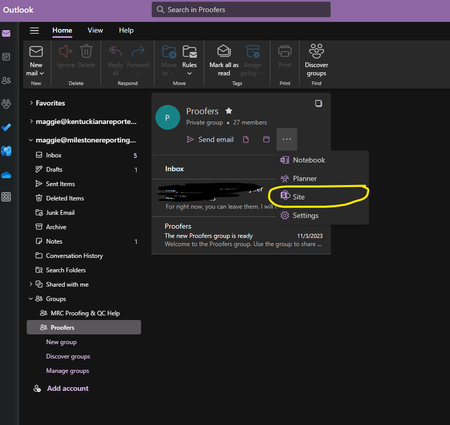
So I'll give you my general rundown of what I created to suit my needs: ****disclaimer: this is all self taught and university of google knowledge. I am by no means an expert in any of this and this took me quite a while to work through. 1 - Create a group in outlook. (you don't have to add users until you're ready) 2 - Once created go to the top of the group header in your outlook inbox. Click the three dots and go to "Site" with the SharePoint icon. 3 - From the SharePoint site in the bottom right hand corner a teams banner will pop up asking if you want to add Teams. Go through the steps and you'll add a shortcut to all folders in the SharePoint page. 4 - From the General tab in the Teams group you will see a Lists tab at the top of the page. It will allow you to create one from scratch or upload one using Excel. (if you don't see a Lists tab you may have to go to the + to add it. (((READ NEXT STEP BEFORE YOU CREATE A LIST)))) 5 - If you have an excel sheet with users on it already with their name and e-mail address, that is the best place to start. To import a user list from an excel sheet the information you are importing must be inside a table in the spreadsheet. (I would honestly play around with the Lists application a little bit before you actually create one from the Teams group. It took me a lot of getting used to and learning what types of columns could do what. If you do have a user list in excel I would import it from the lists application or web browser outside of Teams first to use it as practice.) When importing into Lists - it will ask you what type of column each column is. First column with Users name will be a Title and the 2nd column with the e-mail address will be a person or group. Change the other columns to "Do not import." You can add other columns with information once you get the initial name and e-mail address imported. 6 - Once you have the list up and running and have information that you want to include set up... I can include further steps depending on how you want the list to function for users.20KViews1like5CommentsRe: Using Teams for employee availability dashboard
"Configure list views and filters in SharePoint to display only the logged-in user's status. Create additional views for different criteria like availability." Can anyone give any insight as to how to go about this. I believe I have everything correct so far. I have not added our employees to the Teams channel yet as I am still working on the list. I do have the employee names listed but they are not really in a format for a filter to be able to know what to display for them if I have it set to only display their own name. I hope I am explaining that in a way that is understandable. Any help is greatly appreciated!23KViews0likes7Comments
Recent Blog Articles
No content to show