User Profile

rzaneti
Iron Contributor
Joined Jan 19, 2023


User Widgets
Recent Discussions
Re: How to Automate a Rostering System
MarTyr109 , About the automation, as mentioned by NikolinoDE , you may use VBA or Office Scripts, and both tools are connected to another Microsoft solution, which is the Power Automate, which contains several connectors with other Microsoft products and third part ones. As in Excel, the Power Automate community is very active and will be able to help you with the automation share of your solution. Here are some links about it: Blog post that compares VBA with Office Scripts: http://digitalmill.net/2023/06/10/office-scripts-the-new-vba/ Power Automate documentation: https://learn.microsoft.com/en-us/power-automate/ Access to Power Automate Community: https://powerusers.microsoft.com/t5/Forums/ct-p/FL_Comm_Forums798Views1like0CommentsRe: INDEX, MATCH with Combo-box
Hi anupambit1797 , Please, check if it works for you. Note that I removed your select list and just added a Data Validation containing the list of CHBW from Sheet2, just to make the connection with B13 easier (let me know if this change is a possibility for your use). The formula is a VLOOKUP, but I added an IFERROR just to prevent a "#N/A" result if you let the cell empty. =IFERROR(VLOOKUP(B13, Sheet2!A2:B11, 2, FALSE), "") Let me know if it helps or if you need any changes on the file.1.8KViews1like2CommentsRe: Formulas for working out task times in a job
Hi Norman_Glenn , Thank you for the clarification. I edited the formulas: now we are catching the "maximum" value among the delivery/remove/wrapping and using as the total of tasks. Please, check if it is correct and let me know if you need any changes.2.3KViews0likes1CommentRe: Formulas for working out task times in a job
Hi Norman_Glenn , I'm not sure if I understood properly, but in any case, I added a formula to sum the quantity of pallets that you managed and calculate how many time it took per pallet (just divided the quantity of minutes by the amount of pallets). Note that you were using a "Time" format to calculate the quantity of hours for each job, which is inaccurate, so I converted for a "Number" format and inserted the amount of time in minutes. Please, provide some additional context about the information that you need and if these formulas are on the right path to achieve your solution. Also, if you have the option to use Macros in your file, we could try to figure a solution evolving VBA.2.1KViews0likes3CommentsRe: NEED HELP!! If Cell contain specific text then move row to another sheet
Hi Kenneth_Manuel , I tried to run some tests with your code and everything seems to be working properly. The only thing is that you are applying your second IF statement (the code block 'K = K - 1') after deleting the row with "ETA Not Passed" , "Delivery ETA Not Passed" & "Schedule Not Passed". I don't know if this is the intention, but I flag it, as you are applying the K decrement to the row below the keywords. To try to find a solution, you can debug it "step-by-step", by opening the VBA interface, selecting your method and clicking F8 (and then F8 again for each line of code). This approach will basically run your program line by line, so it will be easy to find any unexpected behavior. Also, if you prefer, you can send us a small sample of your workbook (you can populate it with fake data), as your particular workbook design may be causing this issue.874Views0likes0CommentsRe: Tracking line graph
kentleywiltshire4 I'm not sure, but I believe that Excel is not able to snapshot any data and register only the changes. Considering the file that your shared, I'm afraid that it will be very difficult to catch these changes with the current Sheet structure. If you have the option to modify the workbook structure, maybe it will be helpful to catch these changes.2.9KViews1like0CommentsRe: Formula for calculating employee work hours when the list is constantly changing
Hi LilYawney , Could you please share a sample or a image of your WIP spreadsheet? (you can put fake data on that) I can imagine some alternatives to solve it, but I need to understand how your data is distributed along the sheet.3.4KViews0likes1CommentRe: Tracking line graph
kentleywiltshire4 , Just to confirm: you want the line chart to present the cumulative totals from each day? So if you got a total savings of 100 in Jan 31st and a total savings of 50 in Feb 2nd, you want the line chart to present Feb 2nd as 150, correct? If yes, you first have to transform your savings column in numeric data (right now it is as text, at least in the file that you sent) and summarize the entries by day. You can do this by using a pivot table or the UNIQUE function connected to a SUMIF (example of the attached file). Please, confirm if my assumptions are correct and let me know if the file that I sent you is in the right direction for solve your problem.3KViews1like2CommentsRe: Add multiple sheets of existing excel sheet data in one workbook
Hi Sadia_Ayaan , It is possible to automate this task by using a VBA Macro (if you use Excel on Desktop). I will ask you some questions to we build a solution together: - Does this first workbook have other worksheets additionally to these 25? If not, the work is even easier. - Will these 25 worksheets keep the same name in the new workbook? If not, how will you name them? If you prefer, you can send a sample Workbook just to I check it in more details. You don't need to share the original file, just a sample with fake data that illustrate how your sheets are distributed.652Views0likes0CommentsRe: match and return a value
Hi Hanneke_Mason , Apparently, you are looking for a VLOOKUP. Here is an example: =VLOOKUP(Sheet1!A2, Sheet2!$A$2:$H$11, 8, FALSE) It receives 4 arguments: The value that you want to look up (each cell from column A in Sheet 1). The range where you want to look up (columns A to H in Sheet 2). The position of the column that you want to return (it will look up on the first column of the range, and it will return the value from the same row). In your case, is the column H, so it is position 8. Always set it as FALSE, as it will prevent to return "similar" results. I'm also sending you a file to you test how it works in practice. If you need, it is possible to add an additional formula to avoid those "#N/A"s in column I.1KViews0likes1Comment- 2.2KViews0likes0Comments
Re: Vs Last Week Sales Formula
Hi Stevenfeasey , I tried a solution with some nested IFs. It is probably not the best way to solve it, but I think that it can help with your case. I'm sending you a file simulating it on Sheet2 (there is also a sheet simulating the previous week). Let me know if it works for you, or if you have any question or need additional help.2.2KViews0likes2CommentsRe: Loop Through Worksheets and Counts Populated Rows
Hi, ClaireMcF . There are some possible reasons for an error at this line of code. Could you please send an image of the error message? One of the possible problems is the error 6 (overflow), which will happen if we have an empty Sheet or if you have a specific Sheet with a large number of rows (more than 32,767 rows). Can you confirm if you have any of these cases in your file?4.2KViews1like2CommentsRe: Loop Through Worksheets and Counts Populated Rows
Hi ClaireMcF , I'm sending you a file to you test if the Macro works for you. The code is the following: Sub count_indexes() Dim ws As Worksheet 'All Worksheets variable Dim CurrentSheetName As String 'Variable to store the name of the Sheet that the program is reading Dim CurrentSheetCount As Integer 'Variable to store the qty of rows of the Sheet that the program is reading Dim RowToInsert As Integer 'Variable to store the row to be filled in INDEX Sheet RowToInsert = 3 'Initially we set the row to be filled in INDEX Sheet as 3. Feel free to change it according to your use case For Each ws In Worksheets 'Loop to run all of the Sheets from the file If ws.Name <> "INDEX" Then 'Apply this block of code only if the current Sheet is not INDEX CurrentSheetName = ws.Name 'Store the Sheet name (note that, in your print, the stored name would be 'Andrew_Mohan', and not 'Mohan' Sheets(CurrentSheetName).Activate 'Activate the Sheet Range("A2").End(xlDown).Activate 'Check the range with populated rows CurrentSheetCount = ActiveCell.Row - 1 'Store the row number and subtract 1, as we have to discount the "A1" cell Sheets("INDEX").Activate 'Activate Index Sheet Cells(RowToInsert, 2).Value = CurrentSheetName 'Store Sheet name into column B (you can change it according to your use case) Cells(RowToInsert, 3).Value = CurrentSheetCount 'Store the qty of populated rows into column C (you can change it according to your use case) RowToInsert = RowToInsert + 1 'Increase the row counter for the next run of the loop End If Next ws End Sub You probably will have to make some changes to adapt it to your use case, so I added some comments to make this task easy. Please, let me know if it works for you and, if you have any question or need any help for change it, let me know.4.1KViews0likes4CommentsRe: save file without overwriting existing file in VB Macro
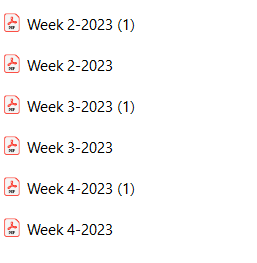
Hi BillZab , I added some comments to the code to make it easy to find where to edit it. Option Explicit Dim HasWeekFile As Boolean 'Variable to check if the file name exists Sub SavePDF() Dim MyDir As String Dim MyFileName As String Dim MyWeekNo As String HasWeekFile = False 'The standard value of this variable should be False MyWeekNo = "4" 'Fake value assigned here. You probably extract it dynamically in your code. Make sure to edit it when importing. MyFileName = "Week " + MyWeekNo & Format(Range("A2").Value, "-yyyy ") 'Build the file name with "Week " (constant), MyWeekNo (variable) and the year value from cell A2 from current Sheet MyDir = "C:\Users\" + strUser + "\OneDrive\Documents" 'Define the dir where the file will be saved (and where the existent files will be searched) ChDir MyDir Call GetFilesInFolder(MyDir, MyFileName) 'Call GetFilesInFolder method If HasWeekFile = True Then 'In case of HasWeekFile be assigned as True, file name will receive the "(1)". It is possible to edit it to create a (2), (3) and so on dynamically MyFileName = MyFileName & "(1)" End If ActiveSheet.ExportAsFixedFormat Type:=xlTypePDF, FileName:= _ MyFileName, Quality:= _ xlQualityStandard, IncludeDocProperties:=True, IgnorePrintAreas:=False, _ OpenAfterPublish:=True End Sub Sub GetFilesInFolder(FolderPath As String, FileName As String) Dim oFSO As Object 'Variable to run the File System Dim oFolder As Object 'Variable to access the folder (MyDir, in this code) Dim oFile As Object 'Variable to run each file inside MyDir Dim i As Integer 'Index for iteration. You can remove it, as it won't be used in this code. Dim PdfToFind As String 'Name of the file with .pdf extension PdfToFind = Trim(FileName) & ".pdf" 'Remove the empty spaces in start/end of file name (MyFileName) and add extension .pdf Set oFSO = CreateObject("Scripting.FileSystemObject") 'Initialize File System Set oFolder = oFSO.GetFolder(FolderPath) 'Set MyDir as path to search the files For Each oFile In oFolder.Files 'Loop that iterate all files inside MyDir If oFile.Name = PdfToFind Then 'Check if the current file name is the same of MyFileName plus .pdf and, if yes, assign variable HasWeekFile as true HasWeekFile = True End If i = i + 1 'You can remove it, as it won't be used in this code. Next oFile 'Jump to the next file. End Sub Just to confirm: your expected output is something similar to the image below, where your current sheet will be stored as "MyFileName (1)", right? Let me know if you need any additional help.3.1KViews0likes1CommentRe: save file without overwriting existing file in VB Macro
Hi BillZab , I ran some tests here and I think that I found a solution. It includes a new method (Sub GetFilesInFolder, in code belo) and a global variable (HasWeekFile), but you can keep the whole code in a single Sub if you prefer. It basically check all of the files existent inside a folder and, if it finds a match with your MyFileName variable concatenated with ".pdf", it will assign HasWeekFile as True and add the "(1)" to MyFileName. Option Explicit Dim HasWeekFile As Boolean Sub SavePDF() Dim MyDir As String Dim MyFileName As String Dim MyWeekNo As String HasWeekFile = False MyWeekNo = "4" MyFileName = "Week " + MyWeekNo & Format(Range("A2").Value, "-yyyy ") MyDir = "C:\Users\" + strUser + "\OneDrive\Documents" ChDir MyDir Call GetFilesInFolder(MyDir, MyFileName) If HasWeekFile = True Then MyFileName = MyFileName & "(1)" End If ActiveSheet.ExportAsFixedFormat Type:=xlTypePDF, FileName:= _ MyFileName, Quality:= _ xlQualityStandard, IncludeDocProperties:=True, IgnorePrintAreas:=False, _ OpenAfterPublish:=True End Sub Sub GetFilesInFolder(FolderPath As String, FileName As String) Dim oFSO As Object Dim oFolder As Object Dim oFile As Object Dim i As Integer Dim PdfToFind As String PdfToFind = Trim(FileName) & ".pdf" Set oFSO = CreateObject("Scripting.FileSystemObject") Set oFolder = oFSO.GetFolder(FolderPath) For Each oFile In oFolder.Files If oFile.Name = PdfToFind Then HasWeekFile = True End If i = i + 1 Next oFile End Sub Let me know if it helps.3.2KViews0likes3CommentsRe: Formula or VBA to Duplicate a Row based on the lenght of the value in cell
Hi moel79 , I'm sorry for the late response. I was a little busy during these last few days. I'm sending you this attached file with a code that may solve your problem. I also included a table with fake data, just to you check how it works (the cells with a bold THIS will have the row copied). I included some comments in the code to make it a little more understandable, but let me know if you need any additional explanation on that. Also, make sure to do some changes to fit to your use case (like the minimum length for the text to be copied, for instance). Here is the code: Sub Duplicate_large_texts() Dim StringLength As Integer 'Variable to set the string lenght limit that you want to copy rows Dim CurRow As Integer ' Variable to store the current row that the program is reading Dim CurCol As Integer ' Variable to store the current col that the program is reading Dim EmptyCounter As Integer ' Variable to count the empty rows in a row Dim LastColumn As Integer ' Variable to store the last column that you want a row to be read Dim EmptyCol As Integer ' Variable to count the empty cells (by col) in a row. Sheets("Sheet1").Activate ' Change the name for the worksheet that you want to run the program StringLength = 30 ' Minimum lenght of the text to define if the row will be copied CurRow = 2 ' Row to start the program LastColumn = 10 ' Last column that you want a row to be read (in this case, col J) EmptyCounter = 0 ' Counter for empty rows in a row Do While EmptyCounter < 5 ' Run all rows until get 5 empty rows together (in a row) CurCol = 1 ' Start in the col A (1st one) EmptyCol = 0 ' Zero teh empty col counter for each new row Do While CurCol <= LastColumn ' Run all cols of the row If IsEmpty(Cells(CurRow, CurCol)) Then ' Increase the empty cell counter for the row EmptyCol = EmptyCol + 1 Else EmptyCounter = 0 ' Zero the empty row counter in case of an ocupied cell End If If Len(Cells(CurRow, CurCol).Value) > StringLength Then ' If statement to get cells with a text larger than the min length Rows(CurRow + 1).Insert ' Insert a new row below Rows(CurRow).Copy Rows(CurRow + 1) 'Copy/paste the value to the new roc CurRow = CurRow + 1 ' Increment to skip the just added row Exit Do ' Jump to the next row, as this one is already copied Else CurCol = CurCol + 1 ' Go to next col, in case of this row is not copied End If Loop If EmptyCol = LastColumn Then ' If the entire row is empty, increase the empty counter EmptyCounter = EmptyCounter + 1 End If CurRow = CurRow + 1 Loop End Sub1.2KViews1like1Comment
Recent Blog Articles
No content to show