sql server
409 Topics
Managed Identity on SQL Server On-Prem: The End of Stored Secrets
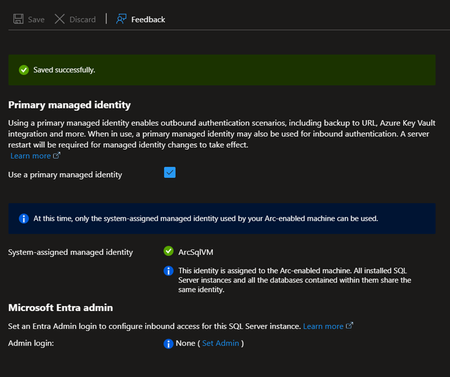
The Problem with Credentials in SQL Server For an On-Premises SQL Server to access Azure services, you traditionally need to store secrets: Common Scenarios Requiring Credentials Scenario Required Credential Backup to URL (Azure Blob) Storage account key or SAS token Extensible Key Management (Azure Key Vault) Service principal + secret Calling Azure OpenAI from T-SQL API key PolyBase to Azure Data Lake Service principal or key Associated Risks Manual Rotation Secrets expire. You need to plan and execute rotation and not forget to update all references. Secure Storage Where to store these secrets? In SQL Server via CREATE CREDENTIAL? In a config file? Each option has its risks. Attack Surface A compromised secret gives access to associated Azure resources. The more secrets you have, the larger the attack surface. Complex Auditing Who has access to these secrets? When were they used? Tracking is difficult. The Solution: Azure Arc + Managed Identity SQL Server 2025 connected to Azure Arc can geta Managed Identity : This identity: Is managed by Microsoft Entra ID Has no secret to store or rotate Can receive RBAC permissions on Azure resources Is centrally audited in Entra ID How It Works SQL Server 2025 On-Prem Azure Arc Agent installed on the server Managed Identity (automatically created in Entra ID) RBAC assignment on Azure resources -free access to Blob Storage, Key Vault, etc Step-by-Step Configuration Step 1: Enable Azure Arc on the Server and/or Register SQL Server in Azure Arc Follow the procedure describes in this article to onboard your server in Azure Arc. Connect Your SQL Server to Azure Arc Remember that you can also evaluate Azure Arc on a Azure VM (test use only) How to evaluate Azure Arc-enabled servers with an Azure virtual machine Step 2: Retrieve the Managed Identity The Managed Identity can be enabled and retrieved from Azure Arc | SQL Servers > “SQL Server instance” > Settings > Microsoft Entra ID Note: The Managed Identity is server-wide (not at the instance level) Step 3: Assign RBAC Roles Granting access to a Storage Account for backups $sqlServerId = (az resource show --resource-group "MyRG" --name "ServerName" --resource-type "Microsoft.HybridCompute/machines" --query identity.principalId -o tsv) az role assignment create --role "Storage Blob Data Contributor" ` --assignee-object-id $sqlServerId ` --scope "/subscriptions/xxx/resourceGroups/MyRG/providers/Microsoft.Storage/storageAccounts/mybackupaccount" Ex: Backup to URL Without Credential Before (with SAS token) -- Create a credential with a SAS token (expires, must be rotated) CREATE CREDENTIAL [https://mybackup.blob.core.windows.net/backups] WITH IDENTITY = 'SHARED ACCESS SIGNATURE', SECRET = 'sv=2022-11-02&ss=b&srt=sco&sp=rwdlacup...' BACKUP DATABASE [MyDB] TO URL = 'https://mybackup.blob.core.windows.net/backups/MyDB.bak' WITH COMPRESSION After (with Managed Identity --No secret anymore CREATE CREDENTIAL [https://mybackup.blob.core.windows.net/backups] WITH IDENTITY = 'Managed Identity' BACKUP DATABASE [MyDB] TO URL = 'https://mybackup.blob.core.windows.net/backups/MyDB.bak' WITH COMPRESSION Extensible Key Management with Key Vault EKM Configuration with Managed Identity CREATE CREDENTIAL [MyAKV.vault.azure.net] WITH IDENTITY = 'Managed Identity' FOR CRYPTOGRAPHIC PROVIDER AzureKeyVault_EKM_Prov; How Copilot Can Help Infrastructure Configuration Walk me through setting up Azure Arc for SQL Server 2025 to use Managed Identity for backups to Azure Blob Storage @mssql Generate the PowerShell commands to register my SQL Server with Azure Arc and configure RBAC for Key Vault access Identify Existing Credentials to Migrate List all credentials in my SQL Server that use SHARED ACCESS SIGNATURE or contain secrets, so I can plan migration to Managed Identity Migration Scripts I have backup jobs using SAS token credentials. Generate a migration script to convert them to use Managed Identity Troubleshooting My backup WITH MANAGED_IDENTITY fails with "Authorization failed". What are the steps to diagnose RBAC permission issues? @mssql The Azure Arc agent shows "Disconnected" status. How do I troubleshoot connectivity and re-register the server? Audit and Compliance Generate a report showing all Azure resources my SQL Server's Managed Identity has access to, with their RBAC role assignments Prerequisites and Limitations Prerequisites Azure Arc agent installed and connected SQL Server 2025, running on Windows Azure Extension for SQL Server. Current Limitations Failover cluster instances isn't supported. Disabling not recommended Only system-assigned managed identities are supported FIDO2 method not currently supported Azure public cloud access required Documentation Overview Managed identity overview Set Up Managed Identity and Microsoft Entra Authentication for SQL Server Enabled by Azure Arc Set up Transparent Data Encryption (TDE) Extensible Key Management with Azure Key Vault
Improving Azure SQL Database reliability with accelerated database recovery in tempdb
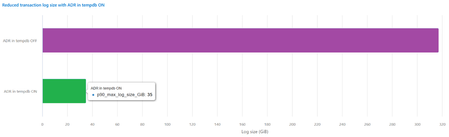
We are pleased to announce that in Azure SQL Database, accelerated database recovery is now enabled in the tempdb database to bring instant transaction rollback and aggressive log truncation for transactions in tempdb. The same improvement is coming to SQL Server and Azure SQL Managed Instance.668Views1like2CommentsAzure Data Studio Retirement
We’re announcing the upcoming retirement of Azure Data Studio (ADS) on February 6, 2025, as we focus on delivering a modern, streamlined SQL development experience. ADS will remain supported until February 28, 2026, giving developers ample time to transition. This decision aligns with our commitment to simplifying SQL development by consolidating efforts on Visual Studio Code (VS Code) with the MSSQL extension, a powerful and versatile tool designed for modern developers. Why Retire Azure Data Studio? Azure Data Studio has been an essential tool for SQL developers, but evolving developer needs and the rise of more versatile platforms like VS Code have made it the right time to transition. Here’s why: Focus on innovation VS Code, widely adopted across the developer community, provides a robust platform for delivering advanced features like cutting-edge schema management and improved query execution. Streamlined tools Consolidating SQL development on VS Code eliminates duplication, reduces engineering maintenance overhead, and accelerates feature delivery, ensuring developers have access to the latest innovations. Why Transition to Visual Studio Code? VS Code is the #1 developer tool, trusted by millions worldwide. It is a modern, versatile platform that meets the evolving demands of SQL and application developers. By transitioning, you gain access to cutting-edge tools, seamless workflows, and an expansive ecosystem designed to enhance productivity and innovation. We’re committed to meeting developers where they are, providing a modern SQL development experience within VS Code. Here’s how: Modern development environment VS Code is a lightweight, extensible, and community-supported code editor trusted by millions of developers. It provides: Regular updates. An active extension marketplace. A seamless cross-platform experience for Windows, macOS, and Linux. Comprehensive SQL features With the MSSQL extension in VS Code, you can: Execute queries faster with filtering, sorting, and export options for JSON, Excel, and CSV. Manage schemas visually with Table Designer, Object Explorer, and support for keys, indexes, and constraints. Connect to SQL Server, Azure SQL (all offerings), and SQL database in Fabric using an improved Connection Dialog. Streamline development with scripting, object modifications, and a unified SQL experience. Optimize performance with an enhanced Query Results Pane and execution plans. Integrate with DevOps and CI/CD pipelines using SQL Database Projects. Stay tuned for upcoming features—we’re continuously building new experiences based on feedback from the community. Make sure to follow the MSSQL repository on GitHub to stay updated and contribute to the project! Streamlined workflow VS Code supports cloud-native development, real-time collaboration, and thousands of extensions to enhance your workflows. Transitioning to Visual Studio Code: What You Need to Know We understand that transitioning tools can raise concerns, but moving from Azure Data Studio (ADS) to Visual Studio Code (VS Code) with the MSSQL extension is designed to be straightforward and hassle-free. Here’s why you can feel confident about this transition: No Loss of Functionality If you use ADS to connect to Azure SQL databases, SQL Server, or SQL database in Fabric, you’ll find that the MSSQL extension supports these scenarios seamlessly. Your database projects, queries, and scripts created in ADS are fully compatible with VS Code and can be opened without additional migration steps. Familiar features, enhanced experience VS Code provides advanced tools like improved query execution, modern schema management, and CI/CD integration. Additionally, alternative tools and extensions are available to replace ADS capabilities like SQL Server Agent and Schema Compare. Cross-Platform and extensible Like ADS, VS Code runs on Windows, macOS, and Linux, ensuring a consistent experience across operating systems. Its extensibility allows you to adapt it to your workflow with thousands of extensions. If you have further questions or need detailed guidance, visit the ADS Retirement page. The page includes step-by-step instructions, recommended alternatives, and additional resources. Continued Support With the Azure Data Studio retirement, we’re committed to supporting you during this transition: Documentation: Find detailed guides, tutorials, and FAQs on the ADS Retirement page. Community Support: Engage with the active Visual Studio Code community for tips and solutions. You can also explore forums like Stack Overflow. GitHub Issues: If you encounter any issues, submit a request or report bugs on the MSSQL extension’s GitHub repository. Microsoft Support: For critical issues, reach out to Microsoft Support directly through your account. Transitioning to VS Code opens the door to a more modern and versatile SQL development experience. We encourage you to explore the new possibilities and start your journey today! Conclusion Azure Data Studio has served the SQL community well,but the Azure Data Studio retirement marks an opportunity to embrace the modern capabilities of Visual Studio Code. Transitioning now ensures you’re equipped with cutting-edge tools and a future-ready platform to enhance your SQL development experience. For a detailed guide on ADS retirement , visit aka.ms/ads-retirement. To get started with the MSSQL extension, check out the official documentation. We’re excited to see what you build with VS Code!33KViews4likes28CommentsSQL Server has encountered I/O requests taking longer than 15 seconds
Most of us have seen these errors in the SQL Server error log pointing to a IO subsystem problem: 2015/06/15 12:43:01 spid8s SQL Server has encountered 1016 occurrence(s) of I/O requests taking longer than 15 seconds to complete on file [N:\ABCDATA8\ [ABCDATA8.ndf] in database [ABC] (5). The OS file handle is 0x000000000000172C. The offset of the latest long I/O is: 0x0000073234 For a customer case this message has to be analyzed in more detail, because the storage group at the customer insists to get more information as they don’t see these high numbers on the storage system at that time. A deeper investigation reveals these findings: the counter is collected and reported for each file separately the message is printed by the checkpoint, the background process that kicks in every 5 seconds it is printed in a minimum interval of 300 seconds (5 minutes) per file, means only one message per 5 minutes per file it checks the amount of ticks (milliseconds) IO requests were active and if this exceeds 15000 (15 seconds) this IO request is counted it is doing this for all parallel and asynchronously IO requests (per file) The problem is that these are not the amount of IO requests that are counted, but the amount of times IO request were seen during the reporting time. Imagine you have a very long IO request going on (only one). The reporting kicks in after 5 seconds (by the checkpoint) and after 3 times (15 seconds) the IO request is the first time counted, but no message is printed yet as the five-minute minimum per file is not reached yet. The very same IO request is counted at each reporting cycle (every 5 seconds) until the 300 seconds threshold is reached and the message is printed (and the counter is reset). Until then this one IO request is counted 57 times (300 seconds / 5 seconds reporting interval = 60 occurrences – 3 time free (first 15 seconds)). So if you have 1000 occurrences means that in this 60 reporting cycles of the 5 minutes reporting interval 1000 IO requests were seen that needed more than 15 seconds. That might were only a handful very long running IO requests (e.g. minimum is (1000 / 57) = 17.5 requests) or many shorter request (e.g. 1000 requests of 15 – 19 seconds). The message is misleading as it is talking of occurrences and not of IO requests, but it still points to a storage problem. Note well, however, when you see even one such message it means you had at least one event where an I/O took more than 15 SECONDs to complete. This is VERY SLOW . This indicates a problematic I/O event. But there are not so many IO requests hanging as stated in the message, but at least there are some. I hope this sheds some light on it.SQL Agent Jobs in an AlwaysOn / Mirroring Environment
Running SQL Agent Jobs in an AlwaysOn or Database Mirroring environment can be a challenge, as the database might be not accessible at the time when the job starts. This is especially the case for all SAP collector and backup jobs. On the other hand there might be jobs that should not run on primary server (e.g. DBCC Checks), but on a readable secondary or readonly standby database (Log Shipping). In the worst case either the jobs fail or run on the wrong server. To prevent this, SAP created a small stored procedure to control the run of these kind of jobs. To use the stored procedure, use this script use master; GO IF (OBJECT_ID(N'dbo.CheckAccess') IS NOT NULL ) DROP PROCEDURE [dbo].CheckAccess GO CREATE PROCEDURE dbo.CheckAccess @DBName AS NVARCHAR(128) = N'master', @RunOnPrimary AS TINYINT = 1, @RunOnSecondary AS TINYINT = 0, @RunOnReadonly AS TINYINT = 0, RC AS TINYINT = 0 OUTPUT AS BEGIN DECLARE @IsReadOnly TINYINT; DECLARE @State TINYINT; DECLARE @StandBy TINYINT; DECLARE @UserAccess TINYINT; DECLARE @AOState TINYINT; DECLARE @AORole TINYINT; DECLARE @Message NVARCHAR(50); SET RC = 0; SET @Message = N'Everything is OK.'; IF EXISTS(SELECT TOP 1 database_id FROM sys.databases WHERE database_id = DB_ID(@DBName)) BEGIN -- Check for the normal database state SELECT @IsReadOnly = is_read_only, @State = state, @StandBy = is_in_standby, @UserAccess = user_access FROM sys.databases WHERE name = @DBName; IF NOT ((@State + @UserAccess) = 0 AND (@IsReadOnly <= @RunOnReadonly) AND (@StandBy <= @RunOnReadonly)) BEGIN SET RC = 1; SET @Message = N'Database is NOT accessible.'; END; END ELSE BEGIN SET RC = 2; SET @Message = N'Database doesn''t exists.'; END -- Check if we are running in an AlwaysOn Configuration IF EXISTS(SELECT TOP 1 database_id FROM sys.dm_hadr_database_replica_states WHERE database_id = DB_ID(@DBName)) BEGIN SELECT @AOState = db.database_state, @AORole = rs.role FROM sys.dm_hadr_database_replica_states AS db INNER JOIN sys.dm_hadr_availability_replica_states AS rs ON db.group_id = rs.group_id WHERE db.is_local = 1 AND rs.is_local = 1 AND db.database_id = DB_ID(@DBName) IF NOT(@AOState = 0 AND ((@RunOnPrimary != 0 AND @RunOnPrimary = @AORole) OR (@RunOnSecondary != 0 AND @RunOnSecondary = @AORole - 1))) BEGIN SET RC = 3; SET @Message = N'The database is not in the required state for Always-ON access.'; END; END; PRINT @Message END; GO and run it on all nodes of the affected system (either AlwaysOn, Database Mirroring or Log Shipping). It will create a stored procedure CheckAccess in the master database. The procedure has 5 parameters: Parameter Data Type Default Value Description @DBName NVARCHAR(128) N'master' Database to check. @RunOnPrimary TINYINT 1 Should the job run on the primary database ? @RunOnSecondary TINYINT 0 Should the job run on the secondary database ? @RunOnReadonly TINYINT 0 Should the job run on the read only databases (Log Shipping) ? RC TINYINT 0 Return code (0 = Success, 1 = Failure) With the parameters @RunOnPrimary, @RunOnSecondary and @RunOnReadonly you can control in which state of the AlwaysOn database the Job should start. A combination of these parameters is possible, so the job can run on primary and secondary databases if you set both to 1. Even if you do not use AlwaysOn or readonly databases or if you set all the options to 0 the stored procedure will check for the availability of the database. It will return a failure (1) if the database is absent, offline, suspect, in recovery and all the other states that won't let you access the database. A valid call looks like this (Check the TST database if it is accessible and check if it is the primary database in an AlwaysOn configuration): exec dbo.CheckAccess N'TST',1,0,0,@RC OUTPUT To enable the CheckAccess stored procedure for jobs, we have to change the job a bit. In this example it is an SAP Collector Job (SAP_SCU_SAPMonitor_TST_MSSQL_COLLECTOR) for the TST SAP database. Open the properties for the job (right click -> Properties) Switch to the Steps branch on the left and edit the first step with the name DBCOLL. Change the database to master (as the stored procedure lives there) and change the script from EXECUTE sap_dbcoll to DECLARE @Msg NVARCHAR(128) DECLARE RC TINYINT exec dbo.CheckAccess N'TST',1,0,0,@RC OUTPUT IF RC = 0 exec( 'use [TST] EXECUTE sap_dbcoll' ) Ensure that you change the database accordingly (here TST) for your system. The step then should look like: On the advanced tab change the 'On failure action' field to 'Quit the job reporting failure' and save and exit the job definition. This will ensure that the DBCOLL part will only start when the database is accessible and is the primary database in the AlwaysOn Configuration. You can use this stored procedure for any job, when you follow this generic approach: DECLARE @Msg NVARCHAR(128) DECLARE RC TINYINT exec dbo.CheckAccess N'<Database in Question>',1,0,0,@RC OUTPUT IF RC = 0 exec( 'use [<Database in Question>] <Step definition>' ) Regards ClasAlways On - Synchronize SAP login, jobs and objects
SQL Server AlwaysOn is one of the High Availability solutions available for an SAP system. It consists of two or more computers each hosting a SQL Server with a copy of the SAP database. A listener points to the actual primary copy and is used from the SAP system as the only connection point. For details how to setup and configure an SAP system together with SQL Server AlwaysOn see this blog post and its referenced blog posts. During the setup the SAP System is configured from the current primary node and all non-database related objects such as SQL Server Agent Jobs, logins etc. are created only on the current primary database. In a case of a (automatic) failover to one of the secondary nodes of AlwaysOn these objects are then missing. Jürgen has introduced a script (sap_helprevlogin) in his initial blog post about the database load after setting up AlwaysOn. This script will transfer only the logins, but will fall short on transferring jobs, server level permissions and other assignments. One of the SAP developers working in our team has built a comprehensive PowerShell script (sap_synchronize_always_on.ps1) to perform all these tasks and to transfer all the SAP objects from the initial installation to all the other nodes of the AlwaysOn system. The script connects to the primary instance, reads the configuration of the secondary nodes and then synchronizes the objects and jobs with these nodes. The script must be executed by a domain administrator which has SQL Server sysadmin privileges on all AlwaysOn instances. The script uses up to three input variables: The server name of the SQL Server instance or the listener name of the High-Availability group. The default is (local) The name of the SAP database, which must be in an High-Availability group on the given server Single login (optional): Only one login gets copied along with SAP CCMS jobs owned by the login. By default all logins mapped to the database are copied. The script will execute: Create a procedure CheckAccess in the master database (see this blog about the details about it) Discover which logins are mapped to the database Discover which SAP CCMS jobs belong to those logins If the job does not use CheckAccess then change the job step to use CheckAccess and run the job step in master Open a connection to each secondary and: Create procedure CheckAccess in the master database Create the logins if they don't exist already using the same sid. Create the jobs if they don't exist already. If a job exists and if the job does not CheckAccess then change the job step to use CheckAccess and run in master If new SAP CCMS jobs are added because of remote monitoring from a different SAP system using DBACOCKPIT, the script can be re-executed. It will then copy only new objects which have not been copied before. You can find this useful script attached, which makes the synchronization of the SAP Systems in an AlwaysOn environment so much easier. Please ensure that you test the execution in your test environment first, before you run it in production. Neither SAP nor Microsoft takes any responsibility from using this script, you run it on your own risk. Update January 2017: New script version that copies the sid<adm> and SAPService<SID> logins from the SAP System as well. Best regards | Bless! Clas & GuðmundurDeadlock Analysis (Examples)
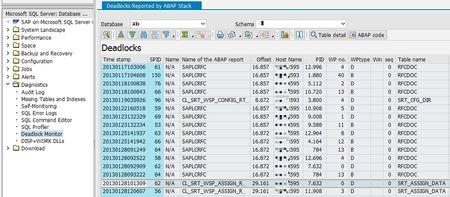
As promised in my former blog about Deadlock Analysis we proceed today with the deadlock serie with examples and their solutions. Update Locks The first example is a Deadlock with two identical statements, doing deletes on table BC_MON_AGREGATES The statements are: DELETE FROM BC_MON_AGREGATES WHERE AGR_INTERVAL = @P0 AND START_TIME < ; As you can see in the deadlock graph both threads are having (at least) a X locks on a index named PK__BC_MON_A__3214EC272B5F6B28, the primary key on this table. And both are requesting an U lock on the same index. As the U locks are only used for checking if the row matches the WHERE condition, this constellation is very often seen when the threads are scanning the table or index instead of seeking through an index to find the rows. In this case the solution was to create an fitting index for the WHERE clause to get the two thread to seek instead to scan the index. RID Locks In the next case we see, that both threads are requesting RID locks on table GENSETC: The statements were: UPDATE GENSETC SET NAME = ,COMPONENT = ,GENSTATUS = @P3 WHERE PGMID = @P4 AND OBJECT = @P5 AND OBJNAME = P6 RID locks are only used if there is no clustered index on that table. If there is an clustered index, we will see KEY locks. The root cause for this deadlock was the missing clustered index as defined in the SAP dictionary (PGMID, OBJECT, OBJNAME). PAGE locks Here we see PAGE locks on table /1OT/FDA12IT2001: Both statements were running a DELETE on that table: DELETE FROM /1OT/FDA12IT2001 WHERE CLIENT = AND ORDID IN ( ,.....,@P101 ) PAGE locks are used when the SQL Server Optimizer expects a lot of rows to process. The PAGE locks are used from the beginning, means this is not an lock escalation, as there are only lock escalations from PAGE to TABLE and from ROW to TABLE, but not from ROW to PAGE. In this case the solution can be to disallow PAGE locks on the table, to reduce the IN clause or to create an fitting index for the WHERE clause (index on ORDID). Deadlock with a SELECT In the next deadlock we have an UPDATE and a SELECT deadlocking each other: The SELECT is easy to identify by the S locks it is using, the right one is the UPDATE using an fitting index (no scanning). How can a SELECT be part of a deadlock, as SAP is reading most of the data in "READ UNCOMMITED" ? The answer is, that this SELECT runs in "READ COMMITED" mode, means it only reads data that is is already committed and it will be blocked through U and X locks. The application that issues the UPDATE and SELECT statement has to analyze this deadlock and to avoid the parallel execution of these two statement by e.g. semaphores. Multiple Tables A deadlock not only happens between two threads, the SQL Server can detect deadlocks in any depth. A deadlock between three threads is looking like: The SQL Server will kill the thread with the least amount of log used, in this case the left one. In some case the remaining threads will deadlock again as a two node deadlock, but most of the time the deadlock is resolved by kill one out of the chain. The most impressive deadlock I saw was this one: This is a deadlock with 103 threads, the left end with the victim looks like: The victim was an UPDATE on BC_JMSQUEUE and all the other waiting ones were a DELETE on the same table. The root cause was, that there was no fitting index for the DELETE statement, which causes the DELETE to scan the table instead using an index. After creating the index, the problem was resolved. Different tables Deadlock can happen not only on the same table, but between different tables as well: We see a deadlock between table CBS_ACCESSQUEUE and CBS_LOCK. The statements are UPDATE statements on each table. These kind of deadlock are not easy to understand as it only shows the end of the deadlock. The two statements that let to the two initial locks (the KEY lock ACCESSQUEUE from the victim and the KEY lock on CBS_LOCK of the winner) are not part of the deadlock, but might be part of the problem. How to analyse such deadlocks will be part of my third post of this deadlock serie.
Synchronize SQL database between two servers
Questions (to make right the synchronize SQL database between two servers) 1. Is required to have SQL Enterprise in both servers, for to be able the synchronization? Or will be enough to have SQL Enterprise in server1. And in server2 with only SQL Express, please? 2. Which requirements are required to fulfil or prepare for to be able synchronize SQL database between two servers, please? 3. Which possibilities (when are more possible solutions) have existed for synchronize SQL database (totally awaiting between four servers), please? 4. Exist a manual for reading an synchronization of SQL server - settings and steps? Thanks in advance.130Views0likes5Comments
SQL Server AG Failover - Automatic Failover
Hello, I am looking for a straight and definitive answer that I was hoping someone could answer for me. I want to trust what Copilot says, but I really need to hear it from Microsoft and I can't find any documentation from Microsoft confirming my question. My Environment: 2 replicas in datacenter 1 1 replica in datacenter 2 All three (3) replicas are set to synchronous-commit mode with automatic failover. I tested the failover manually between all three (3) replicas without issue. When I test the automatic failover - I take down both replicas in datacenter 1 at the same time to simulate a datacenter outage. I look at the replica in datacenter 2 and it is just says (Resolving...) next to the replica name. The replica does not come online and the DB is not moved. When I was searching I couldn't find out why. So I turned to Copilot not solve the issue, but to see if it could point me in the right direction. I tell Copilot my setup and what happened. Copilot responded stating that by design from Microsoft you cannot have more than two (2) replicas set to synchronous-commit mode with automatic failover in a SQL Server AG instance. That if more than two (2) are set for automatic failover. The SQL Server AG will use the first two (2) replicas it sees in its metadata and ignore the rest. Copilot went into detail about why this is designed this way, but the amount of information would make this post longer than it already is. If this is true - then when I took down both replicas in datacenter 1, SQL Server AG only saw those two (2) replicas in datacenter 1 as the available replicas to use for an automatic failover and thus why the replica in datacenter 2 did not come online and the DB not being moved So let's do a test. I brought back up the two (2) replicas in datacenter 1. Then I made a change in the AG proprieties. I set the 2nd replica in datacenter 1 to manual. So 1 replica is set to automatic failover and 1 replica is set to manual failover in datacenter 1. The replica in datacenter 2 is set to automatic failover I then take down both replicas in datacenter 1 again to simulate the "outage" and the replica in datacenter 2 comes online and the DB is moved. So is Copilot right? Can there only be two (2) replicas allowed to have/use automatic failover? I cannot find a definitive answer confirming this. Or is my configuration wrong/missing something and if it is, could you please point me in the right direction on how to get this resolved?141Views0likes4Comments