A wired alternative for working in mixed reality when Wi-Fi isn't an option
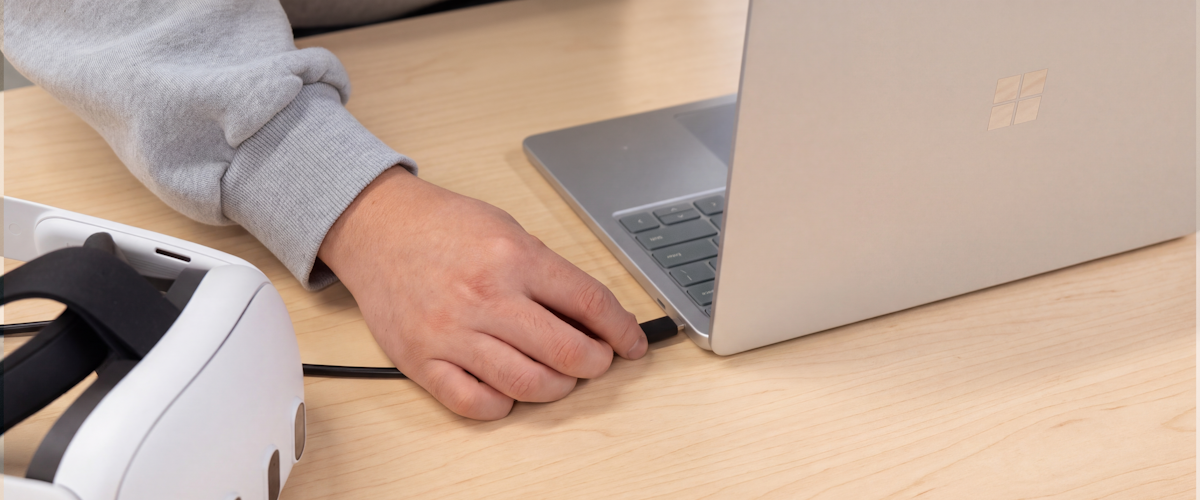
Mixed Reality Link now lets you stream your Windows desktop to your headset over USB. This wired option gives your Meta Quest 3 or 3S headset a direct connection to your PC when Wi-Fi is congested or unavailable.
Stream without Wi-Fi
Wi-Fi is a great way to work untethered, but not every network offers a high-quality connection between your PC and headset. USB gives you another option when coverage is poor, the network is congested, or public Wi-Fi prevents devices from communicating with each other. USB is particularly useful when traveling: once set up, you can use your PC in mixed reality even without internet access.
Simplified pairing
Pairing a headset for the first time is also simpler over USB. There’s no QR code to scan or PIN to enter, making it faster to establish a secure connection between your PC and headset.
Get started
You’ll need a Windows 11 PC running Mixed Reality Link version 26.10120.9280.1 or newer, a Meta Quest 3 or 3S headset, and a USB data cable. Meta is rolling out USB support over the next week, so your headset may not have it yet, even if you have the latest version of Mixed Reality Link.
Once the experience is available on your headset, follow these steps to get connected:
- Install or update Mixed Reality Link on your PC.
- On your Quest, go to Settings → Link and enable “USB connection for apps”.
- Connect your headset to your PC using a USB cable that supports data.
- Open Virtual Display on your headset, then follow the prompts to pair with your PC or connect to a previously paired PC.
For more information, visit our support page. We’d love to hear how USB works for you. Share your feedback and help us improve Mixed Reality Link.

 Microsoft