Forum Discussion

mrsikora
Mar 30, 2023Copper Contributor
Click to call (tel:) links not working
Recently switched over to the Teams Preview and noticed that the click to call (Teams Voice) functionality doesn't seem to be working. Selecting "Microsoft Teams (work preview), pops up ...
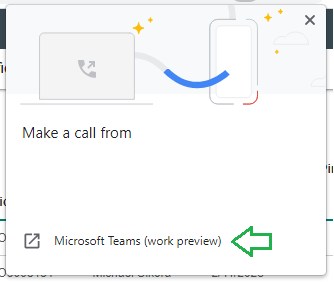

mrsikora
Sep 05, 2023Copper Contributor
Click to call now works in the last two latest releases of Teams... the most recent PRE and now NEW.

Sep 13, 2023
What version? Cause Mine's still busted.
- mrsikoraSep 21, 2023Copper Contributorrum80 I don't know anything about emails in the tel: field. I believe that's only for phone numbers. Their mich be another protocol like callto: as you mentioned to handle. Have you tried adding teams to that also?
Searched and there was another question on this and MS said it doesn't support callto: with the following "solution":
Post: https://learn.microsoft.com/en-us/answers/questions/1179266/callto-working-in-teams
Link to solution: https://learn.microsoft.com/en-us/microsoftteams/platform/concepts/build-and-test/deep-link-workflow?tabs=teamsjs-v2#deep-link-to-start-an-audio-video-call-with-users - rum80Sep 21, 2023Copper Contributor
mrsikora thanks for the hint.
I've tried your suggestion and seems something better, but..
- tel:<phone number> (like tel:+123456789) is working
- tel:<other user's sip uri> (like tel:email address removed for privacy reasons) is not working, as it seems the client places a call to +email address removed for privacy reasons
Anyway, the protocol handler version used by the previous client version was callto: . Is it known whether callto: will be added to the new client as well?
- Sep 13, 2023For me, it's clicking any URL's on website tabs / sharepoint lists from user cards that won't let me chat or call anyone. Works fine from edge itself. It's like Teams doesn't allow the links to be clicked just a blank screen.
- mrsikoraSep 13, 2023Copper ContributorTeams version 23217.806.2340.1703.
* In the windows search bar type "default apps" and click "Enter."
* On the right side where it says "Enter a file type or link type" type "tel" and "Enter."
* Under that you should see if you have a default app set up for "tel" links. Make sure that it is set up for the most current Teams app which is "Microsoft Teams (work or school)" for me.
