Forum Discussion

Idle session timeout Conditional access policy for unmanaged devices

Step 1 - configure Idle session timeout:
1. Navigate to the Microsoft 365 admin center https://admin.microsoft.com/.
2. Click to expand Settings Select Org settings.
3. Click Security & Privacy tab.
4. Select Idle session timeout.
5. Check the box Turn on to set the period of inactivity for users to be
signed off of Microsoft 365 web apps
6. Set a value of 1 hour.
7. Click save.
Step 2 - Ensure the Conditional Access policy is in place:
1. Navigate to Microsoft Entra admin center https://entra.microsoft.com/
2. Expand Azure Active Directory > Protect & secure > Conditional Access
3. Click New policy and give the policy a name.
4. Select Users > All users.
5. Select Cloud apps or actions > Select apps and select Office 365
6. Select Conditions > Client apps > Yes check only Browser unchecking all other
boxes.
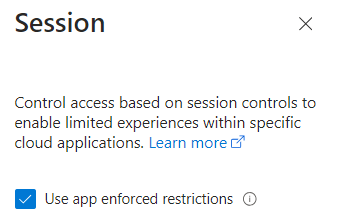
7. Select Sessions and check Use app enforced restrictions.
8. Set Enable policy to On and click Create.
NOTE: To ensure that idle timeouts affect only unmanaged devices, both steps must be
completed
Hope that helps,
Eric

 M_C_LaningJan 25, 2024Copper ContributorI am also curious how this would work. There is no setting in CA according to documentation for only unmanaged devices, so it would be odd if the global setting only applies to unmanaged devices when the CA rule exists, not scoped to any form of clients. This is different from app enforced restrictions for download/print when clients are managed/joined, because this global setting only takes effect when a CA rule exists, not otherwise.
 pablovalLatamFeb 01, 2024Copper Contributor
The documentation states we need to enable the CA policy and check "app enforce restrictions" inside "session" blade... according to the documentation by doing this, the "magic" happens under the hood... (I am testing this as well, will share results soon)
"When selected, the cloud app uses the device information to provide users with a limited or full experience. Limited when the device isn't managed or compliant and full when the device is managed and compliant"
https://learn.microsoft.com/en-us/entra/identity/conditional-access/concept-conditional-access-session#application-enforced-restrictions
Application enforced restrictions
Organizations can use this control to require Microsoft Entra ID to pass device information to the selected cloud apps. The device information allows cloud apps to know if a connection is from a compliant or domain-joined device and update the session experience. When selected, the cloud app uses the device information to provide users with a limited or full experience. Limited when the device isn't managed or compliant and full when the device is managed and compliant.
Pablo Valentini (Valenta)
Nebulan Latam
- scottdm1234Jul 07, 2024Copper Contributor
pablovalLatam how did your test go? I'm wondering the same thing. Did the magic happen under the hood as you had hoped?