Forum Discussion

Windows 7 home premium iso download for 64 bit and 32 bit
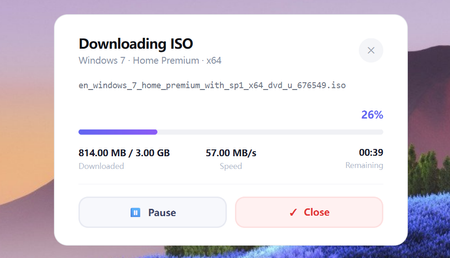

After downloading a Windows 7Home Premium ISO, you should scan it for malware and verify its hash/checksum before creating a bootable USB or installing it. This helps confirm the file is clean and also makes sure the ISO is not corrupted or modified.
1. Scan the ISO with Windows Security (Defender)
2. Right-click the ISO file → Scan with Microsoft Defender (or “Scan with Windows Security”).
3. Wait for the result. If it shows threats, delete the ISO and download again from a safer source.
4. Verify the ISO hash using CertUtil (built-in Windows tool)
5. Press Win + R → type cmd → press Enter.
6. Run this command (edit the path to your ISO):
certutil -hashfile "C:\Path\Windows7.iso" SHA1
7. Copy the SHA1 result and compare it with the official/known SHA1 from the download page or a trusted reference list.
To stay safe, always scan the Windows 7 Home Premium 64-bit or 32-bit ISO first using Microsoft Defender, then verify the checksum (SHA1/SHA256) using certutil. If the scan finds anything suspicious or the hash doesn’t match, don't use the file—delete it and download a clean ISO again.
 MeeTooApr 09, 2026Copper Contributor
Scanning for malware and viruses is a myth. It cannot find all malware in an installed OS or software. There will always be something in it. J just use my CD/DVD to fresh install
- AllenMar 30, 2026
Community Manager
We appreciate the helpful contributions shared in this thread.
To keep the discussion aligned with our community guidelines, please note that posts linking to third‑party asset hosting of discontinued Windows ISOs will be removed.
