Forum Discussion

Windows 7 home premium iso download for 64 bit and 32 bit
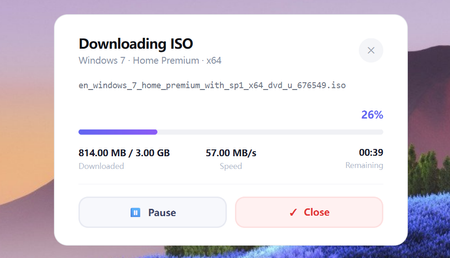

Obtaining a clean, secure Windows 7 Home Premium ISO image and completing the system installation is no simple task. It requires securing reliable server download links, verifying file integrity, creating a bootable USB drive, and following the correct activation steps.
First, locate the official Windows 7 ISO image you wish to download.
Open Command Prompt (CMD) and enter: certutil -hashfile ISO_file_path SHA1
Verify the output against the reference values after download:
64-bit: Size 3.10GB, SHA-1: 5E7A5AECF92B09B09A6AF4FA6D9D25F1A5E4F4E5
32-bit: Size 2.34GB, SHA-1: DA5E224B15DF0A6C1103A7937AC7A1250C2F0D18
Using third-party software to create a bootable USB drive requires at least an 8GB USB drive. Back up data beforehand, as it will be formatted.
- Insert the USB drive, double-click to open the third-party software, select your USB drive as the device, click “Select”, then locate the downloaded ISO file.
Choose MBR for partition type, select BIOS or UEFI-CSM for target system, select NTFS for file system, click “Start” and wait a few minutes for completion.
Installation and Activation
- Insert the bootable USB drive into your computer. Upon startup, press F2/F10/Del to select the USB drive for booting.
Follow the prompts to install. When prompted for a product key, enter it if available; skip if not.
After installation, navigate to Control Panel → System. Click ‘Activate Windows now’ and enter the 25-digit key.
Note:Windows 7 has ceased receiving official updates. It is recommended for use solely on dedicated devices.