Forum Discussion

Windows 11 Sound driver problem
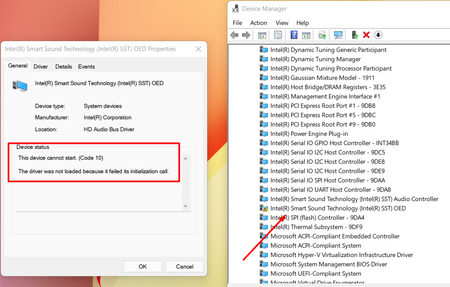

Hi Vladz69,
Option 1:
Please download and install MyAsus software to maintain or update your hardware, and update the driver:
https://www.microsoft.com/en-us/p/myasus/9n7r5s6b0zzh
Option:
Download and install Intel Smart Sound Technology (Intel SST) Driver from the below link:
Please share your feedback, and do not hesitate to contact me for any further assistance, I will welcome all the questions you may have.

SalmanAhmed Hello, thank you for your advice, but already try this before and still same, i also reset my laptop but it still not work.
i don't know how im supposed to do now.
- SalmanAhmedNov 11, 2021Steel Contributor
Thanks for your feedback, from the above details, I would suggest you to load the default values or factory default in system BIOS, it will be helpful in case where the BIOS value has been changed unexpectedly.
- Vladz69Nov 11, 2021Copper ContributorThank you for your suggestion.
i'm sorry if my english is bad. But can you please give me steps how to do it? i'm kinda newbie on this.- SalmanAhmedNov 12, 2021Steel Contributor
You're most welcome Vladz69, please follow the below steps to reset the BIOS values.
Restart the computer, and continuously press the F2 or Del key while the system is performing the POST (Power-On Self-Test) to enter the BIOS setup utility. Usually, the POST process starts before your computer loads the Windows, at the time when you see the manufacturer loge as in this case is the Asus.
In BIOS setup, locate the option "Load the BIOS defaults" or you can press the F9 key as well. Once you have done, you will get the confirmation message, and finally, you need to save the configuration.
To save the configuration, press the F10 key and confirm the changes. Your computer will be restarted with BIOS default values.