Forum Discussion

paulgeanta
Apr 07, 2022Brass Contributor
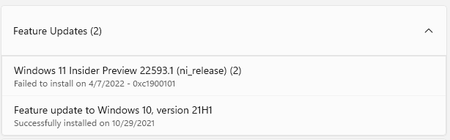
Windows 11 insider preview 22593.1 (ni_release) failing
2 previous updates were also failing with the same error. I was hoping 22593.1 will install but I got the same 0xc1900101 error: Did anyone find a solution to this besides a clean install? ...
 Apr 09, 2022you can try to turn off MSMQ (Control Panel - Programms and Components - Windows Features)

Ismajli
Apr 09, 2022Copper Contributor
Tried many times, sticks at 60%!

Alok_Sah
Apr 09, 2022Copper Contributor
(please send me your build number)
mine was stucking at 64% and then black screen and was saying failed.
if your build is lower than 22593.1 follow these solutions:-
solution1: before updating remove all external drive, DVD, etc.. if it fails then solution 2
solution2: Ensure that you have enough disk space then scan your disk for bad sectors steps:-
step1 Run cmd as administrator
step 2 Press Enter after typing chkdsk C: /f /r. (C is the letter of the drive where you save your operating system.)
Note: If you see that “Chkdsk cannot run because the volume is in use by another process. Would you like to schedule this volume to be checked the next time the system restarts” in the Command Prompt windows, then type Y on the keyboard.
solution 3 Upgrade bios. steps:-
https://www.minitool.com/data-recovery/how-to-update-bios.html
If these dont work then only one solution is left
Reset This PC
Thanks!
mine was stucking at 64% and then black screen and was saying failed.
if your build is lower than 22593.1 follow these solutions:-
solution1: before updating remove all external drive, DVD, etc.. if it fails then solution 2
solution2: Ensure that you have enough disk space then scan your disk for bad sectors steps:-
step1 Run cmd as administrator
step 2 Press Enter after typing chkdsk C: /f /r. (C is the letter of the drive where you save your operating system.)
Note: If you see that “Chkdsk cannot run because the volume is in use by another process. Would you like to schedule this volume to be checked the next time the system restarts” in the Command Prompt windows, then type Y on the keyboard.
solution 3 Upgrade bios. steps:-
https://www.minitool.com/data-recovery/how-to-update-bios.html
If these dont work then only one solution is left
Reset This PC
Thanks!
- IsmajliApr 11, 2022Copper Contributor
Alok_Sah
Hi,Thanks for your reply, the build number is 22563.1;
I have also tried BIOS update to the latest version, but no result.
After Downloading, Installing, rebooting, and (while applying/installing the update), it sticks at 60% and never finishes. I have to shut down forcibly and reverse to an earlier version.