Forum Discussion

How to Remove These Annoying Category Folders in the Windows 11 Start Menu?
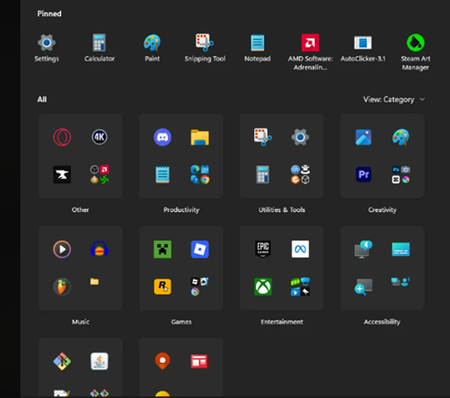

Those category folders in the Windows 11 Start menu can’t be turned off. They’re part of Microsoft’s new Start menu layout and are automatically applied.
What you can do:
- Click View (top-right of Start) and switch between Category and List view
- Use List view to see all apps alphabetically without folders
- Pin apps you use often to the Pinned section to avoid categories
What you can’t do:
- There’s no setting, registry option, or policy to permanently disable the category folders
- They will reappear if Microsoft keeps this layout enabled
Summary:
Category folders in the Windows 11 Start menu are by design and can’t be removed. The only workaround is switching to List view or pinning apps.

Das bringt aber nix. Spätestens nach einem Neustart ist alles beim alten. Mal abgesehen davon, dass die Listenansicht ebenfalls fürn Arsch ist. Wenn ich dort einen Ordner aufklappe, und sich darin Verknüpfungen befinden, die ähnlichen Namen und Bilder haben, sehe ich immer noch nicht, welches Programm ich klicken muss.
Das ist mehr als ätzend.
Translation
But that doesn't help. At the latest after a restart, everything's back to the way it was. Not to mention that the list view is crap too. If I open a folder there and it contains shortcuts with similar names and icons, I still can't tell which program I need to click on.
It's more than annoying.