Forum Discussion

How to Remove These Annoying Category Folders in the Windows 11 Start Menu?
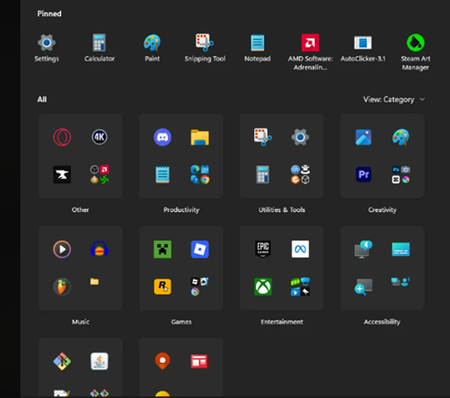

Those category folders in the Windows 11 Start menu can’t be turned off. They’re part of Microsoft’s new Start menu layout and are automatically applied.
What you can do:
- Click View (top-right of Start) and switch between Category and List view
- Use List view to see all apps alphabetically without folders
- Pin apps you use often to the Pinned section to avoid categories
What you can’t do:
- There’s no setting, registry option, or policy to permanently disable the category folders
- They will reappear if Microsoft keeps this layout enabled
Summary:
Category folders in the Windows 11 Start menu are by design and can’t be removed. The only workaround is switching to List view or pinning apps.

Why do Microsoft make these arbitrary changes which do not add to the user experience and do not add any new functionality, and then make it mandatory with no way to revert to the previous.
Whilst you can switch off the All section at the bottom of the Start Menu using the methods other posters have provided, this leaves you with no way to access programs that are not pinned as the 'All' option at the top right is gone.
This is about as pointless as moving the 'Lock' option from the Person menu to the Power menu.
- C_the_SMay 27, 2026Bronze Contributor
Maybe they are following the guidance of their AI overlords?
