Forum Discussion

How to Remove These Annoying Category Folders in the Windows 11 Start Menu?
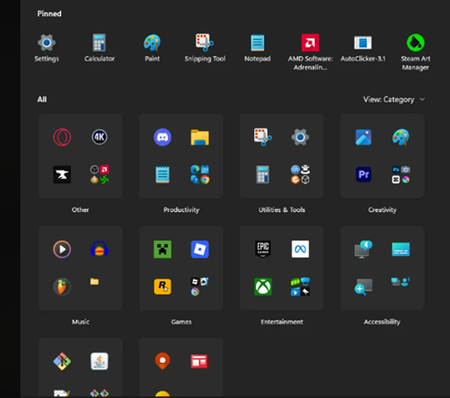

In recent versions of Windows 11, Microsoft introduced automatic app grouping in the Start menu under categories like Productivity, Creativity and Games. These are part of the new Category View in the All Apps section.
You can usually switch back to the traditional app list view like this:
Open the Start Menu
Click All (top-right of pinned apps)
Look for a small toggle/icon near the top of the app list
Switch from Category View to Grid View or List View
If you do not see the option, try this:
Open Settings
Go to Personalization
Select Start
Disable options related to:
Show recommendations
Organize apps by category (if available in your build)
If the feature was enabled through a recent update, Microsoft may still be gradually rolling it out, and some systems do not yet expose a direct toggle.
You can also try restarting the Start Menu process:
Press Ctrl + Shift + Esc
Open Task Manager
Find Start or Windows Explorer
Right-click Restart
If the categorized folders still remain, the feature is likely tied to your current Windows build/version. In that case you can check your version by running:
Press Win + R
Type winver
The behavior may differ depending on the installed update version of Microsoft Windows 11.