Forum Discussion

How to Remove These Annoying Category Folders in the Windows 11 Start Menu?
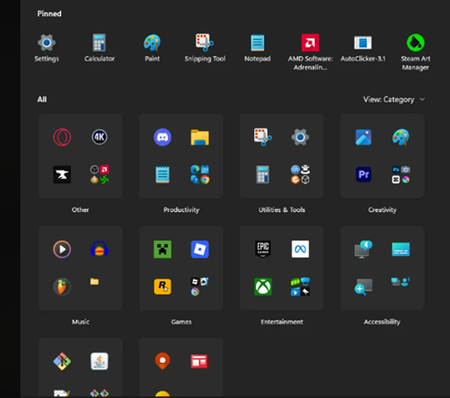

Those category folders in the Windows 11 Start menu can’t be turned off. They’re part of Microsoft’s new Start menu layout and are automatically applied.
What you can do:
- Click View (top-right of Start) and switch between Category and List view
- Use List view to see all apps alphabetically without folders
- Pin apps you use often to the Pinned section to avoid categories
What you can’t do:
- There’s no setting, registry option, or policy to permanently disable the category folders
- They will reappear if Microsoft keeps this layout enabled
Summary:
Category folders in the Windows 11 Start menu are by design and can’t be removed. The only workaround is switching to List view or pinning apps.
 TARLokiJul 15, 2026Copper Contributor
Das bringt aber nix. Spätestens nach einem Neustart ist alles beim alten. Mal abgesehen davon, dass die Listenansicht ebenfalls fürn Arsch ist. Wenn ich dort einen Ordner aufklappe, und sich darin Verknüpfungen befinden, die ähnlichen Namen und Bilder haben, sehe ich immer noch nicht, welches Programm ich klicken muss.
Das ist mehr als ätzend.
Translation
But that doesn't help. At the latest after a restart, everything's back to the way it was. Not to mention that the list view is crap too. If I open a folder there and it contains shortcuts with similar names and icons, I still can't tell which program I need to click on.
It's more than annoying.
 EddieWrightMay 27, 2026Tin Contributor
Why do Microsoft make these arbitrary changes which do not add to the user experience and do not add any new functionality, and then make it mandatory with no way to revert to the previous.
Whilst you can switch off the All section at the bottom of the Start Menu using the methods other posters have provided, this leaves you with no way to access programs that are not pinned as the 'All' option at the top right is gone.
This is about as pointless as moving the 'Lock' option from the Person menu to the Power menu.
- C_the_SMay 27, 2026Bronze Contributor
Maybe they are following the guidance of their AI overlords?
 DeletedMay 14, 2026Not applicable
This is the correct answer but remember the start menu is as similar to that of all previous window versions.
 PepsibotFeb 25, 2026Copper Contributor
Not true. Kadeschs registery entry involving NoStartMenuMorePrograms is correct. This feature is removable.
- TARLokiJul 15, 2026Copper Contributor
Kommt auf die Umgebung an.
Auf meinem Firmengerät kann ich den Registry Eintrag nciht anpassen, weil er Usergebunden ist. Starte ich regedit als Admin, wird es auch nur im Adminkonto angepasst.Translation
It depends on the environment.
On my company device, I can't change the registry entry because it's user-bound. If I start regedit as an admin, it only gets changed in the admin account.
 lyuboserafimovFeb 25, 2026Copper Contributor
Useless advice is useless.
 kadeschsFeb 20, 2026Tin Contributor
Removed:
[HKEY_CURRENT_USER\Software\Microsoft\Windows\CurrentVersion\Policies\Explorer]
"NoStartMenuMorePrograms"=dword:00000001
- DragosDrFeb 26, 2026Tin Contributor
Replying to confirm it works. Thanks!
The start menu remains big, empty and stupid, but at least I don't have to see those categories I never asked for.
What a bad, ugly and unwanted update.
- PepsibotFeb 25, 2026Copper Contributor
This is the correct solution to get rid of that feature.
- kadeschsFeb 20, 2026Tin Contributor
[HKEY_LOCAL_MACHINE\SOFTWARE\Policies\Microsoft\Windows\Explorer]
"HideCategoryView"=dword:00000001
 GattanchaMay 14, 2026Copper Contributor
I an confirm that this works. It removes the new categories, but leaves the "All / List" view intact that shows all the items in the start menu
