Forum Discussion

SamuelVaughn
Dec 21, 2024Tin Contributor
How to make Win 11 sync time on boot
I am experiencing an issue with my Windows 11 system where the time does not sync automatically when I boot up my computer. Despite having the time sync feature enabled in the settings

LukaBaylor
Jan 02, 2025Bronze Contributor
If Windows 11 isn't syncing time on boot, here’s how to fix it:
- Ensure Time Sync is Enabled:
Go to Settings > Time & language > Date & time, and make sure Set time automatically is on. Click Sync now to test. - Check Windows Time Service:
Open Services (Win+R, type services.msc), find Windows Time, set it to Automatic, and start the service if it's not running. - Use a Different Time Server:
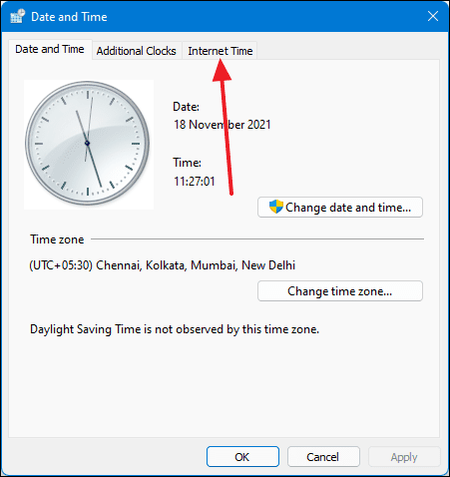
Open Control Panel > Clock and Region > Date and Time > Internet Time, click Change settings, and choose servers like time.nist.gov or pool.ntp.org. - Force Sync on Boot via Task Scheduler:
- Open Task Scheduler and create a task.
- Set the trigger to At startup.
- Add an action to run the command:bashw32tm /resync
These steps should ensure your time syncs on boot.

STeveF48
Apr 15, 2026Tin Contributor
I finally made it work as follows:-
Change step 4:-
on the General tab select "LOCAL SERVICE" as the account used to run the task and make the trigger "at log on of any user" to ensure that the Time Service has started .