Forum Discussion

How can I screen mirror iPhone to Mac wirelessly without usb cable
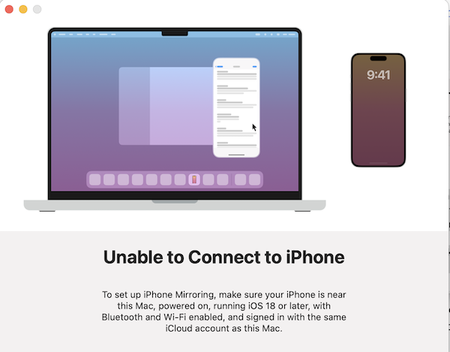

Yes, you can use goplay2 to mirror iPhone to Mac without using a USB cable. goplay2 is a free, open-source tool that acts as an AirPlay receiver, allowing you to wirelessly mirror your iPhone screen to your Mac over Wi-Fi.
How to Use goplay2 for Mirror iPhone to Mac:
Step 1. Download goplay2
Visit the official goplay2 repository on GitHub or its website.
Download the latest version compatible with your Mac.
Step 2. Install and Launch goplay2
Follow the installation instructions provided—usually, it involves extracting the files and running the application.
When you run goplay2, it will start listening for AirPlay connections on your local network.
Step 3. Connect Your iPhone
Make sure both your iPhone and Mac are connected to the same Wi-Fi network.
Open Control Center on your iPhone (swipe down from the top right corner).
Tap Screen Mirroring.
Select your Mac (it should appear as an available device running goplay2).
Step 4. Start Mirroring iPhone to mac
Once selected, the mirror iPhone to Mac process begins wirelessly over Wi-Fi, showing your iPhone screen on your Mac.