Forum Discussion

How can I screen mirror iPhone to Mac wirelessly without usb cable
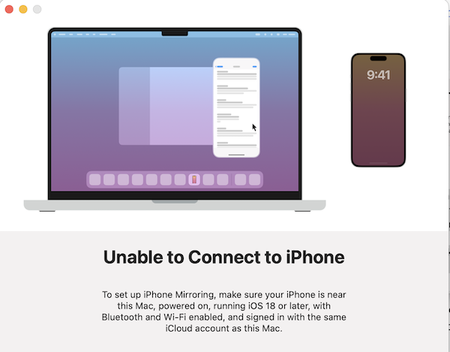

If you're looking for a free way to mirror iPhone to Mac without using a USB cable, Lets View is a great option. It supports wireless screen mirroring over Wi-Fi, making it ideal for viewing photos, demoing apps, or recording your screen.
Here's how to do it:
1. Download and Install Lets View:
On your Mac, go to the Lets View official website and download the Mac version.
Install the app following the on-screen instructions.
Launch Lets View on your Mac; ensure it is running and ready.
2. Connect Both Devices to the Same Wi-Fi Network:
Make sure your iPhone and Mac are connected to the same Wi-Fi network. This is crucial for Lets View to detect and connect your devices.
3. Open Control Center on Your iPhone:
Swipe down from the top-right corner (iPhone X and later) or swipe up from the bottom (older models) to access Control Center.
Tap Screen Mirroring or AirPlay.
4. Select Your Mac from the List:
In the list of available devices, you should see your Mac listed as an available screen mirror target.
Tap on your Mac’s name to start mirroring.
5. Enjoy the Mirror iPhone to Mac Experience:
Your iPhone screen will now be mirrored wirelessly to your Mac.
You can view photos, demo apps, or even record your screen directly through Lets View.
For the best experience, ensure a strong Wi-Fi connection. You can also use Lets View to record the mirrored screen, perfect for demos or tutorials. Since Lets View is completely free, it’s a great choice for casual or occasional screen mirroring needs.