Forum Discussion

How can I screen mirror iPhone to Mac wirelessly without usb cable
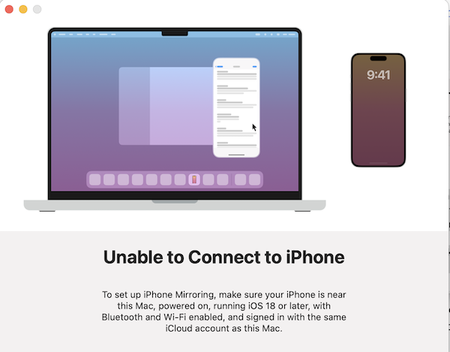

If you see an "Unable to Mirror iPhone to Mac" error when using the built-in iPhone Mirroring feature, it usually happens because of compatibility, network, or Apple ID issues. Below are the most common fixes you can try.
1. Check System Compatibility
The iPhone Mirroring feature requires newer versions of iOS and macOS.
Minimum requirements typically include:
iPhone: iOS 18 or later
Mac: macOS Sequoia or later
Apple Silicon Mac or newer Intel models
If your iPhone is running iOS 17 or earlier, the built-in iPhone Mirror app will not work.
Fix
Go to Settings → General → Software Update on your iPhone.
Update to the latest iOS version if available.
On your Mac, open System Settings → General → Software Update.
2. Make Sure Both Devices Use the Same Apple ID
The iPhone Mirroring feature relies on your Apple ID and iCloud account.
Check this:
Both devices must be signed in with the same Apple ID
Two-factor authentication should be enabled
iCloud must be active
Fix
On iPhone: Settings → Apple ID
On Mac: System Settings → Apple ID
Confirm both devices use the same account.
If you cannot mirror your iPhone to your Mac using the built-in iPhone Mirror app, these two tricks are the best options to screen mirror iphone to mac.. Checking software versions, ensuring both devices use the same Apple ID, and restarting the devices will solve most mirroring problems.