Forum Discussion

How can I screen mirror iPhone to Mac wirelessly without usb cable
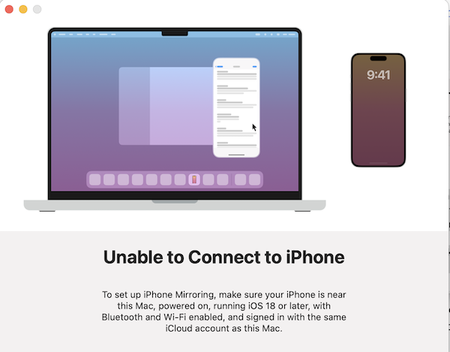

Using QuickTime Player is one of the easiest and most reliable ways to mirror an iPhone screen to a Mac. This method uses a USB cable instead of Wi-Fi, which means the connection is more stable and has almost no delay. It’s especially useful if you want to record the iPhone screen, demonstrate an app, or display your phone screen during a presentation.
How to screen mirror iPhone to MacBook wirelessly
1. Connect your iPhone to your Mac using a Lightning or USB-C cable.
2. Open QuickTime Player on your Mac.
3. Click File → New Movie Recording from the menu bar.
4. Click the small arrow next to the Record button.
5. Select your iPhone as the Camera source (and Microphone if needed).
6. Your iPhone screen will instantly appear on the Mac display.
QuickTime Player provides a simple and built-in way to mirror iPhone screen to Mac without installing any third-party apps. Because it uses a wired connection, it offers smoother performance and minimal lag, making it ideal for recording, tutorials, and presentations.