Forum Discussion

Bisma_rabha
Jun 16, 2024Copper Contributor
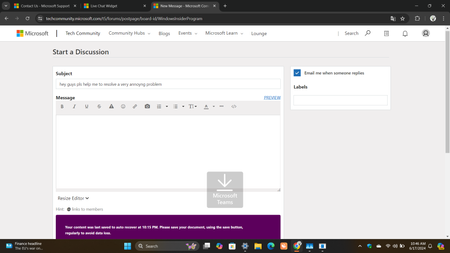
hey guys pls help me to resolve a very annoyng problem

Eommy
Sep 29, 2024Silver Contributor
1. Changing browsers: One user suggested trying a different browser, which may help resolve the pop-up issue.
2. Keyboard driver issue: Another user noted that there may be an issue with the keyboard driver that is causing the keys to behave abnormally. They suggested updating the keyboard driver, checking the keyboard settings, resetting the keyboard, checking the system and software, and using an online keyboard test tool to check if each key is working properly.
3. Check Microsoft Teams app settings: Some users suggested checking the settings of the Microsoft Teams app to see if there is an option to disable the “Show Windows 11” feature or change the display settings back to the default Teams interface.
4. Restart Mac and close Teams app: For Mac users, it is recommended to restart the device and close Teams app after logging in.
5. Ensure Windows is fully updated: Another suggestion is to ensure that the Windows system is fully updated as the pop-up window may be an unprocessed prompt after the update.
6. Re-login to your account: Some users recommend logging out of your account and then logging back in.
Disable Teams app auto-launch: the last suggestion is to disable the Teams app auto-launch in the settings to avoid seeing the watermark.
2. Keyboard driver issue: Another user noted that there may be an issue with the keyboard driver that is causing the keys to behave abnormally. They suggested updating the keyboard driver, checking the keyboard settings, resetting the keyboard, checking the system and software, and using an online keyboard test tool to check if each key is working properly.
3. Check Microsoft Teams app settings: Some users suggested checking the settings of the Microsoft Teams app to see if there is an option to disable the “Show Windows 11” feature or change the display settings back to the default Teams interface.
4. Restart Mac and close Teams app: For Mac users, it is recommended to restart the device and close Teams app after logging in.
5. Ensure Windows is fully updated: Another suggestion is to ensure that the Windows system is fully updated as the pop-up window may be an unprocessed prompt after the update.
6. Re-login to your account: Some users recommend logging out of your account and then logging back in.
Disable Teams app auto-launch: the last suggestion is to disable the Teams app auto-launch in the settings to avoid seeing the watermark.