Forum Discussion

File History problems after installing KB5124008, KB5126052,KB5126146, KB5122878, and KB890830
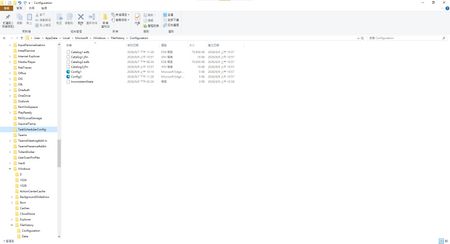

The "InconsistentState" entry you found indicates that the Windows File History service database has become corrupted or unaligned with your external drive due to changes introduced in the recent September 2026 patches (specifically KB5122878 or KB5124008).
Since a basic deletion of the configuration folder failed, the system is likely locking the files or preserving the broken state in the registry. You can resolve this issue by following these steps:
Fully Reset the File History Service
If Windows is actively running the service, you cannot delete or fix the configuration cache. You must stop it manually first:
Press Win + R, type services.msc, and press Enter.
Scroll down to find File History Service.
Right-click it and select Stop.
Now, open File Explorer and navigate to: C:\Users\YourUsername\AppData\Local\Microsoft\Windows\FileHistory\
Delete everything inside the Configuration and Data folders. (If it fails, restart your PC in Safe Mode and delete them).
Clear the Target Drive Hidden Metadata
The "InconsistentState" usually writes a hidden tracking configuration file directly to your backup drive (D:), which prevents Windows from recognizing it as a clean destination.
Open your D: drive in File Explorer.
In the top menu, ensure Hidden items is checked (under the View tab).
Look for a folder named FileHistory on the root of the D: drive.
Rename it to FileHistory.old (this preserves your old backups just in case, while forcing Windows to look at the drive as a brand-new target).
Re-engage the Feature via Control Panel
Do not use the modern Windows Settings app, as it often fails to re-initialize corrupted backup states.
Open the classic Control Panel (press Win + S, type Control Panel).
Go to System and Security → File History.
It should now say that no drive is selected or that File History is turned off.
Click Select drive on the left menu, choose your D: drive, and click OK.
Click Turn on.
Temporary Workaround: Roll Back the Update
If the steps above fail, the September update contains a core code regression affecting the backup engine. You can temporarily roll back the update while waiting for a hotfix from Microsoft:
Go to Settings → Update & Security → Windows Update.
Click View update history → Uninstall updates.
Find KB5122878 (or KB5124008 depending on your Windows version) and click Uninstall.
Pause your updates for 1-2 weeks until Microsoft addresses the bug on Microsoft Q&A or the Microsoft Community Hub.

You can ask other people if they have the same situation as me.