Forum Discussion

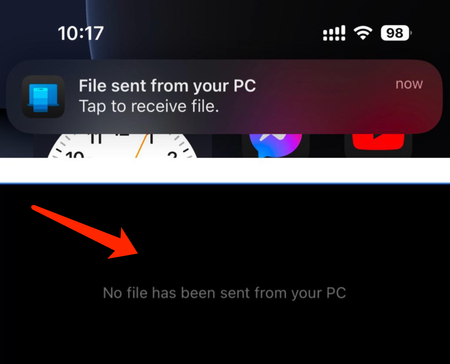
Can't send file from iPhone to my PC
- Jan 22, 2025
The issue could be caused by file location settings or permissions. Here's how to fix it:
- Check Transfer Location: The file may have been saved in a default folder. Search your PC's "Downloads" or "Documents" folder.
- Verify Permissions: Ensure your PC has permissions to accept files via Bluetooth or the transfer app you're using.
- Re-pair Devices: If using Bluetooth, unpair and re-pair your iPhone and PC to ensure a proper connection.
- Try a Different Method: Use alternatives like iCloud, OneDrive, or a USB cable for file transfer.
This should help you locate or resolve the file transfer issue.


Mine not be a trick to fix the problem but a workaround. If the file you're trying to transfer its not that large, i usually attach the file to an email(gmail, outlook etc..) draft inside my iPhone, then in my PC still logged in with the same email address i can down the file from the draft. It's usually quick for me.
Now depending on the destination folder configuration for your download in your PC, if its "downloads" folder regardless of the type of the file it should be present there.
Opening the file its what can be challenging if its type its not compatible with an any opening app in your PC.
Good luck techy.