Forum Discussion

Project Occupancy should not go beyond 100%
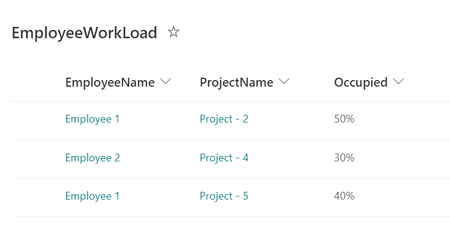

New_learner yes this is possible as you will see from the attached video. Even usng calculated columns you would struggle to do this with Lists on its own, so my solution uses a Power Apps customized form with quite a few formulas.
You will see that my example gives several delegation warnings. This won't be an issue unless the number of projects goes over 2000.
I would change the structure of your main Workload list. I am keeping the Title column for the employee name. Project1, Project2, Project3 and Project4 are single lines of text columns. PN, PN2, PN3, and PN 4 are number columns with 0 decimal places for the percentage of time the employee is spending on each proect. Occupied is also na number column.
The heavy lifting is done in the customized form which initially has Workload as the data source for the form, but you will need to add Projects and Employees as data sources as well. As the customised form doesn't display Microsoft Lists to select from you need to paste in the url of the list.
Make sure the default mode property of the form is set to Edit, and set the Item property of the form to SharePointIntegration.Selected
In the Title datacard add a dropdown which I've renamed to ddEmployee - it is always a good idea to rename the controls in your form. Set the Items property of the dropdown to Sort(Employees,Title) and for the data field in the title datacard (renamed to dataEmployee) set the Default property to ddEmployee.Selected.Title
Add a dropdown into each of the Project1, Project2, Project3 and Project4 data cards. Set the Items property of the dropdowns as follows:
Project1 - Projects
Project2 - Filter(Projects,Title <> dataProject1.Text)
Project3 - Filter(Projects,Title <> dataProject1.Text And Title <> dataProject2.Text)
Project4 - Filter(Projects,Title <> dataProject1.Text And Title <> dataProject2.Text And Title <> dataProject3.Text)
What that does is to filter out the projects from each dropdown except the first if the employee is already assigned to that project.
Set the data field of each card where you've added the dropdowns to ddProject1.Selected.Title etc.
For the PN, PN2, PN3 and PN4 set the Default property as follows:
PN - nothing
PN2 -If(SharePointForm1.Mode=Edit, ThisItem.PN2, If(Value(dataPN.Text)>=100,0,100-Value(dataPN.Text)))
PN3 - If(SharePointForm1.Mode=Edit, ThisItem.PN2,If(Value(dataPN.Text)+Value(dataPN2.Text)>=100,0,100-Value(dataPN.Text)-Value(dataPN2.Text)))
PN4 - If(SharePointForm1.Mode=Edit, ThisItem.PN4,If(Value(dataPN.Text)+Value(dataPN2.Text)+Value(dataPN3.Text)>=100,0,100-Value(dataPN.Text)-Value(dataPN2.Text)-dataPN3.Text))
Set the DisplayMode of the PM to PN4 fields as follows:
PN - leave it as
PN2 - If(Value(dataPN.Text)>=100 Or IsBlank(dataPN.Text),Disabled,Edit)
PN3 - If(Value(dataPN.Text)+Value(dataPN2.Text)>=100,Disabled,Edit)
PN4 - If(Value(dataPN.Text)+Value(dataPN2.Text)+Value(dataPN3.Text)>=100,Disabled,Edit)
What that does is to prevent data being entered in any of the later projects if the Employee's workload is already 100. But if for example the first Project number is 80 then in PN2 it will add 20 into the data field. You could reduce it to 10 which would then make PN3 available with a default value of 10.
Set the default of Occupied data field to Value(dataPN.Text)+Value(dataPN2.Text)+Value(dataPN3.Text)+Value(dataPN4.Text)
and set the Fill property to If(Value(dataPN.Text)+Value(dataPN2.Text)+Value(dataPN3.Text)+Value(dataPN4.Text)>100,ColorValue("Red"),ColorValue("Green"))
What that does is to change the fill to red if you go back and set the value to something that takes the total occupied value over 100. So it's a visual warning.
I've added a button to save the form details into the list . By changing the DisplayMode property of the button to If(Value(dataOccupied.Text) <=100, DisplayMode.Edit, DisplayMode.Disabled) so the user can't click the button if the occupied data field is more than 100. But be aware tthe Save link at the top of the form will still be active (although there is a way to disable it).
When you edit one the list items the PN2-4 fields will only update when you click the Edit all link at the top of the form.
If this was live in the workplace I would add some improvements ^ changes but I hope this quick example gives you something to work with.
Rob
Los Gallardos
Intranet, SharePoint and Power Platform Manager (and classic 1967 Morris Traveller driver)
 New_learnerOct 07, 2022Copper ContributorHello RobElliott,
By referring above solution,
I followed this solution but still facing some issues:-
1. While editing the any record it won't show the respective record values in the form.
2. And I cant find any solution for hiding/disabling the existing Save and Cancel buttons in SharePoint Form either.
So, validation are not working as well while saving the record
Can you please help me out in this?