Forum Discussion

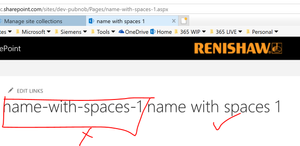
New Page layout include page title and name.
- Mar 22, 2018
One way to remove it, is by downloading your Page Layout HTML file first. You can download from the "Edit Page Layouts" screen in Design Manager. Then open this file in your favorite HTML editor (Notepad for example...). Look for the code below and remove it. Then save your file and upload it back. You can drag and drop from your file system onto the "Edit Page Layouts" screen in Design Manager. Publish the Page Layout and your change should be visible everywhere the Page Layout is used and also for future pages.
Hope this helps!
<!--SPM:<SharePoint:SPTitleBreadcrumb runat="server" RenderCurrentNodeAsLink="true" SiteMapProvider="SPContentMapProvider" WelcomePageUsesWebTitle="false">-->
<!--SPM:<PATHSEPARATORTEMPLATE>-->
<!--SPM:<SharePoint:ClusteredDirectionalSeparatorArrow runat="server"/>-->
<!--SPM:</PATHSEPARATORTEMPLATE>-->
<!--SPM:</SharePoint:SPTitleBreadcrumb>-->

One way to remove it, is by downloading your Page Layout HTML file first. You can download from the "Edit Page Layouts" screen in Design Manager. Then open this file in your favorite HTML editor (Notepad for example...). Look for the code below and remove it. Then save your file and upload it back. You can drag and drop from your file system onto the "Edit Page Layouts" screen in Design Manager. Publish the Page Layout and your change should be visible everywhere the Page Layout is used and also for future pages.
Hope this helps!
<!--SPM:<SharePoint:SPTitleBreadcrumb runat="server" RenderCurrentNodeAsLink="true" SiteMapProvider="SPContentMapProvider" WelcomePageUsesWebTitle="false">-->
<!--SPM:<PATHSEPARATORTEMPLATE>-->
<!--SPM:<SharePoint:ClusteredDirectionalSeparatorArrow runat="server"/>-->
<!--SPM:</PATHSEPARATORTEMPLATE>-->
<!--SPM:</SharePoint:SPTitleBreadcrumb>-->
 Russ HancockMar 23, 2018Copper ContributorThanks Paul... perfect!