Forum Discussion

VinodS2020
Dec 08, 2023Brass Contributor
Idle session timeout Conditional access policy for unmanaged devices
What is the default time period for this policy in Conditional access policy for Idle Session timeout" policy as I was looking for way to create this policy for unmanaged devices in the tenant and wh...

ericsawatzky
Dec 11, 2023Copper Contributor
The below configuration is taken from the CIS 365 Benchmark recommendation: "1.7 (L1) Ensure 'Idle session timeout' is set to '1 hour (or less)' for unmanaged devices". You can grab a free copy of the benchmarks with more details on this recommendation at: https://www.cisecurity.org/benchmark/microsoft_365.
Step 1 - configure Idle session timeout:
1. Navigate to the Microsoft 365 admin center https://admin.microsoft.com/.
2. Click to expand Settings Select Org settings.
3. Click Security & Privacy tab.
4. Select Idle session timeout.
5. Check the box Turn on to set the period of inactivity for users to be
signed off of Microsoft 365 web apps
6. Set a value of 1 hour.
7. Click save.
Step 2 - Ensure the Conditional Access policy is in place:
1. Navigate to Microsoft Entra admin center https://entra.microsoft.com/
2. Expand Azure Active Directory > Protect & secure > Conditional Access
3. Click New policy and give the policy a name.
4. Select Users > All users.
5. Select Cloud apps or actions > Select apps and select Office 365
6. Select Conditions > Client apps > Yes check only Browser unchecking all other
boxes.
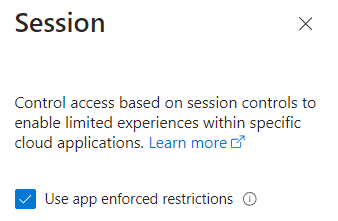
7. Select Sessions and check Use app enforced restrictions.
8. Set Enable policy to On and click Create.
NOTE: To ensure that idle timeouts affect only unmanaged devices, both steps must be
completed
Hope that helps,
Eric
Step 1 - configure Idle session timeout:
1. Navigate to the Microsoft 365 admin center https://admin.microsoft.com/.
2. Click to expand Settings Select Org settings.
3. Click Security & Privacy tab.
4. Select Idle session timeout.
5. Check the box Turn on to set the period of inactivity for users to be
signed off of Microsoft 365 web apps
6. Set a value of 1 hour.
7. Click save.
Step 2 - Ensure the Conditional Access policy is in place:
1. Navigate to Microsoft Entra admin center https://entra.microsoft.com/
2. Expand Azure Active Directory > Protect & secure > Conditional Access
3. Click New policy and give the policy a name.
4. Select Users > All users.
5. Select Cloud apps or actions > Select apps and select Office 365
6. Select Conditions > Client apps > Yes check only Browser unchecking all other
boxes.
7. Select Sessions and check Use app enforced restrictions.
8. Set Enable policy to On and click Create.
NOTE: To ensure that idle timeouts affect only unmanaged devices, both steps must be
completed
Hope that helps,
Eric

VinodS2020
Jan 09, 2024Brass Contributor
Hi,
I can see this in below given link about Idle session timeout but it seems its for non-company or shared devices but it does not clear whether its going to target unmanaged devices as well or what and seems confusing here.
See below snap
https://learn.microsoft.com/en-US/microsoft-365/admin/manage/idle-session-timeout-web-apps?view=o365-worldwide&WT.mc_id=365AdminCSH_inproduct