Forum Discussion

Want To Remove "Can't Update Microsoft Edge" Notification
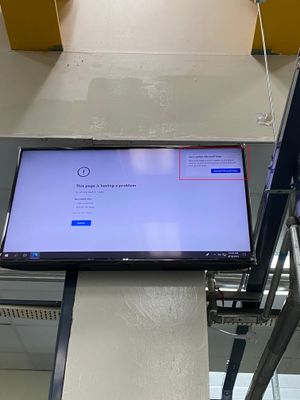

Are you recommending I still update Edge?
I really just want to display a homepage without any interruptions or popups, is there anyway to go about doing that without a re-install?
AaronM1285 I recommended a reinstall because you mentioned you had removed the files for Edge update (the C:\Program Files (x86)\Microsoft\EdgeUpdate folder) and it is the fastest way to safely restore it. If you just renamed the folder you can instead restore its original name.
Note that even that PC is offline you can https://www.microsoft.com/en-us/edge/business/download from another PC first. The "enterprise installer" does not require an internet connection. You may notice Edge can do a repair install but it requires an internet connection.
To confirm your situation you can go to edge://settings/help (the "About Edge" page) and see if you get this expected error:
If I rename the "EdgeUpdate" folder to something else, going to edge://settings/help gives me this error immediately:
After fixing this problem you can disable automatic update using Group Policy: Re: How to disable edge auto upgrade? - Microsoft Tech Community
EDIT: Someone says on the internet that the policies are not working as expected.
- Download policies from https://www.microsoft.com/en-us/edge/business/download
- Install the policy in target PC: https://www.winhelponline.com/blog/edge-chromium-admx-group-policy-templates/
- Use keyboard shortcut "Windows+R" to open "gpedit.msc" (Local Group Policy Editor)
- On the left panel open the folder: Computer configuration -> Policies -> Administrative templates -> Microsoft Edge update -> Preferences
- Double-click to open "Auto-update check period override" on the right
- Select "Enabled", then modify the number below to 0, click OK.
- Go to Microsoft Edge update -> Applications -> Microsoft Edge on the left
- Double-click to open "Update policy override" on the right
- Select "Enabled", then select "Updates disabled" option from the dropdown, click OK.
- Close the editor
You can also use registry instead. WARNING: editing registry in a wrong way can ruin your Windows OS!
Run the following commands on the target PC:
%SystemRoot%\System32\Reg.exe ADD "HKLM\SOFTWARE\Policies\Microsoft\EdgeUpdate" /v Update{56EB18F8-B008-4CBD-B6D2-8C97FE7E9062} /d 0 /t REG_DWORD /f
%SystemRoot%\System32\Reg.exe ADD "HKLM\SOFTWARE\Policies\Microsoft\EdgeUpdate" /v AutoUpdateCheckPeriodMinutes /d 0 /t REG_DWORD /f
EDIT2: Found some more info. If you tried the policy or registry method but failed, run this command:
%SystemRoot%\System32\Reg.exe QUERY "HKLM\SOFTWARE\WOW6432Node\Microsoft\EdgeUpdate\ClientState\{56EB18F8-B008-4CBD-B6D2-8C97FE7E9062}" /v brandIf you get this result:
brand REG_SZ GGLSThen run this command and restart Edge:
%SystemRoot%\System32\Reg.exe ADD "HKLM\SOFTWARE\WOW6432Node\Microsoft\EdgeUpdate\ClientState\{56EB18F8-B008-4CBD-B6D2-8C97FE7E9062}" /v brand /d GCEU /t REG_SZ /fBackup the PC before running the commands.
Updating software can be problematic for offline networks. I would still recommend you update periodically if you can, although you are not required to do so. Backup your PC before update in case the update cause any problems.