Forum Discussion

Outlook suddenly cannot access Gmail
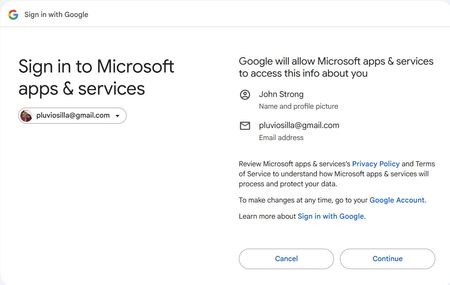

STEP 0 — Remove Microsoft/Outlook access from Google’s “Third‑party apps” page
Go to:
https://myaccount.google.com/connections (myaccount.google.com in Bing)
Delete anything related to:
- Microsoft apps & services
- Outlook
- Windows Mail
- Office
- “Mail” with a Microsoft icon
Why this matters:
If Google still has an old “denied” permission stored, Outlook will never show the IMAP permission checkbox again — it will just fail instantly.
This is the missing piece for most people.
STEP 1 — IMAP toggle in Gmail
This is absolutely correct.
- IMAP must be enabled
- Toggling it off → save → on → save forces Google to refresh the IMAP access flag
- This step alone won’t fix the issue, but it’s required for the later OAuth permission to “stick”
This step is good as‑is.
STEP 2 — Clearing Windows Credential Manager
Also correct.
Outlook caches:
- OAuth tokens
- IMAP/SMTP passwords
- Old Google authentication entries
If any of these are stale, Outlook may skip the permission screen entirely and go straight to the “You have denied Office access to Google – IMAP” error.
Your list of what to delete is perfect.
STEP 3 — Adding the account again + IMAP permission checkbox
This is the critical step.
The checkbox wording varies slightly, but it always includes:
“Allow Microsoft apps & services to read, compose, send, and permanently delete all your email from Gmail.”
This is the permission that Google blocks by default.
If this box is not checked, Google will deny IMAP every time, no matter what you do locally.