Forum Discussion

access status bar show half height
- Dec 13, 2022
This issue also came up in the thread at another forum https://www.access-programmers.co.uk/forums/threads/office-365-record-selector-bar-is-partly-hidden.325930/.
Another forum member suggested the cause & I can now reliably replicate the issue (tested on 2 PCs) as well as describing the fix
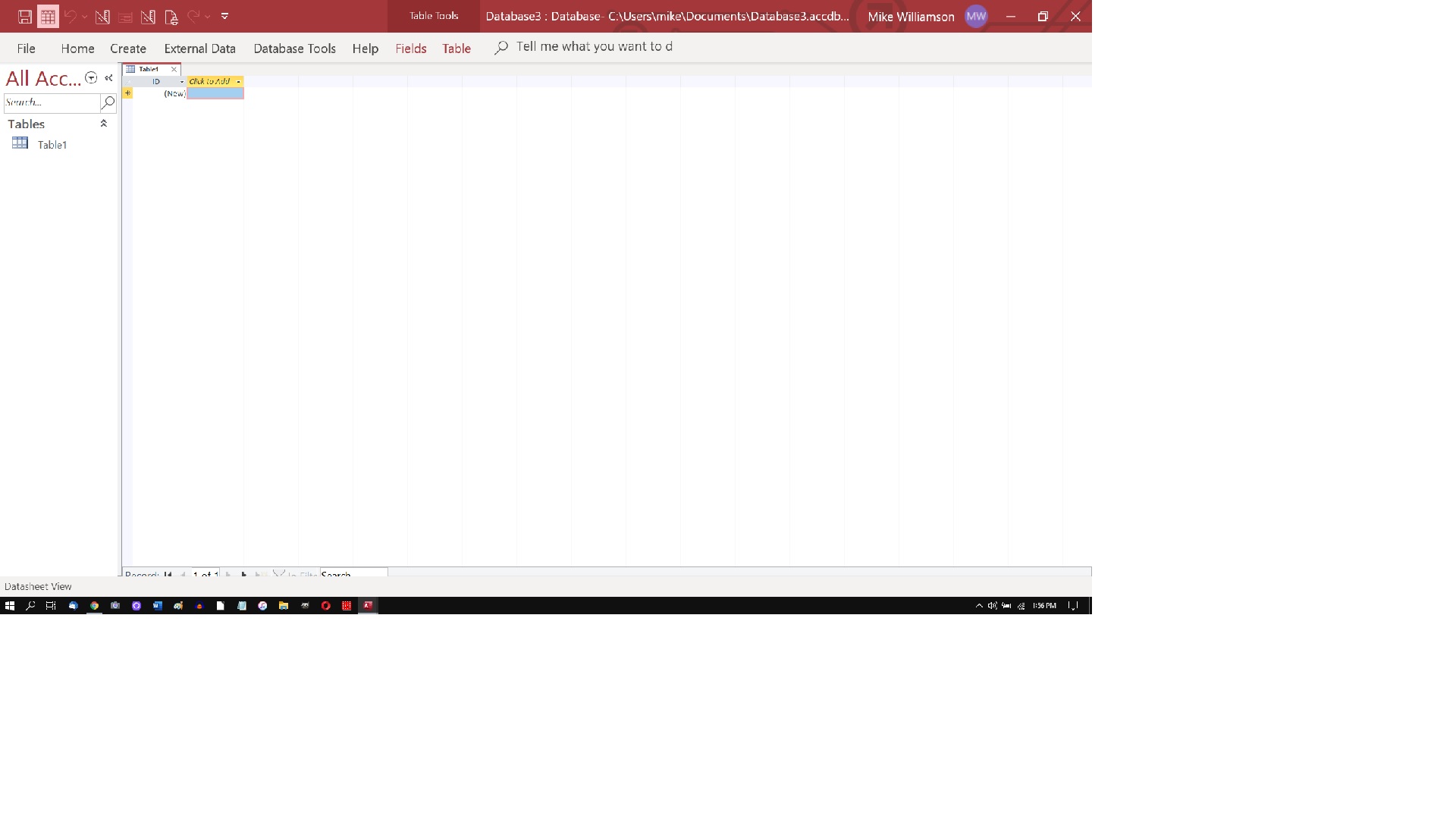
The screenshot below shows my Access window with a form & 2 queries all showing part of the navigation bar hidden
Notice the huge size of the text in the Access menu, nav pane & status bar .... that's the cause
I had previously tested increasing the scaling in Windows settings but that doesn't cause the issue as all screen elements are scaled up by the same amount.
However changing Make Text Bigger in Windows settings by moving the slider to the right does cause the issuebecause the text size is increased but other design elements remain unchanged
To fix the problem, move the slider significantly to the left and click apply.
The default setting is at the extreme left (100%)
Close & re-open Access and all should now be fine
If you need text to be larger, then I suggest using the Make Everything Bigger scaling in Windows Settings instead e.g. 125% or 150% so everything increases in proportion.
Please can anyone affected by ths issue test the above & report back on whether it solves your issue
Thanks

I have the same problem. Have tried changing resolution, font sizes, tabular view, disconnecting second monitor, hiding status bar, rebooting, etc. It is not specific to any one database. I created an extremely simple test database to prove this. The record selector is almost completely covered up in tables, queries, and forms. Haven't been able to find any resolution, and it's really frustrating not to be able to see how many records are in a set. Tried to upload a screen shot but it looks like I don't have permission.

I'd be happy to look at your test db and see if I can replicate the issue
You can contact me by email - I think you can find the address by clicking on my user name.
If not, go to my website https://isladogs.co.uk and click the Contact link at the bottom of the home page
It would be helpful to know your Access version & bitness together with the same for Windows.
If it helps, you can download my free Access add-in to collect this info: https://isladogs.co.uk/avc-addin/index.html
 ArminLinder1640Jan 28, 2024Copper Contributor
Same issue here. Resetting theTextsize didn't work when I tried it, but then I found out that I needed to set the text size to 100% on *all* Monitors (I have 2). Changing the "Scaling" didn't mess up things, I needed to play with the text size (Submenu of "Scaling"). No need to restart Access, things were visible right after the change.
Access 2016 on Windows 11
- isladogsMar 07, 2023MVPGlad you have a solution. You also now know how to upload files when needed!
- isladogsMar 07, 2023MVP
You didn't upload a screensyhot.
Can I assume you've tried the solutions in my article but those didn't work for you?
The basic reply window is text only but there is an HTML version.
When you click reply, you will see a link below the reply window Open Full Text Editor: Click that and a new window appears with a toolbar
Click the ellipsis (...) to expand as below and add a link to the file that will work here
Or use the add files feature below the reply window
It would be helpful to add a screenshot also. You can paste that direct into the reply window
 PLabrecheMar 07, 2023Copper Contributor
isladogs I've been having this problem for several years. I just verified that it happens in all three of the Access databases I use regularly. I created a blank database just now (same problem) to upload, but I don't see a way to upload it, even if I expand the "resize editor" as shown in the screenshot.
- isladogsDec 22, 2022MVP
Many thanks. Just checked and it does indeed work.
I wasn't aware until now where those settings were in the registry
The only remaining problem seems to be that the record counter doesn't get any wider to accommodate large text so you can't see all the contents.
Anyway - I'm going to refer a user at Access World Forums to your post & add your solution to my web article on this topic: Fixing the Navigation Bar Half Height problem (isladogs.co.uk)
Thanks again
 terrylterry90Dec 22, 2022Copper Contributor
Thank you, a perfect answer- it works both set at -350. Doesn't interfere with any other settings.
Merry Christmas.
- LighthouseLowellDec 22, 2022Copper ContributorI finally found a resolution to this!! My Windows scroll bars were set really small, to -96 height and width. I changed them per the instructions here: https://answers.microsoft.com/en-us/windows/forum/all/widen-scroll-bar-windows-10/24c1df8e-8c76-4653-8421-d5274608d6dc
I switched to -400, which is kind of big so I'll probably adjust it again, but as of now my Access record navigation buttons are completely visible and life is much improved.
I hope this is helpful to others. - isladogsDec 13, 2022MVPOK - it appears this hasn't solved your problems
I've just finished writing this up as a web article: https://isladogs.co.uk/nav-bar-height/
If anything else arises, I will update the article - LighthouseLowellDec 13, 2022Copper ContributorYes, I closed and restarted Access after each change.
Per your suggestion, I just checked magnification settings in the Ease of Access area. The magnifier is turned off.
I'm on a pretty clean install of Windows and Office, but did check Access Options - Object Designer. Default font size for query design is Segoe UI 8pt. No other font settings to play with there. I'm certain I haven't changed anything in this area.  MendipDataSystemsDec 13, 2022Brass ContributorDid you remember to close and restart Access after changing the slider / % values?
Also check whether you have anything magnified in the Ease of Access section of Windows settings.
Finally check the default font size in Access options.. Object Designers- LighthouseLowellDec 13, 2022Copper ContributorUnfortunately, this didn't resolve it for me. My "make text bigger" was already at the minimum value. "Make everything bigger" is at 125% (Recommended). I just experimented with changing these both to several different values (including setting both to their minimums), but none of them resolved this issue. Thanks for your continued efforts on this, I do appreciate it.
- isladogsDec 13, 2022MVP
This issue also came up in the thread at another forum https://www.access-programmers.co.uk/forums/threads/office-365-record-selector-bar-is-partly-hidden.325930/.
Another forum member suggested the cause & I can now reliably replicate the issue (tested on 2 PCs) as well as describing the fix
The screenshot below shows my Access window with a form & 2 queries all showing part of the navigation bar hidden
Notice the huge size of the text in the Access menu, nav pane & status bar .... that's the cause
I had previously tested increasing the scaling in Windows settings but that doesn't cause the issue as all screen elements are scaled up by the same amount.
However changing Make Text Bigger in Windows settings by moving the slider to the right does cause the issuebecause the text size is increased but other design elements remain unchanged
To fix the problem, move the slider significantly to the left and click apply.
The default setting is at the extreme left (100%)
Close & re-open Access and all should now be fine
If you need text to be larger, then I suggest using the Make Everything Bigger scaling in Windows Settings instead e.g. 125% or 150% so everything increases in proportion.
Please can anyone affected by ths issue test the above & report back on whether it solves your issue
Thanks
 SjraarDec 03, 2022Copper Contributor
LighthouseLowell I have the same problem on a HP laptop [and also the width of the "number of records" field is not wide enough anymore], so not a Lenovo problem.
- terrylterry90Nov 17, 2022Copper ContributorThanks all, I'm using a Dell desktop with Windows 10 and MS Office 2019. I've tried changing all sorts of settings including display but nothing solved the problem, guess it is something I'll have to put up with.
- isladogsNov 16, 2022MVPTo me, this seems to confirm that its likely to be an issue with your display drivers.
I have an old Lenovo IdeaPad Z580 laptop and it isn't afflicted with this issue
But as I keep saying, one thing you haven't tried is uploading a sample database for testing as @terryiterry90 duid earlier - LighthouseLowellNov 16, 2022Copper ContributorI have tried everything I can think of with settings, resolution, drivers, and different monitors. I just tried a usb monitor, and had the same issue with it. This is a tad anecdotal as I have a limited variety of machines to test on, but it seems pretty clearly related to a specific generation of Lenovo laptops.
- isladogsNov 08, 2022MVP
@terryiterry90
Hi Terry
Thanks for sending the database to me by email
This is a copy of my reply so others involved in this thread can also see my response:
You may not like what I'm about to tell you but (as I suspected), it displays perfectly on my computer
So it appears to be an issue either with your monitor or with your display drivers.
Please try the following:
a) adjusting the settings on your monitor e.g. vertical height
b) changing the screen resolution
c) updating your display drivers
Good luck
- isladogsNov 08, 2022MVPI suggested you find my email on the contact page of my website: https://isladogs.co.uk/contact/
- terrylterry90Nov 08, 2022Copper Contributor
I have tried to upload a sample DB but while I thought it had worked it obviously didn't. Tried uploading on the page that comes up when you click on your user name. https://techcommunity.microsoft.com/t5/notes/composepage/note-to-user-id/1007894
Can't see a direct email address for you anywhere.
- isladogsNov 08, 2022MVP
Sorry but I can't do anything with a screenshot
I don't think its an issue with the ACCDB file itself either. I believe its an issue related to your display settings or drivers but I'm willing to investigate given an opportunity.
The reason I keep asking you and others to upload a database is so I can test it on another machine.
Try zipping the database before uploading it
OR email it to me as I have already mentioned
If I can replicate the issue, I will report it directly to the Access team but I can't do so based on screenshots alone
- LighthouseLowellNov 08, 2022Copper Contributor
Here's a screen shot of mine. I tried to upload an .accdb file but I get a message that the content doesn't match the extension and it's removed. But again, the issue occurs immediately with every new database that I create but does not occur when I open the same database on a different pc, so I don't see how it can be connected to the .accdb file itself. Thanks again.
- isladogsNov 04, 2022MVP
@terrylterry90
OK - still happy to look at any example database if you can upload or email it to me as previously explained.
You should be able to upload it if you use the full text editor option as shown in the screenshot
- terrylterry90Nov 04, 2022Copper Contributor
OK, I have a small database I can upload but cannot see how to upload it. plus a screen shot to show how it appears.
Terry
- isladogsNov 03, 2022MVPI've been using Access for over 25 years without ever seeing this issue myself.
The only reports I've seen are in this thread.
I've asked repeatedly for example databases to be uploaded so I can test and, if appropriate, report this as a bug. I'm still waiting for someone to do so.
Any bugs can only be fixed if they are reported to the Access team. It is always helpful to supply an example database in which the issue can be reliably replicated.
