Forum Widgets
Latest Discussions
Stop hardcoding secrets! Now what?!
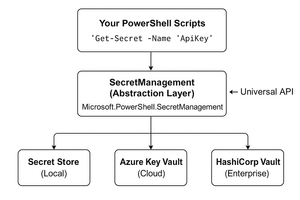
Yeah, we all know this right “STOP DOING THIS”, “STOP DOING THAT!” Yeah… that’s nice, but now what?! When you are already in the PowerShell field for some time and have created some scripts you might have been running into this topic; ‘How to deal with secrets’. There are of course solutions like KeyVault, SecureString and secret providers with API’s which help you to store the secrets you have in a secure environment. Things like this might look familiar; $password = "P@ssw0rd123!" $apiKey = "sk-1234567890abcdef" $connectionString = "Server=myserver;Database=mydb;User=admin;Password=SuperSecret123;" But what if I told you there’s a better way? A way that’s: Secure by default Cross-platform (Windows, Linux, macOS) Works with multiple backends (local, Azure Key Vault, HashiCorp Vault) Standardized across your entire team Built right into PowerShell 7+ (with some extra module support) That way forward is called ‘PowerShell SecretManagement”! What is SecretManagement? Think of PowerShell SecretManagement as the universal remote control for your secrets. With this remote control you can handle credentials for different systems while you just get one unified interface. It doesn’t matter if that secret is stored: In your local machine In an Azure KeyVault In HashiCorp Vault In KeePass, LastPass etc. The mindset remains the same ‘One remote control, to control them all’. The architecture behind it looks a bit like below; Explaination: SecretManagement “The interface where you code against” SecretStore “The default storage where your secrets live” Getting Started Let’s get started! Start PowerShell 7+ and run the code below Install-Module Microsoft.PowerShell.SecretManagement -Repository PSGallery -Force Install-Module Microsoft.PowerShell.SecretStore -Repository PSGallery -Force Now we have the required modules installed form the PowerShell Gallery it’s time to create our first vault. Register-SecretVault -name "LocalTestVault" It will ask you for the module. Enter the name “Microsoft.PowerShell.SecretStore”. (If you want you can also specify this value directly in the CMDLet by specifying the -ModuleName parameter. You should end up with something like below: First secrets Now we have the vault set-up it’s time to add some content to it. Follow the steps below to create the first secret in the vault Run the command below to create the first secret Set-Secret -Name "TestSecret" -Secret "SuperDuperSecureSecretString" If you haven’t specified the password it will now ask for one! You should end up with something like below; Cool right? On my personal blog I have the full post where I also show how to change, delete, and store complex objects. You can find it here: https://bartpasmans.tech/powershell-stop-hardcoding-secrets-now-what/ Happy scripting!Bart_PasmansOct 13, 2025Copper Contributor61Views1like0CommentsUnleashing Parallelism in PowerShell
This blog on my site got a lot of possitive feedback. Hopefully it can help others as well hence I share it here. If you want to check more check my blog on: https://bartpasmans.tech/ or check my LinkedIn: https://www.linkedin.com/in/bart-pasmans-6533094b/ Unleashing Parallelism in PowerShell If you’ve been around PowerShell for a while, you know it’s great at looping through stuff. Need to process a list of files? Easy. Query a set of servers? Piece of cake. But sometimes… you hit a wall. The problem? Sequential execution. By default, your loops work in a single-file line, like shoppers at a small-town bakery. That’s fine for five people. Not so fine for five thousand. That’s where ForEach-Object -Parallel enters the chat. 🚀 This feature, introduced in PowerShell 7, lets you process multiple items at the same time, tapping into all those CPU cores just sitting there looking bored. Today, we’re going to walk through how it works, why it’s a game-changer, and where you should (and shouldn’t) use it. We’ll keep it hands-on, so keep PowerShell open! you’ll see the 🎬 icon whenever it’s time to get your hands dirty. Today’s Toolbelt Here’s the deal: ForEach-Object -Parallel is like the express checkout lane at the grocery store. Instead of every task waiting for the one ahead to finish, they all get their own lane. We’ll explore: Basic parallel loops – Using ForEach-Object -Parallel in the simplest form Passing variables – How to get data into your parallel script block Controlling thread counts – Because unlimited parallelism can get… messy Real-world scenarios – Places where it shines (and where it doesn’t) Why Parallel? Imagine you have 50 servers to check for a certain log file. Running them one after another takes… forever. With parallel processing, you can hit multiple servers at once, finishing in a fraction of the time. 📒 Under the hood: PowerShell spins up runspaces, lightweight, isolated environment, to execute each chunk of work simultaneously. It’s not “true” OS-level multithreading, but it’s incredibly efficient for I/O-bound tasks like network calls, file reads, or API requests. 1..5 | ForEach-Object -Parallel { Start-Sleep -Seconds 1 "Task $_ completed on thread $([System.Threading.Thread]::CurrentThread.ManagedThreadId)" } What’s happening: 1..5 gives us five items. Each item is processed in a parallel runspace. They all sleep for one second…. 🥁🥁🥁 but because they run in parallel, the whole thing finishes in just over a second, not five! My previous blog: https://bartpasmans.tech/start-scripting-like-a-pro-6-speeding-up-your-code/ I showed you how to make your own threads and consume them. Check it out! 😊 This blog sticks with PowerShell cmdlets natively. Passing Data Into Parallel Blocks One catch with ForEach-Object -Parallel: it runs in its own scope. Your outer variables aren’t magically available inside. 🎬 Here’s how to pass variables in: $prefix = "Server" 1..3 | ForEach-Object -Parallel { "$using:prefix-$($_)" } 📒 The magic word: $using: tells PowerShell to bring in a variable from outside the parallel block. Controlling the Chaos Yes, parallelism is powerful, but if you let 200 jobs spin up at once, you might as well be starting a tiny CPU apocalypse 💣. 🎬 Throttle it with 1..10 | ForEach-Object -Parallel { Start-Sleep -Seconds 2 "Processed $_" } -ThrottleLimit 3 Here, only three parallel tasks run at a time. As soon as one finishes, the next starts. Real-World Example: Network Ping 🎬 Checking multiple hosts in parallel: $servers = "server1","server2","server3","server4","server5" $servers | ForEach-Object -Parallel { $result = Test-Connection -ComputerName $_ -Count 1 -Quiet "$_ is " + ($(if ($result) { "online" } else { "offline" })) } -ThrottleLimit 2 The pings happen two at a time. Overall time drops drastically compared to running sequentially. When Not to Use It 📒 Parallelism is not a free lunch. If your task is super short and light (like adding numbers), spinning up runspaces is actually slower. For CPU-heavy operations, you might saturate your system quickly. Avoid it when order matters—parallel execution doesn’t guarantee output order unless you take extra steps. Summary Wrapping It Up! PowerShell Meets Parallelism 🎉 Today we saw how ForEach-Object -Parallel lets you take PowerShell’s already-great iteration abilities and put them into warp speed. We covered: The basics of parallel loops Passing variables with $using: Throttling to keep your system happy Real-world use cases like pinging servers The takeaway? When you’re faced with a big list of time-consuming tasks, don’t just wait your turn in the single checkout lane. Open more lanes with ForEach-Object -Parallel! Just remember that more isn’t always better. Got your own clever use for parallel loops? Share it, I love seeing how people bend PowerShell to their will. Until next time! Keep automating, keep experimenting, and keep pushing your scripts to the next level. 🚀☕🍰Bart_PasmansSep 15, 2025Copper Contributor77Views1like0CommentsHow to: Finding large directories/recovering lost space.
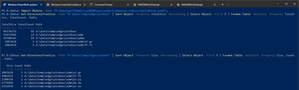
Hi folks, Every once in a blue moon I need to figure out where a disk's free space has disappeared to. There's boatloads of free tools that do this via a GUI but I felt like a basic PowerShell solution I can use in other contexts. Here's the simple module I wrote as well as some basic examples on how it can be leveraged in a standalone context. Props to anyone who spots the Easter egg. Module: XTree.psm1 function Get-DirectorySize { [cmdletbinding()] param( [parameter(Mandatory=$true)][ValidateNotNull()][string] $Path ) Write-Verbose -Message "Parsing $Path"; $Summary = [PSCustomObject] @{ Path = $Path.ToLowerInvariant(); Count = 0; Size = 0; } [System.IO.Directory]::EnumerateFiles($Path) | ForEach-Object { [System.IO.FileInfo]::new($_) | ForEach-Object { $Summary.Count++; $Summary.Size += $_.Length; } } $Summary; } function Get-DirectoryTreeSize { [cmdletbinding()] param( [parameter(Mandatory=$true)][ValidateNotNull()][string] $Path ) # Reference: https://learn.microsoft.com/en-us/dotnet/api/system.io.fileattributes?view=netframework-4.8.1 New-Variable -Name "ReparsePoint" -Value ([System.IO.FileAttributes]::ReparsePoint.value__) -Option Constant; #region Create a new output object with default values. $Summary = [PSCustomObject] @{ Path = $Path.ToLowerInvariant(); Count = 0; Size = 0; TotalCount = 0; TotalSize = 0; } #endregion #region Make any recursive calls first. [System.IO.Directory]::EnumerateDirectories($Path) | ForEach-Object { # We do not want to process reparse points. if (0 -eq (([System.IO.DirectoryInfo]::new($_).Attributes.value__ -band $ReparsePoint))) { Get-DirectoryTreeSize -Path $_ | ForEach-Object { $Summary.TotalCount += $_.Count; $Summary.TotalSize += $_.Size; $_; } } } #endregion #region Now, process and output the current directory. $Stats = Get-DirectorySize -Path $Path; $Summary.Count = $Stats.Count; $Summary.Size = $Stats.Size; $Summary.TotalCount += $Stats.Count; $Summary.TotalSize += $Stats.Size; $Summary; #endregion } Export-ModuleMember -Function @( "Get-DirectorySize" , "Get-DirectoryTreeSize" ); Example 1: Selecting the top five consumers by TotalSize This sort method is most useful for getting a high-level overview of a large directory structure. Get-DirectoryTreeSize -Path "D:\Data\Temp\Edge\windows" | Sort-Object -Property TotalSize -Descending | Select-Object -First 5 | Format-Table -AutoSize -Property TotalSize, TotalCount, Path; Example 2: Selecting the top five consumers by Size This sort method is more useful where you're looking for large individual directories. Get-DirectoryTreeSize -Path "D:\Data\Temp\Edge\windows" | Sort-Object -Property Size -Descending | Select-Object -First 5 | Format-Table -AutoSize -Property Size, Count, Path; Example output from both examples Additional information We do not want to process reparse points because: If the reference points to within the structure then we end up counting the same files twice, which is misleading; If the reference points outside the structure then it shouldn't be counted as contributing within the structure. I've used the native .NET class [System.IO.Directory] in lieu of the PowerShell-native Get-ChildItem as it's more efficient in a few scenarios - both in execution and coding effort. Get-ChildItem also errors out on certain reparse points in Windows PowerShell, which you can test for yourself using: Get-ChildItem -Directory -Force -Path "$env:USERPROFILE\Application Data\"; Cheers, LainLainRobertsonAug 13, 2025Silver Contributor111Views1like0Comments
Get DGs for a specific person from EXO
Having trouble with my script working right. Tried several scenarios. Looking for a GUI version. Attached are the two PS1's. I can connect to EXO but the GUI script won't produce anything ot just locks up Connect EXO: Connect-ExchangeOnLine This is straight forward and works but I cannot get it to work with the script below in an all in one script ------------------- <# Get-UserDGs-GUI.ps1 Author: You + ChatGPT Purpose: GUI to retrieve a user's Distribution Groups (member/owner) from Exchange Online. #> #region Preconditions if ($Host.Runspace.ApartmentState -ne 'STA') { Write-Warning "Re-running in STA mode..." Start-Process powershell.exe "-NoLogo -NoProfile -ExecutionPolicy Bypass -STA -File `"$PSCommandPath`"" -Verb RunAs exit } Add-Type -AssemblyName System.Windows.Forms Add-Type -AssemblyName System.Drawing [System.Windows.Forms.Application]::EnableVisualStyles() #endregion #region Helper Functions function Ensure-ExchangeModule { if (-not (Get-Module ExchangeOnlineManagement -ListAvailable)) { Write-Host "Installing ExchangeOnlineManagement..." Install-Module ExchangeOnlineManagement -Scope CurrentUser -Force -ErrorAction Stop } Import-Module ExchangeOnlineManagement -ErrorAction Stop } function Test-EXOConnection { try { # Fast no-op cmdlet to see if session works; adjust if needed Get-OrganizationConfig -ErrorAction Stop | Out-Null return $true } catch { return $false } } function Connect-EXO { param( [string]$AdminUpn ) if (Test-EXOConnection) { return $true } $connectParams = @{} if ($AdminUpn) { $connectParams.UserPrincipalName = $AdminUpn } try { Connect-ExchangeOnline @connectParams -ShowProgress $false -ErrorAction Stop | Out-Null return $true } catch { [System.Windows.Forms.MessageBox]::Show("Connection failed:`r`n$($_.Exception.Message)","Error", [System.Windows.Forms.MessageBoxButtons]::OK,[System.Windows.Forms.MessageBoxIcon]::Error) | Out-Null return $false } } function Disconnect-EXO-Safe { try { Disconnect-ExchangeOnline -Confirm:$false -ErrorAction SilentlyContinue | Out-Null } catch {} } function Get-UserDGData { param( [string]$TargetUpn, [bool]$IncludeOwner, [bool]$IncludeDynamic ) $resultTable = New-Object System.Data.DataTable "Groups" "DisplayName","PrimarySmtpAddress","ManagedBy","RecipientTypeDetails","MembershipType","IsDynamic" | ForEach-Object { [void]$resultTable.Columns.Add($_) } try { # DistinguishedName for membership filter $dn = (Get-User $TargetUpn -ErrorAction Stop).DistinguishedName # Member DGs $memberDgs = Get-DistributionGroup -ResultSize Unlimited -Filter "Members -eq '$dn'" -ErrorAction SilentlyContinue foreach ($dg in $memberDgs) { $managedBy = ($dg.ManagedBy | ForEach-Object { $_.Name }) -join '; ' $row = $resultTable.NewRow() $row.DisplayName = $dg.DisplayName $row.PrimarySmtpAddress = $dg.PrimarySmtpAddress $row.ManagedBy = $managedBy $row.RecipientTypeDetails = $dg.RecipientTypeDetails $row.MembershipType = "Member" $row.IsDynamic = if ($dg.RecipientTypeDetails -match 'Dynamic') {'Yes'} else {'No'} $resultTable.Rows.Add($row) } # Owner DGs if ($IncludeOwner) { $ownerDgs = Get-DistributionGroup -ResultSize Unlimited | Where-Object { ($_.ManagedBy -contains $dn) } foreach ($dg in $ownerDgs) { $managedBy = ($dg.ManagedBy | ForEach-Object { $_.Name }) -join '; ' $row = $resultTable.NewRow() $row.DisplayName = $dg.DisplayName $row.PrimarySmtpAddress = $dg.PrimarySmtpAddress $row.ManagedBy = $managedBy $row.RecipientTypeDetails = $dg.RecipientTypeDetails $row.MembershipType = "Owner" $row.IsDynamic = if ($dg.RecipientTypeDetails -match 'Dynamic') {'Yes'} else {'No'} $resultTable.Rows.Add($row) } } # Dynamic DG hit test (optional) if ($IncludeDynamic) { $dynamicHits = foreach ($ddg in Get-DynamicDistributionGroup -ResultSize Unlimited) { $filter = $ddg.RecipientFilter $ou = $ddg.RecipientContainer $match = Get-Recipient -ResultSize Unlimited -RecipientPreviewFilter $filter -OrganizationalUnit $ou | Where-Object { $_.PrimarySmtpAddress -ieq $TargetUpn } if ($match) { $ddg } } foreach ($dg in $dynamicHits) { # Avoid duplicates if already in table if (-not $resultTable.Select("PrimarySmtpAddress = '$($dg.PrimarySmtpAddress)' AND MembershipType='Member'").Count) { $row = $resultTable.NewRow() $row.DisplayName = $dg.DisplayName $row.PrimarySmtpAddress = $dg.PrimarySmtpAddress $row.ManagedBy = ($dg.ManagedBy | ForEach-Object { $_.Name }) -join '; ' $row.RecipientTypeDetails = $dg.RecipientTypeDetails $row.MembershipType = "Member (Dynamic Match)" $row.IsDynamic = "Yes" $resultTable.Rows.Add($row) } } } return $resultTable } catch { throw $_ } } #endregion #region GUI Build # Colors $colorBg = [System.Drawing.Color]::FromArgb(35,45,60) $colorPanel = [System.Drawing.Color]::FromArgb(50,60,80) $colorAccent = [System.Drawing.Color]::FromArgb(106,176,222) $colorText = [System.Drawing.Color]::White $fontMain = New-Object System.Drawing.Font("Segoe UI",10) $fontSmall = New-Object System.Drawing.Font("Segoe UI",7) $form = New-Object System.Windows.Forms.Form $form.Text = "Exchange Online - Distribution Groups Lookup" $form.StartPosition = "CenterScreen" $form.Size = New-Object System.Drawing.Size(1000,650) $form.BackColor = $colorBg $form.Font = $fontMain # Top panel $panelTop = New-Object System.Windows.Forms.Panel $panelTop.Dock = 'Top' $panelTop.Height = 120 $panelTop.BackColor = $colorPanel $form.Controls.Add($panelTop) # Labels / Inputs $lblAdminUpn = New-Object System.Windows.Forms.Label $lblAdminUpn.Text = "Admin UPN (for Connect):" $lblAdminUpn.ForeColor = $colorText $lblAdminUpn.Location = "20,15" $lblAdminUpn.AutoSize = $true $panelTop.Controls.Add($lblAdminUpn) $txtAdminUpn = New-Object System.Windows.Forms.TextBox $txtAdminUpn.Location = "220,12" $txtAdminUpn.Width = 250 $panelTop.Controls.Add($txtAdminUpn) $btnConnect = New-Object System.Windows.Forms.Button $btnConnect.Text = "Connect" $btnConnect.Location = "490,10" $btnConnect.Width = 100 $btnConnect.BackColor = $colorAccent $btnConnect.FlatStyle = 'Flat' $btnConnect.ForeColor = [System.Drawing.Color]::Black $panelTop.Controls.Add($btnConnect) $lblTargetUpn = New-Object System.Windows.Forms.Label $lblTargetUpn.Text = "Target User UPN:" $lblTargetUpn.ForeColor = $colorText $lblTargetUpn.Location = "20,50" $lblTargetUpn.AutoSize = $true $panelTop.Controls.Add($lblTargetUpn) $txtTargetUpn = New-Object System.Windows.Forms.TextBox $txtTargetUpn.Location = "220,47" $txtTargetUpn.Width = 250 $panelTop.Controls.Add($txtTargetUpn) $chkOwner = New-Object System.Windows.Forms.CheckBox $chkOwner.Text = "Include groups where user is OWNER" $chkOwner.ForeColor = $colorText $chkOwner.Location = "490,48" $chkOwner.Width = 260 $panelTop.Controls.Add($chkOwner) $chkDynamic = New-Object System.Windows.Forms.CheckBox $chkDynamic.Text = "Check Dynamic DG membership (slow)" $chkDynamic.ForeColor = $colorText $chkDynamic.Location = "490,70" $chkDynamic.Width = 260 $panelTop.Controls.Add($chkDynamic) $btnGet = New-Object System.Windows.Forms.Button $btnGet.Text = "Get Groups" $btnGet.Location = "770,44" $btnGet.Width = 160 $btnGet.Height = 40 $btnGet.BackColor = $colorAccent $btnGet.FlatStyle = 'Flat' $btnGet.ForeColor = [System.Drawing.Color]::Black $panelTop.Controls.Add($btnGet) # Grid $grid = New-Object System.Windows.Forms.DataGridView $grid.Dock = 'Fill' $grid.ReadOnly = $true $grid.AutoSizeColumnsMode = 'Fill' $grid.BackgroundColor = $colorBg $grid.ForeColor = [System.Drawing.Color]::Black $grid.EnableHeadersVisualStyles = $false $grid.ColumnHeadersDefaultCellStyle.BackColor = $colorAccent $grid.ColumnHeadersDefaultCellStyle.ForeColor = [System.Drawing.Color]::Black $grid.RowHeadersVisible = $false $form.Controls.Add($grid) # Bottom bar $panelBottom = New-Object System.Windows.Forms.Panel $panelBottom.Dock = 'Bottom' $panelBottom.Height = 70 $panelBottom.BackColor = $colorPanel $form.Controls.Add($panelBottom) $btnExport = New-Object System.Windows.Forms.Button $btnExport.Text = "Export CSV" $btnExport.Location = "20,15" $btnExport.Width = 110 $btnExport.BackColor = $colorAccent $btnExport.FlatStyle = 'Flat' $btnExport.ForeColor = [System.Drawing.Color]::Black $panelBottom.Controls.Add($btnExport) $btnCopy = New-Object System.Windows.Forms.Button $btnCopy.Text = "Copy to Clipboard" $btnCopy.Location = "140,15" $btnCopy.Width = 140 $btnCopy.BackColor = $colorAccent $btnCopy.FlatStyle = 'Flat' $btnCopy.ForeColor = [System.Drawing.Color]::Black $panelBottom.Controls.Add($btnCopy) $btnClear = New-Object System.Windows.Forms.Button $btnClear.Text = "Clear" $btnClear.Location = "290,15" $btnClear.Width = 90 $btnClear.BackColor = $colorAccent $btnClear.FlatStyle = 'Flat' $btnClear.ForeColor = [System.Drawing.Color]::Black $panelBottom.Controls.Add($btnClear) $btnDisconnect = New-Object System.Windows.Forms.Button $btnDisconnect.Text = "Disconnect" $btnDisconnect.Location = "390,15" $btnDisconnect.Width = 110 $btnDisconnect.BackColor = $colorAccent $btnDisconnect.FlatStyle = 'Flat' $btnDisconnect.ForeColor = [System.Drawing.Color]::Black $panelBottom.Controls.Add($btnDisconnect) $chkAutoDisc = New-Object System.Windows.Forms.CheckBox $chkAutoDisc.Text = "Auto-disconnect on close" $chkAutoDisc.ForeColor = $colorText $chkAutoDisc.Location = "520,20" $chkAutoDisc.Width = 180 $panelBottom.Controls.Add($chkAutoDisc) $statusLabel = New-Object System.Windows.Forms.Label $statusLabel.Text = "Ready." $statusLabel.ForeColor = $colorText $statusLabel.AutoSize = $true $statusLabel.Location = "720,22" $panelBottom.Controls.Add($statusLabel) # Footer $lblFooter = New-Object System.Windows.Forms.Label $lblFooter.Text = "Interactive Form Created By: Mark Snyder - All Rights Reserved!" $lblFooter.ForeColor = $colorText $lblFooter.Font = $fontSmall $lblFooter.AutoSize = $true $lblFooter.Location = New-Object System.Drawing.Point(20, $panelBottom.Top - 20) $form.Controls.Add($lblFooter) #endregion #region UI Logic $currentTable = $null function Set-Status { param([string]$msg) $statusLabel.Text = $msg [System.Windows.Forms.Application]::DoEvents() } $btnConnect.Add_Click({ Set-Status "Connecting..." Ensure-ExchangeModule if (Connect-EXO -AdminUpn $txtAdminUpn.Text) { Set-Status "Connected." } else { Set-Status "Not connected." } }) $btnGet.Add_Click({ if (-not $txtTargetUpn.Text.Trim()) { [System.Windows.Forms.MessageBox]::Show("Please enter the Target User UPN.","Missing Info", [System.Windows.Forms.MessageBoxButtons]::OK,[System.Windows.Forms.MessageBoxIcon]::Warning) | Out-Null return } Set-Status "Working..." $btnGet.Enabled = $false $btnGet.Text = "Working..." [System.Windows.Forms.Application]::DoEvents() Ensure-ExchangeModule if (-not (Test-EXOConnection)) { if (-not (Connect-EXO -AdminUpn $txtAdminUpn.Text)) { Set-Status "Connection failed." $btnGet.Enabled = $true $btnGet.Text = "Get Groups" return } } try { $table = Get-UserDGData -TargetUpn $txtTargetUpn.Text.Trim() -IncludeOwner $chkOwner.Checked -IncludeDynamic $chkDynamic.Checked $currentTable = $table $grid.DataSource = $currentTable Set-Status ("Retrieved {0} group(s)." -f $currentTable.Rows.Count) } catch { [System.Windows.Forms.MessageBox]::Show("Error retrieving data:`r`n$($_.Exception.Message)","Error", [System.Windows.Forms.MessageBoxButtons]::OK,[System.Windows.Forms.MessageBoxIcon]::Error) | Out-Null Set-Status "Error." } finally { $btnGet.Enabled = $true $btnGet.Text = "Get Groups" } }) $btnExport.Add_Click({ if (-not $currentTable -or $currentTable.Rows.Count -eq 0) { [System.Windows.Forms.MessageBox]::Show("Nothing to export.","Info",[System.Windows.Forms.MessageBoxButtons]::OK,[System.Windows.Forms.MessageBoxIcon]::Information) | Out-Null return } $sfd = New-Object System.Windows.Forms.SaveFileDialog $sfd.Filter = "CSV (*.csv)|*.csv" $sfd.FileName = "UserDGs.csv" if ($sfd.ShowDialog() -eq [System.Windows.Forms.DialogResult]::OK) { try { $currentTable | Export-Csv -NoTypeInformation -Path $sfd.FileName -Encoding UTF8 Set-Status "Saved to $($sfd.FileName)" } catch { [System.Windows.Forms.MessageBox]::Show("Export failed: $($_.Exception.Message)","Error", [System.Windows.Forms.MessageBoxButtons]::OK,[System.Windows.Forms.MessageBoxIcon]::Error) | Out-Null } } }) $btnCopy.Add_Click({ if (-not $currentTable -or $currentTable.Rows.Count -eq 0) { [System.Windows.Forms.MessageBox]::Show("Nothing to copy.","Info",[System.Windows.Forms.MessageBoxButtons]::OK,[System.Windows.Forms.MessageBoxIcon]::Information) | Out-Null return } $string = $currentTable | ConvertTo-Csv -NoTypeInformation | Out-String [System.Windows.Forms.Clipboard]::SetText($string) # Small toast-ish popup $popup = New-Object System.Windows.Forms.Form $popup.FormBorderStyle = 'None' $popup.StartPosition = 'Manual' $popup.BackColor = $colorAccent $popup.Size = New-Object System.Drawing.Size(200,60) $popup.TopMost = $true $popup.ShowInTaskbar = $false $popup.Location = New-Object System.Drawing.Point(($form.Location.X + $form.Width - 220), ($form.Location.Y + 40)) $lbl = New-Object System.Windows.Forms.Label $lbl.Text = "Copied to clipboard!" $lbl.AutoSize = $false $lbl.TextAlign = 'MiddleCenter' $lbl.Dock = 'Fill' $lbl.Font = New-Object System.Drawing.Font("Segoe UI",10,[System.Drawing.FontStyle]::Bold) $popup.Controls.Add($lbl) $popup.Show() $timer = New-Object System.Windows.Forms.Timer $timer.Interval = 1200 $timer.Add_Tick({ $timer.Stop(); $popup.Close(); $popup.Dispose() }) $timer.Start() }) $btnClear.Add_Click({ $grid.DataSource = $null $currentTable = $null Set-Status "Cleared." }) $btnDisconnect.Add_Click({ Disconnect-EXO-Safe Set-Status "Disconnected." }) $form.Add_FormClosing({ if ($chkAutoDisc.Checked) { Disconnect-EXO-Safe } else { $res = [System.Windows.Forms.MessageBox]::Show("Disconnect from Exchange Online now?","Disconnect?", [System.Windows.Forms.MessageBoxButtons]::YesNoCancel,[System.Windows.Forms.MessageBoxIcon]::Question) if ($res -eq [System.Windows.Forms.DialogResult]::Cancel) { $_.Cancel = $true } elseif ($res -eq [System.Windows.Forms.DialogResult]::Yes) { Disconnect-EXO-Safe } } }) #endregion [void]$form.ShowDialog()marksnyder2135Jul 25, 2025Copper Contributor49Views0likes0CommentsInstall-Package - failed to be installed: End of Central Directory record could not be found.
Hi all, Since last week I've had multiple errors in my pipelines when trying to install NuGet packages: Install-Package -Name Microsoft.PowerBi.Api -Source MyNuGet -ProviderName NuGet -Scope CurrentUser -RequiredVersion 3.18.1 -SkipDependencies This seems to be affecting multiple packages: Install-Package : Package Newtonsoft.Json failed to be installed because: End of Central Directory record could not be found. Install-Package : Package Microsoft.Rest.ClientRuntime failed to be installed because: End of Central Directory record could not be found. Install-Package : Package Microsoft.PowerBI.Api failed to be installed because: End of Central Directory record could not be found. When downloading the package I don't see any errors using nuget verify. I get these errors in microsoft hosted agents in ADO pipelines, on my laptop, or any VM I use. Doesn't seem to be related to PS or OS version or any proxies/firewalls. Any ideas? Thank youdsantunesJul 23, 2025Copper Contributor445Views1like0Comments
PowerShell Not Creating Smartsheet Row as Expected
BACKGROUND: I created a PowerShell script that reads a Word document, extracts fields, and then creates a row on a Smartsheet with the data from that Word document...but the row created was blank, even though it showed success in PowerShell (ID's replaced with asterisks). What could I be missing? Best, Chris Hallo | email address removed for privacy reasons FROM POWERSHELL: Results: Post row to Smartsheet? (Y/N): Y Posting row to Smartsheet... ✅ Row added. Response: message : SUCCESS resultCode : 0 version : 13580 result : @{id=*; sheetId=*; rowNumber=1; expanded=True; locked=False; lockedForUser=False; createdAt=2025-07-16T19:07:35Z; modifiedAt=2025-07-16T19:07:35Z; cells=System.Object[]}chrishalloJul 16, 2025Copper Contributor29Views0likes0Comments
Getting Teams meeting transcripts using Powershell with Graph API
I have set up an Enterprise App in Entra with the following API permissions: Microsoft.Graph OnlineMeetings.Read (Delegated) OnlineMeetings.Read.All (Application) User.Read.All (Application) Admin consent has been granted for the Application types. Below is the code snippet for getting the meetings: $tenantId = "xxxxxx" $clientId = "xxxxxx" $clientSecret = "xxxxxx" $secureSecret = ConvertTo-SecureString $clientSecret -AsPlainText -Force $psCredential = New-Object System.Management.Automation.PSCredential ($clientId, $secureSecret) Connect-MgGraph -TenantId $tenantId -ClientSecretCredential $psCredential -NoWelcome $meetings = Get-MgUserOnlineMeeting -UserId "email address removed for privacy reasons" -All Connect-MgGraph is invoked without errors. I had verified this with Get-MgContext command. At line 10 I get this error: Status: 404 (NotFound) ErrorCode: UnknownError I don't know if this is means there was an error in the API call, or there were no records found (I do have Teams calls with transcripts though). I have tried changing the last line to (without -All): $meetings = Get-MgUserOnlineMeeting -UserId "my guid user id here" And I get this error: Status: 403 (Forbidden) ErrorCode: Forbidden Adding -All parameter results in this error: Filter expression expected - /onlineMeetings?$filter={ParameterName} eq '{id}'. I've done some searching but I haven't found any more information nor solution for this. I hope someone can point me in the right direction. Thanks in advance!paulnerieApr 23, 2025Copper Contributor127Views0likes0Comments
Gui to deploy folder contents to multiple VMs
I am trying to improve imaging computers where I work. I need to create a gui for new hires since the imaging process is so complicated. I need the GUI to request necessary computer names that are being imaged and then copy files from a local workstation to the machines that are being imaged on the network that our technicians do not have physical access to. I have turned to Powershell for the solution in an attempt to improve on my knowledge which is basic really. Below is the code I have come up with so far. In this code I am getting the location of the file. I would rather copy the entire folder instead of the file but I couldnt find the code to do that. So, if that is possible please show me how. If not I figure I would have to save these imaging files to a ZIP file. Then I could maybe use this GUI I am working on to move the zip file to the remote computers. Add-Type -AssemblyName System.Windows.Forms # Create the form $form = New-Object System.Windows.Forms.Form $form.Text = "File and Network Location Collector" $form.Size = New-Object System.Drawing.Size(400, 200) # Create the label for file name $fileLabel = New-Object System.Windows.Forms.Label $fileLabel.Text = "File Name:" $fileLabel.Location = New-Object System.Drawing.Point(10, 20) $form.Controls.Add($fileLabel) # Create the text box for file name $fileTextBox = New-Object System.Windows.Forms.TextBox $fileTextBox.Location = New-Object System.Drawing.Point(100, 20) $fileTextBox.Size = New-Object System.Drawing.Size(250, 20) $form.Controls.Add($fileTextBox) # Create the label for network location $networkLabel = New-Object System.Windows.Forms.Label $networkLabel.Text = "Network Location:" $networkLabel.Location = New-Object System.Drawing.Point(10, 60) $form.Controls.Add($networkLabel) # Create the text box for network location $networkTextBox = New-Object System.Windows.Forms.TextBox $networkTextBox.Location = New-Object System.Drawing.Point(100, 60) $networkTextBox.Size = New-Object System.Drawing.Size(250, 20) $form.Controls.Add($networkTextBox) # Create the button to submit $submitButton = New-Object System.Windows.Forms.Button $submitButton.Text = "Submit" $submitButton.Location = New-Object System.Drawing.Point(150, 100) $form.Controls.Add($submitButton) # Add event handler for the button click $submitButton.Add_Click({ $fileName = $fileTextBox.Text $networkLocation = $networkTextBox.Text [System.Windows.Forms.MessageBox]::Show("File Name: $fileName`nNetwork Location: $networkLocation") }) # Show the form $form.ShowDialog() In this portion of the code it is copying from one source to many locations. Thank you for any assistance as this would help my organization a lot. We are getting several new hires who are very new to the industry. This would be a huge blessing. Pardon the change in font size. It did that for no reason, its my first time using the blog, and there appears to be no way to change the sizes lol. Forgive me. #Define the source folder and the list of target computers $sourceFolder = "C:\Path\To\SourceFolder" $destinationFolder = "C:\Path\To\DestinationFolder" $computers = @("Computer1", "Computer2", "Computer3") # Replace with actual computer names # Function to copy the folder function Copy-Folder { param ( [string]$source, [string]$destination ) Copy-Item -Path $source -Destination $destination -Recurse -Force } # Execute the copy operation on each computer foreach ($computer in $computers) { Invoke-Command -ComputerName $computer -ScriptBlock { param ($source, $destination) Copy-Folder -source $source -destination $destination } -ArgumentList $sourceFolder, $destinationFolder } Write-Host "Folder copied to all specified computers."techhondoApr 21, 2025Copper Contributor80Views0likes0Comments
Purview -> Powershell
i need to export some users their data before their licenses are removed. It is about 60 users, so i would rather user powershell instead of the purview portal to automate the job. So i have been playing around with the commandlets, to get an idea to build the script. The strange thing is what i see in Powershell is not represented in the Purview portal. We had an older compliance case which was no longer used. I tried to remove the compliance case by the Purview portal, but nothing happens when clicking "delete case" or "close case". i then reverted back to PowerShell by using the Remove-ComplianceCase "$CaseName", where the compliance case was successfully removed. When running the Get-ComplianceCase, i can see that the old compliance case is indeed removed, however the removed compliance case is still present in the Purview portal even several hours after deleting the case with PowerShell. Then started to play around with a new compliance search New-ComplianceSearch -Name "$($TargetMailbox.displayName) License Cleanup" -ExchangeLocation "$($TargetMailbox.PrimarySmtpAddress)" -Case "License Cleanup" -SharePointlocation "$($PNPPersonalSite.url)" after refreshing a couple of times i could see the compliance search in the purview portal. Then started the compliance search by using the Start-ComplianceSeacrh commandlet and verified that the search status was completed: Get-compliancesearch "$($TargetMailbox.displayName) License Cleanup" | select status However in the Purview portal no statistics were shown (not available yet). Didn't spend to much attention as i already saw discrepancies between the purview portal and what i saw in Powershell, so continued exporting compliance search with a compliance search action to export the data in the process manager New-ComplianceSearchAction -SearchName ""$($TargetMailbox.displayName)" -Export Can successfully retrieve the compliancesearch action in Powershell and can see that the status is completed, but fail to retrieve the export in the purview portal. Get-ComplianceSearchAction -case "License CleanUp" -includecredential | fl Did not achieve a way in downloading the export results via PowerShell, but would already be pretty pleased if i could achieve the first two steps via PowerShell. But as i am unable to retrieve the export in the Purview portal, i am afraid that i am still stuck. I can create an export in the Purview portal from the compliance search i created in Powershell. Can anyone please explain me the issue with the discrepancies between what i see in PowerShell and the Purview Portal and is it possible to see the exports created in powershell in the purview portal? And is it feasible to download the export from Powershell as well (Start-Process)?TherealKillerbeApr 03, 2025Brass Contributor270Views0likes0CommentsBeginners performance tip: Use pipelines.
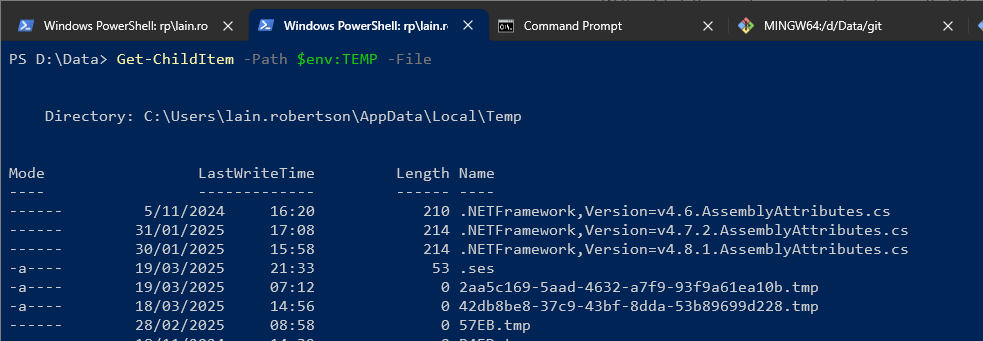
Hi folks, In my role, I see a lot of poorly-written PowerShell code spanning a lot of different contexts. Without fail, the most common failing I see is that the script simply won't scale, meaning performance will decrease significantly when it's run against larger data sets. And within this context, one of the biggest reasons is the overuse of variables and the underutilisation of the PowerShell pipeline. If you're the investigative type, here's some official documentation and training on the pipeline: about_Pipelines - PowerShell | Microsoft Learn Understand the Windows PowerShell pipeline - Training | Microsoft Learn A short explanation is that piping occurs when the output from one command is automatically sent to and used by another command. As an example, let's say I want my first command to fetch all the files in my temporary directory (just the root in this case). I might run a command like the following: Get-ChildItem -Path $env:TEMP -File Which, as you'd expect, produces a list of files. Where PowerShell differs from the old command prompt (or DOS prompt, if you're old like me) is that it's not simply a bunch of text written to the screen. Instead, each of these files is an object. If you don't know what an object is, think of it as a school lunchbox for the time being, where that lunchbox contains a bunch of useful stuff (just data; nothing tasty, sadly) inside. Because this isn't just a bunch of useless text, we can take the individual lunchboxes (objects) produced from this first command and send those to another command. As the second command sees each lunchbox, it can choose to do something with it - or even just ignore it; the possibilities are endless! When the lunchboxes coming out of the first command travel to the second command, the pathway they travel along is the pipeline! It's what joins the two commands together. Continuing the example above, I now want to remove those lunchboxes - I mean files - from my temporary directory, which I'll do by piping the lunchboxes from the first command into a second command that will perform the deleting. Get-ChildItem -Path $env:TEMP -File | Remove-Item -Confirm:$false -ErrorAction:SilentlyContinue Now, there's no output to show for this command but it does pretty much what you'd expect: Deletes the files. Now, there's another way we could have achieved the same thing using variables and loops, which I'll demonstrate first before circling back to how this relates to performance and scalability. # Get all the files first and assign them to a variable. $MyTempFiles = Get-ChildItem -Path $env:TEMP -File; # Now we have a single variable holding all files, send all those files (objects) to the second command to delete them. $MyTempFiles | Remove-Item -Confirm:$false -ErrorAction:SilentlyContinue; This isn't the only way you you can go about it, and you can see I'm still using piping in the second command - but none of this is important. The important point - and this brings us back to the topic of performance - is that I've assigned all of the files to a variable instead of simply passing them over the pipeline. This means that all of these files consume memory and continue to do so until I get rid of the variable (named $MyTempFiles). Now, imagine that instead of dealing with a few hundred files in my temp directory, I'm dealing with 400,000 user objects from an Azure Active Directory tenant and I'll retrieving all attributes. The difference in memory usage is incomparable. And when Windows starts feeling memory pressure, this impacts disk caching performance and before you know it, the Event Log system starts throwing performance events everywhere. It's not a good outcome. So, the more objects you have, the more your performance decreases in a linear manner. Pipeline to the rescue! This conversation is deliberately simple and doesn't go into the internal mechanics of how many commands you might like using actually work, but only relevant part I want to focus on is something called paging. Let's say you use Get-MgBetaUser to pull down those 400,000 users from Azure Active Directory. Get-MgBetaUser (Microsoft.Graph.Beta.Users) | Microsoft Learn Internally, the command won't be pulling them down all at once. Instead, it will pull down a bite-sized chunk (i.e. a page, as evidenced by the ability to specify a value for the PageSize parameter that features in the above documentation) and push that out onto the pipeline. And if you are piping from Get-MgBetaUser to a second command, then that second command can read that set of users from the pipeline to do what it needs to do. And so on through any other commands until eventually there are no more commands left. At this stage - and this is where the memory efficiency comes in - that batch of users can be released from memory as they are no longer needed by anything. In pictures, and using a page size of 1,000, this looks like: Now, as anyone familiar with .NET can attest to, memory isn't actually released immediately by default. The .NET engine manages memory resourcing and monitoring internally but the key takeaway is by using the pipeline, we're allowing the early release of memory to occur. Conversely, when we store everything in a variable, we're preventing the .NET memory manager from releasing memory early. This, in turn, leads to the above-mentioned performance issues. In pictures, this looks like: Is there real benefit? Yes, absolutely. And it can be quite significant, too. In one case, I triaged a script that was causing system failure (Windows PowerShell has/had a default process limit of 2 GB) through storing Azure results in a variable. After some minor tweaks so that it used the pipeline, process memory fluctuated between 250 MB to 400 MB. Working with pipelines typically doesn't require any extra effort - and in some cases can actually condense your code. However, the performance and scalability benefits can potentially be quite significant - particularly on already-busy systems. Cheers, LainLainRobertsonMar 20, 2025Silver Contributor197Views2likes0Comments



Resources
Tags
- Windows PowerShell1,193 Topics
- powershell345 Topics
- office 365280 Topics
- azure active directory145 Topics
- sharepoint131 Topics
- windows server129 Topics
- azure99 Topics
- exchange97 Topics
- community55 Topics
- azure automation50 Topics