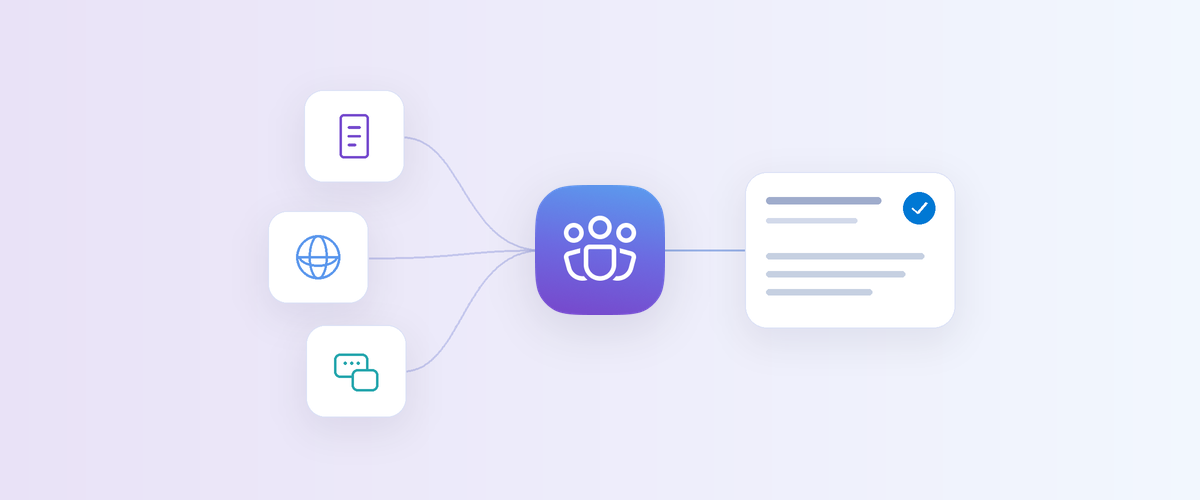
More knowledge sources, clearer answers, and easier ways to review drafts and track activity.
Community Agent is an AI agent for Viva Engage communities that helps admins and experts keep up with colleagues' questions. Since public preview began, communities have used it to support AI adoption, help colleagues with everyday technology questions, and extend support outside a team's usual working hours. Based on what we've learned from your feedback in public preview, we've improved the experience with more knowledge sources, clearer answers and easier ways to review drafts and track activity.
To try it in public preview today, ask your network admin to enable Community Agent preview in the Engage admin center. If you're a community admin with a Microsoft 365 Copilot license, you can then add the agent to your community. Learn how to enable Community Agent.
More knowledge sources for your community
Communities often maintain resources to help members with a particular topic. An AI adoption community, for example, may have internal guidance and training materials in SharePoint. Community Agent already lets admins add those sites as sources for its answers.
Now, admins can also add public websites such as official product documentation relevant to their community. For example, a Microsoft 365 Copilot adoption community could add documentation from Microsoft Learn. The agent can then use that guidance alongside internal SharePoint resources and community conversations.
Sometimes, a question in one community may have already been answered in another. The Include public community content setting lets the agent draw on conversations from other public communities that are open to everyone in your Engage network.
Where authoritative sources are especially important, admins can turn on Only use expert and verified content. This limits community conversation sources to best answers, verified answers, and content from community admins and experts.
See how to choose knowledge sources.
New knowledge source options let you limit community sources to expert and verified content, include other public communities and add public websites.Clearer answers and easier review
Alongside these new knowledge sources, we've improved how Community Agent crafts answers and helps reviewers assess them. Responses are more concise with less unnecessary elaboration.
Citations now identify contributions from community experts and admins. They also show when content is marked as a best or verified answer. These signals help reviewers decide which sources need a closer look without opening each one first.
Get more concise answers and see contributor roles and Verified Answer labels in the source list.We've strengthened relevance checks to filter out content that doesn't help answer the question. If the agent can't find enough relevant information in its sources to support an answer, it will not attempt one.
We've also added a safeguard when reusing agent-generated answers. The agent now uses its own previous responses as sources only after a community admin or expert has marked them as verified.
Approve drafts directly in the community feed
Community admins and experts can now review and approve drafts directly in the community feed. When you come across a useful draft while browsing, you can approve it there and keep going. When you want to review several drafts together, you can still do that on the review page.
Open a Community Agent draft for review directly from the community feed.Sometimes a colleague answers a question while the agent's draft is waiting for review. If the agent finds that the replies answer the question, it withdraws its draft. You can then focus on the drafts that still need your attention.
The review page now gives you a record of the agent's activity over the last 14 days. You can see answers posted as-is or after a reviewer edited them. You can also see drafts that reviewers dismissed or that the agent withdrew because a colleague had already answered the question. Skipped questions show why the agent didn't answer, including when it couldn't find enough relevant information in its sources.
See how to review and manage answers.
See posted answers, dismissed drafts and skipped questions using the new review-history filters.Understand activity in your community and across your network
Community analytics now includes an Agent activity section to help admins understand how the agent is supporting their community. It shows question coverage, answers generated and posted, review wait times, people helped, and estimated time saved. You can compare these measures with the previous period and see whether drafts were approved as-is, edited before posting, dismissed or posted automatically.
See Community Agent activity and review outcomes in Community Analytics.Network-level analytics gives network admins one place to compare Community Agent activity across communities. They can also see each agent's status and whether it's configured to post automatically or require review.
See how to track Community Agent activity.
See Community Agent activity, status and posting mode across communities using network-level analytics.Export Community Agent data and review audit logs
Viva Engage verified admins can now export Community Agent data across their network for analysis or recordkeeping. The export includes agent configuration, knowledge sources, and records of how drafted answers were reviewed. See what's included in the export.
To investigate changes to Community Agents across the network or actions taken on their drafts, admins can use audit logs in Microsoft Purview. These logs cover configuration changes, knowledge sources, SharePoint access grants, and answer reviews. See what's recorded in the audit logs.
Try Community Agent
Community Agent is in public preview. To get started, a network admin can turn on Community Agent preview under Tenant settings in the Engage admin center. Community admins with a Microsoft 365 Copilot license can then add the agent to the communities they manage. See how to enable Community Agent for your organization.
We'd love to hear how it's helping your community and what could be better. Give answers and drafts a thumbs up or thumbs down and add a comment to tell us more.

 Microsoft