Updated Jun 11, 2026
Version 2.0
Jack_Nichols Microsoft
 MicrosoftMicrosoft

I cannot get it to work on an APFS volume on an external drive. (The shipping OneDrive works fine on that drive.) OneDrive throws an error when it converts to the new format. OneDrive still runs & appears to be okay. One can download files, but they cannot be accessed. The finder window simply spins & files do not appear when attempting to access any folder.
an update... version 26.143 fixed the problem. I'm now able to use separate APFS volumes, including those installed on an external drive.

Is there a way to force an update to 26.143? I've spent hours tearing my hair out trying to fix this being completely broken. I just saw your post but can't see a way to upgrade
Sure... It is found at:
https://oneclient.sfx.ms/Mac/Installers/26.143.0726.0001/universal/OneDrive.pkg
enjoy!
Update on Build 26.143 & Bulk Hydration on External APFS Volume
I wanted to share a quick update following up on build 26.143.
I’ve successfully downloaded my full library (over 690 GB) to an encrypted external APFS volume using the "Download all OneDrive files now" option.
A few key takeaways from the process:
Stability / Restarts: The sync client terminated/quit more than 20 times unexpectedly during the bulk hydration. To keep it moving, I ran a watchdog script that checked the OneDrive process every 30 seconds and restarted it whenever it crashed.
File Integrity (Success!): The great news is that zero file corruption was observed. There were no truncated files or 0-byte corruptions like in earlier builds—version integrity is completely intact.
macOS File Provider Behavior: During and immediately after the bulk download, DaisyDisk showed most of the data sitting under .CloudStorage/System, and Finder presented items with dual badges ("Always available on this device" alongside the cloud stub icon). However, after leaving the system idle for about 12 hours, macOS completed its background materialization pass. All files naturally shifted into /Volumes/OneDrive_Jim/.CloudStorage/Data/OneDrive-Personal, and all Finder badges updated to solid checkmarks as expected.
Thanks to the team for fixing the file corruption issue on external volumes—it's great to see it working end-to-end!
Update #2 on Build 26.143: Clarifying the Materialization Trigger (System vs. Data)
Following up on my previous post regarding Build 26.143 and bulk hydration on an encrypted external APFS volume:
I want to make a quick technical correction/clarification regarding how macOS File Provider handles file materialization (.CloudStorage/System vs. .CloudStorage/Data).
The Previous Assumption vs. What Subsequent Testing Revealed
In my last update, I noted that after bulk downloading my ~690 GB library using "Always keep on this device," the files sat in .CloudStorage/System with dual Finder badges, but appeared to automatically shift into .CloudStorage/Data after ~12 hours of idle time.
Upon conducting further testing on a completely clean, isolated test system, I discovered that macOS does not run this materialization pass spontaneously just from idle time. #### What Actually Caused the "Magic" Transition
The overnight materialization pass on my primary system was actually triggered because a background file-scanning process (in my case, a scheduled MSP 360 backup sweep) traversed the file system and interrogated the file metadata.
Here is what is actually happening under the hood:
Hydration (100% Downloaded): When you execute a bulk download on Build 26.143, OneDrive fetches 100% of the raw bytes and deposits them locally on your physical APFS drive inside Apple's domain container (.CloudStorage/System). Your data is completely downloaded and safe offline—no internet is required to access it.
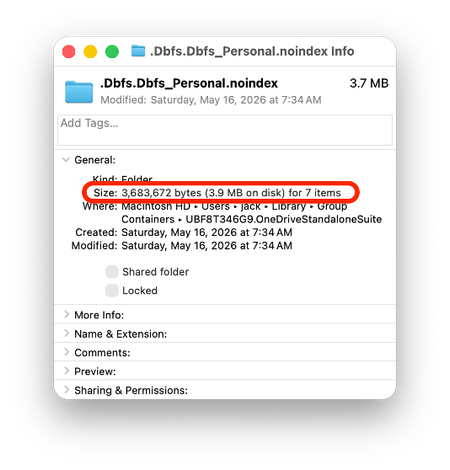
The Untouched Idle State: If no application, script, or backup tool actively opens or scans those files, macOS File Provider leaves the payload in .System as dataless stubs (SF_DATALESS). Because of this, Finder displays dual status badges ("Always available on this device" alongside the cloud outline badge) and reports an incomplete "Size on Disk" in Get Info.
The Materialization Pass: The moment an app opens a file, a backup engine indexes the directory tree, or a script touches the file handles, Apple's fileproviderd daemon instantly strips the SF_DATALESS flags, shifts the blocks into .CloudStorage/Data/OneDrive-Personal, and clears the cloud badges in Finder.
Bottom Line
If you run a massive bulk download and see dual badges or DaisyDisk showing data sitting under .System, don't panic—your files are all locally present on disk. Finder's visual badges and Get Info storage calculations simply lag behind until an active file access or backup scan triggers the macOS File Provider materialization pass.
Most importantly, across multiple full-library downloads, version integrity remains 100% pristine with zero file truncation!