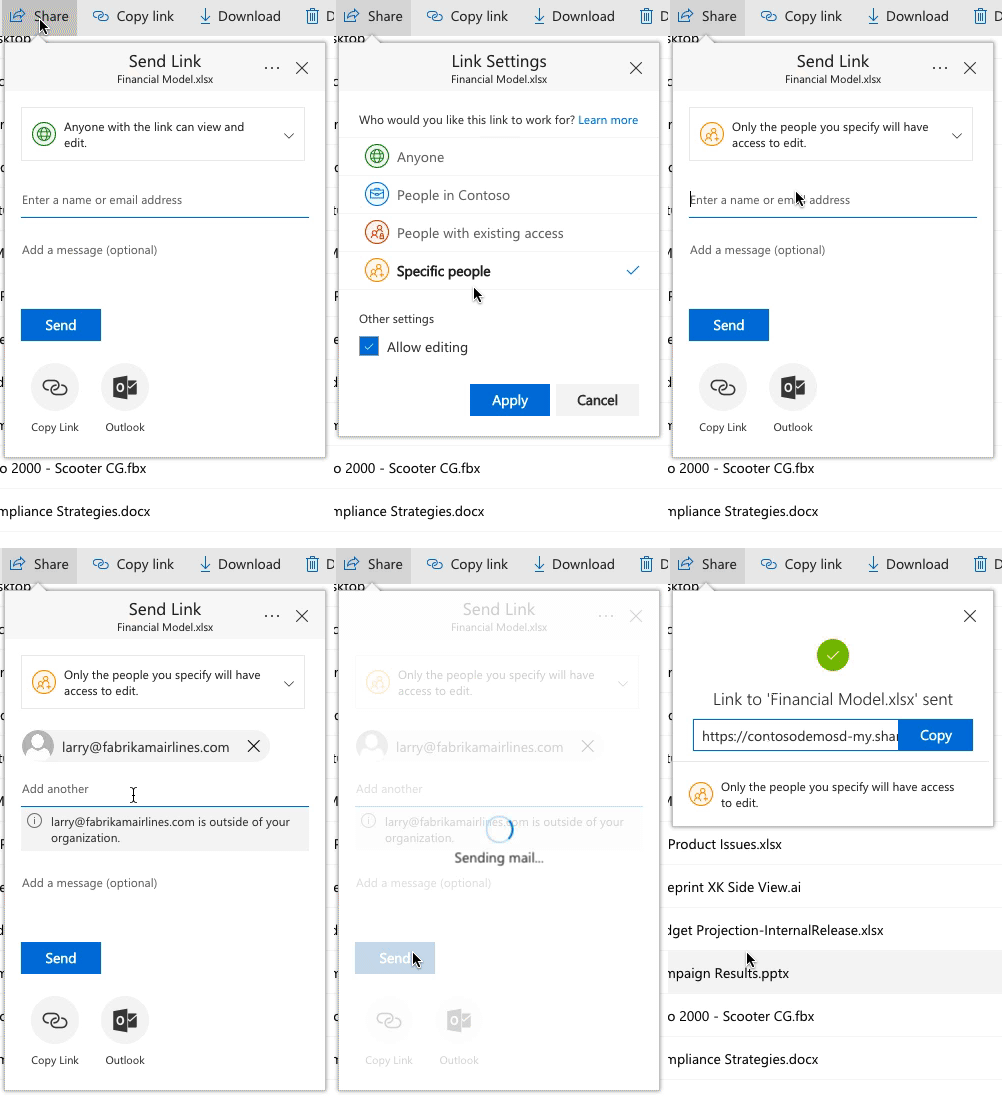
I can report that general users and external users are still very confused by this. Workload to IT support is very high on this.
My preferred solution would be an option to turn off the new method at the tenant level.
I've done some testing today and paste the results here. They are quite raw but may be helpful to some. Several of the items I cover have already been mentioned previously. The results speak for themselves. Identifying what files are shared with who has been made very inconsistent due to the new method.
Background: Many of our external collaborators are Office 365 users themselves.
Definitions:
Verification/Pin (unregistered) method is the new share experience.
Classic method is the old sharing experience that requires an MS account and registers user as a guest in our O365/SharePoint directory
Facts (as tested today)
☹ Verification/Pin shares do not allow the external user to use full Word
Verification/PIN shares do show as "Shared" in the OneDrive "Sharing" Column.
I take this to be due to "Verification/Pin sharing honours ViewablebyExternalUser property" (Reported by Microsoft).
General Users can see details of all internal and guest users in the Azure Portal. So there is a method to check if a user is registered. You can tell the difference between "invited" and "connected" by clicking on the user.
https://portal.azure.com/#blade/Microsoft_AAD_IAM/UsersManagementMenuBlade/All%20users
All MYORG internal users can use that Azure portal to Invite Externals to register
- Known as Azure AD B2B invitations
- Complicated interface for our users
- Emails that go out differ from SharePoint/OneDrive ones (more differences to document).
- Good portal for IT Support at least.
- MYORG can (and should) customize the privacy section of the email.
Alternatively we can invite users to register by sharing our purpose built "dummy" site. (Some issues with privacy here).
☹ When performing a standard file share the MYORG user can't tell if the external user is already registered in the directory. (both registered and non-registered email address entered gives the same screen view).
Info Panel | Manage Access, When sharing a file using this method you can distinguish between registered and non-registered.
How? Type the email address of the external, if it autocompletes before you type a dot in the domain then it is already registered. If you type the full address the name completes even if it is not registered. This becomes another method for a user to know if the external is registered (a bit too subtle to be a great solution).
Info Panel | Manage Access… When sharing a file using this method the new Verification/Pin method is sent if the external user was unregistered. (ie this is not a way to force classic method).
Info Panel does display unregistered Verification/PIN external user activity in "Recent Activity"
Info Panel | "Has Access" user icon area does show verification/pin (unregistered) shares when you hover over the icons. If there are more than 6 icons you can't hover over the 7th.
☹ Info Panel | "Manage Access" does not show verification/pin shares ever (even after the external edits the file).
☹ Info Panel | Manage Access | Advanced does not show verification/pin shares ever (even after the external edits the file).
“Modified By” column does show edits by unregistered externals.
☹ "Shared With" and "Shared with Details" columns never shows a verification/pin (unregistered) share even after edit.
😊 A second file sent with new verification/pin method requires no verification if a verified session is already active (on another document)
A verification/pin shared document is still accessible form the same email link if the external user becomes registered later. The verification process is not activated instead the user can "Sign in for immediate access" (ie the same link allows the system to recognize the user is registered and therefore to behave differently).
If the user in this case was not already signed in to their own MS or O365 account they would be prompted to do so.
Re-sharing a file after registering the external user works fine as expected….(it activates the same process to authenticate via the externals MS account).
If an external user is already signed into their own O365 and receive a verification/pin process (because they are not registered in our O365) they cannot access the file.
Workaround:
- Paste link into private /incognito browse tab
- Get MYORG to register the external user in our O365 directory (methods described above).
Description of a specific case for a successful Classic mode share process
- We register the external user first using Azure AD B2B invitations
- External user has not acted on the Azure B2B invitation
- External user already logged into their own O365
- External user receives email for the file shared from SharePoint (using any share screen)
- External user clicks the link in the email
- External user sees screen to review the connect to MYORG (due to the B2B invitation)
- Once accepted the shared file is instantly viewable browser
- The details of the external user are instantly visible in all "sharing" views as we would want. :-)