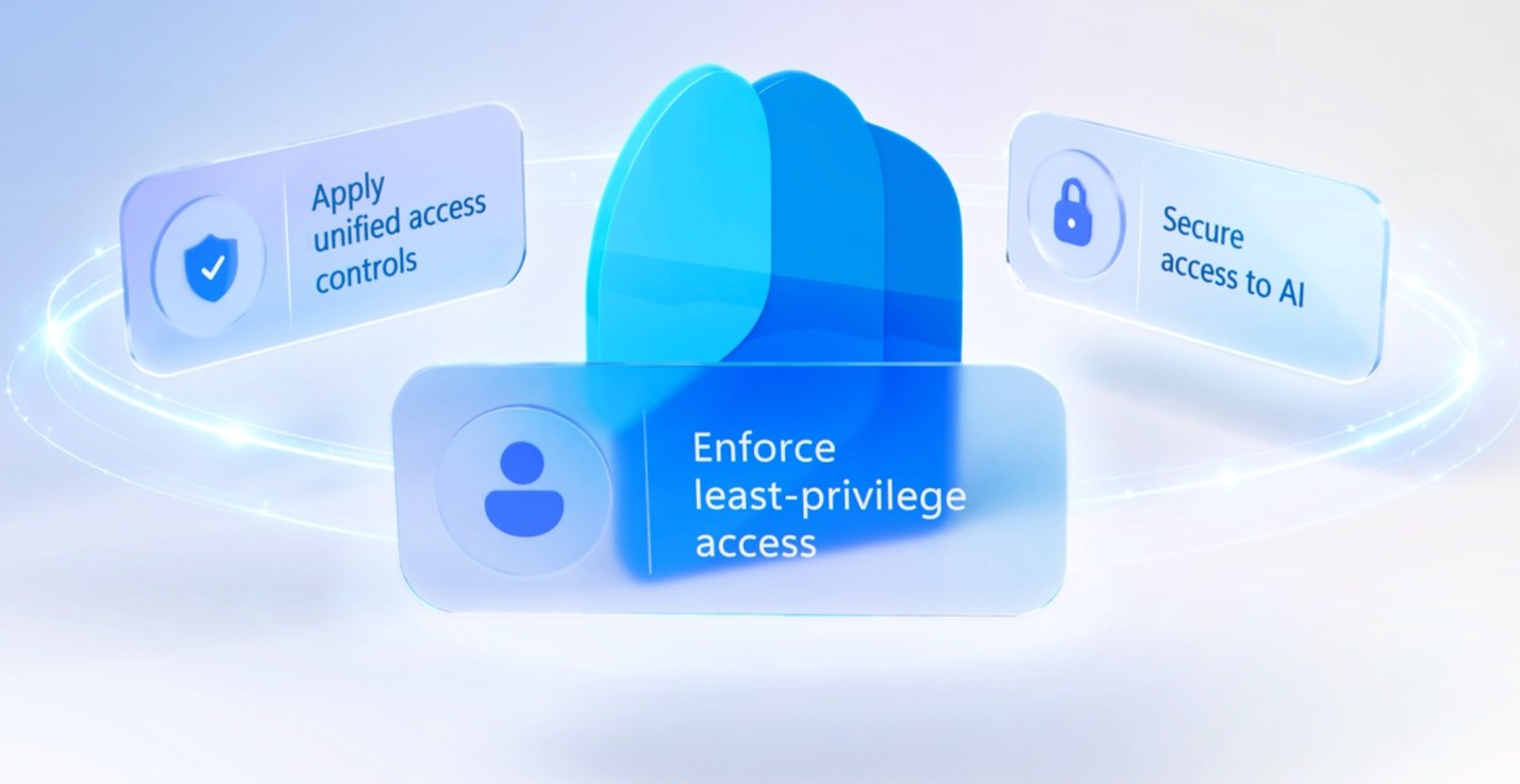
Unify identity and network access controls.
Enforce least privilege access across every app and resource. Wire lifecycle workflows directly to your HR system to strip stale permissions on role changes, gate sensitive data behind biometric step-up verification, and replace your VPN with per-app, identity-scoped access that revokes tokens the moment risk spikes. Secure AI usage at every layer. Block confidential data from reaching public AI tools and stop adversarial prompt injections before your agents process them.
John Damon, Microsoft Entra Suite Senior Product Manager, shares how to lock down identity, network access, and AI usage from a single control plane.
Zero stale permissions after a role change.
Entra Suite lifecycle workflows auto-assign the right access package and remove old entitlements. Check it out.
Cut legacy VPN.
Global Secure Access in Entra Suite scopes access per app, ties it to identity, and exposes no inbound ports or public IPs. See how it works.
Expose adversarial instructions hidden in plain text.
Prompt Injection Protection in Entra Suite matches the injection class and blocks the prompt before the model processes it. Check it out.
QUICK LINKS:
00:00 — Identity and network controls
00:45 — Lifecycle Workflows
01:28 — Verified ID with Face Check
02:15 — Request access for direct reports
03:17 — Global Secure Access + Token Revocation
04:32 — Secure AI usage
06:20 — Network DLP / ChatGPT Block
07:12 — Prompt Injection Protection
08:31 — Wrap up
Link References
Check out our related deep dives at https://aka.ms/EntraSuitePlaylist
For more information, go to https://aka.ms/EntraSuite
Unfamiliar with Microsoft Mechanics?
As Microsoft’s official video series for IT, you can watch and share valuable content and demos of current and upcoming tech from the people who build it at Microsoft.
- Subscribe to our YouTube: https://www.youtube.com/c/MicrosoftMechanicsSeries
- Talk with other IT Pros, join us on the Microsoft Tech Community: https://techcommunity.microsoft.com/t5/microsoft-mechanics-blog/bg-p/MicrosoftMechanicsBlog
- Watch or listen from anywhere, subscribe to our podcast: https://microsoftmechanics.libsyn.com/podcast
Keep getting this insider knowledge, join us on social:
- Follow us on Twitter: https://twitter.com/MSFTMechanics
- Share knowledge on LinkedIn: https://www.linkedin.com/company/microsoft-mechanics/
- Enjoy us on Instagram: https://www.instagram.com/msftmechanics/
- Loosen up with us on TikTok: https://www.tiktok.com/@msftmechanics
Video Transcript:
-With AI, where action happens at machine speed and where access can be granted and inherited instantly, identity and network access has never been more important. Securing AI starts with securing people, and for that, your identity and network controls need to come together to close gaps that attackers can exploit, and that’s where Microsoft Entra Suite comes in. It combines best-in-class capabilities into a single solution to help you enforce least-privilege access to make sure users have access to what they need, and only as long as necessary. Apply unified access controls to any app and resource, and secure access to AI by discovering AI apps and agents, assessing risk, and enforcing policy.
-Let’s bring this to life by following a user, Violet Martinez, throughout her day, I’ll start by showing how she gets access to exactly what she needs, with least-privilege access. In this scenario, our user has changed job roles. Her role change was signaled overnight by an HR system, Workday, and her permissions need to be adjusted for her new position in the IoT department. This is where a lifecycle workflow we set up in advance in Entra Suite comes into play. We’ve created a “Mover” workflow that automatically adjusts access when a user role changes, and I can click to see how it’s defined. Importantly, stale entitlements from her previous role are automatically removed, and a new access package bundling the right apps and permissions for her new IoT product marketing role is automatically assigned.
-Now let’s switch to showing you our user Violet’s experience. When she signs in with a passkey for her new role, every app and permission from the baseline package is already set up, and she can request access to specific resources that she might be missing using the My Access page at myaccess.microsoft.com. For example, in order to start her work in competitive analysis, she needs access to Zava’s on-prem IoT Pricing Dashboard. So she makes the request. Because the package grants access to highly confidential on-prem pricing data, the workflow requires Verified ID step-up with Face Check. This requires Microsoft Authenticator, which prompts for Face Check, a verification process to match her real-time selfie to her government-issued ID on file, and once verified, she’s given access to the dashboard.
-Now, as a manager, you can request access for your direct reports to make it easier for users to onboard with the access they need. In fact, let me show you the perspective from Violet’s manager. In the same My Access page, I can see the Pricing Dashboard access package we just saw, along with another access package that I can assign to my team. In this case, I want to extend the access to the Zava Assistant AI agent used by the team, and can initiate an access package request for the agent on Violet’s behalf.
-From the dropdown, I see the directs on my team, I’ll choose Violet. Now I’ll choose a start date followed by an end date, and along with those, I’ll type in the business justification, which was set up by IT as mandatory properties for this access package. And because in this instance, as the manager, I am both the requester and approver, Entra ID Governance both provisions and grants just-in-time and time-bound access. Least-privilege access is enforced automatically, with stale permissions removed and updated baselines assigned, and sensitive access controlled using step-up verification.
-From here, let’s move on to applying real-time context-aware access controls to apps and resources as our user goes about her day. She starts in the Edge browser and navigates to local IP to open on-prem Pricing Dashboard. We can see that she has the Global Secure Access client installed, so she doesn’t need to use a VPN. To access internal resources, our IT policy requires her to sign in using her work account with passkey, which uses Conditional Access to evaluate her risk and session context before allowing access to on-prem Pricing Dashboard. Importantly, Global Secure Access permissions are granted per app and scoped to identity, with no inbound firewall ports and no public IPs exposed. And by the way, Global Secure Access will also work with other on-prem apps and Active Directory that do not natively support modern authentication.
-The good news is, even if her device is compromised because of a hardware-based token theft and a token replay attack, with dynamic policies in place, once the user risk is flagged as elevated, token access can be automatically revoked. This forces self-remediation for any user account with elevated risk. That way, privilege never accumulates and trust is continuously reevaluated without standing privilege to stop identity attacks. Next, we already saw that our user is expected to use AI as part of her job, but how does Entra Suite help with securing AI usage?
-Let’s take a look. When our user leaves the office, she uses her personal laptop to work on an FY27 presentation from her team’s SharePoint site. She’s in Microsoft Edge, and using her personal browser profile. A SharePoint site is bookmarked, and she tries to access it. In order to get to the protected location on her laptop, she signs in with her work account, and Conditional Access requires an app protection policy, which then prompts her to switch the Edge profile to her work account. When she does, the device is now registered and the app protection policy is delivered to the browser. This automatically applies security settings and policies to the work browser profile. It enables explicit forward proxy settings and TLS inspection to add visibility into encrypted traffic, so that the company’s data protection policies can work with it. This includes Microsoft Edge data loss protection controls, as well as Microsoft Entra Internet Access, Secure AI and Web gateway policies. That way, she can access her work documents securely, like you’re seeing here with the internal FY27 planning presentation.
-That said, when using her work profile in the browser, if she opens a new tab and she tries to access a social media site, we can see access is blocked based on the company policy. But once she switches back to her personal profile, access to Facebook works as expected. Policies are pushed automatically, even though she’s not using a managed device.
-In fact, Entra Suite inspects and controls access to data. As she interacts with any website, her traffic routes through Entra Internet Access as a forward proxy. So every egress path is inspected in real time against the Purview sensitivity label applied at the source. Same label, same policy, whether she’s on a corporate laptop or a personal device. This time, our user returns to work with her managed work laptop, and she wants to analyze the data from the Pricing Dashboard using ChatGPT. She has a confidential internal product pricing schedule opened as a PDF and selects everything in the document, and she copies everything on the page. Then she moves over to ChatGPT and pastes the pricing info from her clipboard.
-Here, Secure Web and AI Gateway in Entra Suite blocks the upload because there’s an organization-wide policy that prohibits sharing confidential data through a public AI tool. This adds an important layer of protection because a standalone web gateway or CASB can only see traffic, but not the data classification. This is made possible because network DLP parsed the chat text to spot sensitive information before ChatGPT saw the payload, and network DLP also will block the sharing of sensitive files over non-Microsoft email services like Gmail. Next, let’s look at the secure AI usage when the user leverages her company-sanctioned AI tool. Here’s the Zava Assistant that her manager approved. She starts opening a competitor blog and copies everything into her clipboard. Then she invokes the agent and starts to interact by pasting in the blog for summarization, but there’s a catch. Hidden inside the text is a human-invisible instruction telling the model to leak her query history.
-Here, prompt injection protection inspects the outbound prompt against Microsoft’s adversarial pattern model, matches the known injection class, and blocks it before it’s processed. Additionally, new web filtering rules let you block agents from conducting risky operations on specified resources, by creating policies for browser-based and local apps communicating over web protocols. This time, our user remembers that she’s left a sensitive Zava partner memo in the shared Dropbox location.
-So, using her locally installed Claude app, she requests another in-house developed Zava agent to remove that file from Dropbox. Immediately, she can see that this action was prevented based on the network policy from her company. And moving to the admin experience, these rules can differ whether it’s a user or agent session performing the operation. They can be configured to assess multiple HTTP methods, including POST, PATCH, PUT, and DELETE operations scoped to specific URLs or FQDNs.
-Those were just a few examples of Microsoft Entra Suite and its unified approach to access. With Microsoft 365 E7, you can get Entra Suite protections and apply them to AI agents with Agent 365.
-Check out our related deep dives at aka.ms/EntraSuitePlaylist, and to learn more, go to aka.ms/EntraSuite. Subscribe to Microsoft Mechanics for the latest tech updates, and thanks for watching.
