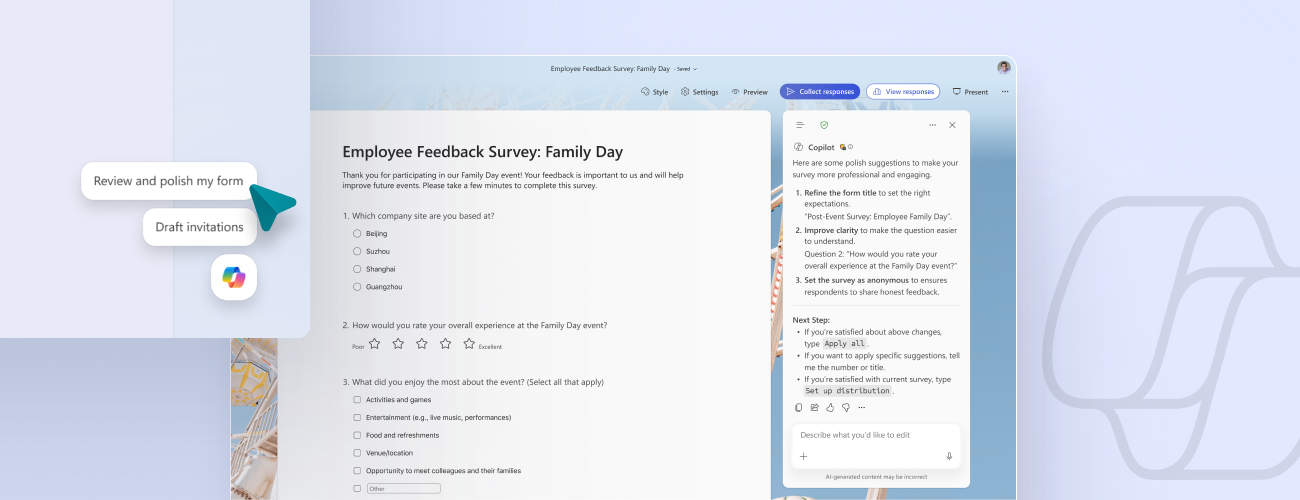
We’re excited to introduce a major upgrade to Copilot in Microsoft Forms - now featuring seamless integration with a Microsoft 365 Copilot chat experience.
This new experience builds on the familiar Copilot interactions users already know from Word, Excel, and PowerPoint, while adding Forms-specific intelligence to help you create, refine, and analyze forms more effectively. Copilot works alongside your form to deliver tailored suggestions and refinements, help configure settings, prepare your form for distribution, and turn responses into clear, actionable insights – all within a chat pane that you know and use across the Microsoft 365 suite.
Using the new Copilot experience in Forms
When you create or open a form or quiz in Microsoft Forms, you’ll see the Copilot icon in the lower-right corner. This Dynamic Action Button works the same way across Microsoft 365 apps - select it to access contextual assistance, such as improving your questions or analyzing results right where you’re working. When you open the chat pane, Copilot is automatically grounded to your form, and able to access specialized Forms features to help you edit, send, and analyze.
Here are some examples of how chat can improve your workflow:
- Review and suggest improvements to your form such as organizational layout, sectioning, missing questions, or settings that may conflict with your form’s purpose - such as enabling anonymous response or multiple responses per user.
- Complete bulk edits like replacing a placeholder name with an updated one throughout the form, or changing multiple questions to required or not required.
- Ask about specific drilldowns or summaries you’re seeking from your form results, to help you understand your data and unlock your next action.
What’s new
This new experience merges the benefits of the familiar Copilot chat experience with Forms specialization, building on your feedback and introducing key improvements:
- Smarter suggestions & refinements: Get targeted recommendations to improve your form’s structure, clarity, and effectiveness. Copilot can also apply refinements directly to the form, so you can save time making edits – just describe what you want, and watch Copilot make it happen.
- Deeper analysis: Copilot can now analyze your results in-depth to provide clear insights and actionable takeaways for you and your team. You can even ask follow-up questions to help parse and summarize your data and unlock your next step.
- More settings: Review and update form settings with ease, such as applying custom thank-you messages and close dates, so your form is ready to send. You can also adjust question settings in bulk, such as making questions required.
- Open-ended chat: Copilot chat gives you access to a broad world of capabilities, whether you’re seeking inspiration on survey topics or consulting on how to configure your form – the possibilities are broad with Copilot at your fingertips.
- Basic branching: Apply basic branching logic directly through the agent. (Note that some complex scenarios are not yet supported, and you should continue to review your branching logic prior to sending your forms.)
And some features that you use and love today are not changing at all – such as Draft with Copilot and on-canvas Copilot features like Rewrite, Add question, Answer explanations for quizzes, and more. These will continue to help you work with your form directly in the canvas.
Availability
The new Copilot in Forms is rolling out to worldwide users now, and will be available to users with Microsoft 365 commercial Copilot licenses. Consumer Copilot subscribers will continue to see the previous Copilot experience in Forms for now, which includes a Copilot refinement bar that supports AI-credit-based Copilot licenses. To try it for yourself, go to Forms.

 Microsoft