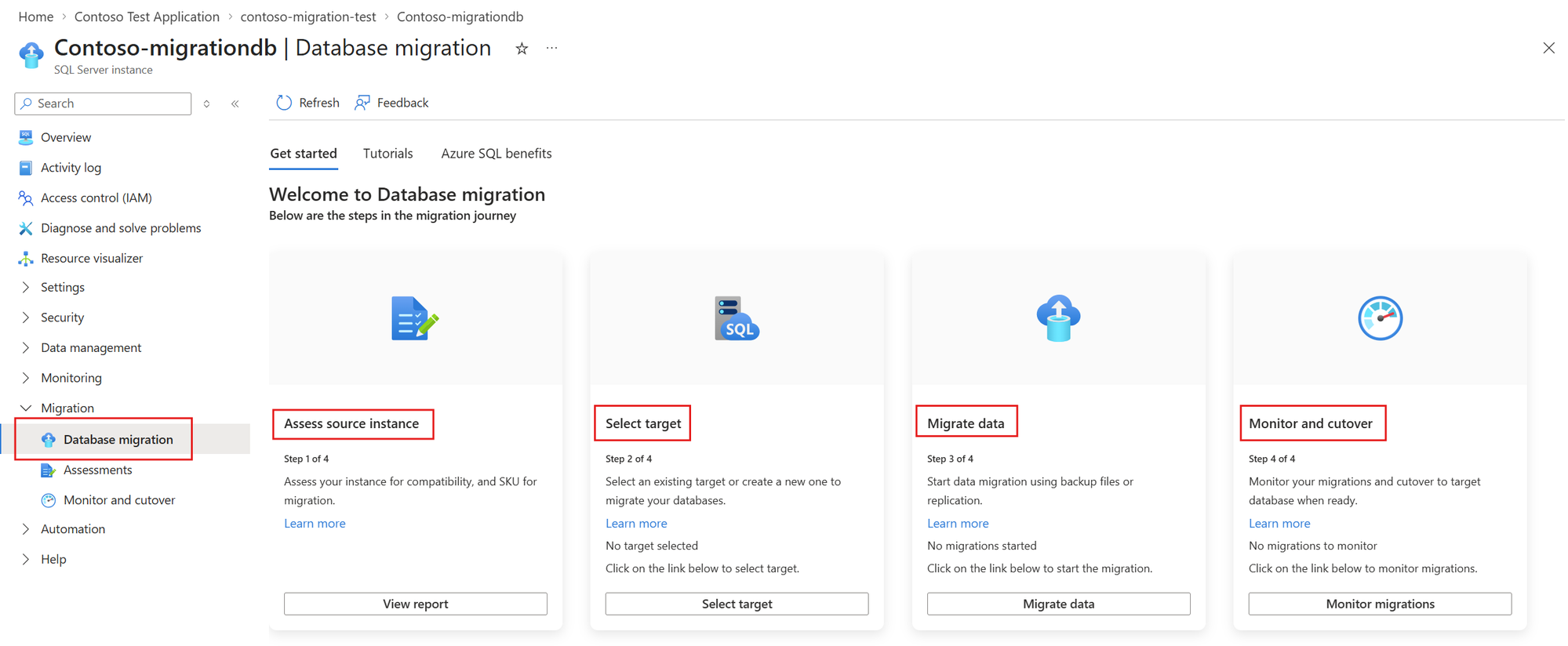
Migrate databases from Arc-registered SQL Server instances directly from the Azure portal, with no Arc agent required.
Many organizations want to modernize their SQL Server estate with Azure Arc but can't install an agent on their database servers. Security reviews, compliance policies, change-control windows, or locked-down production hosts often rule it out.
Until now, that created a gap. You could register a SQL Server instance with Azure Arc, but migration in Arc required the Arc agent and the Azure extension for SQL Server. Without the agent, the path to Azure SQL stopped there.
Today, that changes. SQL Server migration in Azure Arc now supports Arc-registered SQL Server instances. You can start and complete a database migration from the Azure portal without deploying the Arc agent.
What's new
From the Database migration pane of an Arc-registered SQL Server instance, you can now migrate to:
|
Target |
Migration method |
|
Azure SQL Database, including Hyperscale |
Azure Database Migration Service (DMS) with a self-hosted integration runtime |
|
Azure SQL Managed Instance |
Log Replay Service (LRS): online migration using backups in Azure Blob Storage |
|
SQL Server on Azure VMs |
Backup and restore using Azure Blob Storage |
You get the same guided flow as connected instances: Select target → Migrate data → Monitor and cut over, including the same monitoring experience. You don't need the Arc agent on the source server, so you can move ahead without waiting for agent approvals.
Built for how Arc-registered instances work
Without an agent, Azure doesn't get a continuous view of the databases on your server. Instead of blocking you, the experience works around that:
- No assessment? Go ahead anyway. The portal's migration readiness assessment requires the Arc agent. A banner explains your options: deploy the agent for the full assessment, or skip it and go straight to migration if you already know your target. You can also assess without the agent by using the migration component in SQL Server Management Studio (SSMS) 22.
- Stale database list? Add the database yourself. If the database list for your instance is incomplete or out of date, the portal tells you. You can add databases manually so missing inventory never blocks your migration.
- Pick the method that fits. Use LRS for an online migration to SQL Managed Instance, backup and restore for SQL Server on Azure VMs, or DMS for Azure SQL Database.
Who this is for
- DBAs and SQL Server administrators who can't get agent deployment approved on production hosts.
- Organizations with strict security or compliance requirements that limit what runs on database servers.
- Teams that have already registered SQL Server instances with Azure Arc and want a direct path from registration to migration.
Good to know
- Managed Instance link isn't available for Arc-registered instances. Use LRS to migrate to Azure SQL Managed Instance.
- Azure SQL Database, including Hyperscale, is available as a target. Learn more in our earlier post, Migrate to Azure SQL Database, including Hyperscale, straight from Azure Arc (public preview) .
Get started
- In the Azure portal, open your Arc-registered SQL Server instance.
- Under Migration, select Database migration.
- Select your target and migration method, and start migrating.
For step-by-step guidance, see Learn docs.
Tell us what you think
This is a step toward making SQL Server migration in Azure Arc available to everyone, whether or not they've deployed an agent. We'd love to hear how it works for you and what you'd like next. Share your feedback at aka.ms/sqlfeedback.

 Microsoft