Update 02 April 2020.
A genuine thank you all for your feedback around this article. Given the enormous popularity of this subject in the current crisis, we've worked hard over the past few wee...
Just a small hint for testing, if you want to see what is the actual adapter (and source IP) you application is using
Download and run currports. You can add teams.exe as a filter. Or you can see all applications and what way they are going.
It shows all sessions and the source IP.
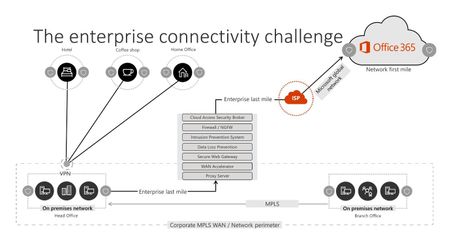
If source ip vpn it is tunnelled
If source ip lan it is direct.
https://www.nirsoft.net/utils/cports.html
Note: it does not show destination IP for UDP, but shows the number of packets.
Alternative + description https://www.nirsoft.net/utils/live_tcp_udp_watch.html
CurrPorts displays the current table of active TCP connections and TCP/UDP listening ports. but this technique has some disadvantages, for example, if UDP packets are sent from your computer to remote network address, you won't see it with CurrPorts, because with UDP there is no really a connection and the UDP table contains only listening UDP ports. The advantage of CurrPorts is the ability to use it without elevation (Run As Administrator).
NetworkTrafficView uses network sniffing technique - It analyzes every packet sent/received by your network card and displays extensive summary according to the display mode you choose. The disadvantages of this tool: You have to choose a network card and capture method for activating the network sniffer.
LiveTcpUdpWatch uses event tracing API to get live information from Windows Kernel about every TCP/UDP packet sent/received on your system. As opposed to CurrPorts, it captures all UDP activity with process information, but without the need of using a network sniffer.

 Microsoft