Enabling resilient enterprise integration through local artifact caching
We are excited to introduce semi-connected Integration Account support for Azure Logic Apps Hybrid, helping customers continue running integration workflows when connectivity to Azure is temporarily unavailable.
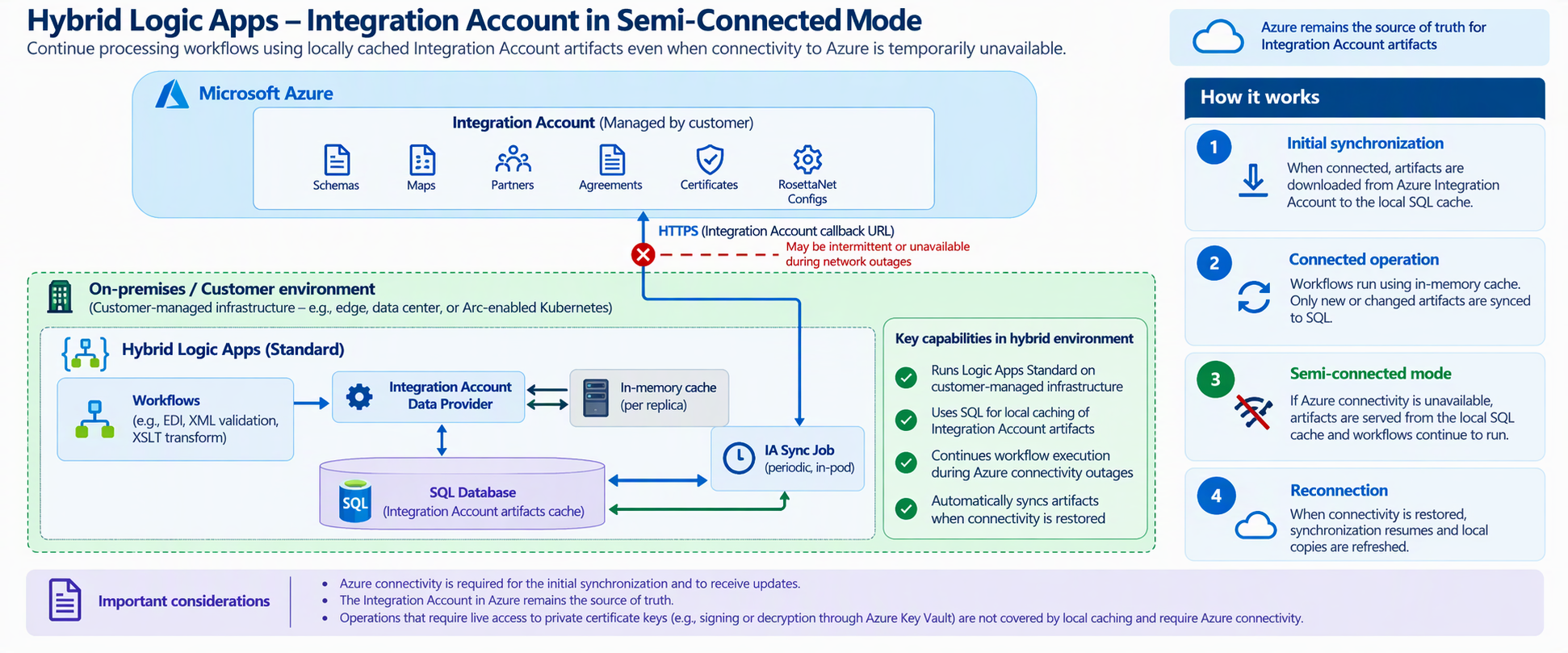
With this capability, Hybrid Logic Apps can cache supported Integration Account artifacts in local SQL storage. Workflows can use previously synchronized artifacts without depending on uninterrupted access to the Azure-hosted Integration Account.
Purpose
Organizations running mission-critical integration workloads often need to process business transactions within their own data centers or controlled environments. Integration Accounts centralize management of enterprise integration artifacts, but continuous cloud connectivity can be challenging in hybrid deployments.
Semi-connected mode separates centralized artifact management from runtime execution: Azure remains the source of truth, while Hybrid Logic Apps uses locally cached copies during temporary connectivity disruptions. This is especially relevant for customers modernizing BizTalk Server estates or operating under constrained network conditions.
Key benefits
Improved business continuity: Continue integration workflows during temporary Azure connectivity interruptions using previously cached artifacts.
Reduced connectivity dependency: After initial synchronization, supported artifact-dependent processing can continue without continuous connectivity to the Integration Account.
Centralized artifact management: Manage schemas, maps, partners, and agreements in Azure while the hybrid runtime maintains local copies.
Artifact synchronization: Refresh new or modified artifacts in local SQL storage when connectivity is available.
Simpler modernization: Support EDI and XML integration scenarios as organizations move from on-premises platforms to Hybrid Logic Apps.
How it works
- Initial synchronization: With Azure connectivity available, required Integration Account artifacts are retrieved and cached in the Hybrid Logic Apps SQL database.
- Connected operation: Workflows execute with available artifacts, and changes can be synchronized to local storage.
- Semi-connected operation: If Azure connectivity is interrupted, workflows can continue using artifacts already present in the local cache.
- Reconnection: When connectivity returns, synchronization resumes and the cache is refreshed with new or modified artifacts.
Get started: Configuration and validation
Step 1. Verify prerequisites
- Deploy Hybrid Logic Apps with SQL Server as its storage provider.
- Create or identify an Azure Integration Account containing required artifacts.
- Ensure the hybrid runtime can initially reach Azure and the Integration Account endpoint.
- Verify connectivity from the hybrid runtime to its configured SQL database.
NOTE: Initial synchronization requires Azure connectivity. The cache must be populated before offline artifact access can work.
Step 2. Prepare the Integration Account
- In the Azure portal, open or create the Integration Account.
- Upload the required schemas, maps, partners, and agreements.
- Obtain the Integration Account callback URL used by the Hybrid Logic Apps runtime.
Step 3. Configure Hybrid Logic Apps application settings
Add the Integration Account callback URL to the Hybrid Logic Apps application configuration:
WORKFLOW_INTEGRATION_ACCOUNT_CALLBACK_URL=<Integration Account callback URL>
Enable durable SQL caching of Integration Account artifacts:
WORKFLOW_INTEGRATION_ACCOUNT_SQL_CACHE_ENABLED=true
Step 4. Initialize synchronization
- Keep connectivity to Azure available.
- Start or restart the Hybrid Logic Apps runtime after applying settings.
- Allow the initial artifact synchronization to complete.
- Verify the required artifacts have been cached successfully in SQL.
Step 5. Validate connected and semi-connected operation
- Run a workflow that uses Integration Account artifacts, such as XML validation or transformation.
- Confirm that it succeeds while Azure connectivity is available.
- In a controlled test, temporarily block access to the Integration Account endpoint.
- Run the same workflow and confirm it uses previously cached artifacts successfully.
Step 6. Restore connectivity
Restore Azure connectivity, then confirm synchronization resumes and updates to Integration Account artifacts are reflected in the local cache.
Important considerations
- Semi-connected does not mean fully disconnected: Azure access is needed for the first synchronization and subsequent updates.
- Only previously synchronized artifacts are available during an outage; updates may not be visible until reconnection.
- Azure Integration Account remains the source of truth. Do not edit the local SQL cache directly.
- Operations requiring live access to private certificate keys, including some signing or decryption scenarios through Azure Key Vault, still require cloud connectivity.
Bringing greater resilience to hybrid integration
Semi-connected Integration Account support combines centralized cloud-based artifact management with resilient local workflow execution. Customers can modernize enterprise integration workloads on Azure Logic Apps Hybrid while reducing connectivity dependencies and maintaining control over where their workloads run.

 Microsoft