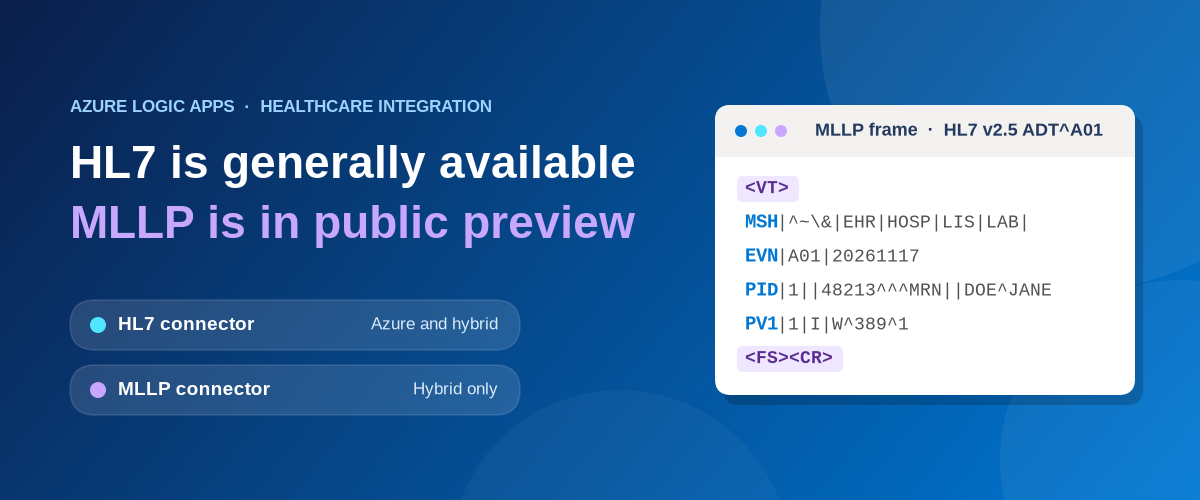
Why HL7 v2.x and MLLP still matter
Healthcare organizations run on HL7 v2.x. Admissions, lab results, orders and billing still move between EHR, LIS, RIS and HIS systems as pipe-delimited messages over long-lived TCP connections, and many of those interfaces have been running on BizTalk Server and the BizTalk Accelerator for HL7 (BTAHL7) for more than a decade. As these customers plan their modernization, the question we hear most is simple: can Azure Logic Apps run my healthcare interfaces?
Today we are excited to announce two milestones that answer that question:
- The HL7 connector (Encode HL7 and Decode HL7) is now generally available for Azure Logic Apps Standard, rolled out to all production regions.
- The MLLP connector (Receive HL7 message from MLLP server, Send HL7 message to MLLP server and Send MLLP response) is now in public preview for Logic Apps Standard workflows running on the hybrid deployment option.
Together, they give you the two building blocks of every HL7 v2.x integration: a parser and serializer that understands HL7 structure, and a transport that speaks the protocol your clinical systems already use. In this post we walk through what each connector does, how to set them up, and how they map to the BizTalk concepts you already know.
Why HL7 v2.x and MLLP still matter
Despite the growth of FHIR, HL7 v2.x continues to dominate real-time clinical workflows. It is deeply embedded in existing clinical systems, it uses text-based and predictable segments that are simple to develop against, and its acknowledgment (ACK/NACK) pattern provides the delivery confirmation that patient safety and auditability depend on.
The Minimal Lower Layer Protocol (MLLP) is the transport that carries those messages. It is a lightweight framing protocol over TCP/IP: each HL7 message is wrapped with a start block character (VT, 0x0B) and an end block sequence (FS, 0x1C, followed by a carriage return, 0x0D). It is not HTTP, which is exactly why it has been hard to support in cloud-native integration platforms until now.
Common HL7 message types you can process with these connectors include:
|
Message type |
Purpose |
|
ADT |
Admission, discharge and transfer |
|
ORM |
General order message |
|
ORU |
Unsolicited observation results (for example, lab results) |
|
DFT |
Detailed financial transaction |
|
EPR |
Electronic patient record |
What is generally available: the HL7 connector
The HL7 connector is a built-in connector that runs in-process with the Logic Apps Standard runtime, and it is supported in all Standard workflows, whether you host them in Azure or on your own infrastructure with the hybrid deployment option. It provides two actions.
|
Operation |
Type |
What it does |
Parameters |
|
Encode HL7 |
Action |
Converts XML to an HL7 flat file |
Message to encode (required), Header to encode (required) |
|
Decode HL7 |
Action |
Converts an individual or batch HL7 flat file to XML |
Message to decode (required) |
Because the HL7 connector has no trigger of its own, you can start your workflow with any trigger that fits your scenario: an HTTP request, a Service Bus queue, a file or SFTP drop, or the new MLLP trigger described later in this post.
Supported capabilities at GA
The GA release covers the scenarios we see most often in BizTalk healthcare migrations:
- HL7 v2.x message handling with validation up to v2.6, using BizTalk HL7 schema releases up to v2.6.
- Individual message processing and batch message decoding (HL7 debatching).
- Acknowledgment parsing for all versions up to 2.6.
- Custom Z segments, supported when you add the Z segment node to your message schema.
- A simpler schema model: you upload only the message schema and its referenced schemas. Unlike BizTalk Server, you do not upload the common header schema (MSH_25_GLO_DEF.xsd) or the acknowledgment schemas (ACK_24_GLO_DEF.xsd and ACK_25_GLO_DEF.xsd), because the Logic Apps engine manages them for you.
Current limitations
Be aware of the following when you plan your migration:
- ACK generation is supported in 2.4/2.6 but ACK support does not extend to versions lower than 2.4.
- MSH overrides and partner-specific configuration are not supported.
- Z segments require a schema update; there is no dynamic discovery of custom segments.
Setting up an HL7 scenario in three steps
Step 1: Prepare and upload your schemas
You need an integration account in the same Azure subscription and region as your Standard logic app. Upload the HL7 flat file message schema and every schema it references. For example, the ADT_A01_231_GLO_DEF.xsd schema depends on datatypes_21.xsd, segments_21.xsd and tablevalues_21.xsd, so all four go into the integration account. HL7 schemas must be stored in an integration account.
Two tips from our early adopters will save you time:
- Keep the BizTalk naming convention for message schemas: <msgtype>_<subtype>_<version>_GLO_DEF, for example ADT_A01_231_GLO_DEF. The connector uses it to resolve the right schema for each message.
- Check the schema import locations. BizTalk uses the BTAHL7 prefix in schema locations; that prefix is not needed in Logic Apps.
Step 2: Link your logic app to the integration account
Before you use HL7 operations, link your Standard logic app to the integration account. Add the integration account callback URL to your logic app settings as the WORKFLOW_INTEGRATION_ACCOUNT_CALLBACK_URL environment variable.
Step 3: Add Decode HL7 and Encode HL7 to your workflow
Open your workflow in the designer (in the Azure portal or in Visual Studio Code), add a trigger, and then add the HL7 built-in actions.
Decode HL7 takes the raw HL7 flat file in Message to decode and returns structured XML. Behind the scenes it extracts and validates the MSH header, builds the delimiters (field |, component ^, repetition ~, escape \), reads the message type and control numbers, resolves the matching schema from the integration account, and parses segments down to fields, components and subcomponents. Here is a simple ADT^A01 input with a custom Z segment:
MSH|^~\&|balh|MCM|IFENG|sd|199112311501||ADT^A01|000001|P|2.1
EVN|A07|17760704010159-0600
...
ZM1|8329||testsample||abc
The action outputs the header, the message body and any custom segments as separate, structured values. You do not have to deal with multipart messages the way you did with the BizTalk disassembler pipeline.
Encode HL7 does the reverse. Provide the XML body in Message to encode and the XML header in Header to encode. The action validates both against their schemas, produces the MSH header and message flat files, and assembles them into a single HL7 message ready to send downstream.
Figure 1: Decode HL7 turns an HL7 flat file into a header, a message body and custom segments as XML. Encode HL7 does the reverse.
Troubleshooting tips
- If a message contains segments that the schema does not recognize, Decode HL7 falls back to a wildcard definition for those unrecognized segments instead of failing the whole message. Check your schema when you see unexpected unrecognized segments in the output.
- The segment terminator must be LF (\n) or CRLF (\r\n). Messages that do not follow this convention cause parsing errors.
- A schema path copied from a BizTalk project applies only to BizTalk environments; update it to point at the schemas in your integration account.
What is in public preview: the MLLP connector
Moving HL7 messages between systems in real time requires MLLP, and MLLP requires raw TCP listeners. That is why the MLLP connector is available for Standard workflows created with the hybrid deployment option, where your logic app runs on your own Azure Arc-enabled Kubernetes infrastructure and can open custom TCP ports. For many healthcare organizations this is also the right architecture: the integration runtime sits close to the on-premises clinical systems it talks to, while you author, deploy and monitor from Azure.
Figure 2: The HL7 connector runs in Standard logic apps in Azure or on hybrid deployment. The MLLP connector requires hybrid deployment because it uses raw TCP.
|
Operation |
Type |
What it does |
Key parameters |
|
Receive HL7 message from MLLP server |
Trigger |
Listens on a TCP port and starts a run for each HL7 message received |
Connection name, MLLP server host name or address, port number; optional Two-way (Request-Response) |
|
Send HL7 message to MLLP server |
Action |
Frames an HL7 message and sends it to a remote MLLP endpoint |
Connection name, host, port, HL7 message body |
|
Send MLLP response |
Action |
Returns a synchronous response to the originating system on the same connection and port |
Correlation ID (from the trigger), response message body |
How the message flows
On the receive side, the MLLP server starts a listener on the configured port. When an upstream system connects and sends a framed message, the connector removes the MLLP framing and starts a workflow run with the de-framed HL7 message, which you can pass straight to Decode HL7. On the send side, the action opens a socket connection to the target host, wraps the message with the VT, FS and CR delimiters and sends it.
Step 1: Open TCP ports on your hybrid logic app
Logic Apps acts as the listener for MLLP traffic, so you need to open the ports you plan to use:
- On your logic app sidebar, under Settings, select Ingress.
- Find and expand the Additional TCP ports section.
- For each port that handles MLLP messages, specify the Target port and the Ingress traffic type.
Step 2: Receive HL7 messages
Create a blank workflow and add the Receive HL7 message from MLLP server trigger. In the connection pane, provide a connection name, the MLLP server host name or address and the port number, and then select Create new. Add a Decode HL7 action after the trigger to turn the incoming message into structured XML for routing, transformation with Data Mapper, or delivery to any downstream system through the Logic Apps connector ecosystem.
Step 3: Reply on the same connection (two-way, preview)
Many sending systems expect an acknowledgment on the same socket before they send the next message. To support this pattern:
- Select the trigger, open Advanced parameters on the Parameters tab, and set Two-way (Request-Response) to Yes. The trigger keeps the connection open while the workflow prepares a response.
- Add the actions that process the message and build your response, such as an HL7 ACK.
- Add the Send MLLP response action. For Correlation ID, select the Correlation ID output from the trigger; this identifies the connection to answer on. Put your ACK or other response in Response message body.
Step 4: Send HL7 messages downstream
To deliver messages to a downstream clinical system, add Send HL7 message to MLLP server to any workflow, create a connection with the target host and port, and map the HL7 message body, typically the output of Encode HL7.
Preview considerations
- The MLLP connector is in public preview and subject to the Supplemental Terms of Use for Microsoft Azure Previews.
- MLLP operations are available only for Standard workflows that use the hybrid deployment option, because MLLP is a raw TCP protocol rather than an HTTP-based one.
- The MLLP trigger requires an empty workflow.
- Two-way synchronous communication on the same connection and port is in public preview.
End-to-end pattern: an ADT feed
Putting the pieces together, a typical admission feed looks like this:
- The EHR sends an ADT^A01 message over MLLP to your hybrid logic app.
- The Receive HL7 message from MLLP server trigger starts the run.
- Decode HL7 validates and parses the message against the ADT_A01 schema in your integration account.
- Your workflow routes on message type, transforms the payload with Data Mapper or XSLT, and calls downstream systems such as a lab system, a data platform or an API.
- Send MLLP response returns an acknowledgment to the EHR on the same connection.
- For outbound feeds, Encode HL7 rebuilds the flat file and Send HL7 message to MLLP server delivers it.
Figure 3: An ADT feed end to end. The MLLP trigger receives the message, Decode HL7 parses it, Send MLLP response returns the ACK on the same connection, and Encode HL7 with Send HL7 message to MLLP server delivers it downstream.
Notes for BizTalk Server customers
Since its first release, BizTalk Server has supported healthcare scenarios through BTAHL7 and the MLLP adapter. The HL7 and MLLP connectors were designed so you can reuse what you have built:
|
Aspect |
BizTalk Server |
Logic Apps Standard |
|
Pipeline disassembly |
Disassembler pipeline separates header, body and custom segments |
Action outputs directly provide structured values |
|
Schemas |
HL7 schemas plus global header and ACK schemas |
HL7 message schemas and dependencies only; no header or ACK common schemas |
|
ACK handling |
Generation and parsing through pipeline components |
Parsing of HL7 ACK/NACK for v2.4 to v2.6; generation not supported |
|
Z segments |
Supported through schema customization |
Supported when Z segments exist in the uploaded schema, without dynamic discovery |
|
Transport |
MLLP adapter |
MLLP connector (public preview) on hybrid deployment |
Your existing BizTalk HL7 schemas are the starting point: upload them, adjust import locations, and keep your naming conventions. If you are planning a larger migration, the Logic Apps Migration Agent can help you assess and convert your BizTalk applications.
Get started
- Read the documentation: Integrate healthcare systems with HL7 and MLLP in Standard workflows.
- Learn how to create Standard logic app workflows for hybrid deployment on your own infrastructure.
- Working on a BizTalk healthcare migration? Ask your Microsoft account team to request help from our team through our white glove program at https://aka.ms/logicappswg.
- Join us at Microsoft Ignite in session BRK424, Modernize legacy integration with Azure Logic Apps, on November 19, 2026.
We built these connectors alongside healthcare customers and partners who tested early builds and shared detailed feedback. Thank you. Try HL7 and MLLP in your workflows today, and let us know what you build and what you need next in the comments below.

 Microsoft