Overview
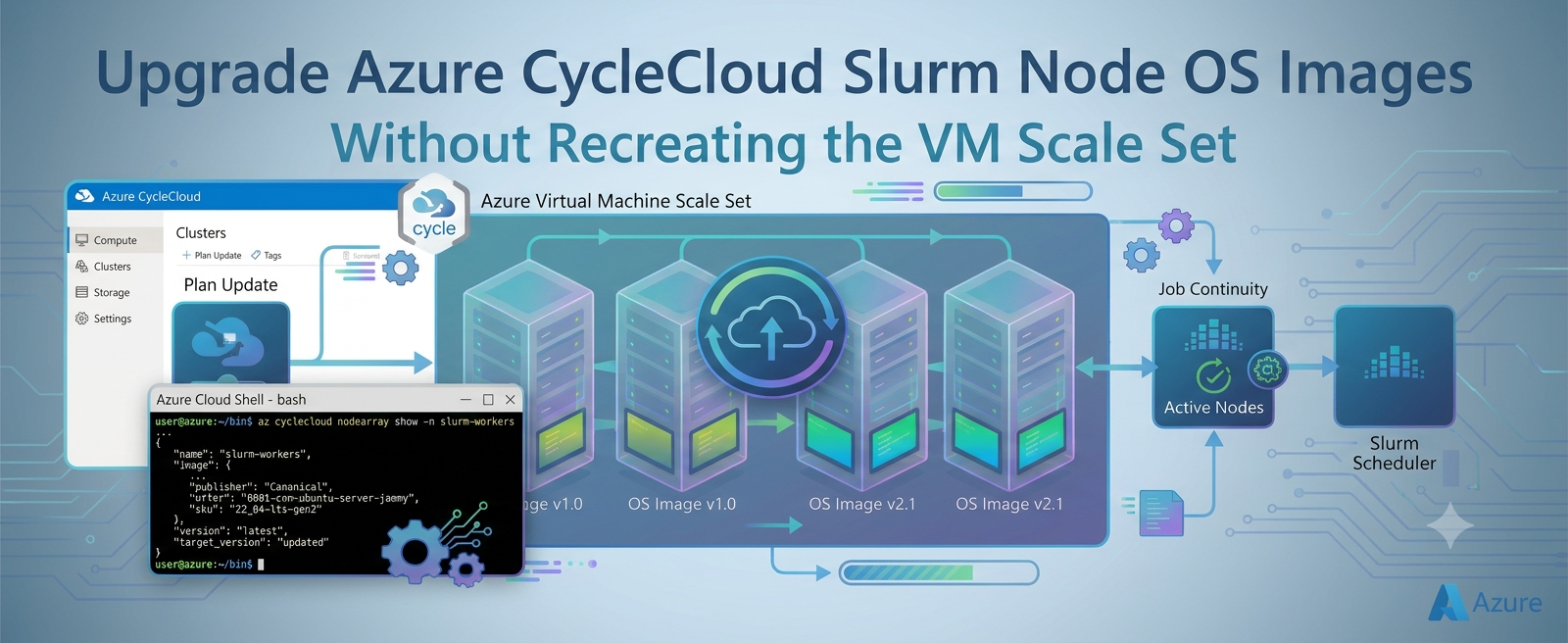
Operating-system image updates in an Azure CycleCloud Slurm cluster are not the same as installing ordinary packages inside a running node. A CycleCloud Slurm node is typically an instance in an Azure Virtual Machine Scale Set (VMSS), and the VMSS model defines the image from which its OS disk is created.
This distinction is especially important when the VMSS uses Manual upgrade mode. Changing an image setting does not automatically upgrade running instances. Likewise, reimaging a node without first changing the VMSS model can rebuild that node from the same old image.
This article describes a controlled, node-by-node method for moving an existing CycleCloud-managed Slurm partition from one Ubuntu HPC image version to another without deleting and recreating the entire VMSS.
NOTE: The same procedure can be used for other schedulers. The appropriate scheduler specific commands need to used for node servicing.
The validated example changes the image reference from:
microsoft-dsvm:ubuntu-hpc:2404:24.04.2026052601to:
microsoft-dsvm:ubuntu-hpc:2404:24.04.2026092501These versions are examples from the validated procedure. Always select and validate an image appropriate for your region, VM size, kernel, drivers, scheduler integration, and application stack.
Problem statement
A CycleCloud Slurm cluster may have long-running compute or GPU nodes that require a newer OS image for reasons such as:
- Security and compliance updates
- Kernel fixes
- Updated device drivers
- Platform fixes
- Updated HPC libraries
- Standardization on a newer image baseline
- Application or container-runtime compatibility
- Supportability requirements
The most straightforward lifecycle operation is often to update the image in CycleCloud, scale the partition down, allow CycleCloud to remove the old VMSS, and then scale the partition back up. CycleCloud then creates a new VMSS using the updated image.
Although that method provides a clean deployment, it may be undesirable in a busy HPC environment because:
- The complete partition may need a maintenance window.
- All nodes in the partition may become unavailable together.
- Deleting the scale set deliberately releases the partition’s current VM allocations.
- Capacity must be acquired again when the partition is restarted.
- Azure capacity is dynamic and cannot always be guaranteed at the time of reacquisition.
- Validation happens after a larger infrastructure change instead of on a single canary node.
- A deployment problem can affect the entire partition rather than one selected instance.
- Large distributed workloads may take significant time to drain from the full partition.
Administrators may therefore need a method that updates the OS image of selected idle nodes while the remaining nodes continue serving workloads.
The challenge is that three separate states must be understood and managed:
- CycleCloud cluster configuration
The image definition CycleCloud will use when it creates or recreates infrastructure. - VMSS model
The image reference currently defined on the existing scale set. - VMSS instance state
Whether a particular VMSS instance has applied the latest VMSS model.
If these three states are not handled in the correct order, a reimage can complete successfully while leaving the node on the old image.
Why reimage alone does not solve the problem
A reimage replaces the node’s OS disk using the image and configuration associated with its current infrastructure model. Reimage does not, by itself, select a newer OS image.
This creates a common failure pattern:
- The desired image is changed in the CycleCloud cluster configuration.
- The existing VMSS continues to reference the old image.
- A CycleCloud, Slurm, or VMSS reimage action is initiated.
- The OS disk is rebuilt.
- The node returns using the old image because the VMSS model still references that image.
For a VMSS configured with Manual upgrade mode, the required order is:
- Drain the selected Slurm node.
- Change the image reference in the existing VMSS model.
- Confirm the new image in the VMSS model.
- Confirm that existing instances report LatestModelApplied=False.
- Apply the latest model to one selected instance using az vmss update-instances.
- Wait for the node to return.
- Confirm that the selected instance reports LatestModelApplied=True.
- Verify the new image from inside the VM.
- Validate the OS, scheduler, drivers, network fabric, container runtime, and workload.
- Resume the node.
- Repeat for the remaining instances.
- Update the CycleCloud node-array image configuration to prevent configuration drift.
Advantages of this approach
- No full VMSS recreation
The existing VMSS object is updated in place. The process does not intentionally delete the complete scale set and create a replacement.
- Node-level maintenance
Only the selected VMSS instance is disrupted. Other nodes can remain available, provided that the workload and cluster architecture support node-by-node maintenance.
- Canary validation
One idle node can be upgraded first. The new image can be tested against the actual scheduler, drivers, network, containers, and applications before expanding the change.
- Smaller failure domain
If the first upgraded node fails validation, it can remain drained while the remaining nodes continue using the previous image.
- Reduced capacity exposure
The procedure avoids deliberately scaling the entire partition to zero and releasing all current allocations at once.
This can reduce exposure to capacity reacquisition risk. However, it should not be treated as a guarantee that host placement or capacity will never change during platform servicing.
- Controlled scheduling
Nodes can be upgraded as they become idle. Slurm drain and resume operations create a clear boundary between:
- Workload evacuation
- Infrastructure servicing
- Technical validation
- Return to production
- Measurable rollout progress
The latestModelApplied property provides an explicit signal showing which VMSS instances have received the updated model.
- Easier rollback control
If the canary node fails, the rollout can stop before all nodes are changed. This is generally easier to manage than recovering an entire recreated partition.
Important limitations
This is a rolling infrastructure procedure, not a zero-downtime operation.
- The selected node becomes unavailable while its OS disk is serviced.
- Jobs running on that node must complete, migrate, be requeued, or be stopped.
- Multi-node MPI and distributed training jobs may make node-by-node maintenance impractical.
- A partition-wide maintenance window may be safer when jobs span most or all nodes.
- Data or configuration stored only on the OS disk may be lost during servicing.
- Node bootstrap should be reproducible and important state should be stored externally.
- Containers do not isolate applications from every host change.
- The host kernel, GPU driver, RDMA stack, device plugins, mounts, and scheduler integration remain important to containerized workloads.
- A direct VMSS update does not permanently update the CycleCloud cluster definition.
- CycleCloud must be updated after successful validation to prevent configuration drift.
Prerequisites
Before starting, confirm the following:
- The target node belongs to the expected CycleCloud-managed VMSS.
- The VMSS uses Manual upgrade mode.
- The target image has been selected and validated for the environment.
- The target image is available for the required region and VM size.
- You have Azure permissions to read and update the VMSS and its instances. (Contributor or Virtual Machine contributor role for the subscription)
- Azure CLI is installed and authenticated in the correct tenant and context.
- jq is available on the Linux node for metadata formatting.
- You have Slurm administrative permission to drain and resume nodes.
- Required application and configuration state is not stored only on the OS disk.
- A maintenance window has been approved.
- A rollback plan has been documented.
- The first target is an idle or noncritical canary node.
Define placeholders instead of embedding environment-specific values:
RESOURCE_GROUP="<RESOURCE-GROUP>"
VMSS_NAME="<VMSS-NAME>"
INSTANCE_ID="<INSTANCE-ID>"
SLURM_NODE="<SLURM-NODE-NAME>"
TARGET_IMAGE_VERSION="24.04.2026092501"
PREVIOUS_IMAGE_VERSION="24.04.2026052601"
Detailed upgrade procedure
Step 1: Capture the current image from inside the HPC compute node
Run the following on the target VM.
curl -s -H Metadata:true --noproxy "" "http://169.254.169.254/metadata/instance/compute?api-version=2021-10-01" | jq '{publisher, offer, sku, version, osType}'Output:
{
  "publisher": "microsoft-dsvm",
  "offer": "ubuntu-hpc",
  "sku": "2404",
  "version": "24.04.2026052601",
  "osType": "Linux"
}
Also record the current OS release and kernel:
cat /etc/os-release
uname -r
Keep these results in the change record. They provide the baseline needed to prove that the image changed after the operation.
vinil@”$SLURM_NODE”:~$ cat /etc/os-release
PRETTY_NAME="Ubuntu 24.04.4 LTS"
NAME="Ubuntu"
VERSION_ID="24.04"
VERSION="24.04.4 LTS (Noble Numbat)"
VERSION_CODENAME=noble
ID=ubuntu
ID_LIKE=debian
HOME_URL="https://www.ubuntu.com/"
SUPPORT_URL="https://help.ubuntu.com/"
BUG_REPORT_URL="https://bugs.launchpad.net/ubuntu/"
PRIVACY_POLICY_URL="https://www.ubuntu.com/legal/terms-and-policies/privacy-policy"
UBUNTU_CODENAME=noble
LOGO=ubuntu-logo

vinil@”$SLURM_NODE”:~$ uname -r
6.8.0-1054-azure
Step 2: Confirm the VMSS upgrade mode and current image
Run the following from Azure Cloud Shell:
az vmss show --resource-group "$RESOURCE_GROUP" --name "$VMSS_NAME" --query "{UpgradeMode:upgradePolicy.mode,Image:virtualMachineProfile.storageProfile.imageReference}" --output jsonSanitized output:
{
  "Image": {
    "offer": "ubuntu-hpc",
    "publisher": "microsoft-dsvm",
    "sku": "2404",
    "version": "24.04.2026052601"
  },
  "UpgradeMode": "Manual"
}
The important value is:
"UpgradeMode": "Manual"With Manual upgrade mode, changing the VMSS model does not automatically update existing instances.
Do not continue until the current image and upgrade mode match the change plan.
Step 3: Map Slurm nodes to VMSS instance IDs
List all instances in the scale set:
az vmss list-instances --resource-group "$RESOURCE_GROUP" --name "$VMSS_NAME" --query "[].{InstanceId:instanceId,ComputerName:osProfile.computerName,ProvisioningState:provisioningState}" --output tableOutput:
InstanceId    ComputerName    ProvisioningState
------------  --------------  -------------------
0             <NODE-000>     Succeeded
1             <NODE-001>     Succeeded
Confirm the mapping carefully. A VMSS instance ID is not necessarily the same as a Slurm node name.
For the first validation:
INSTANCE_ID="0"
SLURM_NODE="slurm-hpc-1"
Only one instance should be selected for the canary upgrade.
Step 4: Drain the selected Slurm node
Prevent Slurm from scheduling new jobs on the node:
SLURM_NODE="slurm-hpc-1"
scontrol update NodeName="$SLURM_NODE" State=DRAIN Reason="VMSS OS image upgrade"
Confirm the state:
sinfo -N -n "$SLURM_NODE"Output:
NODELIST       NODES   PARTITION   STATE
slurm-hpc-1          1       hpc*            drain
Check whether jobs are still assigned to the node:
root@slurm01-scheduler:~# squeue -w "$SLURM_NODE"
             JOBID PARTITION     NAME     USER ST       TIME  NODES NODELIST(REASON)
root@slurm01-scheduler:~#
Proceed only when:
- The node is DRAINING while existing work completes, or DRAINED when no work remains.
- squeue -w returns no active jobs for the node.
- Dependencies involving distributed jobs have been considered.
- The node does not hold application state required by active workloads.
Do not continue while the node is still running a workload.
Step 5: Update the OS image in the VMSS model
Update only the image version in the existing scale-set model:
az vmss update --resource-group "$RESOURCE_GROUP" --name "$VMSS_NAME" --set virtualMachineProfile.storageProfile.imageReference.version="$TARGET_IMAGE_VERSION"The command may return a large JSON object. The important sections should contain:
{
  "upgradePolicy": {
    "mode": "Manual"
  },
  "virtualMachineProfile": {
    "storageProfile": {
      "imageReference": {
        "offer": "ubuntu-hpc",
        "publisher": "microsoft-dsvm",
        "sku": "2404",
        "version": "24.04.2026092501"
      }
    }
  }
}
At this point:
- The VMSS model references the target image.
- Existing VMSS instances have not yet been upgraded.
- No node should be assumed to be using the target image yet.
This separation is one of the most important concepts in the procedure.
Step 6: Verify the target image in the VMSS model
Query only the image reference:
az vmss show --resource-group "$RESOURCE_GROUP" --name "$VMSS_NAME" --query "virtualMachineProfile.storageProfile.imageReference" --output jsonOutput:
{
  "offer": "ubuntu-hpc",
  "publisher": "microsoft-dsvm",
  "sku": "2404",
  "version": "24.04.2026092501"
}
Do not continue until the VMSS model shows the intended target image.
Step 7: Confirm that existing instances have not applied the new model
Run:
az vmss list-instances --resource-group "$RESOURCE_GROUP" --name "$VMSS_NAME" --expand instanceView --query "[].{InstanceId:instanceId,ComputerName:osProfile.computerName,LatestModelApplied:latestModelApplied,ProvisioningState:provisioningState}" --output tableOutput:
InstanceId    ComputerName    LatestModelApplied    ProvisioningState
------------  --------------  --------------------  -----------------
0             <NODE-000>      False                  Succeeded
1             <NODE-001>      False                  Succeeded
The important value is:
LatestModelApplied=False
This confirms that:
- The VMSS model contains the new image.
- The existing VMSS instances are still using their previous model.
- The model change has not automatically upgraded the nodes.
Step 8: Apply the latest model to the canary instance
Apply the updated VMSS model to only the selected instance:
az vmss update-instances --resource-group "$RESOURCE_GROUP" --name "$VMSS_NAME" --instance-ids "$INSTANCE_ID"This operation is disruptive to the selected node. Its OS disk is serviced and connectivity is temporarily unavailable.
Do not start another node upgrade until this instance has:
- Returned to a successful provisioning state.
- Booted correctly.
- Completed CycleCloud initialization.
- Reconnected to Slurm.
- Passed the complete validation checklist.
Step 9: Confirm that the canary applied the latest model
Run the instance-view query again:
az vmss list-instances --resource-group "$RESOURCE_GROUP" --name "$VMSS_NAME" --expand instanceView --query "[].{InstanceId:instanceId,ComputerName:osProfile.computerName,LatestModelApplied:latestModelApplied,ProvisioningState:provisioningState}" --output tableExpected result after upgrading instance 0:
InstanceId    ComputerName    LatestModelApplied    ProvisioningState
------------  --------------  --------------------  -----------------
0             <NODE-000>      True                  Succeeded
1             <NODE-001>      False                 Succeeded
This is the desired canary state:
- Instance 0 has applied the latest model.
- Instance 1 remains on the previous model.
- The VMSS continues to exist.
- The rollout can pause for detailed validation.
Do not rely only on ProvisioningState=Succeeded. Confirm both the model status and the in-guest OS image.
Step 10: Verify the image from inside the upgraded node
After the VM becomes accessible, query its metadata again:
curl -s -H Metadata:true --noproxy "" "http://169.254.169.254/metadata/instance/compute?api-version=2021-10-01" | jq '{publisher, offer, sku, version, osType}'Output
{
  "publisher": "microsoft-dsvm",
  "offer": "ubuntu-hpc",
  "sku": "2404",
  "version": "24.04.2026092501",
  "osType": "Linux"
}
This confirms that the image changed from:
microsoft-dsvm:ubuntu-hpc:2404:24.04.2026052601to:
microsoft-dsvm:ubuntu-hpc:2404:24.04.2026092501Step 11: Verify the operating-system release
Run:
# cat /etc/os-release
PRETTY_NAME="Ubuntu 24.04.5 LTS"
NAME="Ubuntu"
VERSION_ID="24.04"
VERSION="24.04.5 LTS (Noble Numbat)"
VERSION_CODENAME=noble
ID=ubuntu
ID_LIKE=debian
HOME_URL="https://www.ubuntu.com/"
SUPPORT_URL="https://help.ubuntu.com/"
BUG_REPORT_URL="https://bugs.launchpad.net/ubuntu/"
PRIVACY_POLICY_URL="https://www.ubuntu.com/legal/terms-and-policies/privacy-policy"
UBUNTU_CODENAME=noble
LOGO=ubuntu-logo
Verify the running kernel:
# uname -r
6.8.0-1067-azure
The result should match the kernel expected for the approved target image and its driver stack. The actual kernel output should be recorded internally rather than copied into a public article if it contains environment-specific information.
Step 12: Validate operating-system health
# Check for failed services:
systemctl --failed --no-pager

# Check the overall system state:
 systemctl is-system-running

# Review boot errors:
journalctl -b -p err --no-pager

# If cloud-init is used:
cloud-init status --long
Validation criteria should include:
- The node booted successfully.
- No unexpected failed services remain.
- Cloud-init or equivalent bootstrap completed.
- CycleCloud initialization completed.
- Required filesystems and application paths are available.
- DNS resolution works.
- Time synchronization is healthy.
- Identity and authentication components work.
- Monitoring and security agents are operational.
- No unexpected kernel or device initialization errors are present.
Step 13: Validate CycleCloud and Slurm integration
Confirm that Slurm can see the node:
scontrol show node "$SLURM_NODE"Review the node’s:
- State
- Features
- Partitions
- CPU count
- Memory
- Generic resources
- Reason field
- Registration status
The OS image upgrade may change bootstrap timing or host configuration. Confirm that CycleCloud applied the expected node configuration and that Slurm did not register the node with unexpected hardware or resource values.
Step 14: Validate HPC and accelerator dependencies
An OS image update can change the kernel, device drivers, user-space libraries, and bootstrap behavior. Validate every host-level dependency used by the partition.
GPU validation
For GPU nodes:
nvidia-smiConfirm:
- All expected GPUs are visible.
- The driver initializes successfully.
- No unexpected device or driver errors are reported.
- The driver is compatible with the application and container stack.
InfiniBand and RDMA validation
For InfiniBand or RDMA nodes:
ibv_devices
ibstat
Confirm:
- Expected devices are present.
- Ports are active.
- Link state is correct.
- The expected transport stack is available.
Container validation
For containerized environments, validate:
- Container runtime startup
- GPU device exposure
- RDMA device exposure
- Host-library injection
- Required mounts
- User namespace behavior
- Scheduler integration
- Application-specific plugins
A container does not remove dependency on the host kernel, GPU driver, network device stack, or scheduler configuration.
Workload validation
Run representative tests such as:
- A single-node CPU job
- A GPU visibility and compute test
- An RDMA connectivity test
- An MPI or UCX smoke test
- A container launch test
- A small version of a production workload
Do not treat a successful VM boot as sufficient proof that the node is production-ready.
Step 15: Resume the validated node
After all checks pass:
scontrol update NodeName="$SLURM_NODE" State=RESUMEVerify the state:
sinfo -N -n "$SLURM_NODE"Confirm that:
- Slurm returns the node to the expected state.
- No unexpected drain reason remains.
- A small test job runs successfully.
- The node behaves as expected under scheduling.
Step 16: Upgrade the next instance
After the canary node has passed validation, select the next idle instance:
INSTANCE_ID="1"
SLURM_NODE="<NODE-001>"
Drain it:
scontrol update NodeName="$SLURM_NODE" State=DRAIN Reason="VMSS OS image upgrade"Confirm there are no jobs:
sinfo -N -n "$SLURM_NODE"
squeue -w "$SLURM_NODE"
Apply the already-updated VMSS model:
az vmss update-instances --resource-group "$RESOURCE_GROUP" --name "$VMSS_NAME" --instance-ids "$INSTANCE_ID"After the operation completes, repeat all control-plane, operating-system, scheduler, driver, network, container, and workload validation.
When both example instances have been upgraded, the expected state is:
InstanceId    ComputerName    LatestModelApplied    ProvisioningState
------------  --------------  --------------------  -----------------
0             <NODE-000>      True                  Succeeded
1             <NODE-001>      True                  Succeeded
Repeat the drain, update, validate, and resume cycle until every intended instance reports LatestModelApplied=True and passes workload validation.
Update-instances versus reimage
These operations address different layers of the upgrade.
|
Operation |
What it changes |
Key point |
|
az vmss update |
VMSS model |
Existing instances remain unchanged in Manual mode. |
|
az vmss update-instances |
Selected VMSS instances |
Applies the latest VMSS model to the selected instances. |
|
az vmss reimage |
Selected instance OS disks |
Rebuilds the OS disk but should not be treated as a substitute for applying the latest model in this workflow. |
|
CycleCloud or Slurm reimage action |
Requests node reimage through the cluster workflow |
Does not itself change an old VMSS image reference to a new one. |
|
Scale down and scale up after changing CycleCloud |
Recreates infrastructure from the CycleCloud definition |
Provides a clean deployment but may require partition-wide downtime and capacity reacquisition. |
The most important rule is:
A reimage can reproduce the old OS if the infrastructure model still references the old image.
The validated sequence is therefore:
- Update VMSS model
- verify model
- confirm LatestModelApplied=False
- run update-instances
- confirm LatestModelApplied=True
- verify the image from inside the node
Prevent configuration drift in CycleCloud
Directly modifying the existing VMSS is not the final configuration-management step.
CycleCloud remains the owner of the cluster definition. If CycleCloud later removes and recreates the VMSS, the replacement scale set will use the image configured in the CycleCloud node array.
If the CycleCloud definition still points to the previous image, newly created nodes may return to that version even though the current VMSS was upgraded manually.
After the canary and rollout succeed:
- Update the OS image in the corresponding CycleCloud node-array configuration.
- Use the same publisher, offer, SKU, and version validated in the VMSS.
- Review or export the cluster configuration to confirm the new value is persistent.
- Test a controlled scale-out or node replacement if the maintenance plan permits.
- Record the CycleCloud configuration change with the VMSS change.
The desired end state is:
CycleCloud node-array image = VMSS model image = Image reported by every upgraded VMSS instanceUpdating only the current VMSS should not be treated as a permanent CycleCloud configuration change.
Rollback strategy
A rollback plan should be prepared before the first node is changed.
If the canary fails validation:
- Keep the node drained.
- Stop the rollout to all remaining nodes.
- Capture boot, extension, driver, scheduler, and application logs.
- Change the VMSS model back to the previous image.
- Apply the previous model to the affected instance.
- Revalidate the restored node.
- Resume it only after the previous service level has been restored.
Example rollback:
az vmss update --resource-group "$RESOURCE_GROUP" --name "$VMSS_NAME" --set virtualMachineProfile.storageProfile.imageReference.version="$PREVIOUS_IMAGE_VERSION"Apply the restored model:
az vmss update-instances --resource-group "$RESOURCE_GROUP" --name "$VMSS_NAME" --instance-ids "$INSTANCE_ID"Verify the model:
az vmss show --resource-group "$RESOURCE_GROUP" --name "$VMSS_NAME" --query "virtualMachineProfile.storageProfile.imageReference" --output jsonVerify the instance status:
az vmss list-instances --resource-group "$RESOURCE_GROUP" --name "$VMSS_NAME" --expand instanceView --query [].{InstanceId:instanceId,LatestModelApplied:latestModelApplied,ProvisioningState:provisioningState}" --output tableBecause a VMSS has one current model, coordinate rollback carefully if some nodes are already on the new image. Restore the intended VMSS model after the affected node has been recovered, and do not continue the rollout until the incompatibility is understood.
Conclusion
Updating the OS image of CycleCloud Slurm nodes without recreating the entire VMSS is possible when the scale set uses Manual upgrade mode. However, it requires a deliberate separation between:
- The CycleCloud cluster definition
- The VMSS model
- The model applied to each VMSS instance
The core workflow is:
- Drain one node
- Update the VMSS image reference
- Verify the new VMSS model
- Confirm LatestModelApplied=False
- Apply the latest model to one instance
- Confirm LatestModelApplied=True
- Verify the image inside the VM
- Validate the complete HPC workload path
- Resume the node
- Repeat for the remaining nodes
- Align the CycleCloud configuration
This approach provides a controlled canary rollout, limits disruption to selected nodes, avoids deliberate recreation of the full scale set, and makes validation and rollback easier to manage.
Its success depends on disciplined scheduler operations, complete host-level validation, careful treatment of distributed workloads, and final synchronization of the CycleCloud cluster configuration.

 Microsoft